
5iktery PoE-4C-01
5iktery 4K NVR PoE Security Camera System User Manual
Model: PoE-4C-01
Introduction
This manual provides detailed instructions for the installation, operation, and maintenance of your 5iktery 4K NVR PoE Security Camera System. This system is designed for reliable 24/7 surveillance, offering high-resolution video recording and smart detection features for both indoor and outdoor environments.
Please read this manual thoroughly before using the product to ensure proper setup and functionality.
What's in the Box
Verify that all components are present in the package:
- 1 x Network Video Recorder (NVR) with 500GB HDD pre-installed
- 4 x 4K PoE Security Cameras
- 4 x Ethernet Cables
- 1 x USB Mouse
- 1 x Power Adapter for NVR

Figure 1: System Components Overview
Setup
Follow these steps to set up your 5iktery NVR PoE Security Camera System:
1. NVR Connection
- Connect the NVR to a monitor using an HDMI or VGA cable.
- Connect the USB mouse to a USB port on the NVR.
- Connect the NVR to your router using an Ethernet cable for network access.
- Connect the power adapter to the NVR and plug it into a power outlet. The NVR will power on automatically.

Figure 2: NVR Rear Panel Connections
2. Camera Installation and Connection
- Mount the cameras in desired locations, ensuring a clear field of view. The cameras are suitable for both indoor and outdoor use.
- Connect each camera to an available PoE port on the NVR using the provided Ethernet cables. The NVR will supply power and video signal through a single cable.
- Ensure all cable connections are secure.

Figure 3: PoE Camera Connection Diagram
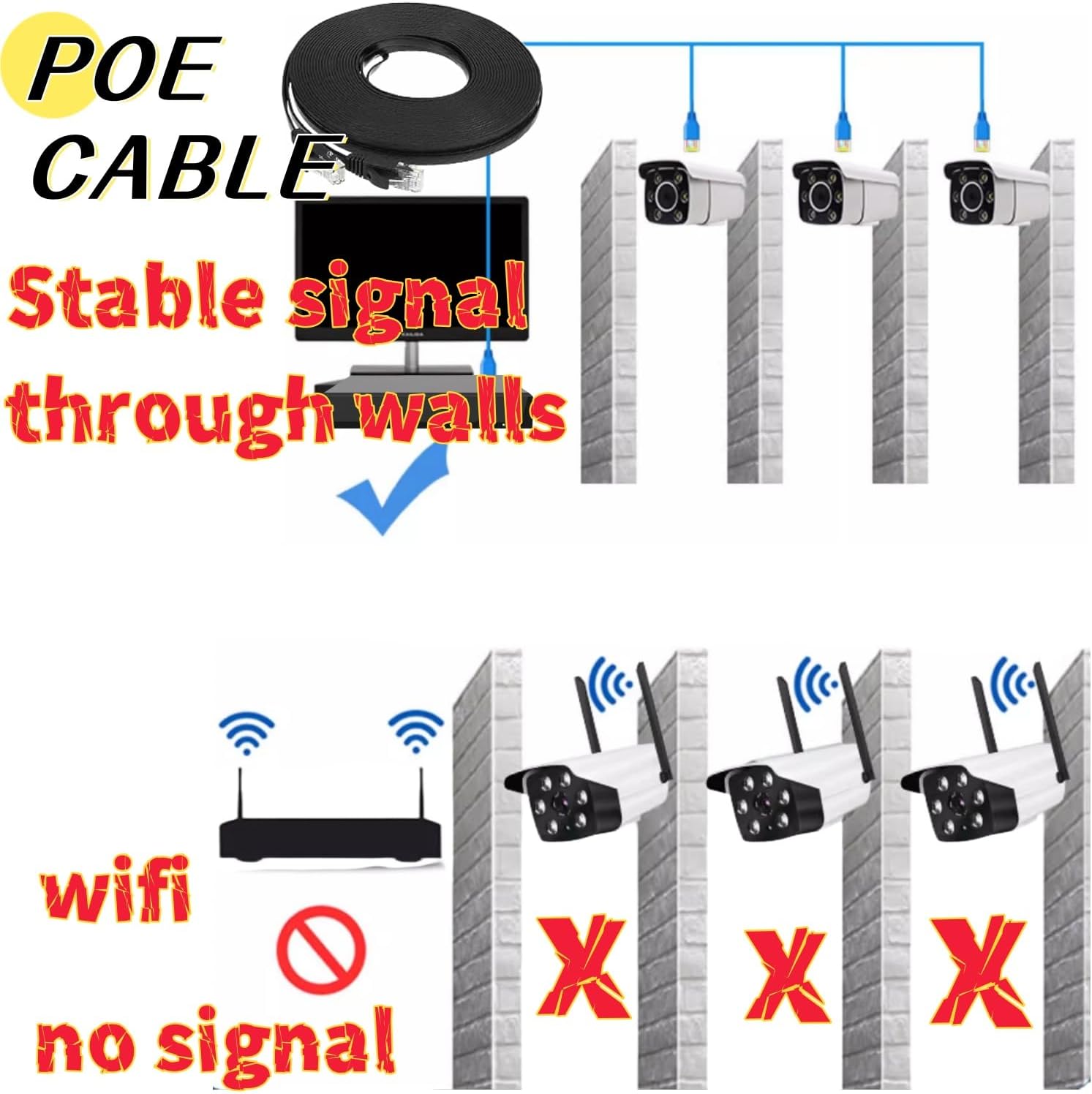
Figure 4: Benefits of PoE Wired Connection
Note: This system uses Power over Ethernet (PoE) for simplified installation. Cameras are not Wi-Fi compatible and must be connected via Ethernet cable to the NVR.
Operating Instructions
1. Initial Configuration
Upon first boot, the NVR will guide you through an initial setup wizard. This typically includes setting a password, time zone, and network settings. Follow the on-screen prompts.
2. Video Recording
The NVR comes with a pre-installed 500GB Hard Disk Drive (HDD) for continuous 24/7 recording. The system is configured to record automatically once cameras are connected. The 500GB HDD can store recordings for approximately ten days before overwriting the oldest footage.

Figure 5: HDD Storage for Continuous Recording
3. Image Quality
The 4K cameras provide high-definition video, capturing clear and detailed images. This allows for better identification of subjects and objects within the surveillance area.
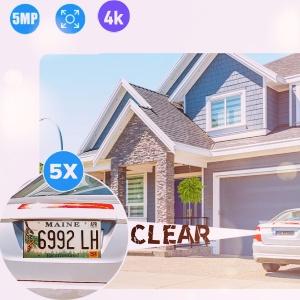
Figure 6: High-Resolution Image Detail
4. Smart Motion Detection
The system features smart motion detection capable of identifying persons, pets, and vehicles. When motion is detected, the NVR can trigger alerts:
- App Push Notifications: Receive instant alerts on your mobile device.
- Email Alerts: Configurable email notifications (requires initial setup).

Figure 7: Motion Detection Alerts
5. Remote Access and Playback
Access live video feeds and review recorded footage from anywhere using the dedicated mobile application or desktop software.
- Mobile App: Download the "TSEYE" app from your device's app store (iOS/Android). Register an account and add your NVR device.
- Desktop Software: Compatible with Windows and Mac OS.

Figure 8: Remote Access on Multiple Devices


Figure 9: TSEYE Mobile App Download and Device Registration
6. Night Vision
The 4K cameras provide clear imaging both during the day and at night. Equipped with infrared (IR) technology, the cameras offer night vision up to 65 feet, ensuring continuous monitoring in low-light or no-light conditions.
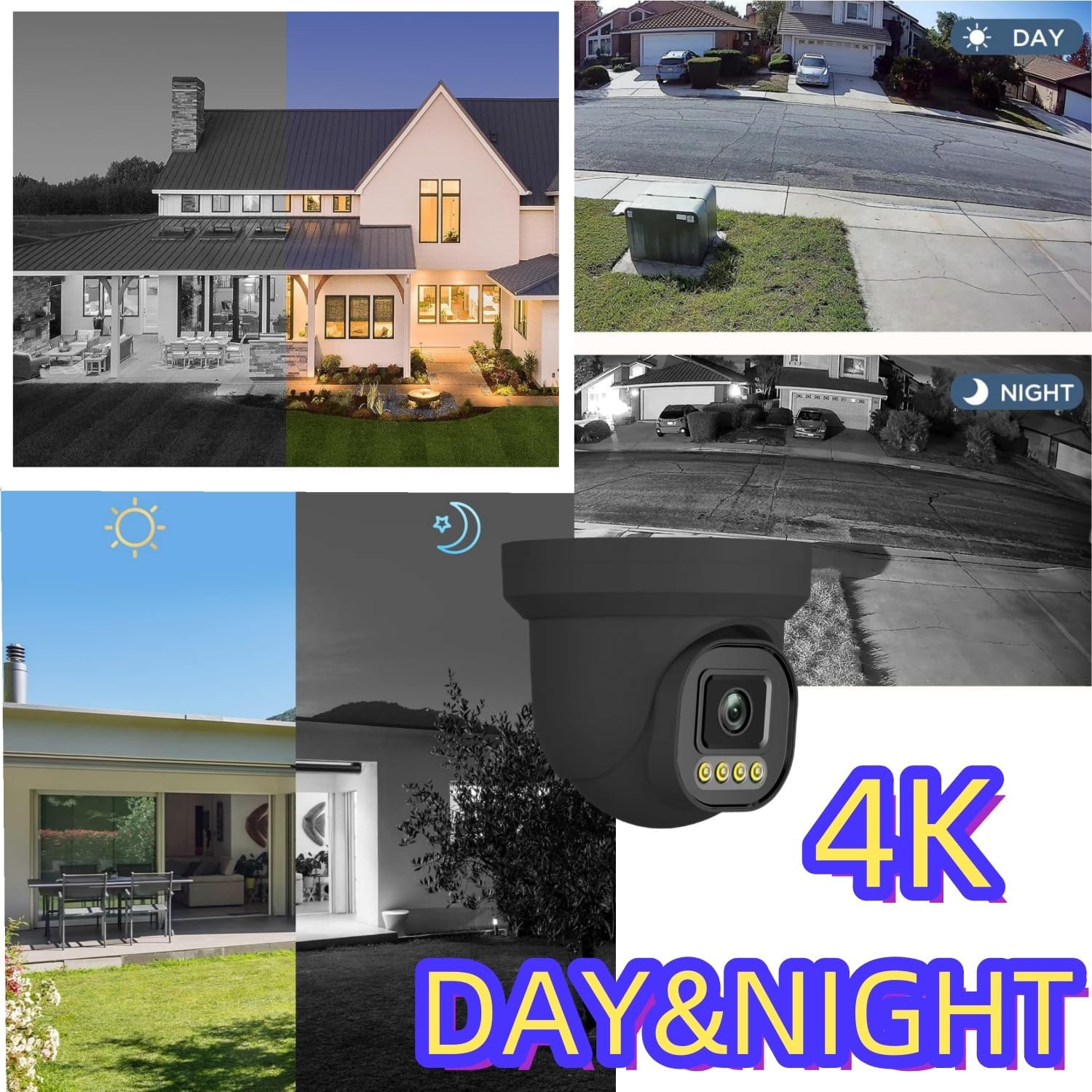
Figure 10: Day and Night Vision Capabilities
Maintenance
- Regular Cleaning: Periodically clean the camera lenses with a soft, damp cloth to ensure optimal image clarity.
- Firmware Updates: Check the manufacturer's website for any available firmware updates for the NVR and cameras to ensure continued performance and security.
- Environmental Protection: The cameras are IP66 rated for weather resistance, meaning they are protected against dust and powerful water jets. However, avoid direct exposure to extreme weather conditions if possible to prolong product life.

Figure 11: IP66 Weather Resistance
Troubleshooting
- No Video Feed:
- Ensure all cameras are securely connected to the NVR's PoE ports.
- Verify the NVR is powered on and connected to a monitor.
- Check Ethernet cables for damage.
- No Remote Access:
- Confirm the NVR is connected to your router and has internet access.
- Ensure the mobile app or desktop software is correctly configured and the NVR is added.
- Check your network settings and firewall for any restrictions.
- Recording Issues:
- Verify the 500GB HDD is properly installed and recognized by the NVR.
- Check recording schedules and settings in the NVR menu.
- If the HDD is full, older footage will be overwritten. Ensure sufficient storage or consider upgrading the HDD if longer retention is needed.
- Poor Image Quality:
- Clean camera lenses.
- Ensure cameras are not obstructed.
- Check camera resolution settings in the NVR.
For further assistance, please contact customer support.
Specifications
| Feature | Detail |
|---|---|
| Brand | 5iktery |
| Model Number | PoE-4C-01 |
| Connectivity Technology | Wired (PoE) |
| Video Capture Resolution | 4K (Cameras), 1080p (NVR Output) |
| Special Features | Night Vision, Person/Pet/Vehicle Detection, Remote Monitoring |
| Number of Channels | 4 |
| Memory Storage Capacity | 500 GB HDD (expandable) |
| Night Vision Range | 65 Feet |
| Recording Mode | Continuous, Motion Detection |
| Operating System | Linux, Web Interface |
| Weather Resistance | IP66 Rated |
| Product Dimensions | 12 x 15.7 x 2.8 inches (NVR) |
| Item Weight | 8 pounds (Total System) |
Warranty and Support
The manufacturer provides support for this product. If you encounter any issues with the HDD or cameras, or have questions regarding operation, please contact customer support directly. They are committed to resolving any problems and will assist with replacements if necessary.
For support, please refer to the contact information provided with your product packaging or visit the official 5iktery website.
Ask a question about this manual
Ask about setup, troubleshooting, compatibility, parts, safety, or missing instructions. Manuals+ will review the question and use this page’s manual context to help answer it.