
1. Introduction
Thank you for choosing the Plixify Wireless Apple CarPlay Double Din Car Stereo, Model 7036W. This manual provides detailed instructions for the installation, operation, and maintenance of your new car stereo system. Please read this manual thoroughly before use to ensure proper functionality and to maximize your user experience. This unit integrates advanced features such as wireless Apple CarPlay, Android Auto, Bluetooth 5.2, and a high-definition IPS touchscreen to enhance your driving journey.

Image 1.1: The Plixify 7-inch Double Din Car Stereo, Model 7036W, showcasing its main interface with common applications.
2. What's in the Box
Verify that all components are present in the package:
- Double-DIN Car Stereo (Main Unit)
- Backup Camera and External Microphone
- Wiring Harness (8P+5P+5P)
- 21-Key Remote Control
- Mounting Bracket, 188mm*115mm Frame

Image 2.1: All included accessories and the main unit of the Plixify car stereo.
3. Installation Guide
Proper installation is crucial for optimal performance. If you are unsure about any steps, it is recommended to seek professional assistance.
3.1. Pre-Installation Checks
- Vehicle Compatibility: The product dimensions are 7.01 x 3.94 x 2.75 inches (178 x 100 x 70mm), compatible with standard double DIN installation size. Please measure your vehicle's dashboard opening to ensure compatibility. Additional brackets or accessories may be required for some vehicle models.
- Power Disconnection: Before starting, disconnect the negative terminal of your vehicle's battery to prevent electrical shorts.
3.2. Mounting the Stereo
- Remove your existing car stereo and any necessary trim panels from the dashboard.
- If required, install a compatible double DIN dash kit (not included) into your vehicle's dashboard opening.
- Attach the provided mounting brackets to the sides of the Plixify car stereo.
- Slide the stereo into the dash kit or directly into the dashboard opening until it is securely in place.
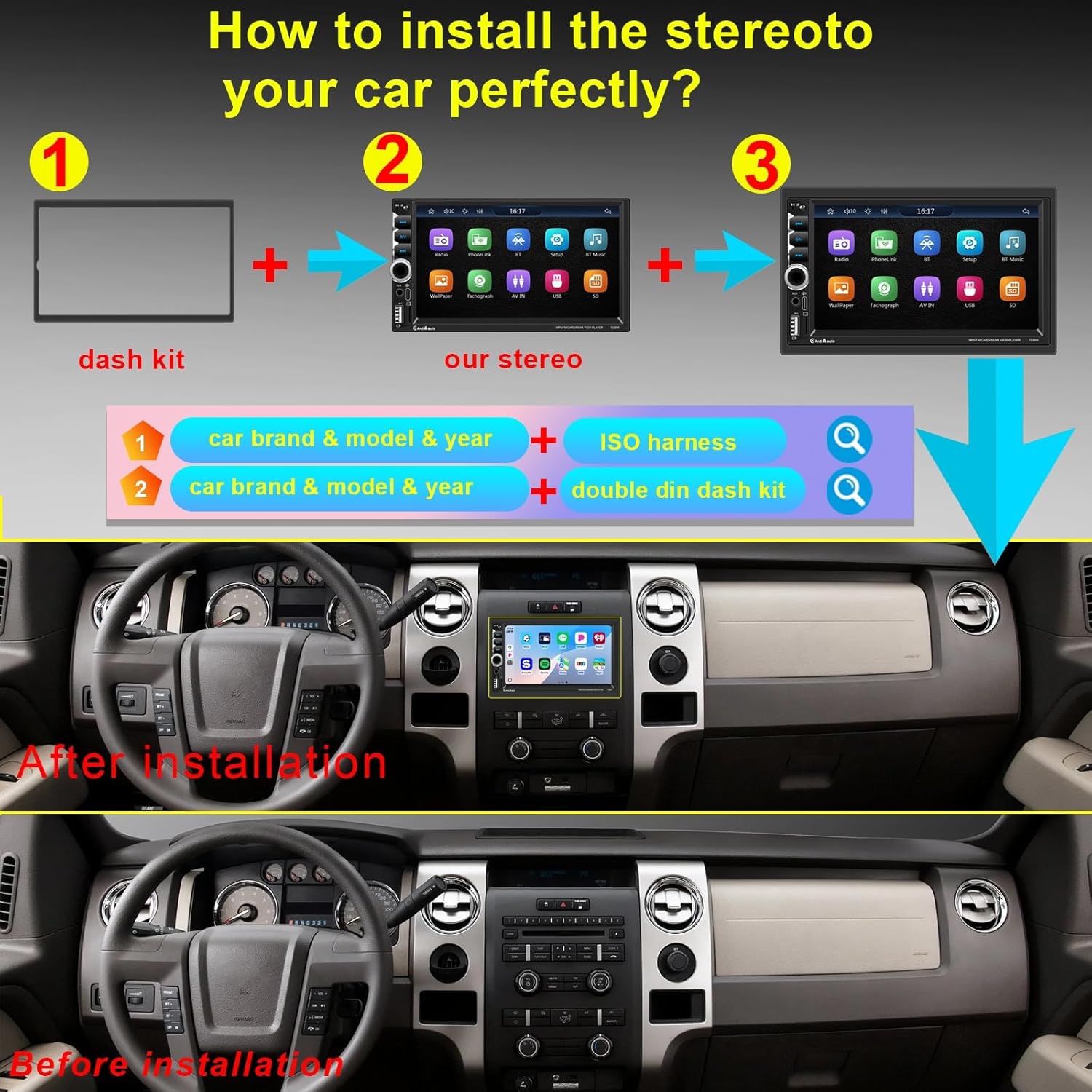
Image 3.1: Visual guide for installing the Plixify car stereo into a vehicle's dashboard.
4. Wiring Diagram
Carefully follow the wiring instructions to ensure correct functionality and prevent damage to the unit or vehicle's electrical system.

Image 4.1: Comprehensive wiring diagram for the Plixify 7036W car stereo, including ISO harness and reverse camera connections.
4.1. General Wiring Connections
- Power (Yellow): Connect to constant 12V power supply.
- Accessory (Red): Connect to switched 12V accessory power.
- Ground (Black): Connect to vehicle chassis ground.
- Speaker Wires: Connect to corresponding vehicle speaker wires (e.g., White/White-Black for Front Left, Gray/Gray-Black for Front Right, Green/Green-Black for Rear Left, Purple/Purple-Black for Rear Right).
- Reverse Camera Input: Connect the video signal from the backup camera to the 'CAM-IN' RCA input. Connect the camera's power to the reverse light circuit and the reverse trigger wire (usually brown or pink) to the vehicle's reverse light signal.
- Steering Wheel Control (SWC): Connect SWC wires to your vehicle's steering wheel control interface (if applicable). Programming may be required.
5. Operating Instructions
This section details the primary functions and how to operate your Plixify car stereo.
5.1. Wireless Apple CarPlay and Android Auto
The unit supports both wireless and wired connections for Apple CarPlay and Android Auto, allowing seamless integration with your smartphone for navigation, music, calls, and more.
- For Wireless Connection: Ensure Bluetooth and Wi-Fi are enabled on your smartphone. On the car stereo, select the CarPlay or Android Auto icon. Follow the on-screen prompts to pair your phone via Bluetooth. Once paired, the system will automatically connect via Wi-Fi for the full CarPlay/Android Auto experience.
- For Wired Connection: Connect your smartphone to the stereo's USB port using a certified USB cable. The system should automatically detect and launch CarPlay or Android Auto.

Image 5.1: Display of Wireless CarPlay, Android Auto, and MirrorLink interfaces on the Plixify stereo.
5.2. Bluetooth 5.2 & Hands-free Calling
The upgraded Bluetooth 5.2 technology provides a stable connection for hands-free calling and high-quality audio streaming.
- Pairing: Go to the Bluetooth menu on the stereo. Enable Bluetooth on your phone and search for available devices. Select 'Plixify 7036W' (or similar name) from the list and confirm the pairing code.
- Hands-free Calls: Once paired, you can make and receive calls directly through the stereo's touchscreen. The external microphone ensures clear communication.
- Audio Streaming: Play music from your phone via Bluetooth. Use the stereo controls to skip tracks or adjust volume.

Image 5.2: Bluetooth 5.2 functionality for hands-free communication and audio playback.
5.3. Navigation
Utilize your preferred navigation apps through Apple CarPlay or Android Auto for real-time directions and traffic updates.
- Access navigation apps like Google Maps, Apple Maps, or Waze directly from the stereo's display once your phone is connected via CarPlay or Android Auto.
- The large IPS touchscreen provides a clear view of maps and directions.

Image 5.3: Navigation interface showing map data and simultaneous functions.
5.4. Backup Camera System
The included high-definition, night-vision, and waterproof backup camera provides clear rearview images for enhanced safety when reversing.
- When the vehicle is shifted into reverse, the stereo automatically displays the camera feed.
- The camera features a 170° wide-angle view and IP69 waterproofing for durability.
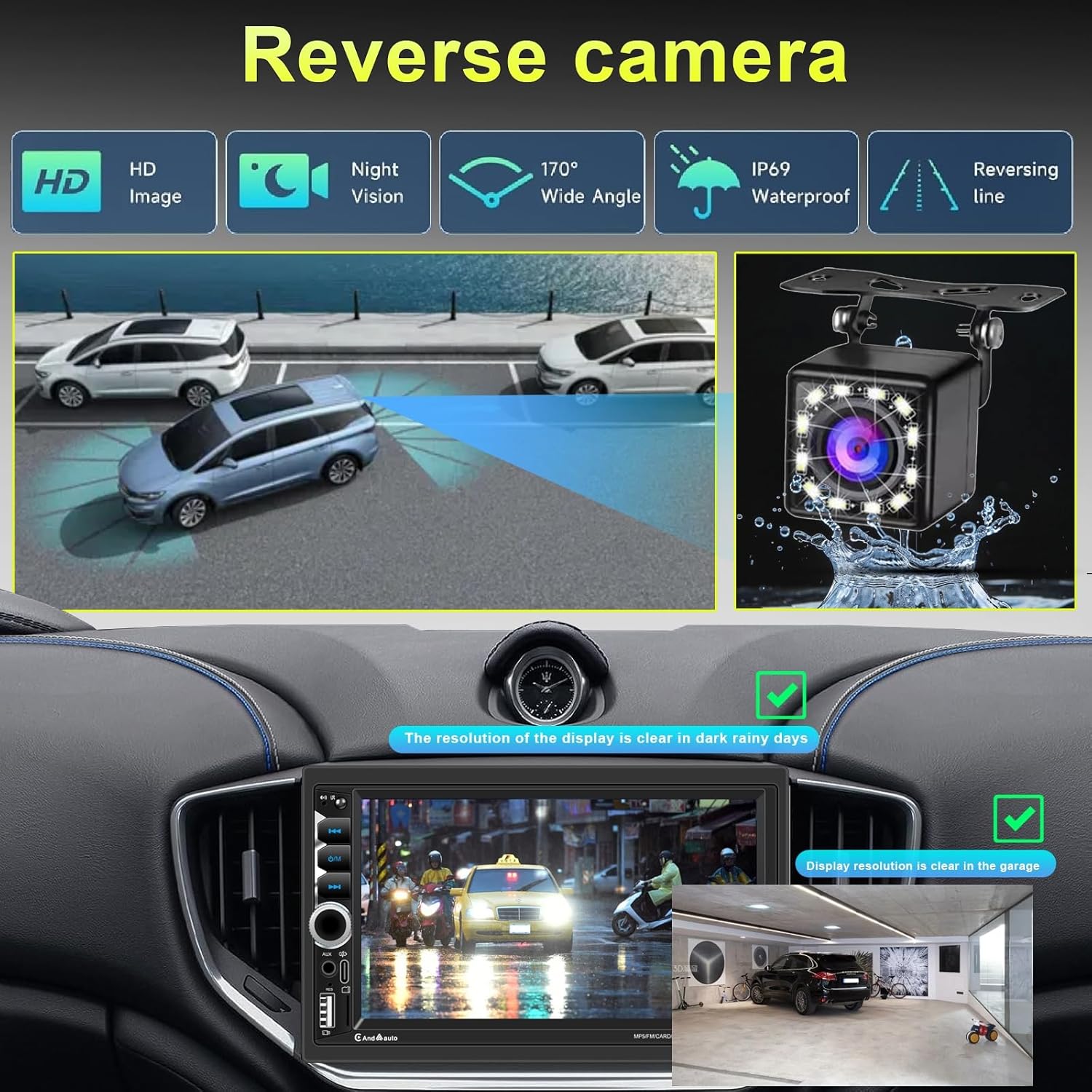
Image 5.4: Overview of the reverse camera system's capabilities and display on the car stereo.
5.5. Voice Control
Utilize voice commands through Siri (for Apple CarPlay) or Google Assistant (for Android Auto) to control various functions without taking your hands off the wheel.
- Activate voice control by pressing the voice command button on the stereo or steering wheel, or by saying the wake word (e.g., "Hey Siri" or "Hey Google").
- Use voice commands for navigation, making calls, sending messages, playing music, and more.

Image 5.5: Voice control integration for hands-free operation.
5.6. FM Radio and EQ/DSP
Enjoy a wide range of radio stations and customize your audio experience with the built-in equalizer.
- FM Radio: Select the FM radio function from the main menu. Use the touchscreen to scan for stations, save presets, and switch between frequencies.
- EQ/DSP: Access the Equalizer (EQ) or Digital Sound Processor (DSP) settings to adjust audio parameters such as bass, treble, and balance. Choose from preset sound modes (e.g., Jazz, Classic, Rock, Pop) or create a custom profile.

Image 5.6: FM Radio interface and Equalizer (EQ)/Digital Sound Processor (DSP) settings.
6. Specifications
Detailed technical specifications for the Plixify 7036W car stereo:
| Feature | Specification |
|---|---|
| Product Dimensions | 2.75 x 7 x 3.94 inches (178 x 100 x 70mm) |
| Item Weight | 1.98 pounds |
| Item Model Number | 7036W |
| Brand | Plixify |
| Connectivity Technology | Auxiliary, Bluetooth 5.2, Dual USB Ports & RCA Input, Type-C Port, Wireless Apple CarPlay & Android Auto |
| Controller Type | Push Button, Touch |
| Special Features | Bluetooth 5.2 Technology, HD IPS Display Touchscreen, Multi-Function Sound Adjustment, Powerful Backup Camera System, Wireless & Wired Apple CarPlay and Android Auto |
| Compatible Devices | Amplifier, Android System (with Android Auto), Subwoofer, iPhone (with CarPlay) |
| Connector Type | USB, USB Type-C |
| Audio Output Mode | Stereo |
| Surround Sound Channel Configuration | 4 |
| Video Encoding | MPEG-1 | MPEG-2 | MPEG-4 | H.264 | H.263 | VC1 | RV | RMVB | DivX | Sorenson Spark | VP8 | AVS Stream |
| Color | Black |
7. Troubleshooting
This section addresses common issues you might encounter with your car stereo. If the problem persists, please contact customer support.
| Problem | Possible Cause | Solution |
|---|---|---|
| Unit does not power on | Incorrect wiring; Blown fuse; Vehicle battery issue | Check power and ground connections. Verify vehicle fuses and the stereo's inline fuse. Ensure battery has sufficient charge. |
| No sound from speakers | Incorrect speaker wiring; Mute function active; Volume too low; Amplifier issue | Check all speaker connections. Ensure volume is up and unit is not muted. Verify external amplifier (if used) is powered and connected correctly. |
| Bluetooth connection unstable or skipping | Interference; Phone software issue; Outdated firmware | Ensure no other Bluetooth devices are interfering. Restart both phone and stereo. Update phone's operating system. Try re-pairing the device. |
| CarPlay/Android Auto not connecting | Incorrect USB cable; Phone settings; Wi-Fi/Bluetooth issues | Use a high-quality, certified USB cable. Ensure CarPlay/Android Auto is enabled on your phone. Check Wi-Fi and Bluetooth connections for wireless mode. |
| Backup camera not displaying | Incorrect wiring; Camera malfunction; Reverse trigger not detected | Verify camera power and video signal connections. Ensure the reverse trigger wire is correctly connected to the vehicle's reverse light circuit. |
8. Maintenance
To ensure the longevity and optimal performance of your Plixify car stereo, follow these maintenance guidelines:
- Screen Cleaning: Use a soft, lint-free cloth to gently wipe the touchscreen. For stubborn smudges, slightly dampen the cloth with water or a screen-safe cleaner. Avoid harsh chemicals or abrasive materials.
- General Cleaning: Keep the unit free from dust and debris. Use a soft brush or compressed air to clean around buttons and ports.
- Temperature: Avoid exposing the unit to extreme temperatures for extended periods.
- Software Updates: Periodically check the Plixify website or contact support for any available firmware updates to ensure the best performance and compatibility.
9. Warranty and Support
Plixify is committed to providing excellent customer service and product support.
- Warranty: This product comes with a one-year replacement warranty from the date of purchase. Please retain your proof of purchase for warranty claims.
- Online Installation Assistance: Plixify offers online installation assistance to help you with the setup process.
- Pre-Purchase Guidance: If you have questions before purchasing, guidance is available.
- Contact Support: For any issues, technical support, or warranty inquiries, please contact Plixify customer service. Refer to your purchase platform or the Plixify official website for contact details.