
Introduction
Thank you for purchasing the POFOTO 15.6-inch Portable DVD Player. This device is designed to provide versatile entertainment with its high-definition swivel screen, long-lasting battery, and multi-format support. This manual will guide you through the setup, operation, maintenance, and troubleshooting of your new portable DVD player to ensure optimal performance and enjoyment.
What's in the Box
Please check the contents of your package. If any items are missing or damaged, please contact POFOTO customer support.
- POFOTO 15.6-inch Portable DVD Player
- AC Adapter
- Car Charger
- 3-in-1 AV Cable
- Remote Control
- Quick Guide
Product Overview
The POFOTO portable DVD player features a 15.6-inch HD screen with a resolution of 1280 x 800 pixels. The screen can rotate 270 degrees and fold 180 degrees, offering flexible viewing angles. It includes dual stereo speakers for clear audio output and supports various media formats via disc, USB, and SD card.

Image: The POFOTO 15.6-inch Portable DVD Player showcasing its large display with a scenic view.
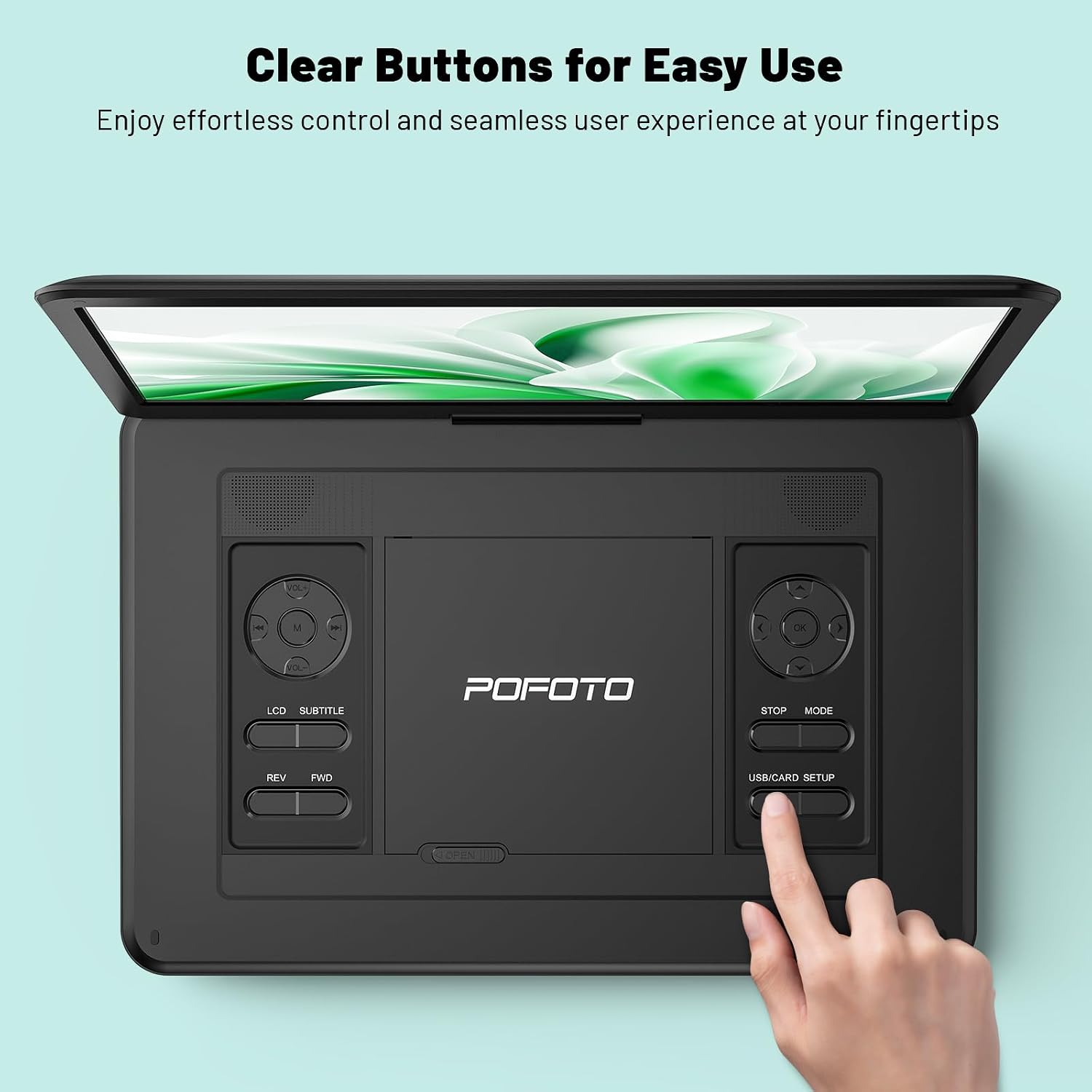
Image: A close-up of the player's control panel, highlighting the clearly labeled buttons for easy operation.
Setup
1. Initial Charging
Before first use, fully charge the device. Connect the AC adapter to the DC IN port on the player and plug it into a power outlet. The charging indicator light will illuminate. A full charge provides up to 6 hours of playback.

Image: Illustration of the player's power sources, including the 5000mAh battery, AC adapter, and car charger.
2. Powering On/Off
- To power on: Slide the POWER switch to the ON position.
- To power off: Slide the POWER switch to the OFF position.
3. Screen Adjustment
The screen can be rotated 270 degrees horizontally and folded 180 degrees vertically to achieve the desired viewing angle. Handle the screen gently during adjustment.
Operating Instructions
1. Playing DVDs/CDs
- Gently slide the OPEN latch to open the disc cover.
- Place a compatible DVD or CD onto the disc spindle with the label side facing up.
- Close the disc cover until it clicks securely.
- The player will automatically detect and begin playing the disc. If not, press the PLAY button.
Supported Disc Formats: DVD/CD, DVD±R/RW, CD-R(RW), SVCD-R(RW), VCD (Blu-ray discs are not supported).

Image: A hand demonstrating how to open the disc cover and insert a DVD into the player.
2. Using USB/SD Card
- Insert a USB flash drive (up to 32GB) into the USB port or an SD card (up to 32GB) into the SD card slot.
- Use the MODE button on the player or remote to select USB or SD mode.
- Navigate through your files using the directional buttons and press PLAY to select and play media.
Supported File Formats: VOB, AVI, MPEG, MP3, WMA, JPEG.
3. Connecting to TV/Projector
To enjoy content on a larger screen, use the included 3-in-1 AV cable:
- Connect one end of the AV cable to the AV OUT port on the DVD player.
- Connect the other end of the AV cable to the corresponding AV IN ports (Yellow for Video, Red for Right Audio, White for Left Audio) on your TV or projector.
- Select the correct AV input source on your TV or projector.
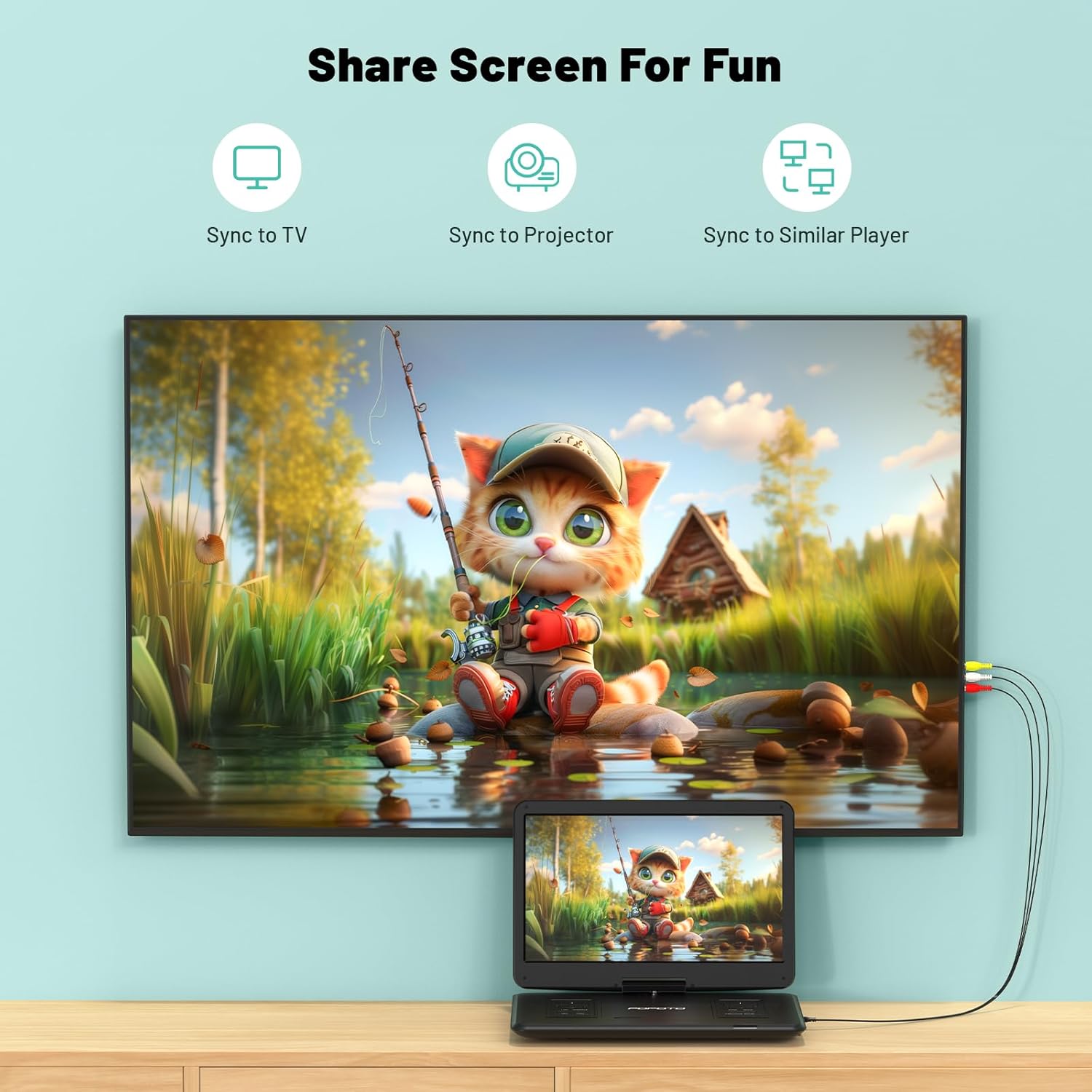
Image: The portable DVD player connected to a television, demonstrating the screen sharing capability.
4. Audio Output
- Dual Stereo Speakers: The player features built-in dual stereo speakers for direct audio playback. Adjust volume using the VOL+/- buttons.
- Headphone Jack: For private listening, connect 3.5mm headphones to the headphone jack. The built-in speakers will automatically mute.
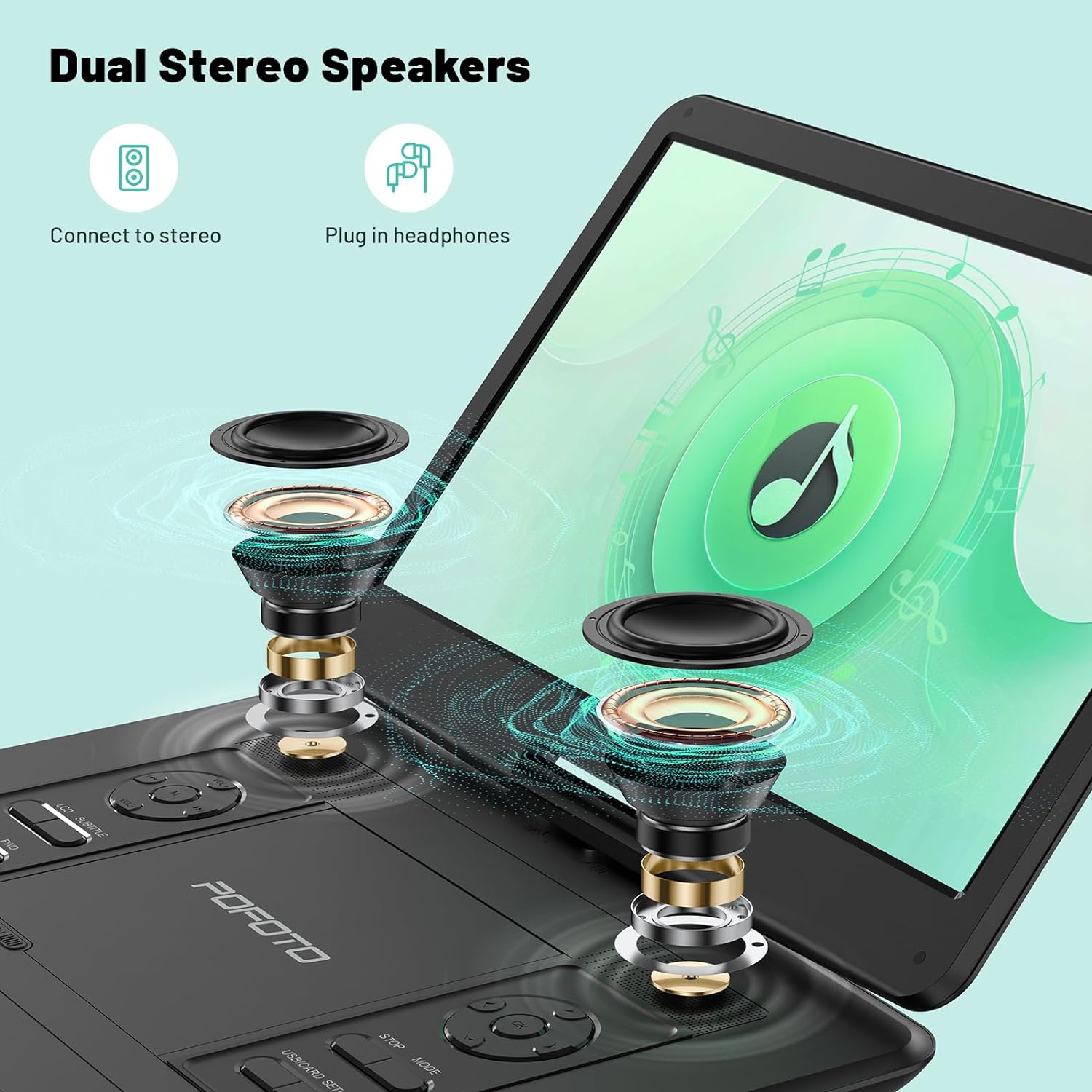
Image: An exploded view highlighting the internal dual stereo speakers and the option to connect external headphones.
5. Last Memory Function (Resume Play)
The player is equipped with a last memory function. If the device is powered off or playback is interrupted, it will automatically resume from the last stopped point when powered on again. This feature is particularly useful for long journeys or when taking breaks.

Image: A visual representation of the player's ability to resume playback from the last watched scene.
Maintenance
1. Cleaning the Device
- Use a soft, dry cloth to clean the exterior of the player.
- For the screen, use a soft, lint-free cloth specifically designed for electronics screens. Do not use abrasive cleaners or solvents.
- Keep the disc tray and lens clean. Use a specialized DVD/CD lens cleaner if necessary.
2. Battery Care
- To prolong battery life, avoid fully discharging the battery frequently.
- If storing the device for an extended period, charge it to about 50% every few months.
- Avoid exposing the device to extreme temperatures, which can degrade battery performance.
3. Storage
Store the player in a cool, dry place away from direct sunlight and excessive dust. Ensure the disc tray is empty and closed before storage.
Troubleshooting
If you encounter any issues with your POFOTO Portable DVD Player, please refer to the following common problems and solutions:
No Power
- Ensure the POWER switch is in the ON position.
- Check if the AC adapter is securely connected to both the player and a working power outlet.
- Verify that the battery is charged. If not, charge the device for at least 30 minutes.
Disc Not Playing / Disc Error
- Ensure the disc is clean and free of scratches or smudges. Wipe gently with a soft cloth from the center outwards.
- Verify that the disc is inserted correctly with the label side facing up.
- Check if the disc format is supported (e.g., Blu-ray discs are not supported).
- Try a different disc to determine if the issue is with the player or the disc.
No Sound
- Increase the volume using the VOL+ button on the player or remote control.
- If headphones are connected, disconnect them to enable the built-in speakers.
- If connected to a TV/projector, ensure the TV/projector's volume is up and the correct audio input is selected.
Picture Quality Issues
- Adjust the screen brightness, contrast, and color settings in the player's menu.
- Ensure the disc or media file is of good quality.
- If connected to an external display, check the AV cable connection and the display's settings.
For further assistance, please contact POFOTO customer support.
Specifications
| Feature | Detail |
|---|---|
| Model Number | PD14-Black-DE-14.1 |
| Screen Size | 15.6 Inches (Note: Some specifications may list 14.1 inches) |
| Display Resolution | 1280x800 |
| Display Type | LCD |
| Battery | 1 Lithium-polymer (included), 5000 mAh, up to 6 hours playback |
| Supported Disc Media | CD, DVD, CD-R/RW, DVD±R/±RW, VCD/SVCD (Blu-ray not supported) |
| Supported Digital Media | AVI, VOB, MP3, WMA, OGG, ACC, JPG (via USB/SD up to 32GB) |
| Connectivity | USB, SD Card, AV Out (for TV/Projector) |
| Compatible Devices | Headphones, Projector, Television |
| Product Dimensions | 38L x 27W x 5H centimeters |
| Item Weight | 2500 Grams |
| Color | Black |
| Manufacturer | POFOTO |
Warranty and Support
POFOTO is committed to providing reliable products and excellent customer service.
Warranty Information
This product comes with a 24-month warranty from the date of purchase. The warranty covers manufacturing defects and malfunctions under normal use. It does not cover damage caused by misuse, accidents, unauthorized modifications, or natural disasters.

Image: POFOTO's service guarantee highlights, including a 24-month warranty.
Customer Support
If you have any questions, require technical assistance, or need to claim warranty service, please contact the POFOTO support center. We offer professional and technical support with a commitment to a 24-hour response time to resolve any issues you may encounter.