
1. Product Overview
The Matast Smart Watch Generation 1 is a versatile wearable device designed to enhance your daily life and fitness activities. It features a 1.91-inch HD full-touch color screen, Bluetooth calling, comprehensive health monitoring, and support for over 110 sports modes.
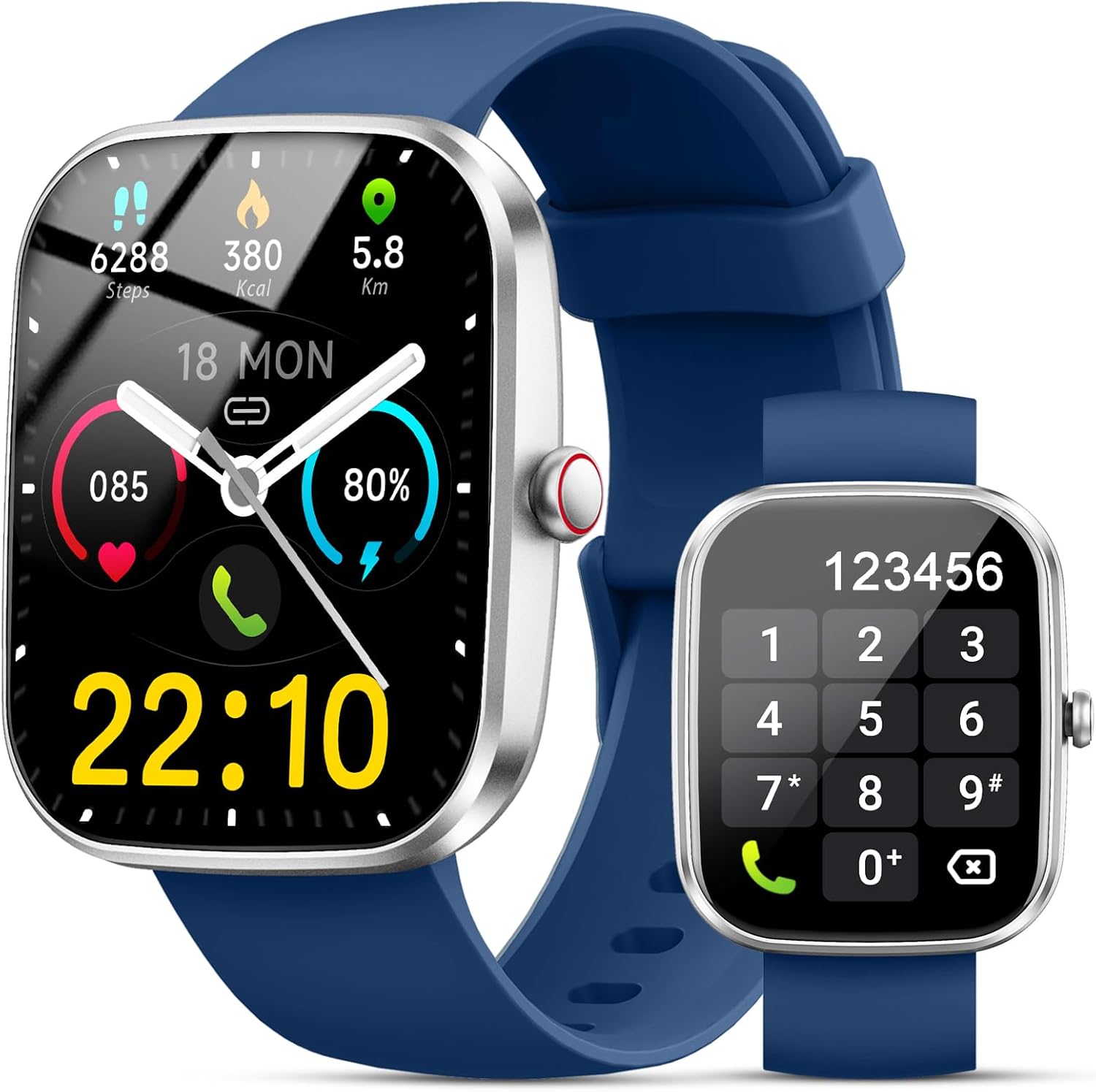
Figure 1: Matast Smart Watch Generation 1
2. Setup
2.1. What's in the Box
- Matast Smart Watch (Generation 1)
- Charging Cable
- User Manual
- Watch Band
2.2. Charging the Device
Before initial use, fully charge your smartwatch. The device uses a magnetic charging cable. Connect the magnetic end to the charging points on the back of the watch and the USB end to a compatible power adapter (not included).

Figure 2: Magnetic Charging and Battery Information
A full charge typically takes approximately 2 hours, providing 5-7 days of normal use and up to 30 days of standby time.
2.3. App Installation and Pairing
To unlock the full potential of your smartwatch, download and install the companion app. The recommended app is Gloryfit, available on both iOS (version 9.0 and above) and Android (version 6.0 and above) devices.
- Download the 'Gloryfit' app from your phone's app store.
- Ensure your phone's Bluetooth is enabled.
- Open the 'Gloryfit' app and follow the on-screen instructions to search for and connect to your device (e.g., 'T60').
- For Bluetooth audio functions (answering/making calls), you may need to connect the watch directly via your phone's Bluetooth settings after initial app pairing.

Figure 3: App Connection Guide
3. Operating the Smart Watch
3.1. Basic Navigation
The smartwatch features a 1.91-inch HD full-touch color screen for intuitive navigation. Swipe left, right, up, or down to access different menus and functions. The side button typically serves as a power/wake button and a return-to-home screen button.

Figure 4: Customizable Watch Dials
3.2. Bluetooth Calls and Message Alerts
Once connected via Bluetooth, you can answer or make calls directly from your smartwatch using its HD speaker. The watch also provides notifications for social media messages (WhatsApp, Twitter, Facebook, Instagram, etc.), ensuring you don't miss important information.

Figure 5: Bluetooth Call and Message Features

Figure 6: Information Reminder
3.3. Music and Camera Control
Control your phone's music playback directly from your wrist. You can also use the smartwatch as a remote shutter for your phone's camera, allowing for convenient photo capture.

Figure 7: Music and Camera Controls
3.4. Other Functions
The smartwatch includes various useful features:
- Weather Forecast: Check daily weather updates.
- Alarm Clock: Set alarms with vibration reminders.
- Stopwatch & Timer: For precise timekeeping during activities.
- Sedentary Reminder: Get alerts to move after periods of inactivity.
- Find Phone: Locate your misplaced phone by triggering an alert.
- Female Cycle Tracking: Monitor and predict menstrual cycles.

Figure 8: Multifunctional Smartwatch Features
4. Health Monitoring and Sports Modes
4.1. Heart Rate, Sleep, and SpO2 Monitoring
The smartwatch is equipped with high-performance sensors to continuously monitor your health metrics:
- Heart Rate: Records heart rate changes in real-time, 24 hours a day.
- Sleep Tracker: Monitors sleep status (deep, light, awake) to help develop better sleep habits.
- SpO2 Monitor: Automatically monitors blood oxygen levels.

Figure 9: Heart Rate and Sleep Monitoring

Figure 10: Detailed Heart Rate Monitoring

Figure 11: SpO2 Monitoring
4.2. 110+ Sports Modes and Activity Tracking
The fitness tracker offers over 110 sports modes, including running, cycling, walking, basketball, yoga, and football. It tracks steps, distance, and calories burned, providing real-time statistics to help you achieve your fitness goals.

Figure 12: Sports Modes and Activity Tracking

Figure 13: All-Day Activity Tracking
5. Maintenance
5.1. Water Resistance
The smartwatch has an IP68 waterproof rating, making it suitable for daily activities such as washing hands or exercising in the rain. Note: It is not recommended for use in hot water or seawater.
5.2. Changing Watch Straps
The watch straps can be replaced. To change them, locate the small lug on the strap's pin. Slide the lug to release the pin from the watch body. Align the new strap's pin with the holes on the watch body and slide the lug to secure it in place.
Video 1: How to Change Watch Straps (IDW26 model shown, similar mechanism)
6. Troubleshooting
If you encounter issues with your Matast Smart Watch, consider the following general troubleshooting steps:
- Connection Issues: Ensure Bluetooth is enabled on your phone and the watch is within range. Restart both the watch and your phone, then try pairing again via the 'Gloryfit' app.
- Battery Drain: Reduce screen brightness, shorten screen-on time, and disable unnecessary notifications to conserve battery.
- Inaccurate Readings: Ensure the watch is worn snugly on your wrist, not too tight or too loose, for accurate heart rate and SpO2 measurements.
- Watch Not Turning On: Ensure the watch is fully charged. If it still doesn't turn on, try a hard reset (refer to the full manual for specific instructions if available).
7. Specifications
| Feature | Specification |
|---|---|
| Brand | Matast |
| Model Number | Generation 1 |
| Screen Size | 1.91 Inches |
| Operating System | Wear OS 3.0 |
| Connectivity Technology | Bluetooth 5.4 |
| Waterproof Rating | IP68 |
| Battery Life (Normal Use) | 5-7 days |
| Battery Life (Standby) | Approx. 30 days |
| Charging Time | Approx. 2 hours |
| Item Weight | 3.2 ounces (0.09 Kilograms) |
| GPS | No GPS |
8. Warranty and Support
The Matast Smart Watch Generation 1 comes with a One Year Extended Warranty. For any product questions or support needs, please utilize the Professional 7/24 Customer Service provided by Matast.
Refer to the warranty card included in your product packaging for detailed information on how to claim warranty services or contact customer support.
Video 2: Aycy Smart Watch (Seller video showing various features and watch faces)