
AKATUO AK-26
AKATUO Smart Projector AK-26 User Manual
Model: AK-26
Introduction
Thank you for choosing the AKATUO Smart Projector AK-26. This projector is designed to provide a superior home cinema experience with its native 1080P resolution, 4K support, integrated streaming apps like Netflix, YouTube, and Prime Video, and advanced connectivity options including WiFi6 and Bluetooth 5.2. This manual will guide you through the setup, operation, maintenance, and troubleshooting of your new projector.
Safety Information
- Do not block ventilation openings. Ensure adequate airflow around the projector.
- Do not expose the projector to rain or moisture to prevent fire or electric shock.
- Use only the power cord supplied with the projector.
- Avoid looking directly into the projector lens when the lamp is on.
- Keep the projector away from heat sources.
Package Contents
Before you begin, please verify that all items are present in your package:
- AKATUO Smart Projector AK-26
- Remote Control
- Power Cord (2 meters)
- HDMI Cable (1.5 meters)
- User Manual (this document)

Image: The AKATUO Smart Projector AK-26, its remote control, and various streaming service logos (Netflix, YouTube, Prime Video) indicating its smart capabilities.
Setup
1. Physical Placement
The projector offers flexible placement options to achieve screen sizes up to 300 inches. Consider the distance from the projection surface to achieve your desired screen size.
- Table Placement: Place the projector on a stable, flat surface.
- Tripod Mount: The projector can be mounted on a tripod for adjustable height and angle.
- Ceiling Mount: For a permanent setup, the projector can be ceiling mounted.
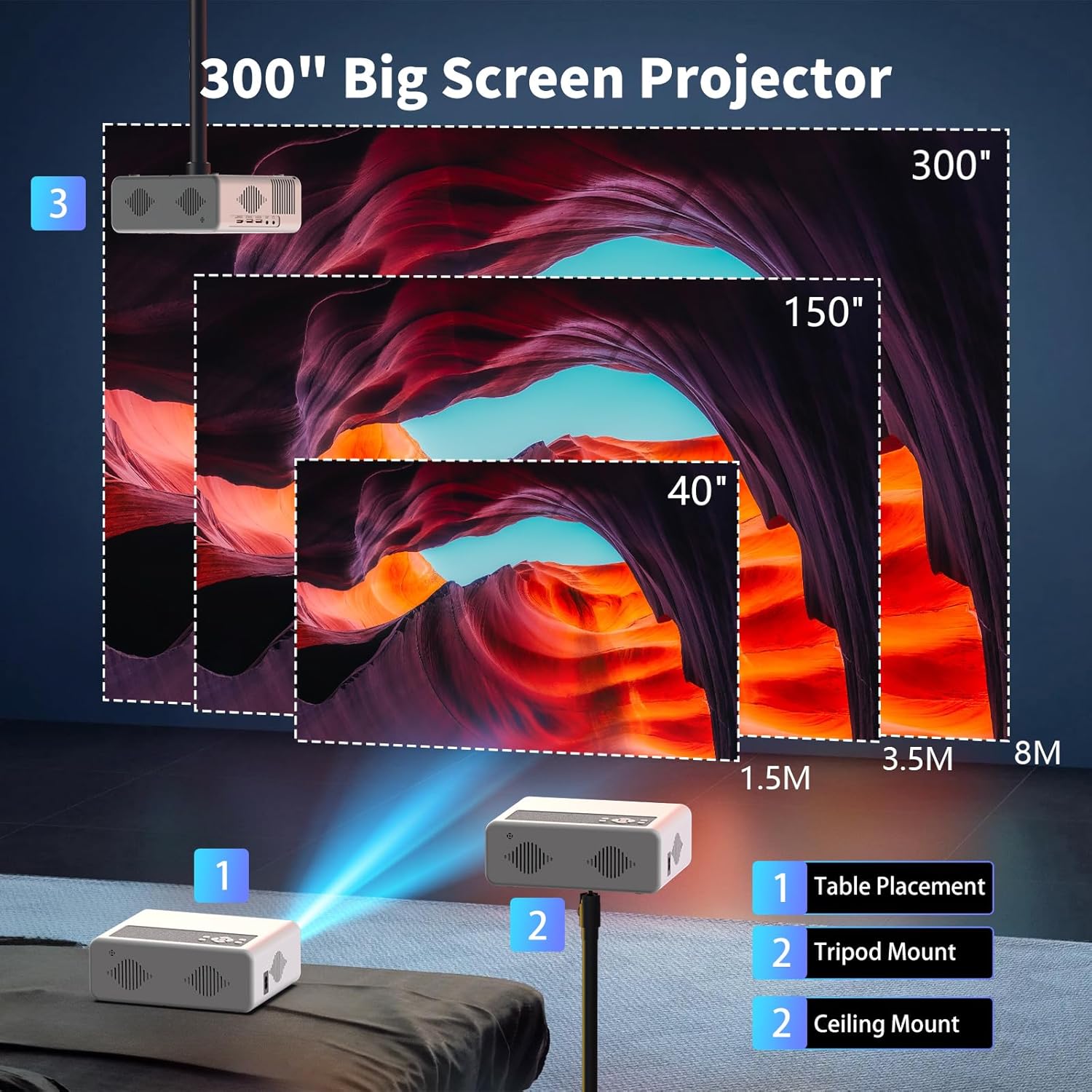
Image: A diagram illustrating various projector placement options (table, tripod, ceiling mount) and corresponding projection distances for different screen sizes (40", 150", 300").
2. Power Connection
Connect the supplied power cord to the projector's power input and then to a wall outlet.
3. Initial Power On
Press the power button on the projector or the remote control to turn on the device. The projector will boot up and display the home screen.
4. Focus and Keystone Adjustment
The AKATUO Smart Projector features electric focus and automatic keystone correction for a clear, rectangular image.
- Electric Focus: Use the 'F+' and 'F-' buttons on the remote control to adjust the focus until the image is sharp.
- Auto Keystone: The projector will automatically correct trapezoidal distortion to ensure a perfectly rectangular image.
- Zoom: Adjust the image size from 50% to 100% using the remote.

Image: A visual representation of the projector's screen adjustment features, including electric focusing (E-Focus), automatic keystone correction, and digital zoom (50%-100%).
5. Network Connection (WiFi6)
To access streaming services and online content, connect your projector to a Wi-Fi network:
- Navigate to the 'Settings' menu on the home screen.
- Select 'Network' or 'Wi-Fi'.
- Choose your desired Wi-Fi network from the list.
- Enter the password if prompted and confirm.

Image: A scene depicting two people enjoying a video game projected by the AKATUO projector, highlighting the benefits of ultra-fast WiFi6 technology for smoother, lower latency, and faster connectivity.
6. Bluetooth Pairing
The projector supports Bluetooth 5.2 for connecting to external audio devices or using the projector as a Bluetooth speaker.
- Projector to Soundbar: Pair the projector with a Bluetooth soundbar or speaker for enhanced audio.
- Phone to Projector (Speaker Mode): Connect your smartphone to the projector via Bluetooth to use the projector's built-in speakers for audio playback.

Image: A diagram illustrating the two-way Bluetooth functionality of the projector, showing connections from the projector to a soundbar (Projector Mode) and from a phone to the projector (Speaker Mode).
7. Connecting External Devices
The projector offers multiple ports for connecting various devices:
- HDMI: Connect laptops, PS5, TV sticks, DVD players, and other HDMI-enabled devices for high-definition video and audio.
- USB: Play media directly from USB drives (U Disk/TF).
- Audio Out: Connect external audio systems if not using Bluetooth.

Image: The AKATUO projector showcasing its various connectivity options, including Audio, USB, and HDMI ports, along with icons of compatible devices such as smartphones, gaming consoles, laptops, USB drives, PS4, TV sticks, and DVD players.
Operating
1. Navigating the Interface
Use the remote control to navigate the projector's Android interface. The home screen provides direct access to pre-installed applications and settings.
2. Streaming Applications
The projector comes with official licenses for Netflix, YouTube, and Prime Video, allowing direct access without additional devices.
- Select the desired app icon from the home screen to launch it.
- Log in with your account credentials if required.

Image: The AKATUO projector displaying the Netflix user interface on a large screen, with a hand holding the remote control, demonstrating the ease of accessing built-in certified official apps.
3. Media Playback
To play media from external sources:
- Connect your device (e.g., USB drive, laptop) to the appropriate port.
- Select the corresponding input source from the projector's input menu.
4. Sound Settings
The projector features integrated high-performance speakers with stereo surround sound. Adjust volume using the remote control. For external audio, ensure your Bluetooth device is paired or connected via the audio out port.
Maintenance
1. Cleaning
- Use a soft, dry cloth to clean the projector's exterior.
- For the lens, use a lens cleaning cloth and specialized lens cleaning solution. Do not use abrasive cleaners.
- Regularly clean the ventilation openings to prevent dust buildup.
2. Storage
When not in use for extended periods, store the projector in a cool, dry place, protected from dust and direct sunlight.
Troubleshooting
| Problem | Possible Cause | Solution |
|---|---|---|
| No image displayed | Power cable disconnected; Incorrect input source; Lens cap on. | Check power connection; Select correct input source (HDMI, USB); Remove lens cap. |
| Image is blurry | Focus not adjusted; Projector too far/close. | Adjust electric focus using remote; Adjust projector distance. |
| Image is distorted (not rectangular) | Keystone not corrected. | Ensure auto keystone is enabled or manually adjust if available. |
| No sound | Volume too low; Incorrect audio output; Bluetooth device not connected. | Increase volume; Check audio settings; Re-pair Bluetooth device. |
| Cannot connect to Wi-Fi | Incorrect password; Router issue; Signal too weak. | Re-enter password; Restart router; Move projector closer to router. |
Specifications
Key technical specifications for the AKATUO Smart Projector AK-26:
- Model Number: AK-26
- Native Resolution: 1920 x 1080 (Full HD)
- Max Display Resolution: 3840 x 2160 (4K Support)
- Display Type: LCD
- Connectivity Technology: Bluetooth 5.2, HDMI, USB, Wi-Fi 6
- Special Features: Electric Focus, Automatic Keystone Correction, Built-in Official Netflix/YouTube/Prime Video
- Recommended Use: Home Cinema
- Product Dimensions: 21.3L x 15.2W x 7.9H centimeters
- Form Factor: Portable
- Mounting Type: Table Mount

Image: A visual representation highlighting the projector's image quality features, including 4K support resolution, 1080P native resolution, 95% NTSC color gamut, +90% brightness, and vivid true color reproduction.
Warranty and Support
AKATUO offers a reliable 3-year warranty on this product. Our professional technical team is available to assist you with any questions or issues you may encounter during use. For support, please refer to the contact information provided on the AKATUO official website or your purchase documentation.
Related documentsAK-26


Ask a question about this manual
Ask about setup, troubleshooting, compatibility, parts, safety, or missing instructions. Manuals+ will review the question and use this page’s manual context to help answer it.