
1. Introduction
Welcome to your new SANWA peripheral set. This manual provides detailed instructions for setting up, operating, and maintaining your multi-device Bluetooth keyboard with touchpad and 2.4G wireless ergonomic mouse. Please read this manual thoroughly before use to ensure optimal performance and longevity of your devices.
2. Product Overview
The SANWA keyboard and mouse set offers versatile connectivity and ergonomic design for enhanced productivity and comfort across various devices.
2.1 Keyboard Features
- Multi-Device Bluetooth Connectivity: Seamlessly switch between up to 3 devices (laptops, phones, tablets, smart TVs).
- Integrated Touchpad: Provides precise navigation and multi-touch gesture support.
- Pantograph Scissor-Structure Keys: Offers a comfortable and responsive typing experience with reduced noise.
- Dedicated Function Keys: Access multimedia and system controls easily.
2.2 Mouse Features
- 2.4G Wireless Connectivity: Reliable connection via a USB receiver.
- Ergonomic Vertical Design: Promotes a natural 'handshake' wrist and arm position to minimize strain and discomfort.
- Adjustable DPI: Three sensitivity levels (800/1200/1600 DPI) for varied tasks.

Figure 1: SANWA Multi-Device Keyboard and Ergonomic Mouse.
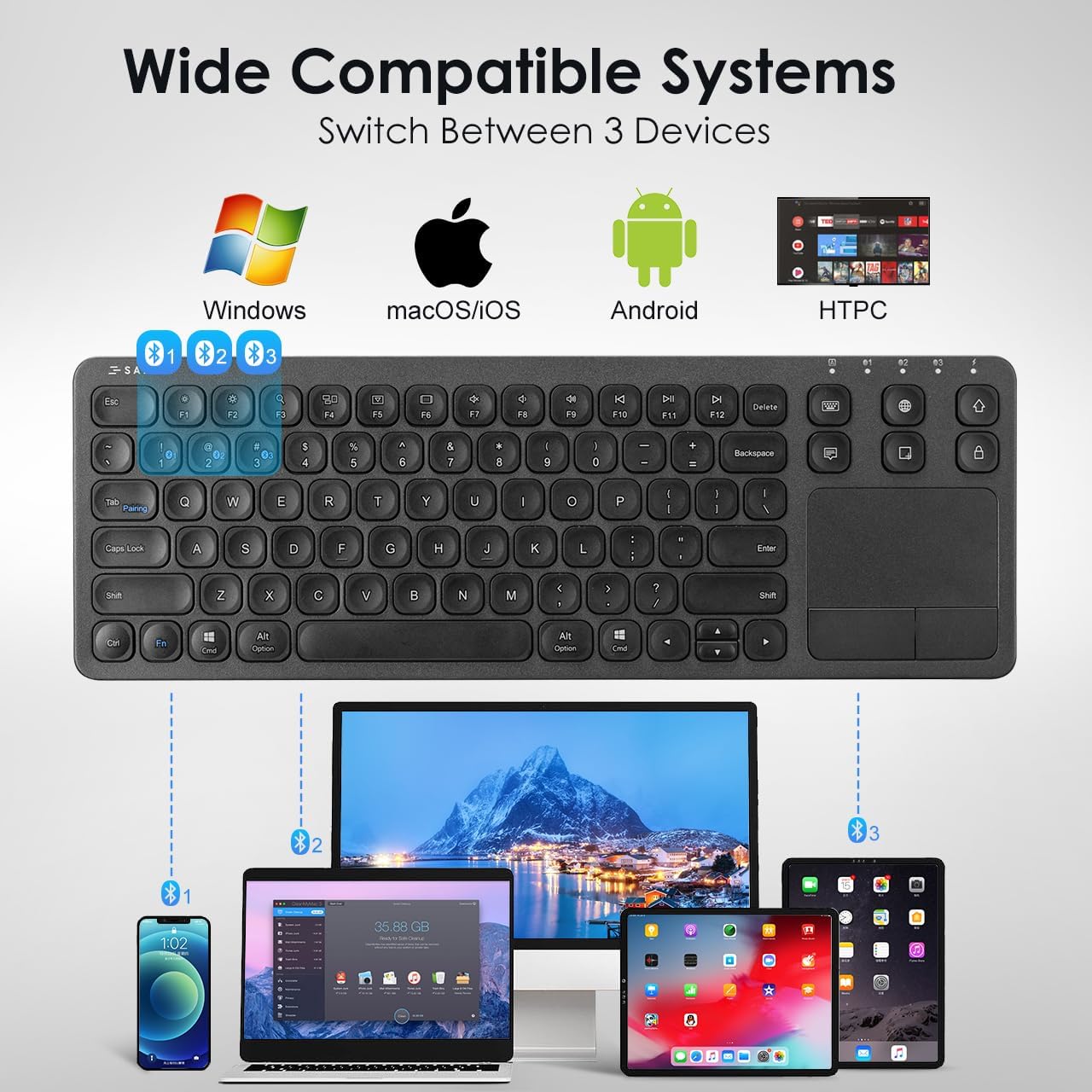
Figure 2: Wide compatibility across various operating systems and devices.
3. Setup Instructions
3.1 Keyboard Connection (Bluetooth)
- Ensure the keyboard is sufficiently charged.
- Turn on the keyboard using the power switch.
- Press and hold the desired Bluetooth channel button (e.g., BT1, BT2, or BT3) for a few seconds until the indicator light flashes, indicating pairing mode.
- On your host device (computer, tablet, smartphone), navigate to the Bluetooth settings.
- Select "SANWA Keyboard" from the list of available devices to complete the pairing process.
- To switch between paired devices, simply press the corresponding Bluetooth channel button (BT1, BT2, or BT3).

Figure 3: Stable Bluetooth connection for typing on various devices.
3.2 Mouse Connection (2.4G Wireless)
- Locate the 2.4G USB receiver, typically stored in the mouse's battery compartment.
- Insert the USB receiver into an available USB port on your computer or device.
- Ensure the mouse is sufficiently charged and turned on using its power switch.
- The mouse should automatically connect to your device. No additional drivers are typically required for basic functionality.
4. Operating Instructions
4.1 Keyboard Functions
The keyboard features a full set of keys, including dedicated function keys for quick access to common tasks.
- Function Keys (Fn + F1-F12): Combine the 'Fn' key with the F1-F12 keys to activate specific functions such as brightness control, volume adjustment, play/pause, search, task view, desktop switch, application switch, input language switch, and opening a browser.

Figure 4: Convenient shortcut keys for enhanced productivity.
4.2 Touchpad Gestures
The integrated touchpad supports various multi-finger gestures for efficient navigation. Note that gesture compatibility may vary with different operating systems, especially certain Mac OS versions.
- Single-finger: Left click, move cursor, drag.
- Double-fingers: Right click, zoom in/out.
- Three-fingers: Open Cortana/Task Window/Desktop/Window Switch (primarily Windows).
- Four-fingers: Open Action Center (primarily Windows).
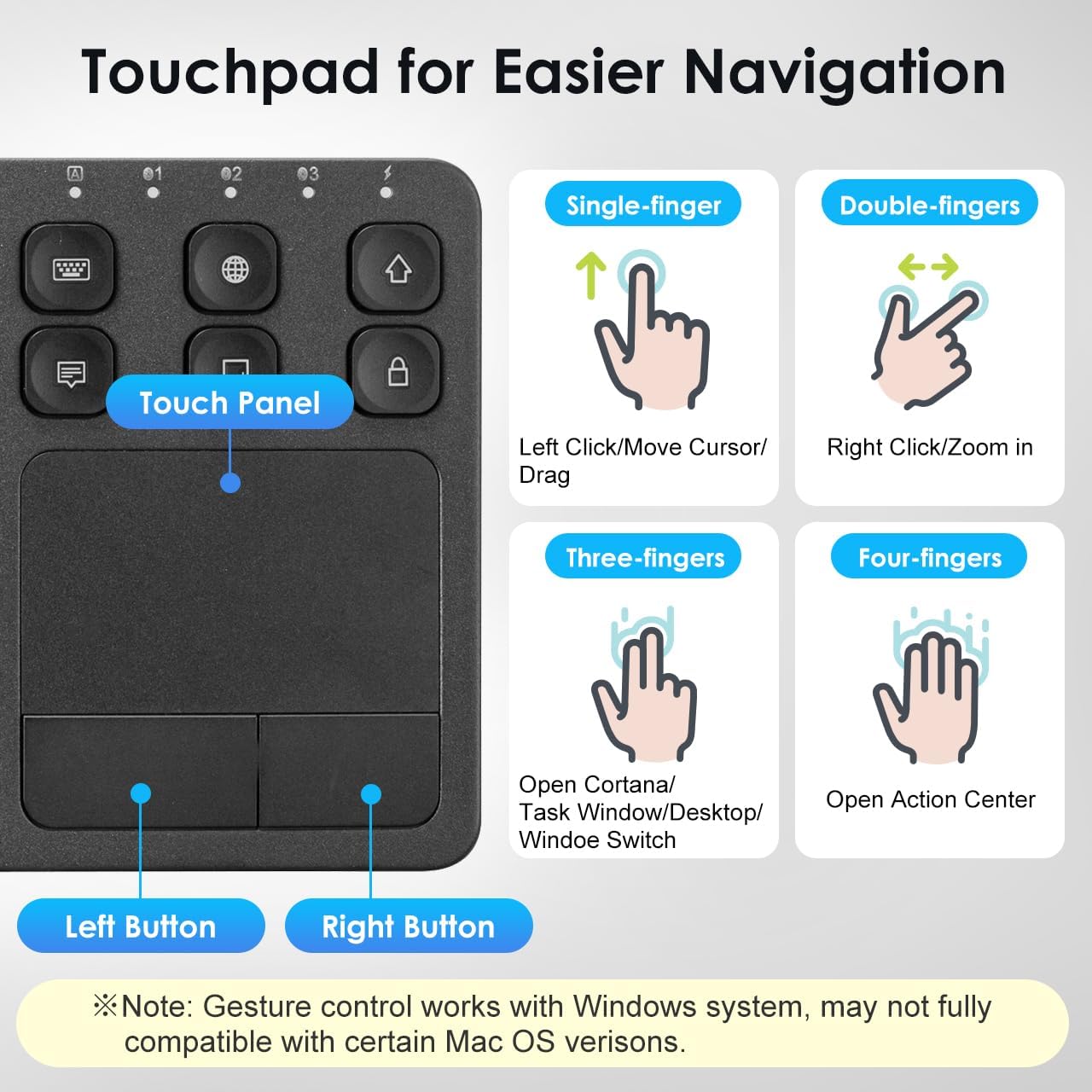
Figure 5: Touchpad gestures for easier navigation.
4.3 Mouse DPI Adjustment
The ergonomic vertical mouse features adjustable DPI settings to suit your preference and task requirements.
- DPI Switch: Press the dedicated DPI switch button on the mouse to cycle through the available sensitivity levels: 800 DPI, 1200 DPI, and 1600 DPI.

Figure 6: Adjustable DPI levels for precise control.

Figure 7: Natural vertical design for ergonomic comfort.
5. Maintenance
Proper care ensures the longevity and performance of your SANWA devices.
- Cleaning: Use a soft, dry, lint-free cloth to clean the surfaces of the keyboard and mouse. Avoid using harsh chemicals, abrasive cleaners, or excessive moisture.
- Battery Care: Both the keyboard and mouse are rechargeable. Charge them using the provided USB cable when the battery indicator is low. Avoid fully depleting the battery frequently to prolong its lifespan. Store devices in a cool, dry place when not in use for extended periods.
6. Troubleshooting
If you encounter issues with your SANWA keyboard or mouse, please refer to the following common solutions:
- Device not connecting or pairing:
- Ensure both the keyboard and mouse are fully charged.
- Verify that Bluetooth is enabled on your host device for the keyboard.
- For the keyboard, try re-pairing by putting it into pairing mode and selecting it from your device's Bluetooth settings.
- For the mouse, ensure the 2.4G USB receiver is securely inserted into a working USB port. Try a different USB port if necessary.
- Lagging or erratic cursor/typing:
- Ensure the devices are within the effective operating range (typically up to 10 meters/32 feet).
- Check for potential interference from other wireless devices (e.g., Wi-Fi routers, other Bluetooth devices).
- Recharge the devices, as low battery can affect performance.
- Touchpad gestures not working as expected:
- Confirm that your operating system fully supports the specific multi-finger gestures. Compatibility may vary, especially with certain Mac OS versions.
- Ensure the touchpad surface is clean and free of obstructions.
7. Specifications
| Component | Specification |
|---|---|
| Keyboard Connectivity | Bluetooth (Multi-device: 3 devices) |
| Keyboard Key Type | Pantograph Scissor-Structure |
| Keyboard Compatibility | Windows 13/11/10/8.1/8/7/XP/Vista/98/2000/Me, macOS 10.12-10.15, Android 7.0-10, iPad OS13, iOS13 and later. |
| Mouse Connectivity | 2.4G Wireless |
| Mouse DPI Levels | 800 / 1200 / 1600 (Adjustable) |
| Mouse Design | Ergonomic Vertical |
| Mouse Compatibility | Windows 11/10/8.1/8/7, XP, Vista & macOS 10.12-10.14, Mac OS X 10.3-10.11. (Note: Not fully compatible with Apple products for all features). |
| Power Source | Rechargeable Batteries |
| ASIN | B0DSZM28CT |
| First Available Date | January 14, 2025 |
8. Warranty and Support
For detailed warranty information, technical support, or customer service inquiries, please visit the official SANWA website or contact their customer support channels. Keep your purchase receipt as proof of purchase for warranty claims.