
1. Product Overview
The YOFITS YF79 is a portable wireless Bluetooth karaoke microphone designed for clear sound and versatile use. It features a 20W speaker, DSP chip for enhanced audio, and a 3200mAh rechargeable battery for extended playback.
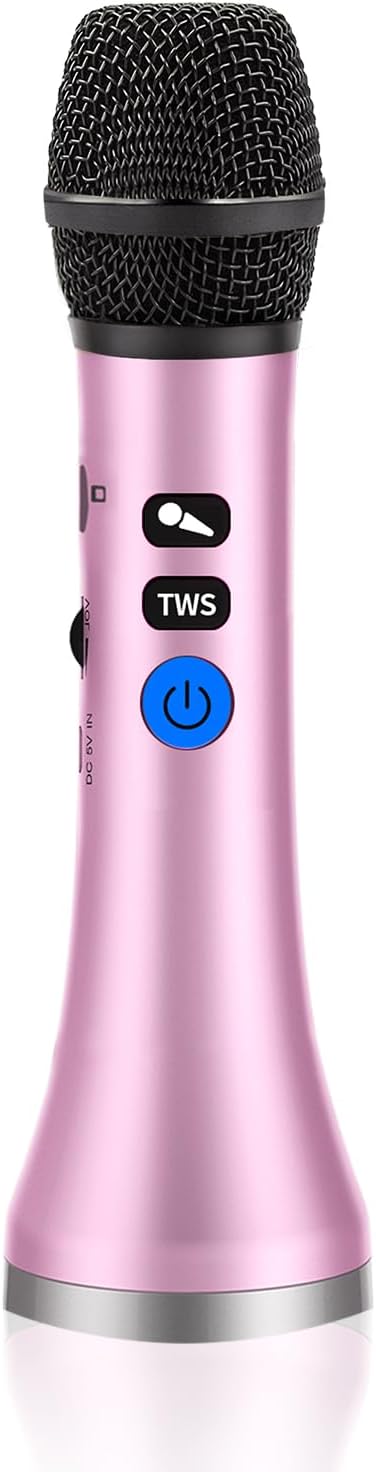
Image: The YOFITS YF79 Wireless Bluetooth Karaoke Microphone, showcasing its sleek pink design and control buttons.
2. Package Contents
Please check the package for the following items:
- 1 x YOFITS YF79 Wireless Karaoke Microphone
- 1 x USB Charging Cable
- 1 x User Manual (this document)
3. Setup Instructions
3.1 Charging the Microphone
Before first use, fully charge the microphone. Connect the provided USB charging cable to the USB Type-C port on the microphone and to a standard USB power adapter (not included). The charging indicator light will show the charging status. A full charge provides up to 10 hours of playback time.
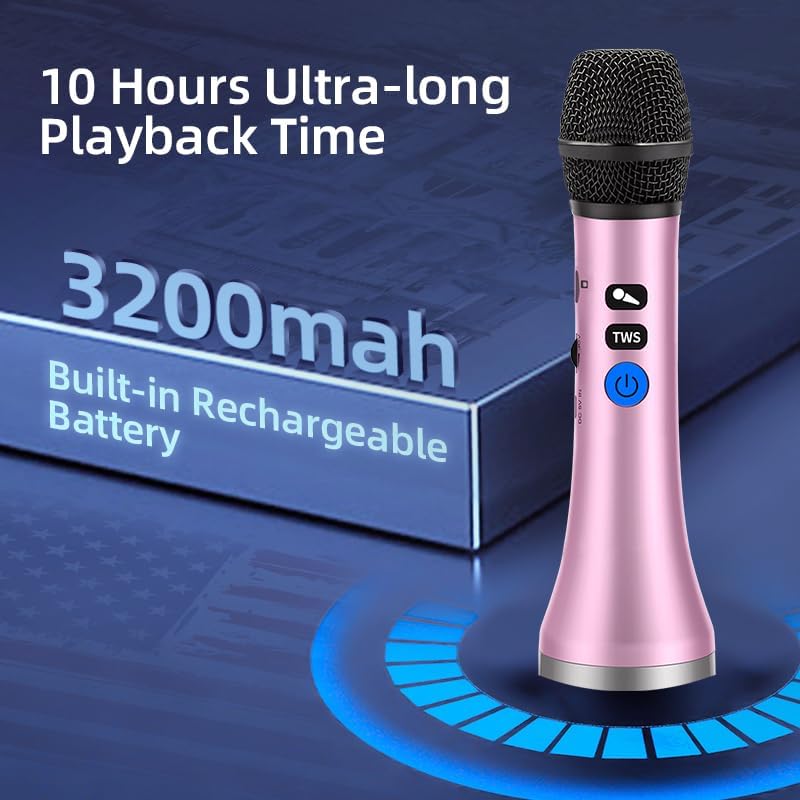
Image: The YF79 microphone highlighting its 3200mAh built-in rechargeable battery, offering up to 10 hours of ultra-long playback time.
3.2 Powering On/Off
Press and hold the power button (usually marked with a power symbol) for a few seconds to turn the microphone on or off. A sound prompt or indicator light will confirm the status.
3.3 Bluetooth Pairing
To connect the microphone to your device:
- Turn on the microphone. It will automatically enter Bluetooth pairing mode.
- Enable Bluetooth on your smartphone, tablet, or other compatible device.
- Search for available Bluetooth devices and select "YF79" from the list.
- Once connected, you will hear a confirmation sound, and the indicator light will stabilize.
The microphone utilizes Bluetooth 5.3 for stable and fast connections, with a range of up to 50ft without obstacles.

Image: A smartphone screen showing a successful Bluetooth 5.3 connection to the YF79 microphone, demonstrating enhanced connectivity.
4. Operating Instructions
4.1 Basic Functions
The microphone features integrated controls for easy operation:
- Volume Control: Use the dedicated buttons to adjust the microphone's output volume.
- Echo Adjustment: Adjust the echo effect to enhance your singing experience.
- Music Playback: Control music playback (play/pause, next/previous track) directly from the microphone when connected via Bluetooth.

Image: A person singing passionately into the YF79 microphone, demonstrating its 20W super loud volume capability for a concert-like experience.
4.2 Vocal Reduction (Karaoke Mode)
The YF79 microphone includes a one-click vocal reduction feature. Press the designated button to minimize original vocals in a song, allowing you to sing along more prominently.
4.3 Duet Singing (TWS Function)
To connect two YF79 microphones for duet singing:
- Connect the first microphone to your phone via Bluetooth as described in Section 3.3.
- Turn on the second microphone (do not connect it to your phone).
- On the first microphone, short press the "TWS" button. The red light will flash, indicating pairing is in progress.
- Once paired successfully, the red light on both microphones will turn off, and a constant blue light will indicate a successful TWS connection. Both microphones will now play music from your phone, enabling duet singing.

Image: A visual guide illustrating the four steps to connect two YF79 microphones for duet singing, showing successful pairing and use.
4.4 Multi-Device Compatibility
The YF79 microphone supports various connection options:
- Bluetooth 5.3: For wireless connection to smartphones, tablets, and laptops (iOS, Android, Windows compatible).
- Auxiliary Input: For wired connection to audio sources.
- USB Type-C: For charging and potentially audio input/output (refer to device specifications for full USB audio support).
- TF Card: Insert a TF card with music files for direct playback.
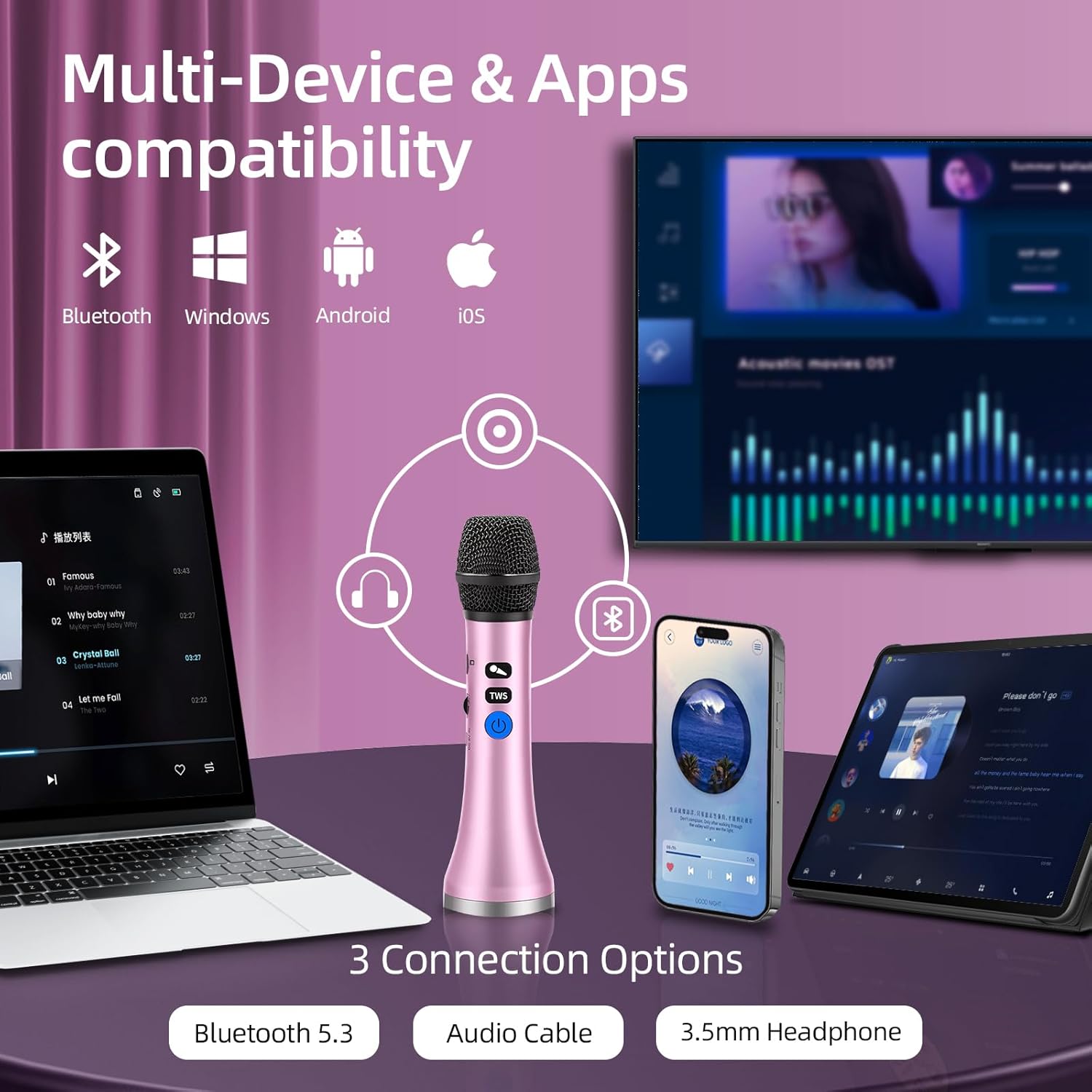
Image: The YF79 microphone demonstrating its compatibility with multiple devices and apps, including Bluetooth 5.3, audio cable, and 3.5mm headphone options.
5. Maintenance and Care
To ensure the longevity and optimal performance of your YF79 microphone:
- Cleaning: Wipe the microphone with a soft, dry cloth. Avoid using harsh chemicals or abrasive materials.
- Storage: Store the microphone in a cool, dry place away from direct sunlight and extreme temperatures.
- Battery Care: To maintain battery health, avoid fully discharging the battery frequently. Charge the microphone regularly, even if not in use for extended periods.
- Avoid Moisture: Do not expose the microphone to water or high humidity.
6. Troubleshooting
If you encounter issues with your YF79 microphone, please refer to the following common solutions:
| Problem | Possible Solution |
|---|---|
| Microphone does not power on | Ensure the battery is charged. Connect the USB charging cable and allow it to charge for at least 30 minutes before attempting to power on again. |
| No sound from the microphone | Check the microphone's volume level. Ensure it is properly connected via Bluetooth or auxiliary cable. Verify the connected device's volume is also turned up. |
| Bluetooth connection fails or is unstable | Ensure the microphone is in pairing mode. Turn off and on Bluetooth on your device, then try re-pairing. Move closer to the microphone to reduce interference. Ensure no other devices are actively connected to the microphone. |
| Poor sound quality or distortion | Check for obstructions around the microphone head. Ensure the microphone is not too close to the speaker, which can cause feedback. Adjust the echo level. Ensure the audio source is of good quality. |
| TWS (Duet Singing) pairing issues | Ensure only one microphone is initially paired to the phone. Follow the TWS pairing steps carefully (Section 4.3). Make sure both microphones are within close proximity during pairing. |
7. Specifications
Key technical specifications for the YOFITS YF79 Wireless Bluetooth Karaoke Microphone:
- Output Power: 20W
- Battery Capacity: 3200mAh
- Connectivity: Bluetooth 5.3, Auxiliary, USB Type-C
- Microphone Form Factor: Handheld
- Item Weight: 14 ounces (approx. 397 grams)
- Package Dimensions: 9.45 x 2.76 x 2.72 inches (approx. 24 x 7 x 6.9 cm)
- Material: Plastic or lightweight metal alloys
- Polar Pattern: Unidirectional
- DSP Chip: Integrated for enhanced audio clarity

Image: A visual representation of the high-fidelity DSP (Digital Signal Processor) chip, indicating its role in providing unparalleled audio clarity and precision.

Image: An exploded view diagram of the microphone's upgraded large horn with a 3x diaphragm, illustrating its internal speaker components for enhanced sound.
8. Warranty and Support
For warranty information or technical support, please refer to the contact details provided with your purchase or visit the official YOFITS website. Keep your purchase receipt as proof of purchase.


