
1. Introduction
This manual provides detailed instructions for the setup, operation, maintenance, and troubleshooting of your Matast Smart Watch. Please read this manual thoroughly to ensure proper use and to maximize the features of your device.
Brand: Matast
Model: bb52e44a-68c2-4e02-bcef-e574539146a3

Image: The Matast Smart Watch, showcasing its main display with various health and activity metrics.
2. Package Contents
Verify that all items are present in the package:
- Matast Smart Watch
- Charging Cable
- User Manual (this document)
3. Setup Guide
3.1 Initial Charging
Before first use, fully charge your Matast Smart Watch. Connect the magnetic charging cable to the charging points on the back of the watch and plug the USB end into a power adapter (not included) or a computer's USB port.
- Charging Time: Approximately 2 hours for a full charge.
- Battery Life: 5-7 days of normal use, up to 30 days standby time.
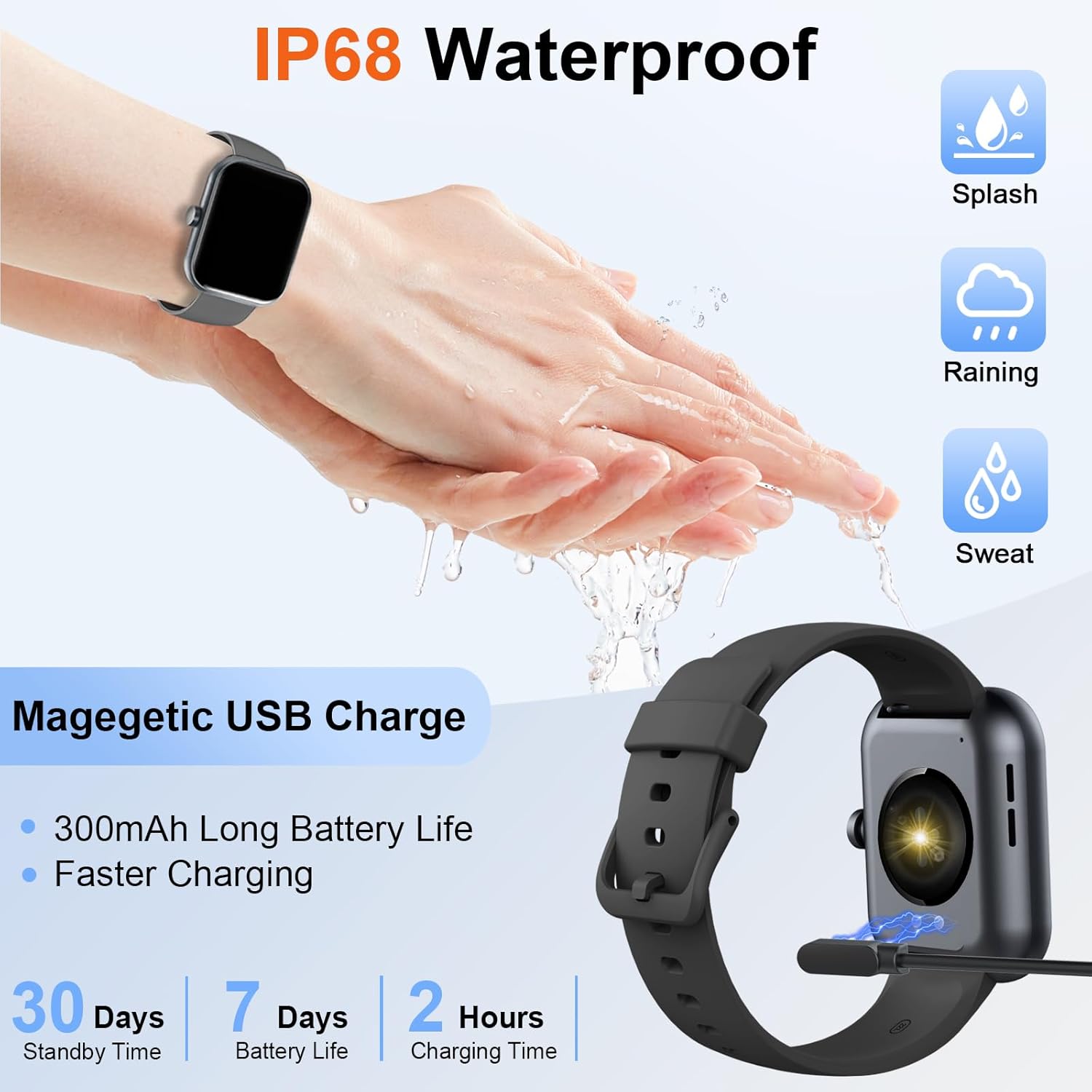
Image: The Matast Smart Watch being charged via its magnetic USB cable, illustrating the charging process and battery specifications.
3.2 App Installation and Pairing
To access all features and synchronize data, download and install the Gloryfit app on your smartphone. The app is compatible with iOS 9.0 and above, and Android 6.0 and above devices.
- Download the App: Search for "Gloryfit" in your smartphone's app store (Apple App Store for iOS, Google Play Store for Android) and install it.
- Enable Bluetooth: Ensure Bluetooth is enabled on your smartphone.
- Open Gloryfit App: Launch the app and follow the on-screen instructions to create an account or log in.
- Add Device: Within the app, navigate to the device section and select "Add Device" or "Search for Device". The app will scan for available smartwatches.
- Select Your Watch: Choose "T60" (or similar identifier) from the list of found devices to initiate pairing. Confirm the pairing request on both your phone and the watch if prompted.
Note for iOS Users (for Bluetooth audio functions): After successfully binding the watch in the Gloryfit app, you may need to manually connect to the watch's Bluetooth audio in your phone's Bluetooth settings. Go to your phone's Bluetooth settings, find "T60" (or similar), and connect to it. This enables call answering/making directly from the watch.

Image: Step-by-step visual guide for connecting the smartwatch to the Gloryfit application on a smartphone, detailing the Bluetooth pairing process.
4. Operating Instructions
4.1 Basic Navigation
- Touch Screen: The 1.96" HD full touch color screen allows for intuitive navigation. Swipe left/right, up/down, and tap to select options.
- Side Button: Typically used to wake the screen, return to the home screen, or access the app menu.
- Wake Screen: Raise your wrist or press the side button to wake the screen.
4.2 Bluetooth Call and Message Alerts
Once connected to your smartphone via Bluetooth, the watch enables direct call management and message notifications.
- Make/Answer Calls: Use the integrated HD speaker and microphone to answer incoming calls or dial out directly from the watch. View call history and store contacts.
- Message Notifications: Receive alerts for social media messages (WhatsApp, Twitter, Facebook, Instagram, etc.) directly on your watch.

Image: A user interacting with the smartwatch to manage a phone call, showing the dial pad, call screen, call history, and contact list.
4.3 Health Monitoring
The watch features a high-performance sensor for continuous health tracking.
- Heart Rate Monitor: Monitors your heart rate 24/7. View real-time data on the watch and detailed trends in the Gloryfit app.
- Sleep Tracker: Automatically monitors your sleep patterns, categorizing them into deep sleep, light sleep, and awake time. Analyze your sleep quality in the app to develop healthier habits.
- Activity Tracking: Records steps, distance, and calories burned throughout the day.
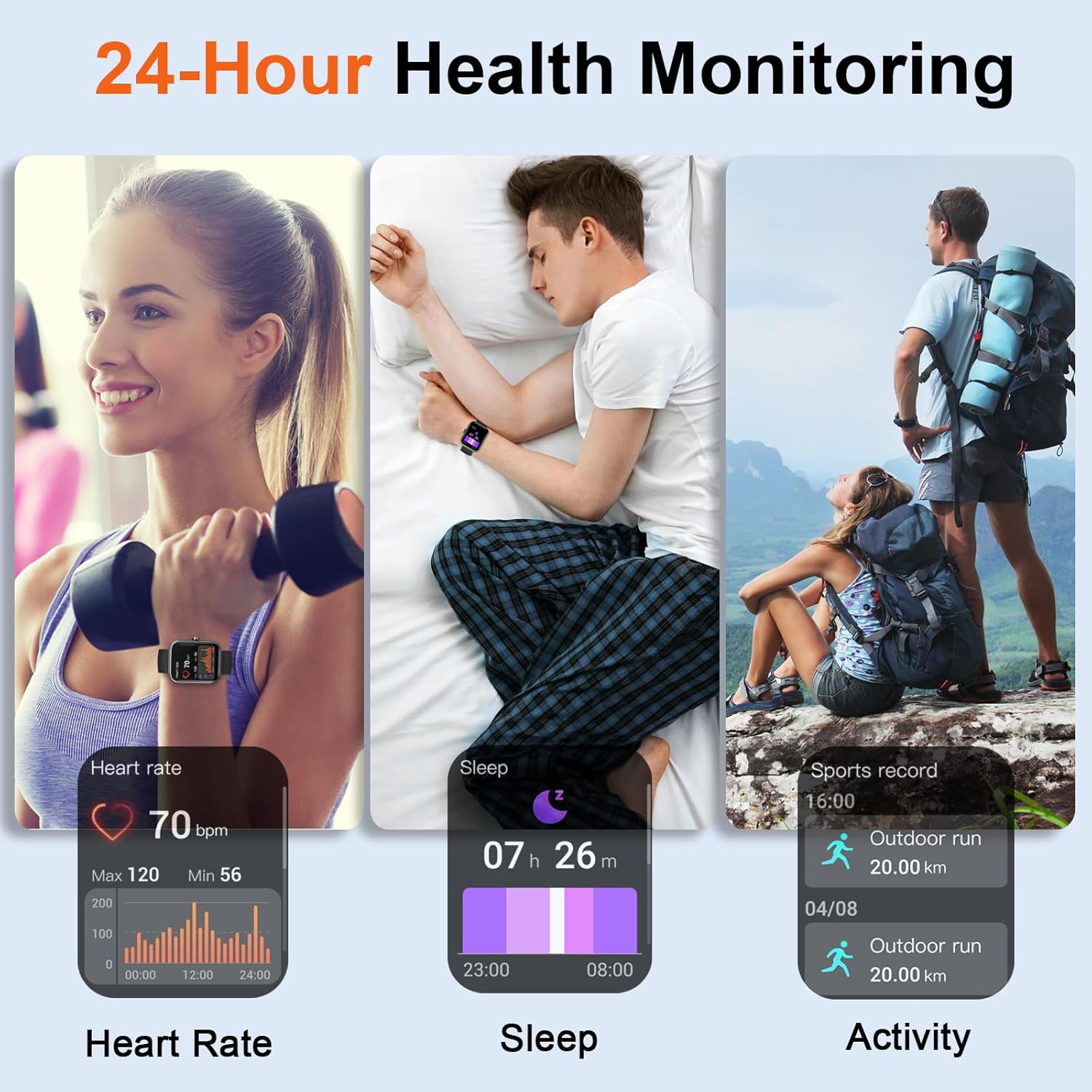
Image: Visual representation of the smartwatch's health monitoring capabilities, including heart rate measurement, sleep analysis, and outdoor activity tracking.
4.4 Sport Modes
The watch supports over 110 sport modes to track various physical activities. Select your desired mode before starting an exercise to record specific metrics.
- Examples: Running, Cycling, Walking, Basketball, Yoga, Football, and more.
- Metrics: Tracks steps, distance, calories, and duration specific to each sport.

Image: A man engaged in outdoor running, with an overlay showing the smartwatch's interface for selecting from over 100 sport modes and displaying activity data.
4.5 Additional Functions
The Matast Smart Watch includes several convenient features:
- Weather Forecast: Get real-time weather updates.
- Music Control: Control music playback on your smartphone.
- Sedentary Reminder: Alerts you to move after periods of inactivity.
- Stopwatch & Timer: Essential tools for timing activities.
- Alarm Clock: Set alarms directly from your watch.
- Remote Camera Control: Use your watch as a remote shutter for your phone's camera.
- Find Phone: Helps locate your misplaced smartphone.
- Female Cycle Tracking: Predicts menstrual periods.
- Customizable Watch Faces: Choose from over 100 personalized watch faces via the Gloryfit app.
5. Maintenance
5.1 Water Resistance (IP68)
The Matast Smart Watch is IP68 waterproof, meaning it is resistant to dust and can withstand immersion in water up to 1.5 meters for 30 minutes. This makes it suitable for daily activities such as washing hands, exercising in the rain, or light splashes.
Important Note: The watch is not recommended for use in hot water, saunas, or seawater, as these conditions can compromise the waterproof seals and cause damage. Avoid prolonged immersion or high-pressure water exposure.
5.2 Cleaning
To clean your watch, gently wipe the screen and strap with a soft, damp cloth. Avoid using harsh chemicals or abrasive materials, which can damage the finish.
5.3 Storage
When not in use for extended periods, store the watch in a cool, dry place. Ensure it is fully charged before storing to maintain battery health.
6. Troubleshooting
- Watch not turning on: Ensure the watch is fully charged. Connect it to the charging cable for at least 10 minutes.
- Cannot pair with phone:
- Make sure Bluetooth is enabled on your phone.
- Ensure the Gloryfit app is installed and running.
- Restart both your phone and the watch.
- If previously paired, try unpairing from your phone's Bluetooth settings and re-pairing through the Gloryfit app.
- Ensure the watch is within Bluetooth range of your phone.
- Inaccurate health data:
- Ensure the watch is worn snugly on your wrist, not too tight or too loose.
- Clean the sensor on the back of the watch.
- Environmental factors and individual physiology can affect readings.
- Notifications not appearing:
- Check notification permissions for the Gloryfit app in your phone's settings.
- Ensure the watch is connected to the app.
- Verify that app notifications are enabled within the Gloryfit app settings.
- Bluetooth call function not working (iOS): As mentioned in Setup, ensure you have connected to the watch's audio Bluetooth profile (e.g., "T60") directly in your iPhone's Bluetooth settings, in addition to the app connection.
- Screen unresponsive or frozen: Try restarting the watch. If there's no dedicated restart option, hold the side button for an extended period (e.g., 10-15 seconds) until it restarts.
7. Specifications
| Feature | Detail |
|---|---|
| Model Number | bb52e44a-68c2-4e02-bcef-e574539146a3 |
| Brand | Matast |
| Screen Size | 1.96 Inches HD Full Touch |
| Operating System | Android Wear 3.0 (Note: Refers to compatibility, not Google Wear OS) |
| Connectivity | Bluetooth 5.4 |
| Water Resistance | IP68 (Splash, Rain, Sweat resistant; not for hot water or seawater) |
| Battery Capacity | 300mAh |
| Charging Time | Approx. 2 hours |
| Battery Life | 5-7 days (normal use), 30 days (standby) |
| Item Weight | 0.08 Kilograms (2.89 ounces) |
| Compatibility | iOS 9.0+ / Android 6.0+ |
| Special Features | Bluetooth calls, 110+ sport modes, Heart Rate/Sleep/Step Monitor, Pedometer, Activity Tracker, Weather, Music Control, Sedentary Reminder, Alarm, Timer, Remote Camera, Find Phone, Female Cycle Tracking, Customizable Watch Faces |
8. Warranty and Support
For warranty information, please refer to the documentation provided at the time of purchase or contact the seller directly. Matast is committed to providing quality products and customer satisfaction.
For technical support or further assistance, please contact Matast customer service through the platform where you purchased the product or refer to the "Gloryfit" app for in-app support options.