
1. Introduction
Thank you for choosing the EliteBloom 65cm 3D Hologram Fan. This device is designed to create stunning naked-eye 3D visual effects for advertising, display, and decorative purposes. Featuring a 2000*1536 resolution and 768 LED lights, it delivers a high-definition holographic display. Please read this manual carefully before installation and operation to ensure safe and optimal performance.
2. Safety Information
WARNING: Rotating blades can cause injury. Keep hands and objects clear of the fan blades during operation.
- Always ensure the device is securely mounted before operation.
- Do not touch the fan blades while the device is powered on or rotating.
- Keep children and pets away from the device during operation.
- Ensure proper ventilation around the device to prevent overheating.
- Use only the provided power adapter and accessories.
- Do not expose the device to water or excessive moisture.
- If the device is damaged or malfunctions, disconnect power immediately and contact support.
- Installation should be performed by qualified personnel if mounting at height or in complex environments.
3. Package Contents
Carefully unpack the box and ensure all items listed below are present and in good condition. If any items are missing or damaged, please contact your retailer.
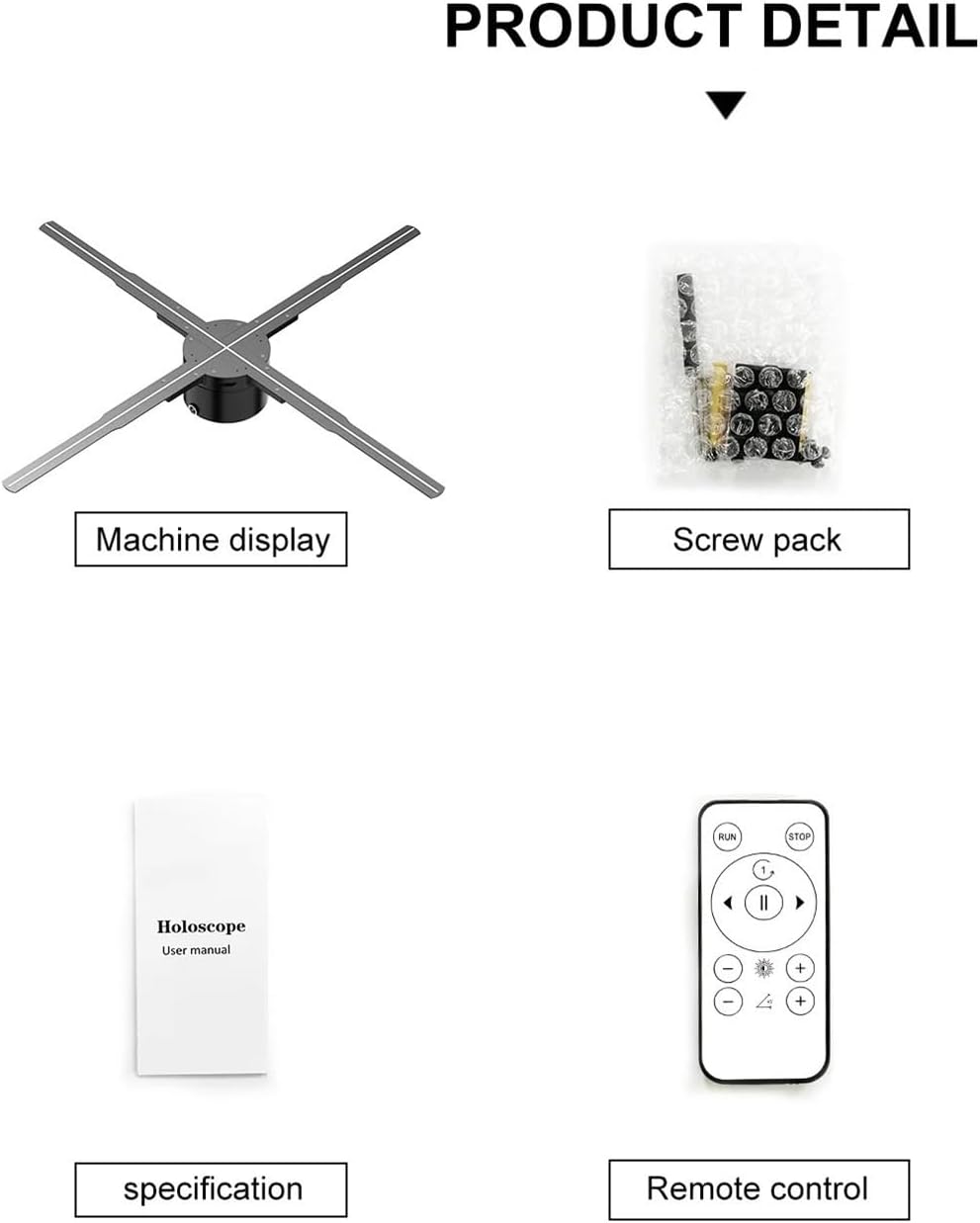
Main Unit (Machine Display): The core holographic fan device with four blades.

Accessory Kit: Includes fixed frame, screws, user manual, screwdriver, 16GB memory card, and remote control.
- 3D Hologram Fan Main Unit (P65, 65cm)
- Remote Control
- Power Adapter (24V3A)
- Mounting Kit (Fixed frame + screws)
- 16GB Memory Card
- Screwdriver
- User Manual
4. Setup and Installation
The EliteBloom 3D Hologram Fan is designed for easy assembly and installation. Follow these steps to set up your device.
4.1 Mounting the Device
- Choose a Location: Select a stable, flat surface or wall where the fan can be securely mounted. Ensure there is sufficient clear space around the fan (at least 65cm diameter) to avoid obstruction and ensure safety.
- Attach Fixed Frame: Use the provided screws and fixed frame to securely mount the device to your chosen surface. Ensure the mounting is robust enough to support the fan's weight and rotation.
- Connect Power: Plug the power adapter into the fan's power input port, then connect it to a suitable power outlet (24V3A, 72W).
Image: Mounting kit with fixed frame and screws for secure installation.
4.2 Content Preparation (Initial Setup)
Before first use, you will need to load 3D content onto the provided 16GB memory card.
- Insert the 16GB memory card into a computer.
- Transfer your desired 3D holographic video or image content to the memory card. Ensure content is in a compatible format (refer to the app or software for supported formats).
- Safely eject the memory card from your computer.
- Insert the memory card into the designated slot on the 3D Hologram Fan unit.
5. Operating Instructions
The EliteBloom 3D Hologram Fan can be controlled via a remote control, a mobile application, or a computer.
5.1 Powering On/Off
- Power On: Once connected to power, the fan will typically start automatically or can be turned on using the remote control's power button.
- Power Off: Use the power button on the remote control or the mobile app to turn off the device. Always allow the blades to come to a complete stop before handling.
5.2 Using the Remote Control
The included remote control provides basic functions for operating the fan.

Image: Remote control and mobile app interface for controlling the hologram fan.
- Power Button: Turns the fan on or off.
- Play/Pause: Starts or pauses the current holographic content.
- Brightness Control: Adjusts the display brightness.
- Angle Adjustment: Modifies the display angle (if supported by content/firmware).
- Next/Previous: Navigates through content on the memory card.
5.3 Using the Mobile Application (APP Control)
For advanced control and content management, download the dedicated mobile application.
- Download App: Search for "Holoscope" in your device's App Store (iOS) or Google Play Store (Android) and install the application.
- Connect via Bluetooth: Enable Bluetooth on your mobile device. Open the Holoscope app and follow the instructions to pair with your EliteBloom 3D Hologram Fan.
- App Functions: The app allows for brightness control, angle adjustment, content upload, multiplatform splicing (for multiple units), and other advanced settings.
5.4 Bluetooth Audio Function
The fan supports Bluetooth audio, allowing connection to external Bluetooth speakers for synchronized sound effects, enhancing the 3D audiovisual experience.

Image: The hologram fan displaying content, with a Bluetooth speaker nearby, indicating audio connectivity.
- Ensure your external Bluetooth speaker is in pairing mode.
- Using the mobile app, navigate to the Bluetooth audio settings.
- Select your Bluetooth speaker from the list of available devices to pair.
- Once connected, audio from your holographic content will play through the external speaker.
6. Content Management
To display new content, you must upload it to the device's memory card.
- Via Memory Card: The primary method is to load content onto the 16GB memory card using a computer, then insert the card into the fan.
- Via Mobile App: The Holoscope app may offer direct content upload functionality, allowing you to transfer files from your phone to the fan's memory (requires a stable Wi-Fi or Bluetooth connection).
- Content Format: Ensure your 3D content is in a compatible format. Typically, MP4, AVI, RMVB, GIF, JPG, PNG are supported, but specific requirements may vary. Refer to the app or product specifications for details.
7. Maintenance
Regular maintenance ensures the longevity and optimal performance of your 3D Hologram Fan.
- Cleaning: Gently wipe the fan blades and main unit with a soft, dry cloth. Do not use liquid cleaners or abrasive materials. Ensure the device is powered off and unplugged before cleaning.
- Storage: When not in use for extended periods, store the fan in a cool, dry place, away from direct sunlight and extreme temperatures.
- Firmware Updates: Check the Holoscope app or manufacturer's website periodically for firmware updates to ensure your device has the latest features and performance improvements.
8. Troubleshooting
If you encounter issues with your EliteBloom 3D Hologram Fan, refer to the following common problems and solutions.
| Problem | Possible Cause | Solution |
|---|---|---|
| Fan does not power on. | No power, faulty adapter, loose connection. | Check power cable connection. Ensure power adapter is working. Try a different power outlet. |
| No 3D image displayed. | Incorrect content format, memory card issue, fan not rotating. | Ensure content is in a supported format. Reinsert memory card. Check if fan blades are rotating. |
| Remote control not working. | Dead batteries, out of range, obstruction. | Replace remote control batteries. Ensure line of sight to the fan. Move closer to the fan. |
| Bluetooth audio not connecting. | Speaker not in pairing mode, fan's Bluetooth off, interference. | Ensure external speaker is discoverable. Check Bluetooth settings in the app. Reduce distance between devices. |
| Image appears distorted or flickering. | Low power, damaged blades, content issue. | Ensure stable power supply. Inspect blades for damage (when off). Re-upload content. |
If the problem persists after trying these solutions, please contact EliteBloom customer support.
9. Specifications
- Model: P65
- Display Diameter: 65cm
- LED Quantity: 768 LEDs
- Resolution: 2000 * 1536 pixels
- Power Source: 24V3A
- Rated Power: 72W
- Control Methods: Remote Control, Mobile App (Holoscope), Computer
- Storage: 16GB Memory Card (included)
- Connectivity: Bluetooth (for audio and app control)
- Features: Naked Eye 3D HD Projection, Multi-mode Remote Control, Bluetooth Audio Function, APP Control, Multiplatform Splicing
10. Warranty and Support
EliteBloom products are manufactured to high-quality standards. This product comes with a standard manufacturer's warranty. Please refer to the warranty card included in your package or visit the official EliteBloom website for detailed warranty terms and conditions.
For technical support, troubleshooting assistance, or warranty claims, please contact EliteBloom customer service through the contact information provided on our website or your purchase documentation.