
Introduction
Thank you for purchasing the SereneLife Automatic Robot Vacuum Cleaner and Mop Combo. This device is designed to provide efficient and convenient cleaning for various floor types, including hardwood, tile, linoleum, and low-pile carpets. Featuring powerful suction, simultaneous vacuuming and mopping capabilities, and smart app control, this robot is an ideal solution for maintaining a clean home or office environment. Please read this manual thoroughly before operating the device to ensure proper use and maintenance.
Safety Information
- Read all instructions before using the appliance.
- Do not allow children to operate the robot vacuum. Supervise children and pets when the robot is operating.
- Use only the original charging adapter and docking station provided by the manufacturer.
- Ensure the power voltage is compatible with the charging station.
- Do not use the robot in wet environments or near water sources.
- Remove any loose cables, small objects, or fragile items from the cleaning path to prevent entanglement or damage.
- Do not use the robot to pick up large debris, sharp objects, or liquids.
- Turn off the robot and unplug the charging station before performing any maintenance or cleaning.
- Do not attempt to repair or modify the robot yourself. Contact customer support for assistance.
Package Contents
Verify that all components are present in the package:
- Smart Robot Vacuum
- Charging Adapter
- Docking Station
- Mop Pad
- Remote Control
- Side Brushes (Pairs)
- Advanced Filter (HEPA)
- Cleaning Tool
- Water Tank (integrated with Dustbin)

Figure 1: Package Contents
Product Overview
The SereneLife Robot Vacuum and Mop Combo is engineered for comprehensive floor cleaning. It features an upgraded battery for extended operation and extreme suction power to effectively remove dust, dirt, and pet hair. The integrated water tank and mop cloth allow for simultaneous vacuuming and mopping, providing a thorough clean on various surfaces.

Figure 2: Ultra Powerful Suction and Upgraded Battery
Key Features:
- Extreme Suction and Mopping: Upgraded power for picking up dust, dirt, and pet hair, combined with a mop cloth and internal water tank for simultaneous wet cleaning.
- Multiple Cleaning Modes: Offers 4 versatile cleaning modes: Auto for full-room cleaning, Spot for concentrated cleaning on stubborn areas, Edge for cleaning along walls and corners, and Zigzag for efficient, back-and-forth coverage.
- Self-Charging: The robot automatically returns to its charging station when battery levels are low, ensuring it is always ready for the next cleaning cycle.
- Smart App and Remote Control: Control and schedule cleaning sessions from anywhere using the SereneLife mobile app via Bluetooth, or use the included remote control for direct commands. Monitor cleaning progress in real-time.
- Multi-Surface Cleaning: Designed to clean various floor types, including hardwood, tile, linoleum, and low-pile carpet, adapting to different surfaces for thorough cleaning.
- Anti-Fall and Obstacle Avoidance Sensors: Equipped with sensors to prevent the robot from falling down stairs and to navigate around obstacles, protecting both the robot and your furniture.
- Slim Design: With a height of 2.95 inches, the robot can easily clean under furniture and hard-to-reach areas.
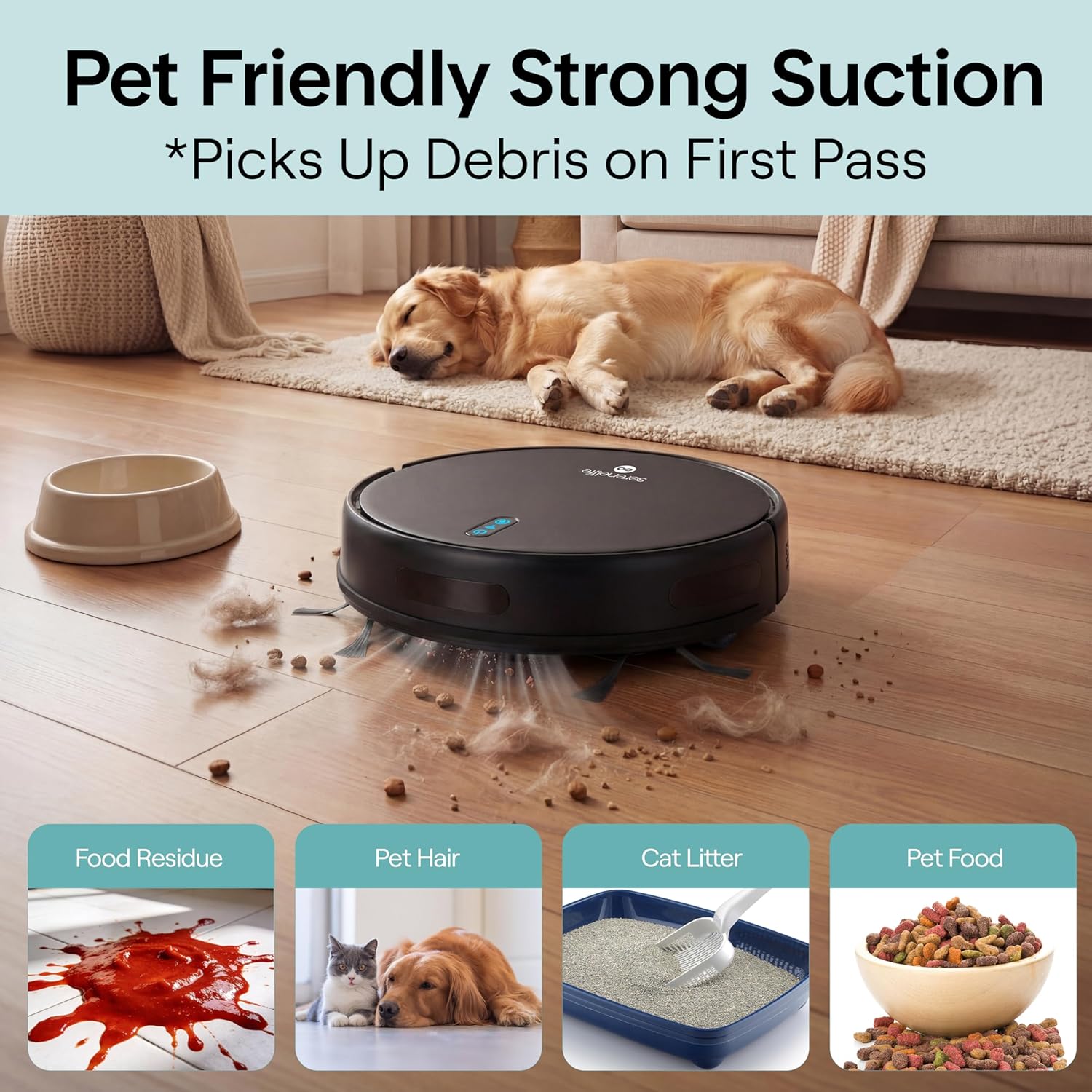
Figure 3: Pet-Friendly Strong Suction

Figure 4: Cleaning Under Furniture

Figure 5: Anti-Fall and Obstacle Avoidance
Setup
1. Install Side Brushes
Press the side brushes into their respective slots on the bottom of the robot until they click into place.
2. Place the Charging Station
Place the charging station against a wall in an open, uncluttered area. Ensure there is at least 1 meter (3 feet) of clear space on both sides and 2 meters (6 feet) in front of the station. Plug the charging adapter into the station and then into a power outlet.
3. Initial Charge
Place the robot onto the charging station, ensuring the charging contacts align. The indicator lights on the robot will illuminate to show it is charging. For first-time use, charge the robot for at least 6 hours to ensure the battery is fully conditioned.

Figure 6: Automatic Recharge
4. Prepare for Mopping (Optional)
If using the mopping function, fill the water tank with clean water. Attach the mop pad securely to the bottom of the water tank. Insert the water tank/dustbin combo back into the robot.
5. Download the SereneLife App
Search for "SereneLife" in your smartphone's app store (iOS or Android) and download the application. Follow the in-app instructions to connect your robot vacuum via Bluetooth. This allows for advanced control and scheduling.

Figure 7: App and Remote Control
Operating
Power On/Off
- To power on, press and hold the power button on the robot or the remote control until the indicator lights illuminate.
- To power off, press and hold the power button until the indicator lights turn off.
Starting a Cleaning Cycle
- Auto Mode: Press the 'Auto' button on the remote or the main power button on the robot once. The robot will begin cleaning in a general pattern.
- Spot Mode: Place the robot near a specific dirty area and press the 'Spot' button on the remote. The robot will clean in a spiral pattern.
- Edge Mode: Press the 'Edge' button on the remote. The robot will clean along the perimeter of the room.
- Zigzag Mode: Select 'Zigzag' mode via the app or remote for a systematic back-and-forth cleaning pattern.
Scheduling Cleaning
Use the SereneLife mobile app to set up daily or weekly cleaning schedules. You can customize cleaning times and modes for different days. The robot will automatically start cleaning at the scheduled times.
Returning to Charging Station
Press the 'Home' button on the remote control or select the 'Recharge' option in the app. The robot will navigate back to its charging station. It will also return automatically when its battery is low.
Maintenance
Regular maintenance ensures optimal performance and extends the lifespan of your robot vacuum.
1. Emptying the Dustbin
- Press the release button to remove the dustbin/water tank combo.
- Open the dustbin cover and empty the collected debris into a trash can.
- Rinse the dustbin with water if necessary, ensuring it is completely dry before reinserting.
2. Cleaning the Filter
- Remove the HEPA filter from the dustbin.
- Tap the filter gently to remove dust. Do not wash the HEPA filter with water.
- Replace the filter every 3-6 months, depending on usage.
3. Cleaning the Main Brush and Side Brushes
- Remove the main brush cover and lift out the main brush. Use the cleaning tool to remove hair and debris.
- Pull the side brushes upwards to remove them. Clean any tangled hair or debris.
- Reinstall the brushes, ensuring they click into place. Replace worn side brushes as needed.
4. Cleaning the Water Tank and Mop Pad
- After mopping, empty any remaining water from the tank.
- Remove the mop pad and wash it by hand or machine. Allow it to air dry completely.
- Clean the water tank thoroughly and ensure it is dry before storage.
5. Cleaning Sensors and Charging Contacts
- Wipe the anti-fall sensors (located on the bottom of the robot) and the charging contacts (on the robot and docking station) with a clean, dry cloth.
- Keep these areas free of dust and debris to ensure proper function.
Troubleshooting
| Problem | Possible Cause | Solution |
|---|---|---|
| Robot does not power on. | Low battery; Power button not pressed correctly. | Charge the robot fully. Press and hold the power button for a few seconds. |
| Robot does not charge. | Charging contacts are dirty; Charging station not powered; Robot not aligned. | Clean charging contacts on both robot and station. Ensure station is plugged in. Reposition robot on station. |
| Robot gets stuck frequently. | Obstacles (cables, rugs); Sensors are dirty. | Clear the cleaning area of obstacles. Clean the robot's sensors. |
| Poor suction performance. | Dustbin full; Filter clogged; Main brush tangled. | Empty the dustbin. Clean or replace the filter. Clean the main brush and side brushes. |
| Mopping function is ineffective. | Water tank empty; Mop pad dirty or dry. | Fill the water tank. Clean or wet the mop pad. |
| App connection issues. | Bluetooth off; Robot not in pairing mode; App outdated. | Ensure Bluetooth is enabled on your phone. Follow app instructions for pairing. Update the SereneLife app. |
Specifications
| Feature | Specification |
|---|---|
| Brand | SereneLife |
| Model Name | PUCRVACX200BK |
| Surface Recommendation | Carpet, Wood, Tile |
| Special Features | Anti-Fall, Auto-Docking, Pet Hair Pick Up, Simultaneous Vacuuming & Mopping, Variable Suction Control |
| Color | Pro, Black |
| Controller Type | App Control, Button Control, Remote Control |
| Filter Type | HEPA |
| Battery Life | 90 minutes |
| Dustbin Capacity | 520 Milliliters |
| Power Source | Battery Powered |
| Item Dimensions (L x W x H) | 12"L x 12"W x 2.95"H |
| Indoor Outdoor Usage | Indoor |
| UPC | 842893172552 |
Warranty and Support
Warranty Information
This SereneLife product is covered by a 1-year manufacturer's warranty from the date of purchase. This warranty covers defects in materials and workmanship under normal use. It does not cover damage caused by misuse, accidents, unauthorized repairs, or normal wear and tear.
Customer Support
For technical assistance, warranty claims, or general inquiries, please contact SereneLife customer support. Refer to the contact information provided on the official SereneLife website or your product packaging. Please have your model number (PUCRVACX200BK) and proof of purchase ready when contacting support.