
Introduction
This manual provides detailed instructions for setting up, operating, and maintaining your Greenpacket 5G CPE E5-250MK router. This device is designed to deliver high-speed 5G internet connectivity for both home and office environments, supporting speeds up to 3600 Mbps and featuring a 2.5 Gigabit Ethernet port for optimal wired performance. Please read this manual thoroughly before using the device to ensure proper functionality and safety.
Product Overview
The Greenpacket 5G CPE E5-250MK is a compact and powerful 5G router. Familiarize yourself with its components and ports.
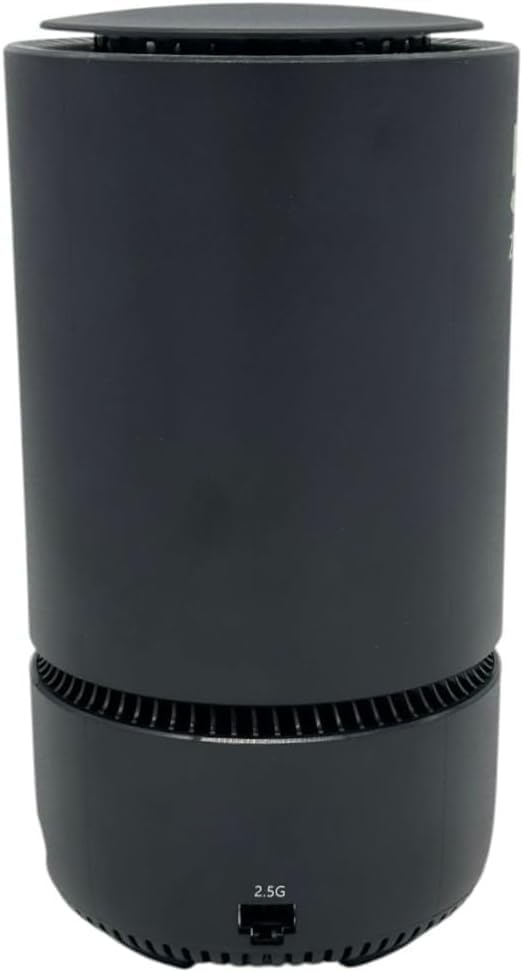
Figure 1: Rear View - This image displays the rear of the Greenpacket 5G CPE E5-250MK router, highlighting the 2.5 Gigabit Ethernet port and the power input. The Ethernet port allows for high-speed wired connections to devices like PCs or gaming consoles.

Figure 2: Bottom View with Product Label - The bottom of the router features a product label. This label contains important information such as the model number (E5-250MK), serial number, default Wi-Fi network name (SSID), and initial Wi-Fi password. It also shows regulatory marks and power rating.
The device also features a high-gain internal antenna for reliable 5G signal reception and supports WPA2/WPA3 for a secure network.
Setup
- Unpack the Device: Carefully remove the Greenpacket 5G CPE E5-250MK router and its accessories (power adapter, user manual) from the packaging.
- Insert SIM Card: Locate the SIM card slot, usually on the bottom or side of the device. Insert your active 5G-enabled SIM card into the slot until it clicks into place. Ensure the SIM card is correctly oriented as indicated by the diagram near the slot.
- Connect Power: Connect the provided power adapter to the router's power input port and then plug the adapter into a power outlet. The device will power on automatically.
- Placement: Place the router in an open area, away from obstructions and other electronic devices that might cause interference. For optimal 5G signal reception, consider placing it near a window.
- Indicator Lights: Observe the indicator lights on the device. Once the 5G signal light is stable (usually solid blue or green), the device is ready for use. Refer to the device's specific LED indicator guide for detailed status meanings.
Operating Instructions
Connecting Devices Wirelessly (Wi-Fi)
- Find Network Name (SSID): On your Wi-Fi enabled device (smartphone, laptop, tablet), search for available Wi-Fi networks. The default network name (SSID) and password can be found on the product label at the bottom of your router (refer to Figure 2).
- Connect: Select your router's SSID from the list and enter the default Wi-Fi password when prompted.
- Access Internet: Once connected, your device should have internet access via the 5G network.
Connecting Devices with Ethernet Cable
- Connect Cable: Plug one end of an Ethernet cable into the 2.5 Gigabit Ethernet port on the back of your Greenpacket 5G CPE E5-250MK router (refer to Figure 1).
- Connect to Device: Plug the other end of the Ethernet cable into the Ethernet port of your computer, gaming console, or other wired network device.
- Verify Connection: The wired device should automatically establish a network connection and gain internet access.
Accessing Router Settings
To customize your Wi-Fi name, password, or other advanced settings, access the router's web interface. Typically, you can do this by opening a web browser on a connected device and entering the router's default IP address (e.g., 192.168.1.1 or 192.168.0.1). The default IP address, username, and password are usually printed on the product label or in the included user manual.
Maintenance
- Keep Clean: Regularly wipe the exterior of the router with a soft, dry cloth. Avoid using liquid cleaners or aerosols.
- Ventilation: Ensure the ventilation holes are not blocked to prevent overheating. Do not place the router in enclosed spaces.
- Firmware Updates: Check the manufacturer's website periodically for firmware updates. Keeping your router's firmware up-to-date ensures optimal performance and security.
- Power Cycle: If you experience connectivity issues, try power cycling the router by unplugging it from the power outlet, waiting 10 seconds, and then plugging it back in.
Troubleshooting
| Problem | Possible Solution |
|---|---|
| No Internet Connection |
|
| Slow Internet Speed |
|
| Cannot Access Router Settings |
|
Specifications
| Feature | Detail |
|---|---|
| Model Number | E5-250MK |
| Network Technology | 5G |
| Max Wireless Speed | Up to 3600 Mbps |
| Ethernet Port | 1 x 2.5 Gigabit Ethernet Port |
| Antenna Type | High-Gain Internal Antenna |
| Wi-Fi Security | WPA2 & WPA3 |
| Color | Black |
| Included Components | Router, Power Adapter, User Manual |
| Manufacturer | China |
Warranty and Support
The Greenpacket 5G CPE E5-250MK router comes with a 2-year limited warranty. Please retain your proof of purchase for warranty claims.
For technical support, troubleshooting assistance beyond this manual, or warranty inquiries, please contact your retailer or the Greenpacket customer support service. Contact details can typically be found on the manufacturer's official website or on the product packaging.
Always refer to the official Greenpacket website for the most up-to-date information, drivers, and firmware updates.