
1. Introduction
Thank you for choosing the JBTEK JB-S71 Phoenix Dual Stereo Speakers Soundbar. This soundbar is designed to provide a rich audio experience with its dual stereo speakers, wireless connectivity, and integrated mobile holder. Please read this manual carefully to ensure proper use and to maximize the performance of your device.
2. Package Contents
- JBTEK JB-S71 Phoenix Soundbar
- USB Charging Cable
- AUX Audio Cable
- User Manual
3. Product Overview
Familiarize yourself with the components and controls of your JB-S71 Phoenix Soundbar.
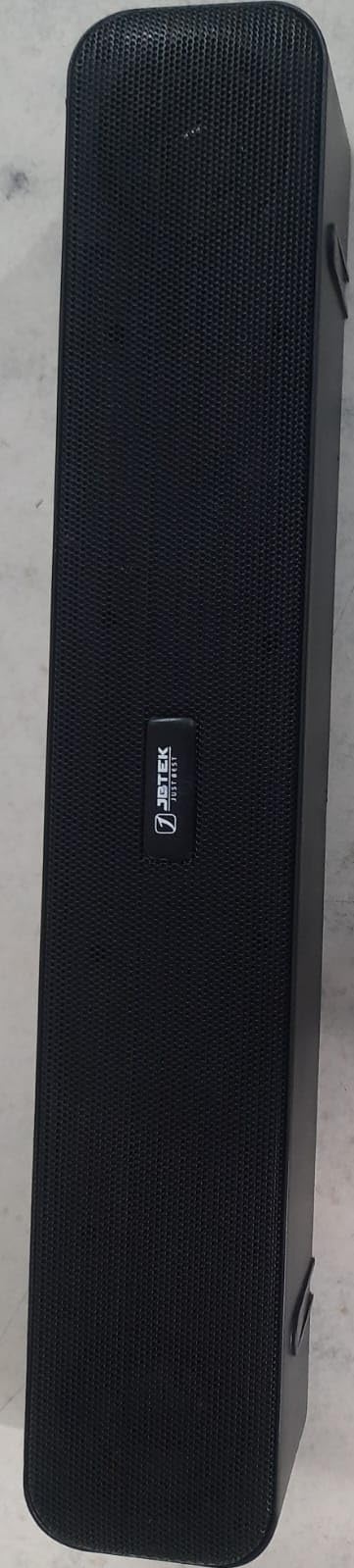
Figure 3.1: Overall view of the JBTEK S71 Phoenix Soundbar. This image shows the soundbar's sleek design and compact form factor, suitable for placement on a table or desk.

Figure 3.2: Front view of the soundbar, highlighting the control buttons. These buttons typically include Power, Mode, Volume Up/Next Track, Volume Down/Previous Track, and Play/Pause.

Figure 3.3: Side view of the soundbar, showing the various input ports. These ports typically include a USB charging port, AUX input, TF card slot, and USB-A port for media playback.
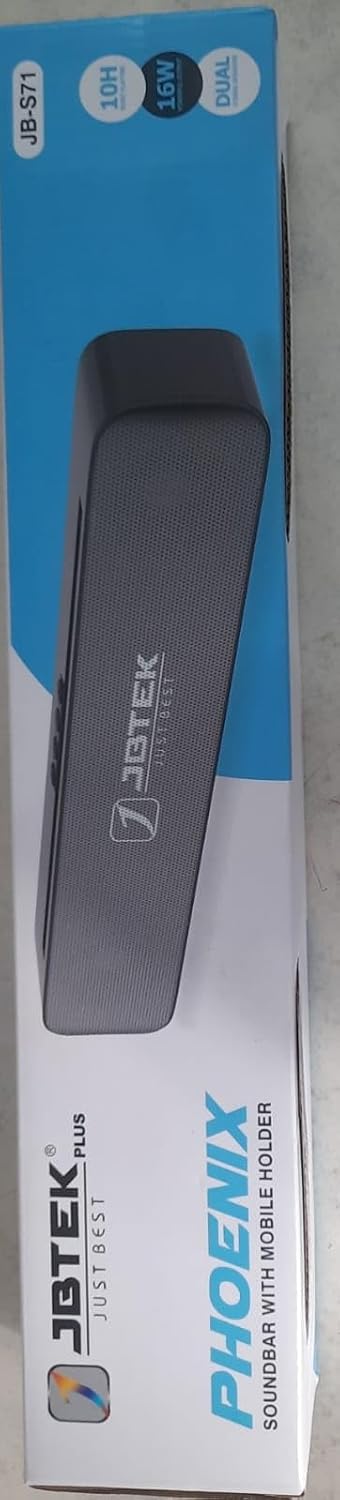
Figure 3.4: Rear view of the soundbar, illustrating the integrated mobile holder. This slot allows you to securely place a smartphone or tablet while enjoying audio.
4. Setup
4.1 Initial Charging
- Connect the provided USB charging cable to the soundbar's charging port.
- Connect the other end of the USB cable to a standard USB power adapter (not included) or a computer's USB port.
- Allow approximately 1.5 hours for a full charge. The charging indicator light will change (e.g., turn off or change color) once charging is complete.
4.2 Powering On/Off
- To power on: Press and hold the Power button for a few seconds until you hear an audible prompt or see an indicator light.
- To power off: Press and hold the Power button again for a few seconds until the device shuts down.
5. Operating Instructions
5.1 Bluetooth Pairing
- Ensure the soundbar is powered on and in Bluetooth mode. If not, press the 'M' (Mode) button to switch to Bluetooth mode. The indicator light will flash, indicating it's ready for pairing.
- On your device (smartphone, tablet, laptop), enable Bluetooth and search for available devices.
- Select "JB-S71 Phoenix" from the list of found devices.
- Once paired, the soundbar will emit a confirmation tone, and the indicator light will stop flashing.
- The soundbar has a working distance of up to 10 meters (33 feet) in an open environment.
5.2 AUX Mode
- Connect one end of the provided AUX audio cable to the soundbar's AUX input port.
- Connect the other end of the AUX cable to the audio output jack of your device (e.g., TV, computer, MP3 player).
- Press the 'M' (Mode) button on the soundbar until it switches to AUX mode.
- Audio will now play through the soundbar from your connected device.
5.3 TF Card Playback
- Insert a TF (MicroSD) card with audio files into the TF card slot on the soundbar.
- The soundbar will automatically switch to TF card mode and begin playing audio files. If not, press the 'M' (Mode) button to select TF card mode.
5.4 USB Playback
- Insert a USB flash drive with audio files into the USB-A port on the soundbar.
- The soundbar will automatically switch to USB mode and begin playing audio files. If not, press the 'M' (Mode) button to select USB mode.
5.5 Using the Mobile Holder
The integrated mobile holder allows you to conveniently place your smartphone or tablet in the designated slot on top of the soundbar for hands-free viewing while listening to audio.
5.6 Controls
- Power Button: Press and hold to power on/off.
- Mode Button (M): Short press to switch between Bluetooth, AUX, TF Card, and USB modes.
- Play/Pause Button: Short press to play or pause audio.
- Volume Up / Next Track: Short press for next track; long press to increase volume.
- Volume Down / Previous Track: Short press for previous track; long press to decrease volume.
6. Charging
When the battery is low, the soundbar may emit an audible warning. Connect the soundbar to a power source using the USB charging cable. The charging indicator will illuminate during charging and typically turn off or change color when fully charged. A full charge takes approximately 1.5 hours and provides up to 10 hours of playtime at 80% volume.
7. Troubleshooting
| Problem | Possible Solution |
|---|---|
| Soundbar does not power on. | Ensure the battery is charged. Connect to a power source and try again. |
| Cannot pair via Bluetooth. | Ensure the soundbar is in Bluetooth pairing mode (indicator flashing). Turn off and on Bluetooth on your device. Move closer to the soundbar. |
| No sound in AUX mode. | Verify the AUX cable is securely connected to both the soundbar and the audio source. Ensure the soundbar is in AUX mode. Check the volume levels on both the soundbar and the connected device. |
| USB/TF card not playing. | Ensure the USB drive or TF card contains compatible audio files (e.g., MP3). Reinsert the storage device. Ensure the soundbar is in the correct mode. |
| Poor audio quality. | For Bluetooth, ensure you are within the 10-meter range and there are no significant obstructions. Check the audio source quality. |
8. Specifications
- Model Name: S71 Phoenix
- Brand: JBTEK
- Speaker Type: Soundbar
- Output Power: 16 Watts (Dual 6W speakers)
- Wireless Version: 5.1
- Working Distance: Up to 10 meters
- Playtime: Up to 10 hours (at 80% volume)
- Battery Charge Time: Approximately 1.5 hours
- Driver Size: 52mm
- Connectivity: Bluetooth, AUX, USB, TF Card
- Compatible Devices: Laptop, Smartphone, Tablet, Television
- Control Method: Remote (if applicable, or onboard buttons)
- Product Dimensions: 38.5D x 5.5W x 7.5H Centimeters
- Item Weight: 692 Grams
- Manufacturer: JK Enterprises
- Country of Origin: India
9. Safety Information
- Do not expose the soundbar to extreme temperatures, direct sunlight, or high humidity.
- Avoid dropping or subjecting the device to strong impacts.
- Do not disassemble or attempt to repair the soundbar yourself. This may void the warranty and cause damage.
- Keep out of reach of children.
- Use only the provided or certified charging cables.
- Dispose of the product responsibly according to local regulations.
10. Warranty and Support
For warranty information or technical support, please contact JBTEK customer service. You can reach them at:
- Customer Care No: 9667798277
- Manufacturer: JK Enterprises
- Address: B-65, 1st Floor, G T Karnal Road, Industrial Area, Delhi-110033, India
Please retain your purchase receipt as proof of purchase for warranty claims.