
1. Introduction
The ExtreLife Luggage Tag (Model MF75) is designed to provide a reliable and convenient way to track your belongings using Apple's Find My network. This rechargeable tag offers real-time location tracking, sound alerts, and left-behind notifications, ensuring peace of mind during your travels. Its durable faux leather design and magnetic flap protect your personal information while offering a stylish accessory for your luggage.
2. Key Features
- Apple Find My Compatibility: Seamlessly integrates with Apple's Find My network for global tracking.
- Real-time Bluetooth Tracking: Pinpoint the exact location of your tag.
- Sound Alerts: Play a sound to easily locate your luggage in crowded areas.
- Left-Behind Notifications: Receive alerts on your iPhone if you leave your tag behind.
- Lost Mode: Enable lost mode to display contact information for anyone who finds your tag.
- Rechargeable Battery: Eco-friendly design with a battery life of up to 4 months on a single charge.
- Durable Faux Leather: Stylish and robust construction with a secure buckle strap.
- Magnetic Privacy Flap: Protects your personal identification information.
3. Package Contents
- ExtreLife Luggage Tag (Model MF75) x 1
- Leather Strap x 1
- Double-sided ID Tag Cards x 2
- User Manual x 1
4. Setup Instructions
4.1 Attaching the Luggage Tag
The ExtreLife Luggage Tag comes with a durable leather strap for easy attachment. Simply thread the strap through the designated loop on the tag and secure it to your suitcase, backpack, or other belongings. The adjustable buckle ensures a snug fit.

Image: ExtreLife Luggage Tag securely attached to a suitcase handle.
4.2 Pairing with Apple Find My
To enable tracking, you must pair your ExtreLife Luggage Tag with your Apple iPhone (iPhone 8 series or later, running iOS 14.5 or later with Two-Factor Authentication enabled).
- Ensure your iPhone has Two-Factor Authentication enabled for your Apple ID.
- Turn on the Find My app and Bluetooth on your iPhone.
- Short press the tag's power button once to turn it on. The power button is located under the magnetic flap.
- Open the Find My app on your iPhone.
- Tap the "Items" tab at the bottom of the screen.
- Tap "Add New Item" and then select "Other Supported Item".
- Your iPhone will search for the ExtreLife Find Tag. Once detected, tap "Connect".
- Follow the on-screen prompts to name your tag and assign an emoji.
- Agree to the terms and conditions to link the item to your Apple ID.

Image: Visual guide for pairing the ExtreLife Luggage Tag with the Apple Find My app.
Video: A demonstration of setting up the ExtreLife Smart Tag with the Apple Find My app.
5. Operating Instructions
5.1 Locating Your Luggage
Once paired, you can track your luggage using the Apple Find My app:
- Open the Find My app on your iPhone.
- Select the "Items" tab and choose your ExtreLife Luggage Tag.
- The map will display the current or last known location of your tag.
- Tap "Directions" to get navigation to your tag's location.

Image: The Find My app showing the location of the ExtreLife Luggage Tag on a map.
5.2 Playing a Sound Alert
If your luggage is nearby but out of sight (e.g., on a baggage carousel), you can play a sound to help locate it:
- In the Find My app, select your ExtreLife Luggage Tag.
- Tap "Play Sound". The tag will emit an audible alert.
- Tap "Stop Sound" once you've located your luggage.

Image: Using the 'Play Sound' feature in the Find My app to locate the ExtreLife Luggage Tag on a baggage carousel.
5.3 Left-Behind Notifications
Receive alerts if you accidentally leave your luggage behind:
- In the Find My app, select your ExtreLife Luggage Tag.
- Under "Notifications", enable "Notify When Left Behind".
- You can customize safe locations where you don't want to be notified (e.g., your home).
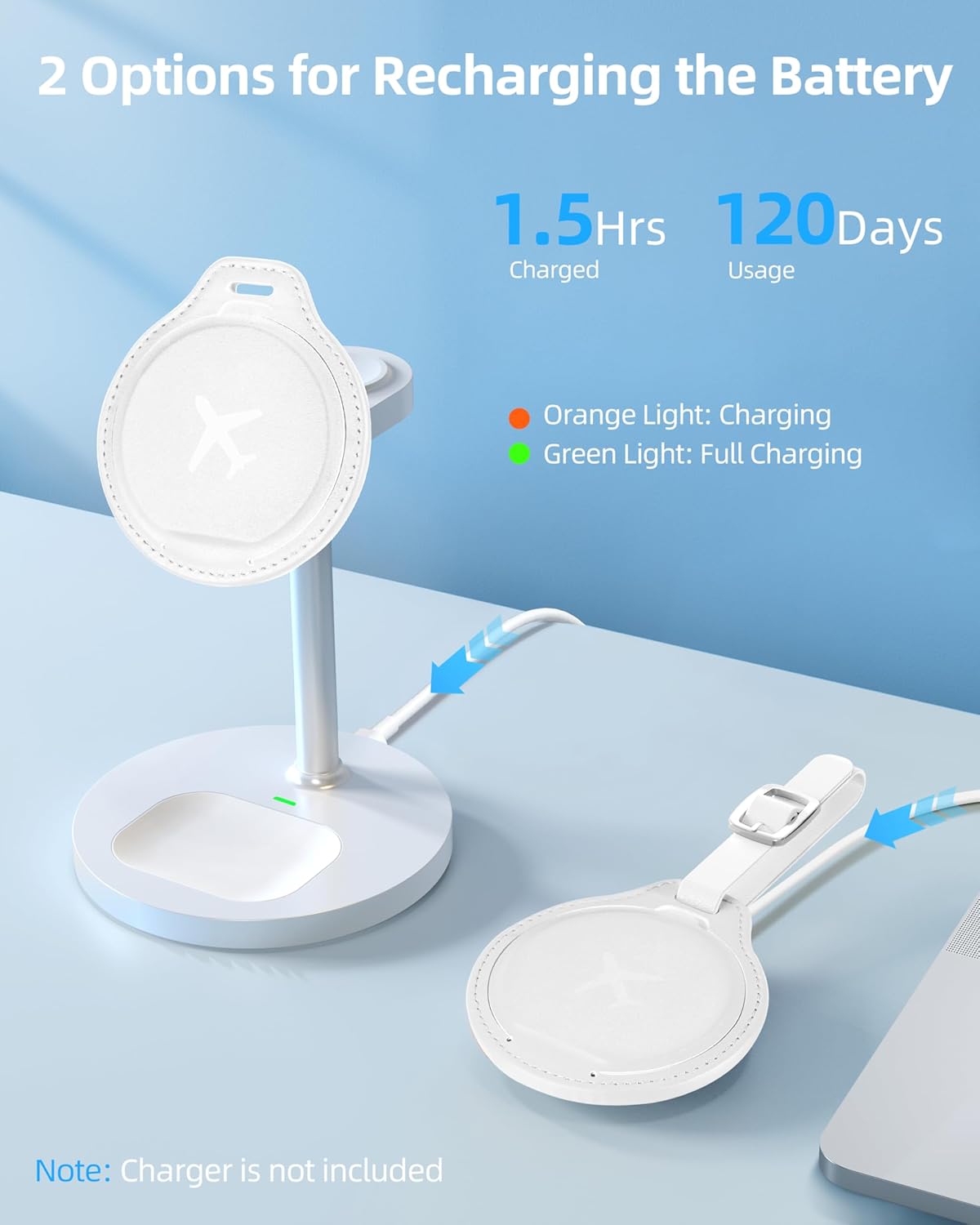
Image: An iPhone displaying a notification indicating the ExtreLife Luggage Tag has been left behind.
5.4 Lost Mode
If your luggage is lost, you can enable Lost Mode:
- In the Find My app, select your ExtreLife Luggage Tag.
- Under "Lost Mode", tap "Enable".
- Enter a phone number or email address where you can be contacted.
- If someone finds your tag, they can use their iPhone to view your contact information.

Image: The Find My app showing the 'Lost Mode' feature for the ExtreLife Find Tag.
6. Charging & Battery
The ExtreLife Luggage Tag features a rechargeable battery that can last up to 4 months on a single charge. It supports wireless charging.
- Place the tag on a compatible wireless charger (charger not included).
- An orange light indicates that the tag is charging.
- A green light indicates that the tag is fully charged.
- Charging typically takes approximately 1.5 hours.

Image: The ExtreLife Luggage Tag being charged wirelessly, showing charging indicators.
7. Maintenance
- Wipe the faux leather surface with a soft, damp cloth to clean.
- Avoid using harsh chemicals or abrasive cleaners.
- Keep the tag dry and away from extreme temperatures.
- Ensure the magnetic flap is closed to protect the internal components and ID cards.
8. Troubleshooting
8.1 Tag Not Pairing
- Ensure your iPhone is an iPhone 8 series or later, running iOS 14.5 or later.
- Verify that Two-Factor Authentication is enabled for your Apple ID.
- Make sure Bluetooth is enabled on your iPhone.
- Confirm the tag is powered on by pressing the power button once.
- Try restarting your iPhone and the Find My app.
8.2 No Indicator Light During Charging
- Ensure the tag is correctly placed on a compatible wireless charger.
- Check if the wireless charger is powered on and functioning correctly.
- Try a different wireless charger if available.
8.3 Inaccurate Location Tracking
- Location accuracy depends on the density of Apple devices in the vicinity. In areas with fewer Apple devices, location updates may be less frequent or precise.
- Ensure the tag's battery is sufficiently charged.
9. Specifications
| Feature | Detail |
|---|---|
| Model Number | MF75 |
| Product Dimensions | 3.34 x 2.99 x 0.33 inches |
| Item Weight | 2.39 ounces |
| Battery | 1 Lithium Ion battery (included), rechargeable |
| Battery Life | Up to 4 months on a single charge |
| Connectivity | Bluetooth, Apple Find My network |
| Material | Faux Leather |
| Color | Cream White |
10. Warranty & Support
We offer a warranty of 365 days from the date of purchase. For any problems or inquiries, please feel free to contact ExtreLife via the Amazon message center. We are committed to replying to your message within 24 hours.