
Perfiware HS1000
Perfiware HS1000 Electronic Cash Register Instruction Manual
Model: HS1000 | Brand: Perfiware
Product Overview
The Perfiware HS1000 is an all-in-one electronic cash register designed for small businesses, offering a comprehensive solution for sales, inventory, and transaction management. It integrates essential features such as a barcode scanner, a built-in thermal receipt printer, and a secure cash drawer, streamlining daily operations.

Image: The Perfiware HS1000 cash register system, including the main unit, integrated receipt printer, dual displays, barcode scanner, and a cash drawer with compartments for bills and coins. Additional accessories like thermal paper rolls and cash drawer keys are also visible.
Key Features:
- All-in-One Solution: Integrated scanner, receipt printer, and cash drawer with removable coin trays.
- Dual Display: 2.8-inch TFT LCD for cashier and 8-digit LED for customer.
- Multiple External Interfaces: Two RS232 ports for external printer/scanner, USB for PC software, PS2 for keyboard input.
- User-Friendly Design: Color-differentiated keyboard for easy operation.
- Smart Management: End-of-day totals, sales tracking, inventory management, and one-touch tax-free settings.
- Durable Construction: Dust-proof and oil-proof top surface for easy cleaning.
Package Contents
Upon unboxing, please verify that all the following items are included in your package:
- Cash Register with Cash Drawer (x1)
- USB Cord (x1)
- Power Cable (x1)
- 58mm Thermal Print Paper Rolls (x3)
- Cash Drawer Keys (x2)
- Cash Register Scanner HS1000 (x1)

Image: A visual representation of the Perfiware HS1000 cash register and its accompanying accessories, including the main unit, scanner, power adapter, USB cable, thermal paper rolls, and cash drawer keys.
Initial Setup
Follow these steps to set up your Perfiware HS1000 cash register for first-time use:
- Connect Power: Plug the power cable into the cash register's power input port and then into a standard electrical outlet.
- Connect Scanner: Connect the HS1000 barcode scanner to the RS232 interface port on the back of the cash register. This port is specifically designed for the included scanner.
- Connect to PC (Optional): If you plan to use the inventory management software, connect the USB cable from the cash register to your computer.
- Install Thermal Paper: Open the printer cover and insert a 58mm thermal paper roll, ensuring the paper feeds correctly through the slot.
- Secure Cash Drawer: Ensure the cash drawer is properly seated and locked. Use the provided keys to open and close it as needed.
- Power On: Press the power button located on the back of the unit to turn on the cash register.

Image: A detailed diagram illustrating the various input and output ports on the rear of the cash register, including connections for power, external devices like printers and scanners, and a USB port for computer connectivity.
Operation Guide
Dual Display Functionality
The HS1000 features two displays for efficient transaction processing:
- Cashier Display: A 2.8-inch TFT LCD screen provides detailed transaction information for the operator.
- Customer Display: An 8-digit LED display clearly shows the transaction total to the customer.

Image: A close-up view of the cash register's dual display system, highlighting the cashier's detailed LCD screen and the customer-facing 8-digit LED display for clear visibility of transaction amounts.
Keyboard Layout and Functions
The keyboard is designed with color-coded keys to simplify operation:
- Blue Buttons: Represent departments, which can be used for product categories or individual items if fewer items are managed.
- Green Buttons: Represent product codes, which can also be entered via the barcode scanner.
- Red and Yellow Buttons: Represent various function keys for operations like subtotal, cash, and other settings.

Image: A clear depiction of the cash register's keyboard, highlighting the color-coded keys and their respective functions, such as department keys (blue), product code keys (green), and function keys (red and yellow).
Thermal Printing
The integrated 58mm thermal printer generates receipts for each transaction. You can customize the receipt's header and footer.

Image: A visual example of a thermal receipt printed by the cash register, indicating the various customizable fields such as the receipt head line, cashier information, product details, and a customizable bottom message.
Barcode Scanner Usage
The included HS1000 barcode scanner simplifies product entry. Simply connect it to the designated RS232 port on the cash register. Once connected, point the scanner at a product's barcode to automatically input the item into the transaction.
Inventory Management Software
The cash register comes with software for inventory and data management. This software is provided on a CD-ROM. Connect the cash register to your computer via the USB port to utilize its features, including report generation and machine management.

Image: A depiction of the cash register's management software interface displayed on a computer monitor, illustrating its capabilities for data management, report generation, and overall machine control.
Care and Maintenance
To ensure the longevity and optimal performance of your Perfiware HS1000 cash register, follow these maintenance guidelines:
- Cleaning: The top surface of the cash register is designed to be dust-proof and oil-proof. Wipe it clean regularly with a soft, damp cloth. Avoid abrasive cleaners or solvents.
- Cash Drawer: Periodically check the cash drawer for any debris that might obstruct its smooth operation. The coin trays are removable for easy cleaning.
- Printer Head: If print quality degrades, gently clean the thermal printer head according to standard thermal printer maintenance procedures (refer to general thermal printer cleaning guides if needed).
- Storage: When not in use for extended periods, store the cash register in a cool, dry place away from direct sunlight and extreme temperatures.

Image: A side profile of the cash register, illustrating its compact dimensions and emphasizing its durable, easy-to-clean, dust-proof, and oil-proof design.
Troubleshooting
This section addresses common issues you might encounter with your Perfiware HS1000 cash register.
| Problem | Possible Cause | Solution |
|---|---|---|
| Cash register does not power on. | Power cable not connected or power outlet issue. | Ensure power cable is securely connected to both the unit and a working power outlet. Check the power switch on the back. |
| Receipts are blank or faded. | Thermal paper installed incorrectly or low on paper. | Ensure the thermal paper roll is inserted with the correct side facing the print head. Replace the paper roll if it is empty. |
| Barcode scanner not responding. | Scanner not properly connected to the RS232 port. | Verify the scanner cable is firmly plugged into the correct RS232 port on the cash register. |
| Difficulty with tax settings. | Unfamiliarity with the "One Click Tax Free" feature. | Refer to the detailed tax settings instructions in the comprehensive user manual (if available) or contact customer support for guidance. |
| Inventory software not connecting to cash register. | USB connection issue or software not installed correctly. | Ensure the USB cable is connected. Verify the software from the CD-ROM is installed and running on your computer. Contact support if the issue persists. |
Technical Specifications
| Feature | Detail |
|---|---|
| Model | HS1000 |
| Manufacturer | Perfiware |
| Package Dimensions | 16.63 x 15.06 x 10.75 inches |
| Item Weight | 13.92 pounds |
| Cashier Capacity | 50 |
| Department Capacity | 36 |
| Storage Capacity | 60,000 records |
| Product Capacity | 10,000 |
| Sales Records | 100 |
| Taste Setting | 30 |
| Printing Specification | 57mm Thermal Printing |
| Settlement Methods | 8 (Customizable) |
| Keyboard | 48 Keys with Dust Proof Cap |
| Cash Drawer | 4 bill trays, 5 coin trays (removable) |
| Operator Display | 2.8-inch Color Display (TFT LCD) |
| Customer Display | 8-Digit LED Display |
| External Keyboard Port | 1 (PS2) |
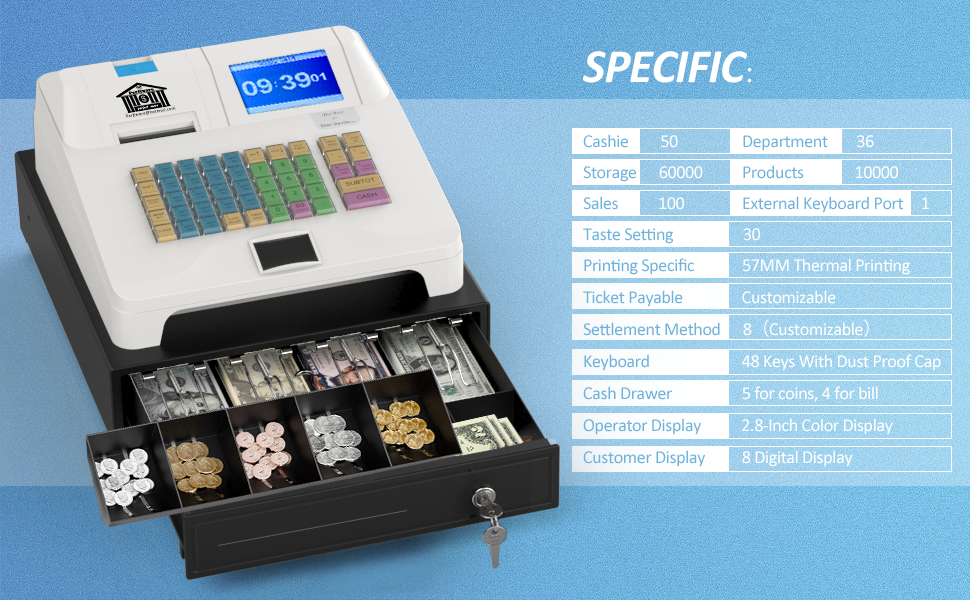
Image: A comprehensive infographic presenting the technical specifications of the cash register, such as cashier and department capacities, storage, product limits, printing details, and display types.
Warranty and Support
Perfiware is committed to providing excellent customer service and product reliability.
- Warranty: The product includes a 1-year warranty.
- Replacement Policy: A 1-month replacement policy is offered for eligible issues.
- After-Sales Support: Instant after-sales support is available.
- Video Tutorials: Access to video tutorials may be available to assist with setup and operation.
For any inquiries, technical assistance, or to claim warranty services, please contact Perfiware customer support. Contact information can typically be found on the product packaging or the official Perfiware website.
Ask a question about this manual
Ask about setup, troubleshooting, compatibility, parts, safety, or missing instructions. Manuals+ will review the question and use this page’s manual context to help answer it.