Introduction
This manual provides comprehensive instructions for the setup, operation, and maintenance of your NGTeco K4-2025 Time Clock. The K4-2025 is a biometric time clock designed for small businesses, featuring 2.4GHz WiFi connectivity, fingerprint recognition, and iOS/Android app integration for efficient employee time tracking. It supports automatic punch-in/out and includes a battery backup for data protection.
What's in the Box
Upon opening the package, verify that all components are present:
- NGTeco K4-2025 Time Clock Unit
- User Manual
- Quick Start Guide
- 8G U-Disk (USB drive)
- Screws for mounting
- Mounting Hardware
- Power Adapter (12V/1.5A)

Image: The NGTeco K4-2025 Time Clock unit displayed with its accessories, including the user manual, quick start guide, 8G U-disk, screws, mounting hardware, and power adapter.
Setup Guide
1. Initial Power On
Connect the power adapter to the time clock and a power outlet. Press the IN key to turn on the device. The screen will display the NGTeco logo and then the current time.
2. Network Connection (WiFi)
To connect the device to your WiFi network:
- Press the M/OK key to enter the Main Menu.
- Navigate to [Comm] and select [Wireless Network].
- Choose your desired Wi-Fi network from the list.
- Navigate to [Password] and enter the correct password for your Wi-Fi network.
- Navigate to the [Connect to WIFI (OK)] button and press the M/OK key to save.
Video: This video demonstrates the initial setup process for the NGTeco K4 Time Clock, including powering on the device, navigating the menu, and connecting to a Wi-Fi network.
3. Employee Enrollment
Employees can be enrolled directly on the device or through the NGTeco Time App.
Enrollment on Device:
To enroll an employee and their fingerprint on the device:
- From the Main Menu, select [Users].
- Choose [Add User].
- Enter the employee's First Name and Last Name using the keypad. The T9 mode allows entering uppercase, lowercase, and special characters by pressing one keystroke per letter.
- Set the User Role (Employee or Admin). Admin privilege protects the clock against unwanted damage to important configurations and unwanted changes. An Admin can make changes to the configuration, add and modify user details, and query attendance records.
- Select the Verification Mode (e.g., Fingerprint Only, User ID/Fingerprint, Password/Fingerprint).
- To enroll a fingerprint:
- Always use clean fingers, avoid angled or tilted finger positions for enrollment.
- Put your finger belly completely in the middle of the reader.
- Do not slide the finger while enrolling it. Put some pressure for 1 second and it will show you the result.
- A dry fingerprint would be hard to be recognized; panting breathe on your fingerprint to moisten it. Then it will be easier to verify.
- Follow the on-screen prompts to scan the fingerprint multiple times until successfully enrolled.
- Optionally, set a password for the employee.

Image: A visual representation of the high-precision fingerprint module, highlighting its reliability, speed, and secure access capabilities, even with wet or dry fingers.
Enrollment via NGTeco Time App:
The NGTeco Time App is available for both iOS and Android devices. Download it from the Apple App Store or Google Play Store.
- Open the NGTeco Time App on your smartphone.
- Scan the QR code displayed on the time clock to connect the app to the device.
- In the app, navigate to the Users section.
- Tap [Add User].
- Enter the employee's First Name, Last Name, and PIN.
- Set the Permission (Employee or Admin).
- Tap [Save & Sync] to synchronize the new user data with the time clock.

Image: Screenshots of the NGTeco Time App interface, demonstrating features like adding users, setting up pay periods and attendance rules, and automatic punch detection for effortless management.
Operating Instructions
1. Auto Punch Mode
The K4-2025 features an Auto Punch Mode. When this feature is enabled, the time clock will automatically update the punch state (In/Out) based on the user's previous punch. This eliminates the need to manually press In/Out keys, reducing errors.
If Auto Punch Mode is turned off, users will need to manually select the punch state, which will then be displayed on the home screen.

Image: The NGTeco K4-2025 Time Clock with a finger on the scanner, illustrating the "No Need to Press IN/OUT Keys" feature in Auto Punch Mode.
2. Query Attendance Records
Users can view their attendance records directly on the device:
- From the Main Menu, select [Time Report].
- Choose [Today's Attendance] or [View History Attendance] to see records.
3. Adding/Editing Missing Punches
Missing punches can be added from the device or edited via the app.
Add Missing Punch from Device:
Note: The device does not support the Edit Punch function.
- Go to [Time Data], then click [Add Missing Punch].
- Select the user, then enter the punch date, time, and state.
- Navigate to [OK/M] to Save and press M/OK key to save.
Add Missing Punch/Edit Punch from App:
Note: You can't delete attendance records for the authenticity of data.
- Go to Attendance menu.
- Click the Add Punch icon.
- Select the user to add the missing punch.
- Select the Punch Date and Time.
- Select the Punch State.
- Click Save & Sync to sync the attendance details to the clock.
To edit an existing punch record:
- Go to Attendance menu.
- Select the user record you want to edit, and click the Edit Punch icon.
- Select the Punch Date and Time.
- Select the Punch State.

Image: Screenshots from the NGTeco Time App showing how to add or edit missing punch records, ensuring accurate time tracking.
4. Downloading Time Reports
Time reports can be downloaded directly from the device via USB or generated and emailed through the app.
Download Time Report from Device (USB):
- Insert the USB drive (8G U-Disk provided) into the clock's USB port.
- Go to [Time Report] and select the required time period (e.g., Current Pay Period, Custom Pay Period).
- Select the time format to be displayed on the report.
- Navigate to [OK/M] to Download and press M/OK key.
Download Time Report from App:
Note: Connection to a computer and remote download of reports is not supported directly from the device; use the app for remote reporting.
- Go to Report menu in the NGTeco Time App.
- Select a user or all the users.
- Select the specific Pay Period or, select Custom Period and set a date range within 31 days.
- Enter the email addresses where the report should be sent.
- Click [Download & Email Report] to generate and send the time report.

Image: Visual examples of timecard reports for various payroll cycles (monthly, semi-monthly, bi-weekly, weekly), demonstrating the flexibility of the system.
Maintenance
To ensure optimal performance and longevity of your NGTeco K4-2025 Time Clock, follow these maintenance guidelines:
- Cleaning: Regularly wipe the device's surface and fingerprint scanner with a soft, dry cloth. Avoid using abrasive cleaners or solvents.
- Fingerprint Scanner Care: Ensure fingers are clean and dry before scanning to prevent residue buildup on the sensor.
- Power Supply: Use only the provided power adapter. Disconnect power during extended periods of non-use or during electrical storms.
- Data Backup: Periodically download attendance reports via USB or the app to ensure data is securely backed up. The built-in 2000 mAh battery provides temporary data protection during power outages.
- Placement: Install the device in a stable environment, away from direct sunlight, extreme temperatures, and high humidity.
Troubleshooting
If you encounter issues with your NGTeco K4-2025 Time Clock, refer to the following common solutions:
- Device Not Powering On:
- Check if the power adapter is securely connected to both the device and a working power outlet.
- Ensure the power outlet is functional.
- Fingerprint Recognition Issues:
- Ensure your finger is clean and dry.
- Place your finger flat and centered on the scanner, applying gentle pressure.
- Re-enroll the fingerprint if issues persist, ensuring proper technique during enrollment.
- Wi-Fi Connection Problems:
- Verify that your Wi-Fi network is 2.4GHz. The device does not support 5GHz networks.
- Ensure the Wi-Fi password entered is correct.
- Check the signal strength of your Wi-Fi network at the device's location.
- Restart the time clock and your Wi-Fi router.
- App Synchronization Issues:
- Ensure both the time clock and your smartphone are connected to the same 2.4GHz Wi-Fi network.
- Verify that the NGTeco Time App is updated to the latest version.
- Restart the app and the time clock.
- Data Export Problems:
- For USB export, ensure the USB drive is properly inserted and formatted (FAT32 is generally recommended).
- For app reports, verify the email addresses are correct and check your spam folder if the report is not received.
For further assistance, please contact NGTeco customer support.
Specifications
| Model Name | K4-2025 |
| Brand | NGTeco |
| Dimensions | 11.69 x 8.5 x 3.03 inches |
| Item Weight | 1.96 pounds |
| Power Source | 12V/1.5A Power Adapter (included) |
| Battery Backup | Built-in 2000 mAh battery (Lithium Ion) |
| Connectivity | 2.4GHz WiFi |
| User Capacity | 3000 Users, 3000 Fingerprints, 200,000 Attendance Records |
| Material | High-quality ABS plastic |
| App Compatibility | iOS/Android (NGTeco Time App) |
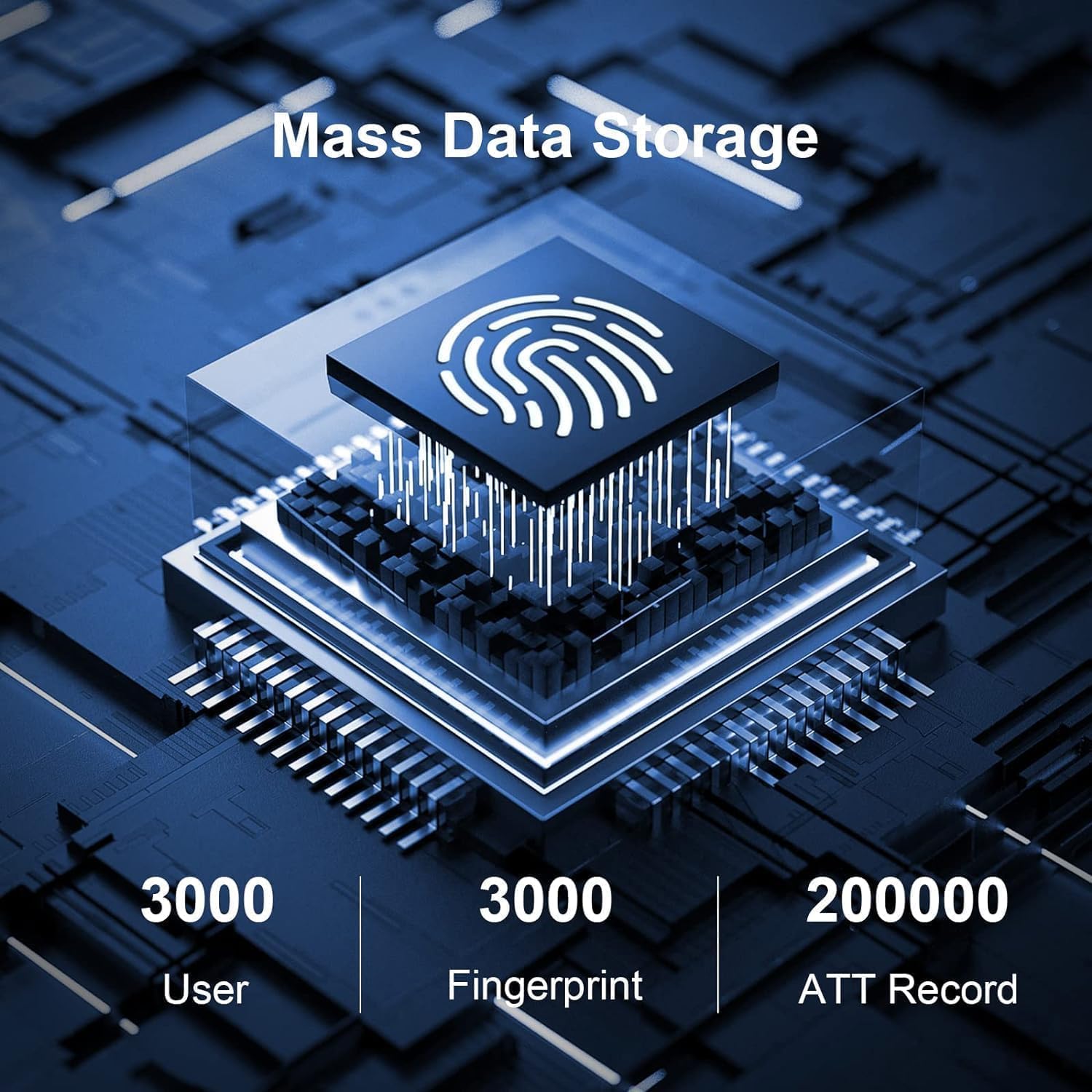
Image: A graphic illustrating the mass data storage capabilities of the NGTeco K4-2025, supporting up to 3000 users, 3000 fingerprints, and 200,000 attendance records.
Warranty and Support
The NGTeco K4-2025 Time Clock comes with a one-year warranty. NGTeco also provides free lifetime technical support from their USA-based team. For assistance, you can reach them by phone or email, Monday through Friday, from 6:00 a.m. to 6:00 p.m. (EST).
For the most up-to-date contact information, please refer to the official NGTeco website or the contact details provided in your product packaging.