
Introduction
This manual provides essential information for the installation, operation, and maintenance of your RayCue FX991 M.2 NVMe Solid State Drive. The RayCue FX991 is a high-performance PCIe Gen 4x4 NVMe M.2 2280 SSD designed for storage expansion in compatible devices, including the PlayStation 5 console, laptops, and desktop computers. It features an integrated heatsink for efficient thermal management and offers high-speed data transfer capabilities.
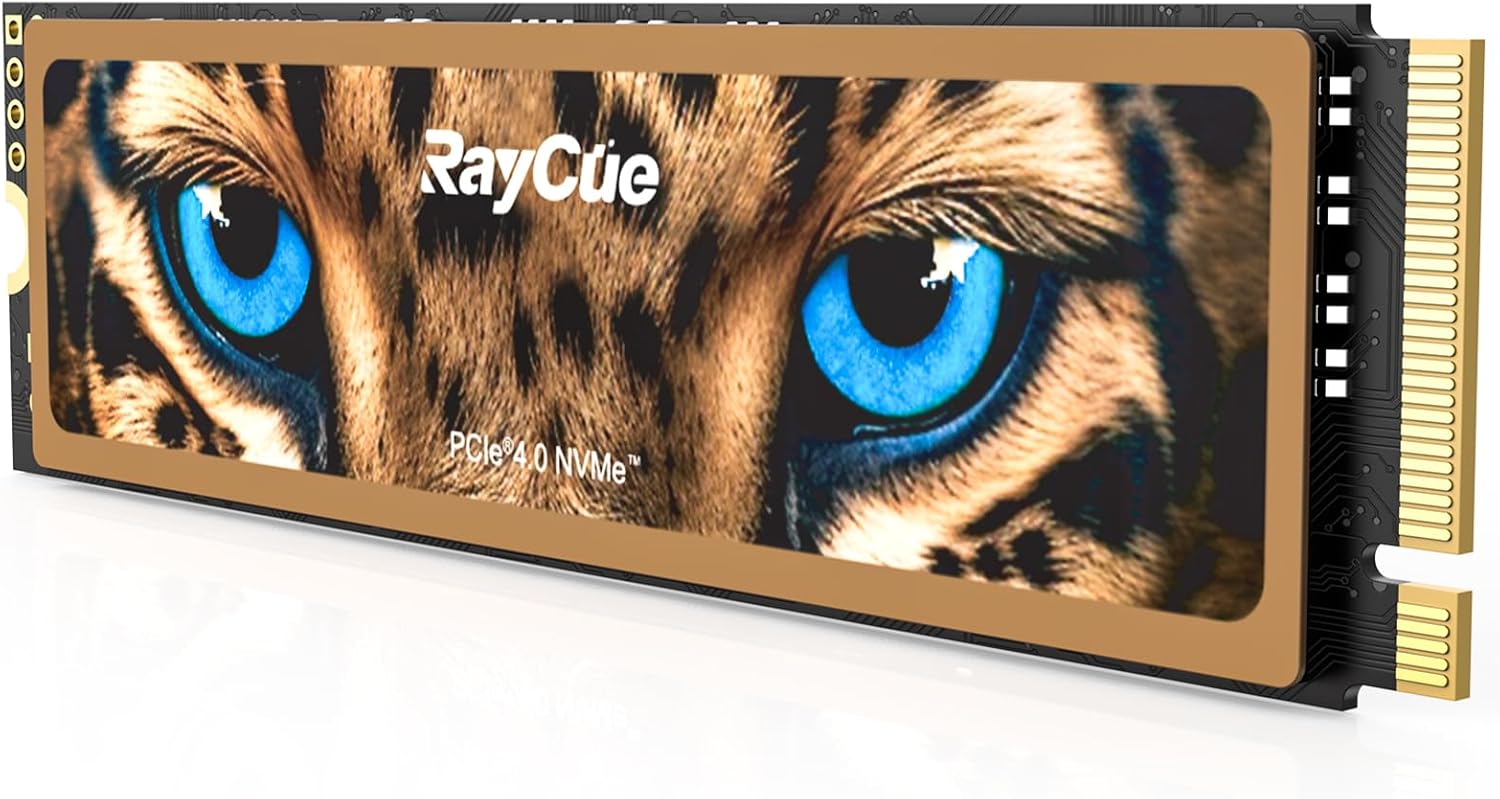
Image: The RayCue FX991 NVMe M.2 SSD, showcasing its integrated heatsink with a distinctive tiger eye graphic.
Setup and Installation
System Requirements
- PlayStation 5 console (Digital or Disc Edition) with system software version 21.02-04.00.00 or newer.
- Desktop PC or laptop with an available M.2 2280 slot supporting PCIe Gen4 x4 NVMe.
Installation on PlayStation 5
Installing the RayCue FX991 SSD into your PlayStation 5 console requires careful handling. Please refer to the official PlayStation 5 support documentation for detailed, step-by-step instructions on how to open your console and access the M.2 expansion slot. The following is a general overview:
- Ensure your PS5 console is completely powered off and unplugged from the power outlet.
- Remove the console's cover to expose the M.2 expansion slot.
- Remove the screw and spacer from the M.2 expansion slot.
- Carefully insert the RayCue FX991 SSD into the M.2 slot at an angle, then push it down until it clicks into place.
- Secure the SSD with the screw and spacer.
- Replace the console cover.
- Reconnect the power cable and turn on your PS5. The console will prompt you to format the new M.2 SSD. Follow the on-screen instructions.

Image: The RayCue FX991 SSD shown compatible and ready for installation within a PlayStation 5 console.
Installation on PC/Laptop
For PC or laptop installation, ensure your device is powered off and unplugged. Open your computer case or access panel, locate an available M.2 2280 slot, and insert the SSD. Secure it with the provided screw. After reassembling your computer, you will need to initialize and format the SSD through your operating system's disk management utility.

Image: A graphic highlighting the high-performance M.2 NVMe interface, emphasizing easy installation and compatibility with PS5 and desktop systems.
Operation
Initial Setup and Formatting
Upon first installation, the RayCue FX991 SSD will need to be initialized and formatted before use. For PlayStation 5, the console will automatically detect the new SSD and guide you through the formatting process. For PC, access Disk Management (Windows) or Disk Utility (macOS) to initialize the drive and create a new partition.
Data Transfer and Usage
The RayCue FX991 SSD leverages PCIe Gen 4x4 technology to deliver sequential read speeds up to 7450 MB/s and sequential write speeds up to 6500 MB/s. This enables rapid game loading, efficient data transfers, and smooth performance for demanding applications like video editing and data analysis.

Image: A visual representation of the SSD's lightning-fast data speeds, indicating sequential read speeds of up to 7450 MB/s and sequential write speeds of up to 6500 MB/s.

Image: A performance comparison illustrating the extreme speed of the PCIe Gen4 SSD compared to older generations for various tasks, including game loading and large file operations.
Maintenance and Best Practices
To ensure optimal performance and longevity of your RayCue FX991 SSD, consider the following:
- Firmware Updates: Periodically check the RayCue official website for any available firmware updates for your SSD. Keeping the firmware current can improve performance and stability.
- Temperature Management: The integrated heatsink is designed for efficient thermal control. Ensure your device has adequate airflow to prevent excessive heat buildup, especially during prolonged heavy use.
- Avoid Overfilling: While the SSD offers substantial capacity, avoid consistently filling it to 100%. Leaving some free space can help maintain performance and extend the drive's lifespan.
- TRIM Support: The FX991 supports TRIM, which helps maintain performance over time by allowing the operating system to inform the SSD which data blocks are no longer in use and can be wiped internally. Ensure TRIM is enabled in your operating system.
- Data Backup: Regularly back up important data to another storage device. While SSDs are reliable, no storage medium is immune to failure.

Image: An exploded diagram illustrating the layers of the SSD's efficient heat dissipation system, including the thermal conductive sticker, aluminum foil, graphene coating, and PET patch.
Troubleshooting
Common Issues and Solutions
- SSD Not Detected:
- Ensure the SSD is correctly seated in the M.2 slot.
- Check your system's BIOS/UEFI settings to confirm the M.2 slot is enabled and configured correctly (e.g., NVMe mode).
- For PC, ensure necessary NVMe drivers are installed.
- For PC, check Disk Management to see if the drive needs initialization.
- Slow Performance:
- Verify that the SSD is installed in a PCIe Gen4 x4 compatible slot. Using a Gen3 slot will limit performance.
- Ensure your operating system and drivers are up to date.
- Check for background processes or applications consuming excessive resources.
- Confirm TRIM is enabled.
- Overheating:
- Ensure the heatsink is properly installed and making good contact with the SSD.
- Verify adequate airflow within your computer case or PS5 console.
- Formatting Errors:
- Try formatting the drive using a different utility or method (e.g., command line tools).
- Check the drive's health status using diagnostic software.
Technical Specifications
| Feature | Specification |
|---|---|
| Model Number | FX991 |
| Digital Storage Capacity | 4 TB |
| Hard Disk Interface | NVMe |
| Connectivity Technology | PCIe Gen4 x4 |
| Form Factor | M.2 2280 |
| Sequential Read Speed | Up to 7450 MB/s |
| Sequential Write Speed | Up to 6500 MB/s |
| Compatible Devices | PlayStation 5, Laptops, Desktop PCs |
| Installation Type | Internal Hard Drive |
| Heatsink | Integrated |
| Item Weight | 1.6 ounces |
| Package Dimensions | 5.4 x 5.4 x 1.1 inches |
Warranty and Support
Warranty Information
RayCue provides a limited service warranty of up to 5 years or 1200 TBW (Terabytes Written) for the FX991 M.2 SSD. This warranty covers defects in materials and workmanship under normal use. Please retain your proof of purchase for warranty claims.
Customer Support
For technical assistance, warranty claims, or further inquiries, please contact RayCue customer support through their official website or the retailer where the product was purchased. You can find additional resources and frequently asked questions on the RayCue Store.