
Zelnoox TAC-60
Zelnoox TAC-60 Magsafe Digiscoping Adapter Instruction Manual
Model: TAC-60
Introduction
The Zelnoox TAC-60 Magsafe Digiscoping Adapter provides a secure and stable connection for your iPhone to telescopes, spotting scopes, monoculars, binoculars, and microscopes. This adapter allows you to capture high-quality images and videos of distant objects by aligning your phone's camera with the eyepiece. Its robust design and magnetic attachment ensure ease of use and reliability.

Image: The Zelnoox TAC-60 Magsafe Digiscoping Adapter, designed for secure phone attachment to optical devices.
What's in the Box
- Magnetic Telescope iPhone Adapter (1x)
- Metal Ring (1x)
Compatibility
Phone Compatibility
The adapter is directly compatible with iPhone 12, 13, 14, 15, 16, and 17 Pro Max series, and MagSafe cases. For iPhone 11 and older models, Android phones, or non-MagSafe cases, a metal ring is included to enable MagSafe functionality. Ensure the metal ring is attached securely and allow 24 hours before use for optimal adhesion.
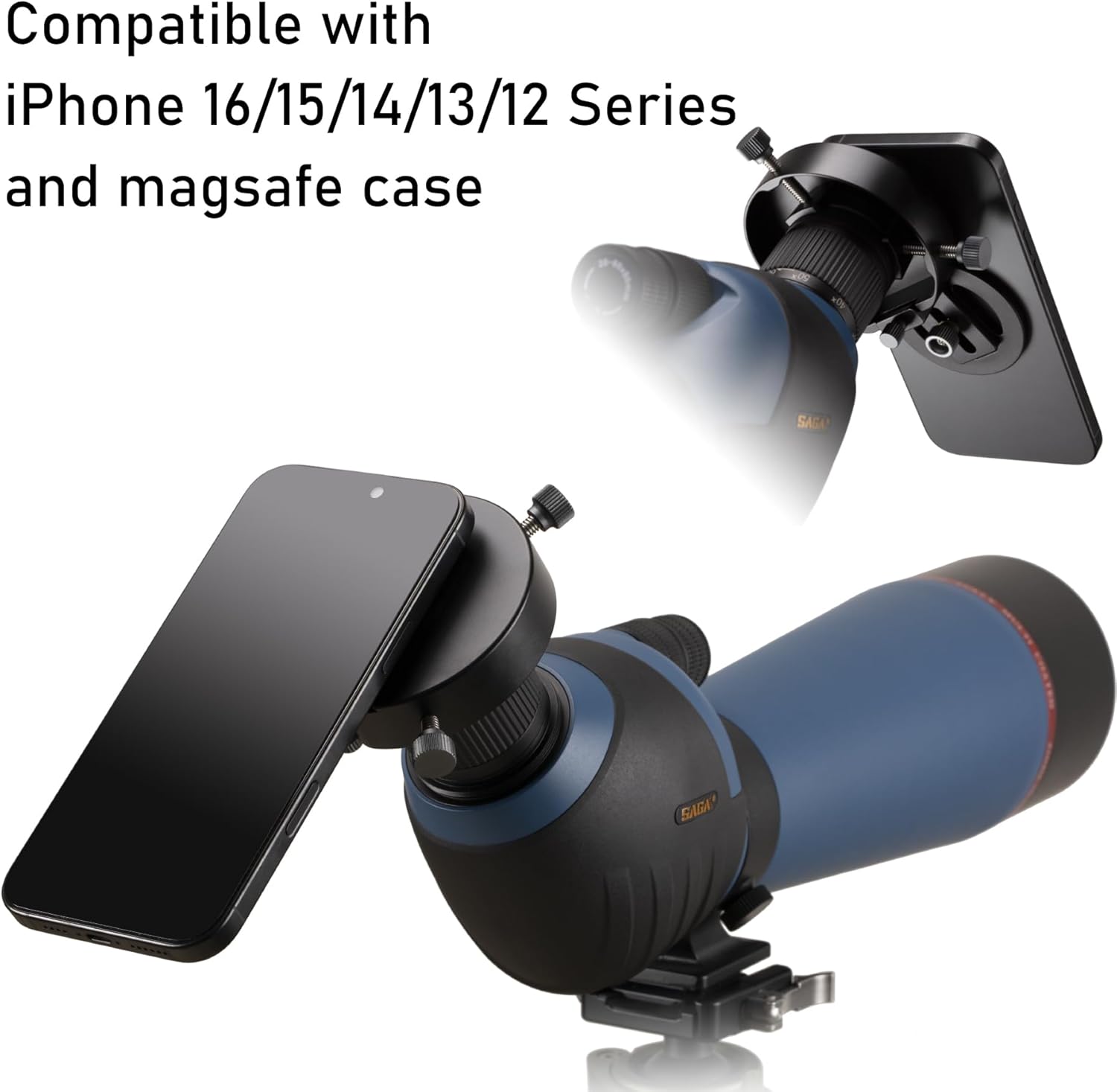
Image: The adapter is compatible with iPhone 12-17 series and MagSafe cases. A metal ring is provided for other phone models.
Eyepiece Compatibility
This magnetic digiscoping adapter is designed to fit eyepieces with an outer diameter ranging from 1.1 inches to 2.5 inches (28mm-64mm). It is suitable for most telescopes, spotting scopes, monoculars, binoculars, and microscopes. For microscope use, it is recommended to measure your eyepiece's outer diameter before ordering to ensure proper fit.

Image: The adapter's adjustable clamps accommodate eyepieces with outer diameters between 1.1 and 2.5 inches.
Setup Instructions
Follow these steps to properly set up your Zelnoox TAC-60 Magsafe Digiscoping Adapter:
- Step 1: Prepare the Adapter and Phone
Release the knob located underneath the magnetic ring on the adapter. Attach the magnetic ring to your iPhone's MagSafe area, ensuring the phone's main camera is centered within the adapter's round hole. Adjust the distance between your iPhone's MagSafe ring and the main camera for optimal alignment. Once aligned, lock the knob by turning it clockwise.

Image: Adjusting the magnetic ring's position to align the phone's main camera with the adapter's central opening.
- Step 2: Attach Adapter to Eyepiece
Attach the adapter to the eyepiece of your telescope or spotting scope. Use the three locking knobs to secure the adapter firmly onto the eyepiece. Adjust the length of the remaining three locking knobs to ensure the adapter is centered and stable on the eyepiece.

Image: Securing the adapter onto the optical device's eyepiece using the three adjustable knobs.
- Step 3: Attach Phone to Adapter and Initial Alignment
Attach your iPhone to the magnetic ring of the adapter. Turn on your phone's camera application and select a shooting mode. Gently rotate the phone left and right to point the main camera directly at the telescope eyepiece. For best results, consider adjusting the shooting mode to Video or Portrait mode.

Image: The iPhone magnetically attached to the adapter, with the camera aligned to the eyepiece for viewing.
- Step 4: Fine-tune Lens Distance
Rotate the magnetic ring height adjustment knob (forward/backward adjustment) to fine-tune the distance between the phone lens and the round hole of the adapter. This adjustment helps achieve the correct eye relief and capture the clearest possible images and videos.

Image: Adjusting the knob to precisely set the distance between the phone's camera lens and the adapter's opening.
Setup Video Guide
Video: Official Zelnoox guide demonstrating the setup and use of the magnetic digiscoping adapter.
Operating Instructions
Once the adapter and your phone are securely attached and aligned:
- Camera App Settings: Open your phone's camera application. Adjust settings such as zoom, exposure, and focus within the app to optimize the image from your optical device.
- Shooting Mode: For capturing detailed observations, consider using Video mode for moving subjects or Portrait mode for still, focused shots, as these modes often provide better control over depth and clarity.
- Stability: For best results, use a stable tripod for your telescope or spotting scope to minimize vibrations and ensure sharp images.
- Focus: Use the manual focus mechanism of your optical device to achieve a clear image on your phone screen.

Image: An iPhone 16 Pro Max connected to the adapter, showing a clear view through the optical device, demonstrating optimal operation.
Maintenance
To ensure the longevity and optimal performance of your Zelnoox TAC-60 adapter:
- Cleaning: Wipe the adapter with a soft, dry cloth after each use to remove dust and debris. Avoid using abrasive cleaners or solvents.
- Storage: Store the adapter in a dry, cool place away from direct sunlight and extreme temperatures.
- Inspection: Periodically check all knobs and screws to ensure they are tight. Do not overtighten.
- Magnetic Care: Keep the magnetic surfaces clean and free from metallic particles that could interfere with the magnetic attachment.
Troubleshooting
- Issue: Blurry or distorted image on phone screen.
- Solution:
- Ensure the phone camera is perfectly centered over the adapter's hole and the eyepiece.
- Adjust the forward/backward distance of the magnetic ring (Step 4) to achieve proper eye relief.
- Use the focus knob on your telescope/spotting scope to bring the image into sharp focus.
- Clean the phone camera lens and the eyepiece of your optical device.
- Issue: Phone does not attach securely or falls off.
- Solution:
- Verify your iPhone model is MagSafe compatible or that the metal ring is correctly applied to your phone/case.
- Ensure the magnetic surfaces on both the adapter and your phone/case are clean and free of obstructions.
- If using the metal ring, ensure it has been allowed 24 hours to adhere properly.
- Issue: Adapter is loose on the eyepiece.
- Solution:
- Tighten the three locking knobs on the adapter evenly until it is secure on the eyepiece. Do not overtighten.
- Confirm your eyepiece's outer diameter is within the compatible range of 1.1"-2.5" (28mm-64mm).
Specifications
| Feature | Detail |
|---|---|
| Brand | Zelnoox |
| Model Name | telescope iPhone adapter with magnetic attach |
| Model Number | TAC-60 |
| Eyepiece Compatibility | Outer diameter 1.1"-2.5" (28mm-64mm) |
| Phone Compatibility | iPhone 12/13/14/15/16/17 Pro Max series (direct MagSafe), other smartphones with included metal ring |
| Mount Type | Magnetic attachment adapter for telescope eyepieces |
| Material | Aircraft grade 6061-T6 aluminum with anodized treatment |
| Product Dimensions (LxWxH) | 5.24" x 3.54" x 1.34" (133x90x34mm) |
| Item Weight | 4.3 Ounces (123g) |
| Magnets | 20 N52 neodymium magnet rings |

Image: Detailed dimensions and weight of the adapter, highlighting its portable and durable design.
Warranty Information
The Zelnoox TAC-60 Magsafe Digiscoping Adapter comes with a Lifetime Warranty. For any warranty claims or issues, please refer to the support section below.
Customer Support
For further assistance, technical support, or warranty inquiries, please visit the official Zelnoox store on Amazon or contact customer service through your purchase platform.
Zelnoox Store: Visit the Zelnoox Store on Amazon
Ask a question about this manual
Ask about setup, troubleshooting, compatibility, parts, safety, or missing instructions. Manuals+ will review the question and use this page’s manual context to help answer it.