
KidsOClock GL50 Kids Smart Watch User Manual
Model: GL50
Introduction
Welcome to the KidsOClock GL50 Kids Smart Watch user manual. This guide provides detailed instructions on how to set up, operate, and maintain your new smart watch. The GL50 is designed with your child's safety and connectivity in mind, featuring 4G video call capabilities, precise GPS tracking, health monitoring, and a durable AMOLED screen with Gorilla Glass protection.
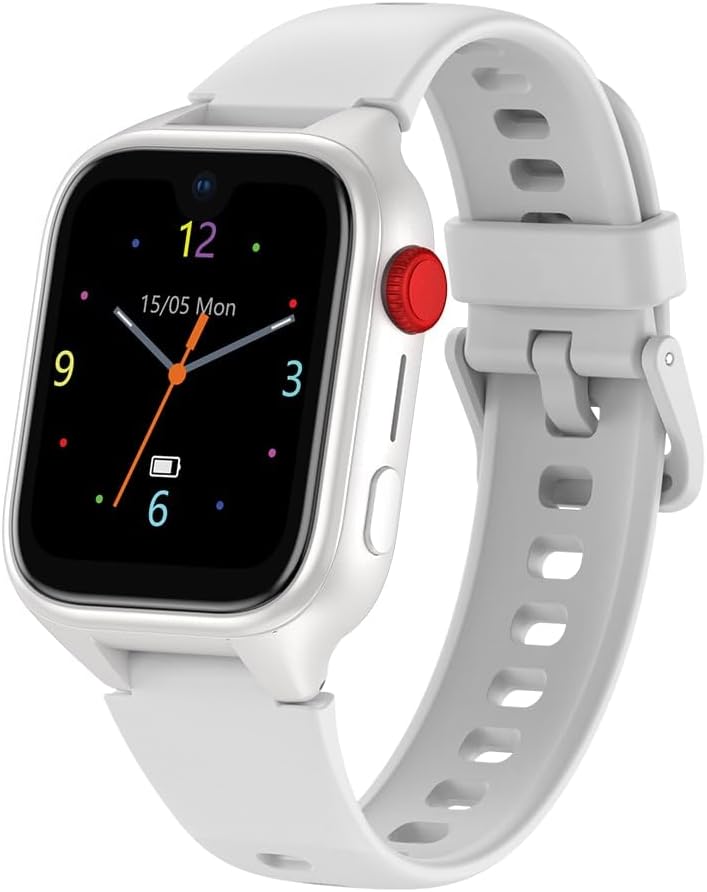
Image: The KidsOClock GL50 Smart Watch in white, showcasing its sleek design and display.
Setup Guide
1. Initial Charging
Before first use, fully charge the KidsOClock GL50 smart watch. Connect the provided charging cable to the watch's charging port and plug the USB end into a compatible power adapter (not included). A full charge typically takes approximately 2 hours. The battery indicator on the screen will show charging progress.
2. SIM Card Installation
The GL50 requires a 4G Nano SIM card for cellular connectivity. Ensure the watch is powered off before inserting the SIM card. Locate the SIM card slot on the side of the watch. Carefully insert the Nano SIM card into the slot with the gold contacts facing up, ensuring it clicks into place. Refer to the diagram below for proper orientation.

Image: Side view of the KidsOClock GL50 Smart Watch, illustrating the location of the SIM card slot.
3. App Pairing and Parental Control Setup
To utilize all features, including remote monitoring and parental controls, download the KidsOClock companion app on your smartphone. Follow the in-app instructions to pair the watch with your device. This process typically involves scanning a QR code displayed on the watch screen. Once paired, you can set up safe zones (Geo Fencing), manage contacts, and monitor watch activities.
Operating the Smart Watch
Basic Navigation
The GL50 features a responsive AMOLED touchscreen. Swipe left/right to navigate between different screens and apps. Tap to select an option. The physical button on the side serves as a power button and a back button in some contexts.

Image: Front view of the KidsOClock GL50 Smart Watch displaying the current time.
Making and Receiving Calls
The GL50 supports 4G audio and video calls. To make a call, navigate to the contacts list on the watch and select the desired contact. To receive a call, tap the green answer button on the screen. The built-in 5MP HD camera enables clear video calls.
SOS Function
In case of an emergency, the GL50 has a dedicated SOS button. Press and hold this button to initiate an emergency call to pre-set contacts. The watch will also send location alerts to these contacts.
Other Features
- Games: The watch includes pre-installed games, such as lockable math puzzles, for entertainment.
- Weather Reports: Access real-time weather information directly on the watch.
- Alarm Clock: Set alarms for reminders or daily routines.
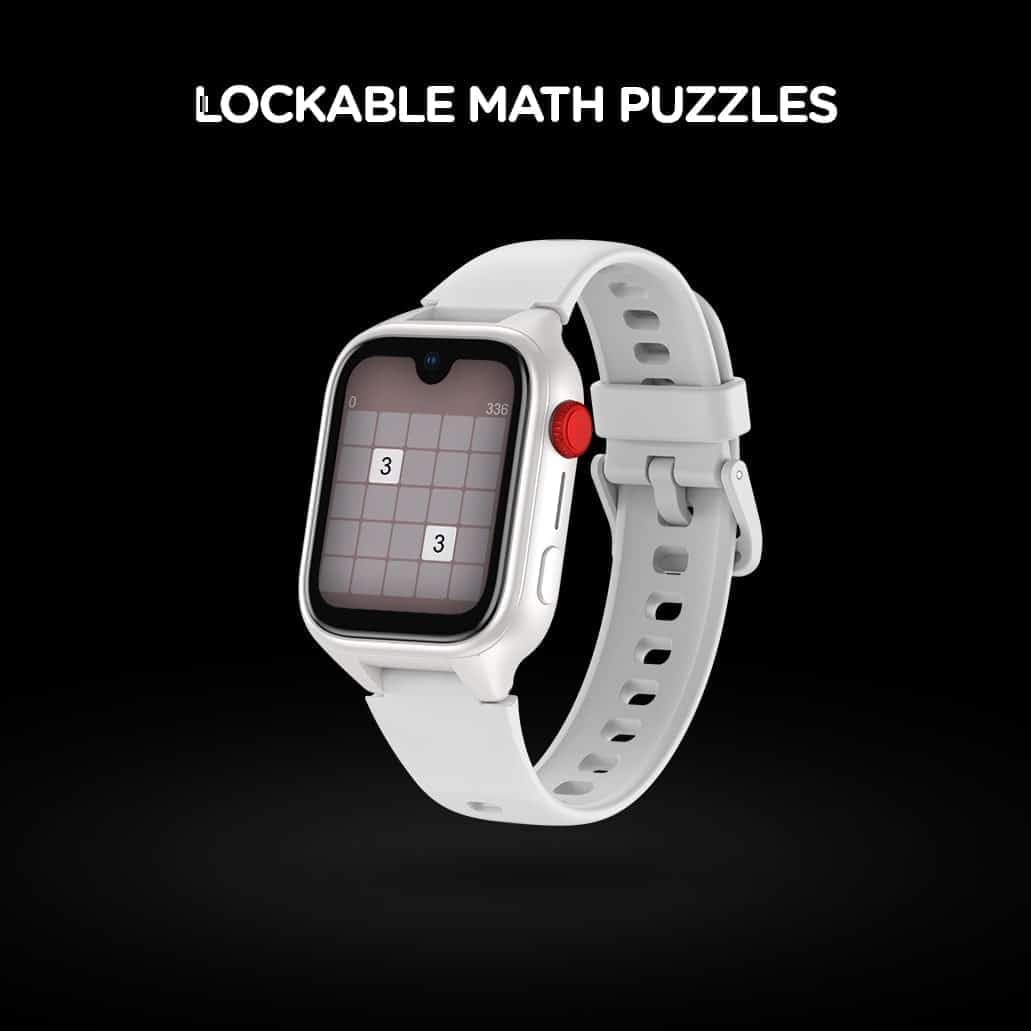
Image: The KidsOClock GL50 Smart Watch screen showing a lockable math puzzle, one of its integrated games.
Health Monitoring
The KidsOClock GL50 allows for basic health monitoring, providing insights into your child's activity and vital signs. This data is reported to parents through the companion app.
- Step Counter: Tracks daily steps to encourage physical activity.
- SpO2 (Blood Oxygen): Measures blood oxygen saturation levels.
- BPM (Heart Rate): Monitors heart rate in real-time.
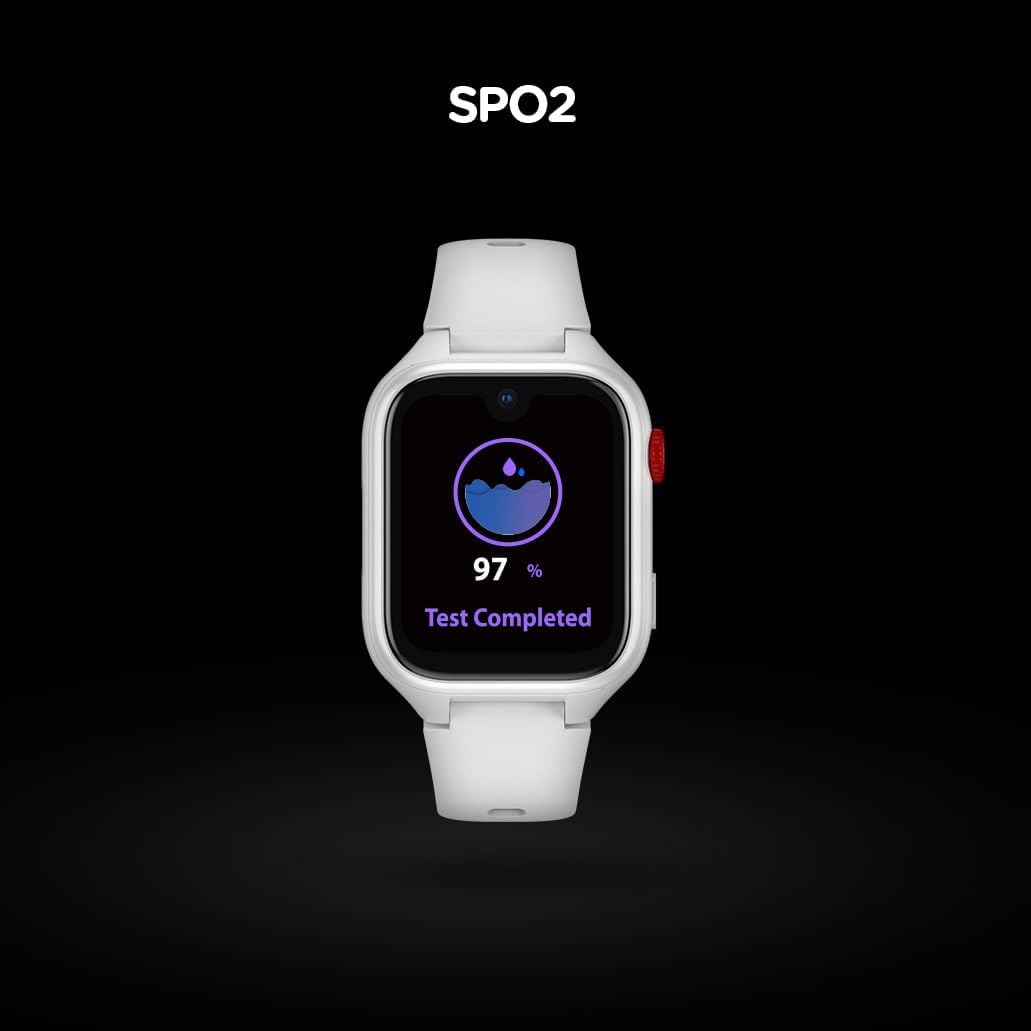
Image: The KidsOClock GL50 Smart Watch screen showing a SpO2 (blood oxygen) reading.

Image: The KidsOClock GL50 Smart Watch screen showing a heart rate (BPM) reading.
Remote Monitoring and Connectivity
The GL50 offers advanced remote monitoring features for parental peace of mind.
- Precise GPS Location: Track your child's location in real-time through the companion app.
- Geo Fencing: Set up safe zones and receive alerts when your child enters or leaves these designated areas.
- Communication: In addition to calls, send text messages, voice notes, and emojis to the watch from the app.
Maintenance
Battery Care
The GL50 has a 36-hour standby battery life. To maximize battery longevity, avoid extreme temperatures and fully discharge and recharge the battery periodically. Use only the provided charging cable.
Water Resistance (IP67)
The watch is IP67 water resistant, meaning it can withstand splashes, rain, and brief immersion in shallow water (up to 1 meter for 30 minutes). It is not suitable for swimming, showering, or diving. Ensure the SIM card slot cover is securely closed to maintain water resistance.
Cleaning
Clean the watch and strap regularly with a soft, damp cloth. Avoid using harsh chemicals or abrasive materials that could damage the screen or casing.
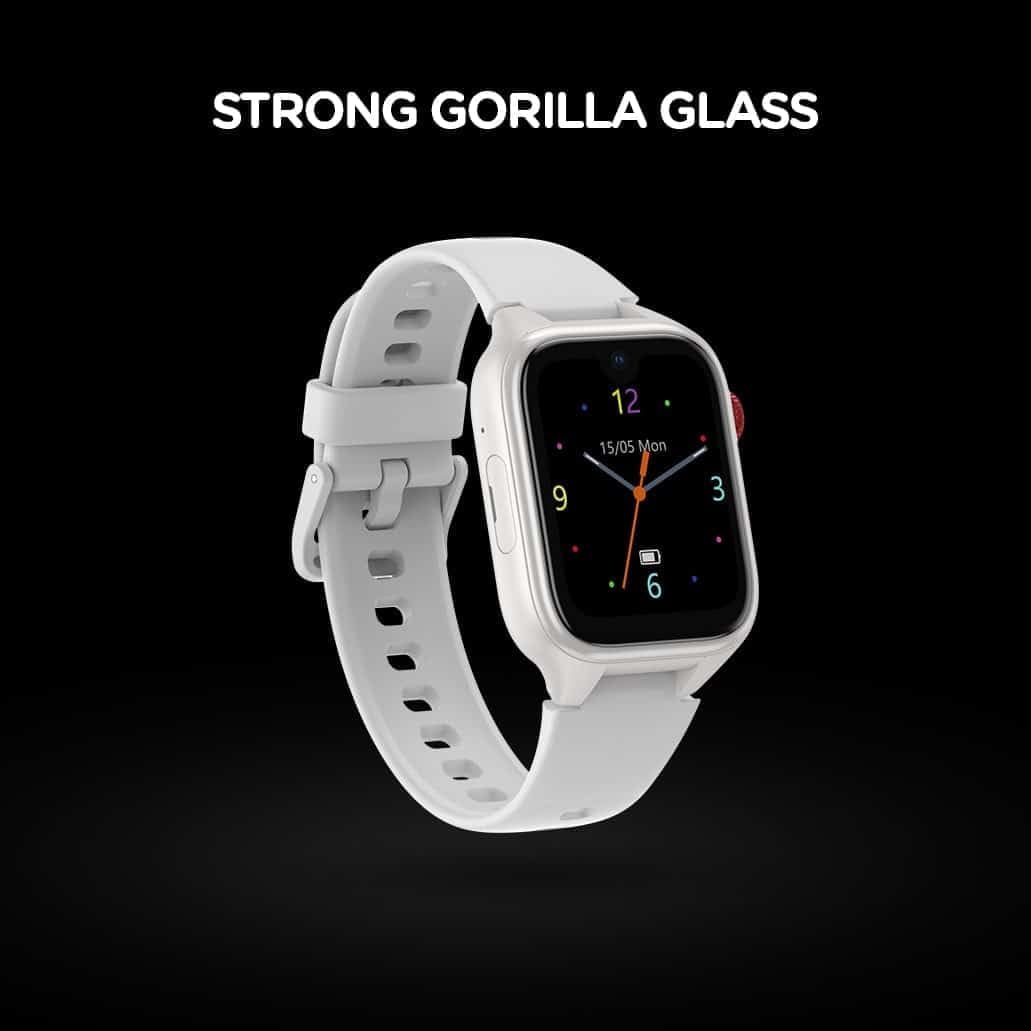
Image: The KidsOClock GL50 Smart Watch highlighting its durable Gorilla Glass screen protection.
Troubleshooting
- Watch not turning on: Ensure the watch is fully charged. If the issue persists, try a hard reset by holding the power button for 10-15 seconds.
- No network signal: Check if the SIM card is correctly inserted and activated. Verify that your area has 4G coverage.
- Inaccurate GPS location: Ensure the watch has a clear view of the sky. GPS accuracy can be affected by tall buildings or dense foliage.
- Battery draining quickly: Reduce screen brightness, limit background app usage, and ensure strong network signal. Frequent video calls or GPS tracking can consume more battery.
- Cannot pair with app: Ensure Bluetooth is enabled on your phone and the watch is in pairing mode. Restart both devices and try again.
For further assistance, please refer to the support section or contact customer service.
Specifications
| Feature | Specification |
|---|---|
| Brand | KidsOClock |
| Model Name | GL50 |
| Display Type | AMOLED |
| Screen Protection | Gorilla Glass |
| Cellular Technology | 4G |
| Camera | 5MP HD |
| Water Resistance | IP67 |
| Battery Life (Standby) | Up to 36 Hours |
| Charging Time | Approx. 2 Hours |
| RAM Memory Installed Size | 1 GB |
| Special Features | Touchscreen, SOS Button, Camera, GPS, Phone Call |
| Item Weight | 160 Grams |
| Material Type | Plastic |
Warranty and Support
The KidsOClock GL50 Smart Watch comes with a standard manufacturer's warranty. Please refer to the warranty card included in your product packaging for specific terms and conditions. For technical support, troubleshooting assistance, or warranty claims, please contact KidsOClock customer service through their official website or the contact information provided with your purchase.
For the latest updates and FAQs, visit the official KidsOClock website: KidsOClock Store


