
1. Introduction
This manual provides essential information for the setup, operation, and maintenance of your TERENCE Portable Piano Keyboard Foldable (Model DZQ-V20). Designed for portability and ease of use, this 88-key semi-weighted keyboard offers a realistic playing experience with versatile connectivity options, including MIDI and Bluetooth. Please read this manual thoroughly before using your new instrument to ensure proper function and longevity.
2. Package Contents
Please verify that all items listed below are included in your package:
- TERENCE Portable Piano Keyboard (Model DZQ-V20)
- Sustain Pedal
- Music Stand
- Power Adapter
- USB Charging Cable
- Headphones
- Note Stickers
- Carry Bag
- User Manual
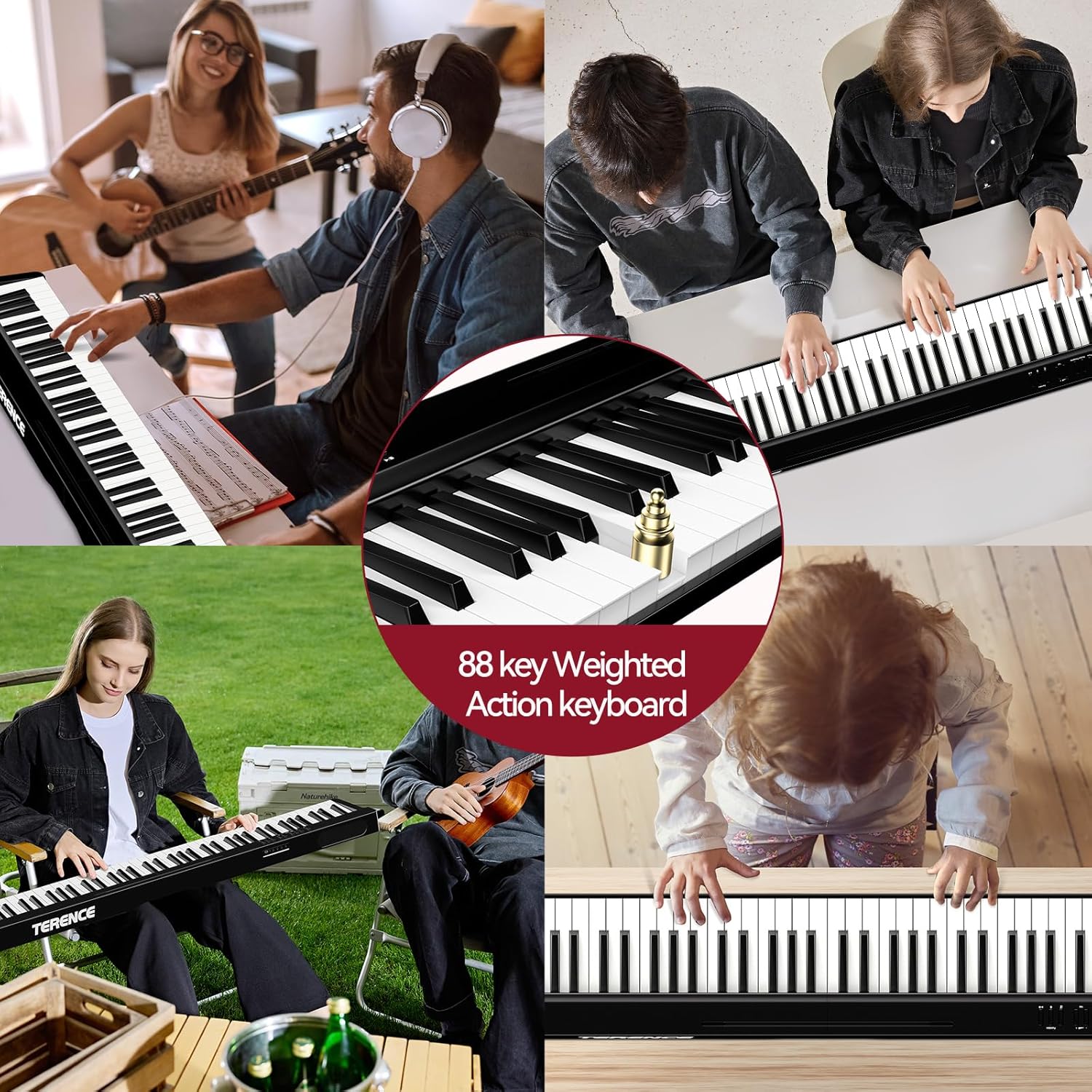
Image: All included accessories, such as the keyboard, sustain pedal, music stand, power adapter, USB cable, headphones, and carry bag.
3. Setup
3.1 Unfolding the Keyboard
The TERENCE Portable Piano Keyboard features a convenient one-key folding mechanism. To unfold, simply press the designated button on the back of the keyboard and gently extend the two halves until they lock into place, forming a full 88-key layout.
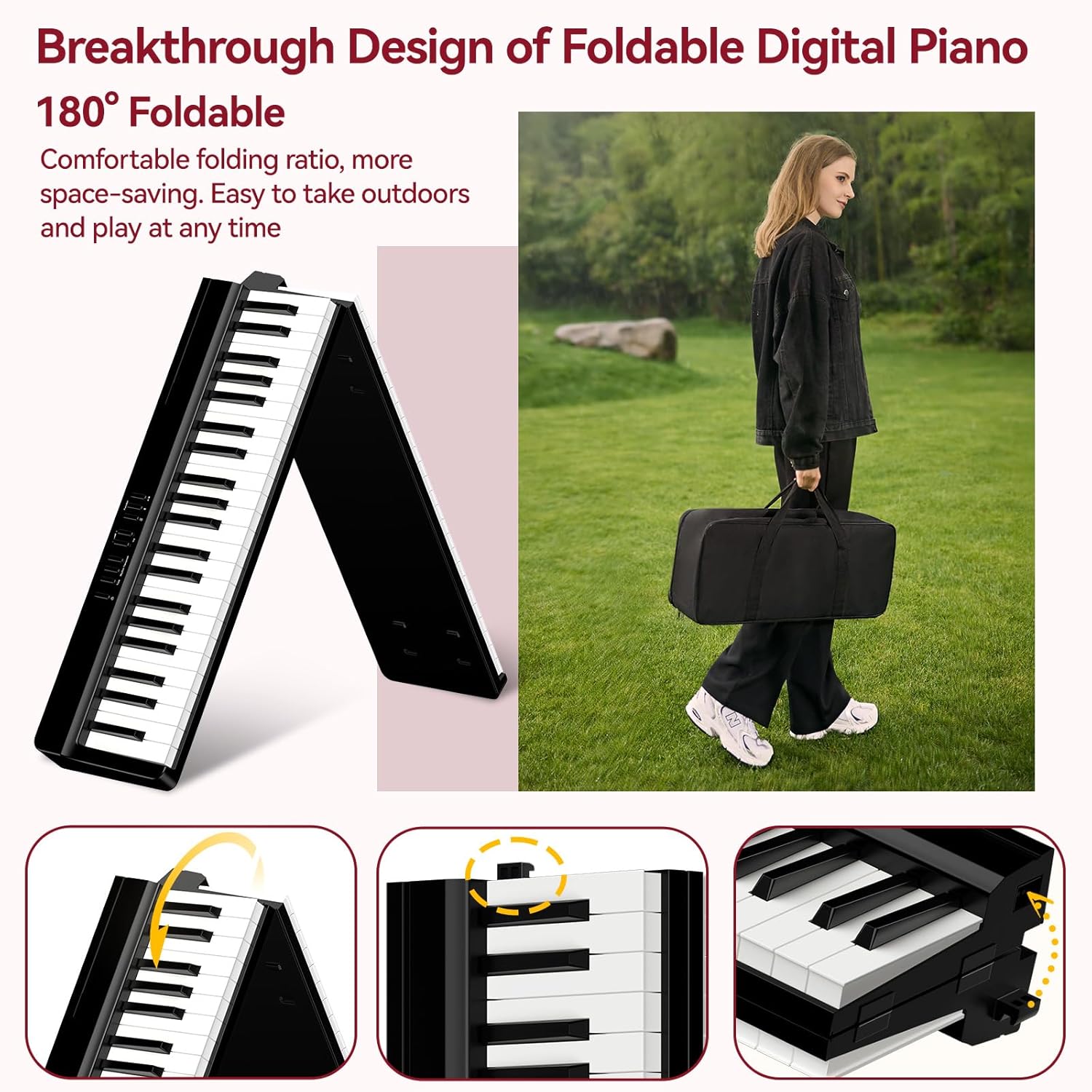
Image: The keyboard being unfolded, showcasing its compact design for portability.
Video: A demonstration of the TERENCE Portable Piano Keyboard's folding and unfolding mechanism.
3.2 Attaching the Music Stand
Locate the music stand and align its base with the designated slots on the top panel of the keyboard. Gently push down until it securely clips into place. This stand can hold sheet music or a tablet device.
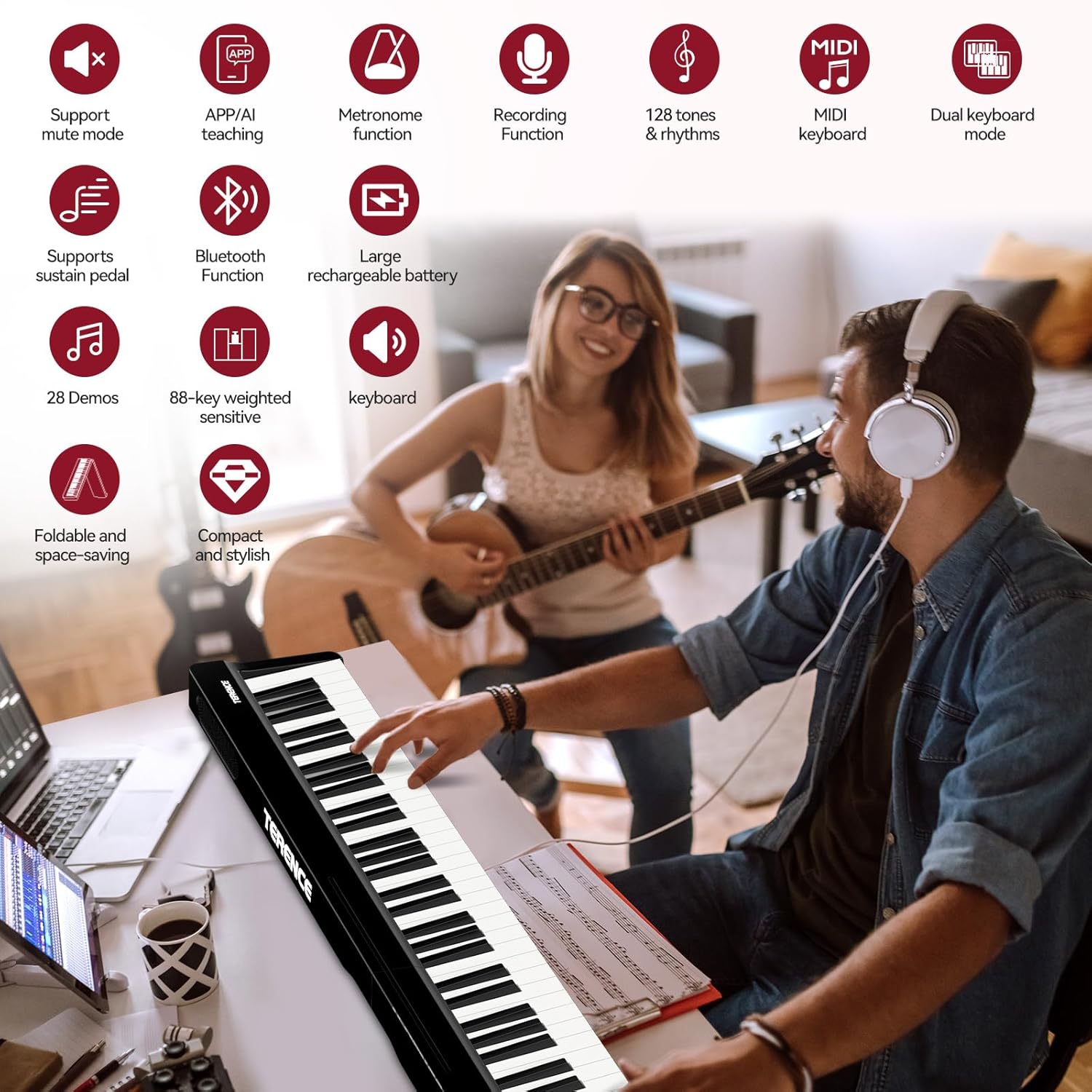
Image: The music stand attached to the keyboard, ready to hold sheet music or a tablet.
3.3 Powering On and Charging
Your keyboard is equipped with a built-in Lithium Polymer battery for portable use. To charge, connect the USB charging cable to the keyboard's USB Type A port and the power adapter to a wall outlet. The keyboard can also be operated while charging. Press the power button to turn the instrument on or off.

Image: The keyboard connected to its power source for charging.
3.4 Connecting the Sustain Pedal
Plug the sustain pedal's 3.5mm jack into the designated 'SUS' port on the back panel of the keyboard. This allows for sustained notes, enhancing your playing expression.

Image: A close-up view of the sustain pedal, showing its connection point.
4. Operating Instructions
4.1 Power On/Off
Press and hold the power button located on the control panel to turn the keyboard on or off. The display will illuminate upon activation.
4.2 Volume Adjustment
Use the dedicated volume buttons (+/-) on the control panel to adjust the overall output volume of the keyboard's speakers or connected headphones.
4.3 Changing Tones and Rhythms
Your keyboard includes 27 premium voices (tones) and 127 rhythmic accompaniments. Use the 'Tone' button to cycle through available instrument sounds and the 'Rhythm' button to select different backing tracks. The display will show your current selection.
4.4 Demo Songs
Press the 'Demo' button to play through the pre-loaded demonstration songs. This is a great way to explore the instrument's capabilities and enjoy various musical pieces.
4.5 Metronome
Activate the metronome function to assist with timing and rhythm practice. Adjust the tempo as needed using the dedicated controls.
4.6 Recording and Playback
The keyboard features a recording function. Press the 'REC' button to start recording your performance and 'Play' to listen back. This is useful for self-assessment and tracking progress.
4.7 Bluetooth and MIDI Connectivity
Enable Bluetooth on your mobile device and search for the keyboard to pair. This allows you to connect to MIDI-enabled apps for expanded sound palettes and learning tools. The USB Type A port also supports MIDI connectivity for direct connection to computers.

Image: Bluetooth and MIDI connectivity demonstrated with various devices and music apps.
4.8 Headphone and External Speaker Use
Plug headphones into the 3.5mm headphone jack for private practice. You can also connect external speakers to the appropriate output for a louder sound experience.
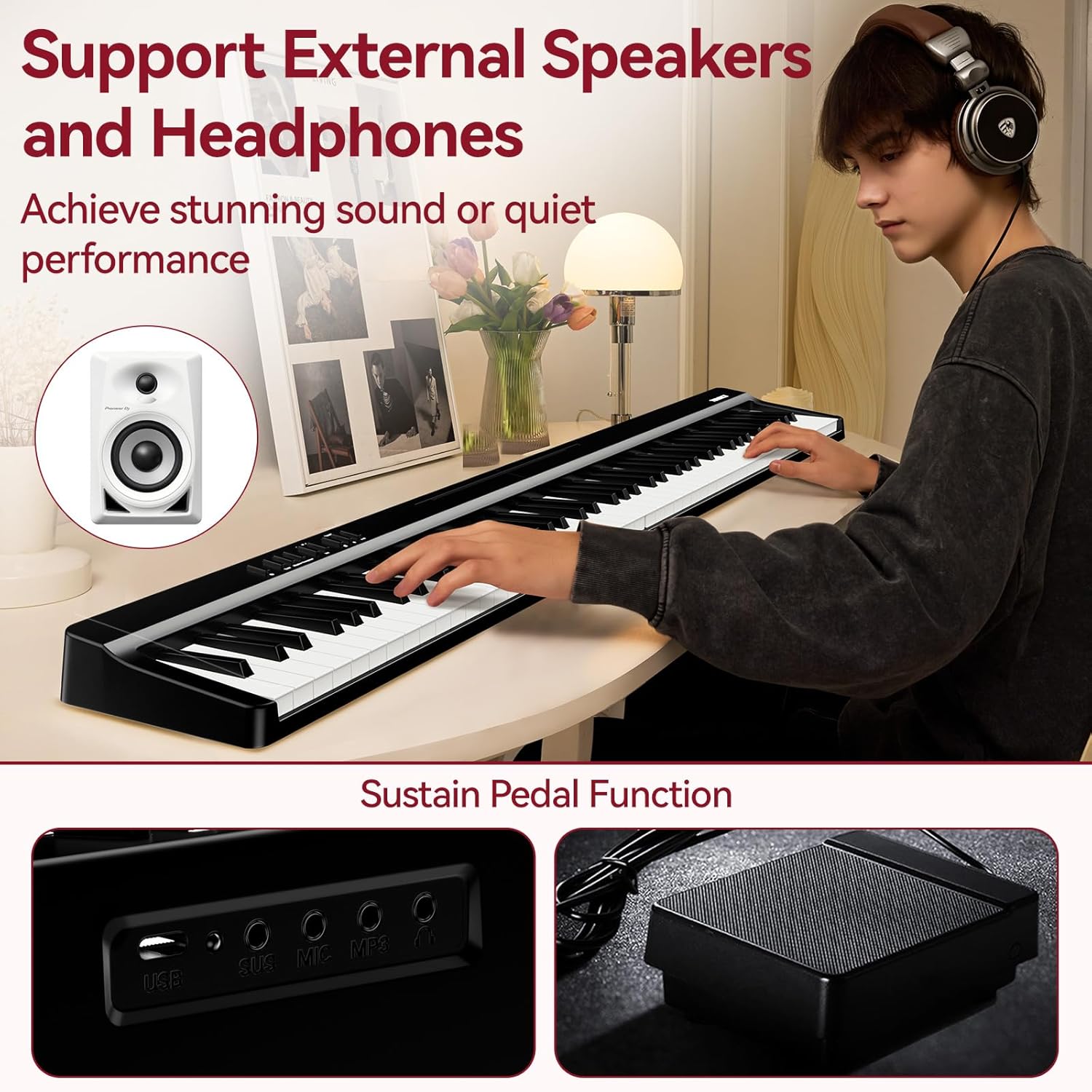
Image: Input/output ports for headphones, microphone, and USB on the keyboard.
5. Key Features
5.1 88 Semi-Weighted Keys
The keyboard features 88 semi-weighted keys with a wood-grain texture, providing a comfortable and responsive feel that mimics an acoustic piano. This design is gentle on new players' hands while offering precise musical expression.

Image: Detailed view of the semi-weighted keys, highlighting their texture and design.
5.2 Portability and Folding Mechanism
Its innovative one-key folding design allows the keyboard to collapse in just 3 seconds, reducing its volume to one-third of a standard suitcase. This makes it exceptionally compact and lightweight for easy transport and storage, ideal for students and musicians on the go.

Image: The keyboard in both its folded and unfolded states, emphasizing its portability.
5.3 Enhanced 5W Dual-Speaker Sound System
Equipped with a 5W dual-speaker system, the keyboard delivers clear and balanced sound suitable for daily practice and skill development, providing an essential acoustic piano feel.
5.4 High-Quality Sound Library
Access a rich sound library featuring 27 premium voices, including acoustic pianos, strings, and synths, along with 127 rhythmic accompaniments. This extensive selection supports diverse musical exploration and learning.
6. Maintenance
- Cleaning: Use a soft, dry cloth to wipe the surface of the keyboard. Avoid using abrasive cleaners or solvents.
- Storage: When not in use, fold the keyboard and store it in its carry bag in a cool, dry place away from direct sunlight and extreme temperatures.
- Battery Care: To prolong battery life, avoid fully discharging the battery frequently. Charge it regularly, even if not in constant use.
7. Troubleshooting
- No Sound: Ensure the keyboard is powered on and the volume is turned up. Check headphone connections if applicable.
- Keys Not Responding: Verify the keyboard is fully unfolded and locked. If using MIDI/Bluetooth, check app settings.
- Bluetooth Connectivity Issues: Ensure Bluetooth is enabled on both devices and the keyboard is in pairing mode. Try restarting both devices.
- Battery Not Charging: Check if the USB cable and power adapter are securely connected and the power outlet is functional.
8. Specifications
- Model Name: V20
- Item Model Number: DZQ-V20
- Dimensions (Unfolded): 48 x 7.48 x 2.45 inches
- Item Weight: 14.92 pounds
- Number of Keys: 88
- Key Type: Semi-Weighted
- Power Source: Battery Powered (1 Lithium Polymer battery included)
- Connectivity: USB Type A, Bluetooth
- Headphones Jack: 3.5mm
- Manufacturer: TERENCE
- Body Material: Wood
9. Warranty and Support
For warranty information, technical support, or any inquiries regarding your TERENCE Portable Piano Keyboard, please refer to the contact details provided on the product packaging or visit the official TERENCE website. Keep your purchase receipt as proof of purchase for warranty claims.