
Introduction
The UseeLink Matter Smart Power Strip is designed to provide intelligent control over your electronic devices. Featuring 4 smart AC outlets and 4 USB ports (2 USB-A, 2 USB-C), this surge protector offers versatile power management and fast charging capabilities. It is compatible with various smart home ecosystems including Apple HomeKit, Siri, Alexa, Google Home, and SmartThings, allowing for voice and remote control.
This device operates on a 2.4GHz Wi-Fi network and requires a smartphone running iOS 16.1 or higher, or Android 8.1 or higher for initial setup and control.
Safety Information
This smart power strip is constructed from flame-retardant PC material and holds ETL and FCC certifications, ensuring safety and quality. It supports home devices up to 15A. Always ensure the total power consumption of connected devices does not exceed the rated power of 2000W (USB Total Power: 12W / 5V 2.1A) to prevent overload. Do not use for extended periods at its maximum power of 3500W.
The power strip includes surge protection to safeguard your electronics from voltage spikes.

Image: The UseeLink Smart Power Strip connected to various devices, highlighting its surge protection feature to protect electronics from damage.
Setup Guide
1. System Requirements
- Existing 2.4 GHz Wi-Fi network. (5.0 GHz networks are not supported for direct connection).
- Smartphone with iOS 16.1 or higher, or Android 8.1 or higher.
- For HomeKit remote control, an Apple HomePod, Apple TV 4K, Apple TV HD, or an iPad is required as a HomeKit bridge.

Image: A visual guide illustrating various smart home hubs compatible with Matter devices, categorized by HomeKit (HomePod, Apple TV 4K), Amazon Alexa (Echo Dot, Echo Show), and Google Home (Nest Wi-Fi Pro, Google Home, Nest Hub).
2. App Installation and Device Pairing
- Download the "Jinvoo Smart" app from the Apple App Store or Google Play Store onto your smartphone.
- Register an account within the app after installation.
- Ensure your smartphone is connected to a 2.4GHz Wi-Fi network.
- Plug in the UseeLink Matter Smart Power Strip.
- Open the Jinvoo Smart app and follow the on-screen instructions to add a new device.
- Scan the Matter QR code located on your device, packaging, or in the manual. Alternatively, use the manual code setup option if scanning is not possible.

Image: A smartphone displaying a "Scan the Code" interface for Matter device setup, positioned next to the UseeLink Smart Power Strip. The image indicates compatibility with 2.4 GHz Wi-Fi networks.
3. Integrating with Voice Assistants (Alexa Example)
After successfully pairing the device with the Jinvoo Smart app:
- Log in to your Alexa account via alexa.amazon.com or the Alexa app.
- Enable the "Jinvoo Smart" skill within Alexa.
- Discover devices through Alexa. The smart power strip added to Jinvoo Smart should now be recognized.
- Refer to the Alexa setting user manual (if provided separately) for detailed instructions.
For other platforms like Google Home, Apple HomeKit, or SmartThings, follow their respective integration processes after the device is added to the Jinvoo Smart app.
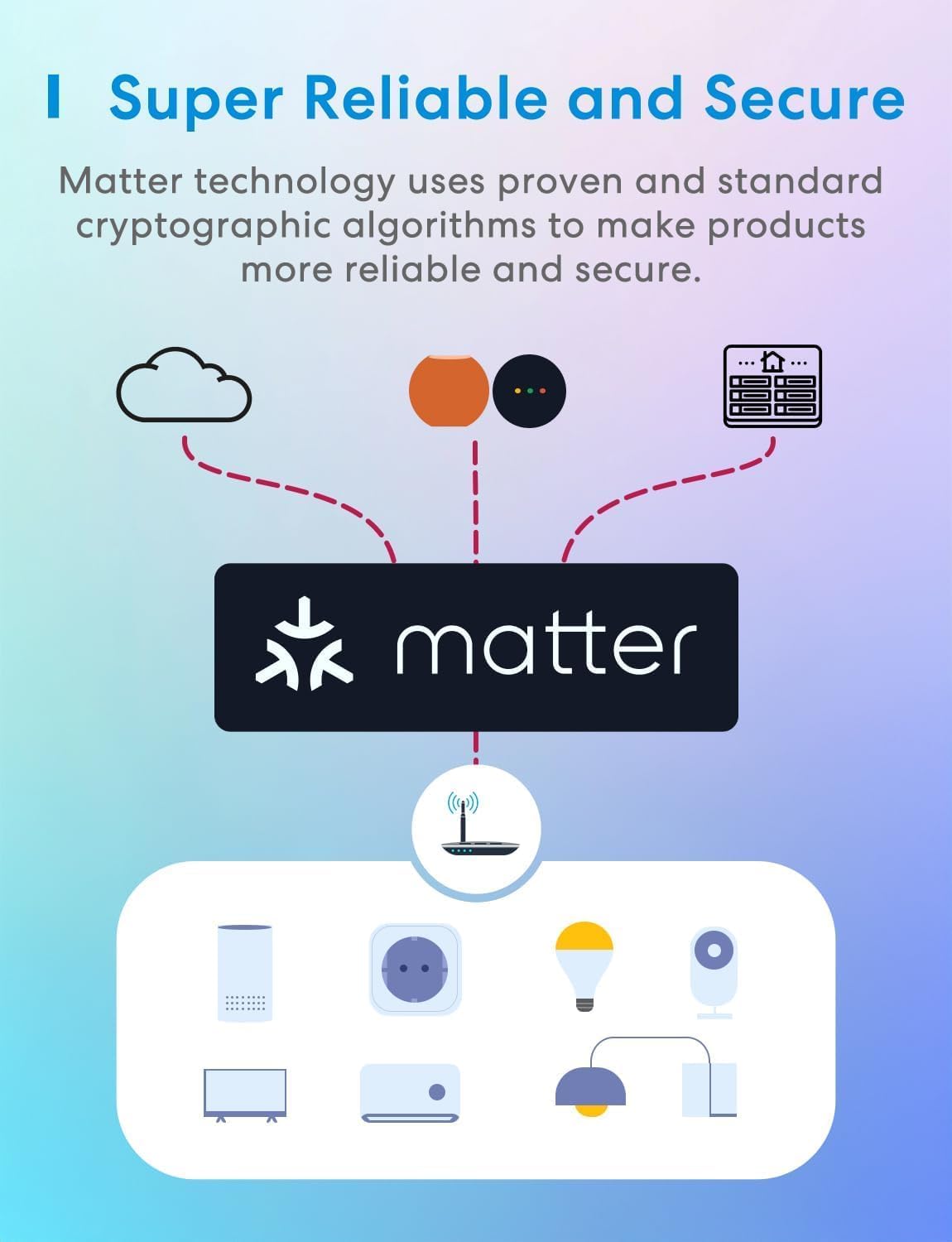
Image: A conceptual diagram showing how Matter technology provides a reliable and secure connection between smart devices and cloud services, utilizing standard cryptographic algorithms. Learn more about Matter at csa-iot.org/all-solutions/matter/.
Operating Instructions
1. Remote Control
Once connected to the Jinvoo Smart app, you can control the power strip and its individual outlets from anywhere with an internet connection. The 4 AC outlets can be controlled independently, while the 2 USB-A ports and 2 Type-C ports are controlled as a single unit.

Image: A user demonstrating remote control of smart home devices via a smartphone app, featuring the UseeLink Smart Power Strip interface to manage appliances like a living room light, bread machine, and oven.
2. Voice Control
The power strip is compatible with Apple HomeKit (iOS 13+), Siri, Alexa, Google Home, and SmartThings. After integration, use voice commands to turn connected devices on or off. For example, "Alexa, turn on the fan."

Image: A person in a wheelchair using voice control to operate a fan, demonstrating the integration of the UseeLink Smart Power Strip with Alexa for hands-free control. The image also highlights compatibility with SmartThings, Google Home, Alexa, and Apple Home.
3. Schedule and Timer Settings
Utilize the Jinvoo Smart app to set schedules and timers for your connected devices. This feature allows for automatic power on/off, helping to save energy and automate routines. Support for sunrise and sunset settings is also available.
- Example: Schedule grow lights to turn on at 6:00 PM.
- Example: Schedule reptile tank heaters to turn on at 7:00 PM.

Image: Two examples of timer and schedule settings: grow lights for plants set to turn on at 6:00 PM, and heaters for an iguana enclosure set to turn on at 7:00 PM, demonstrating automated control.
Maintenance
To ensure optimal performance and longevity of your UseeLink Matter Smart Power Strip, follow these maintenance guidelines:
- Cleaning: Disconnect the power strip from the wall outlet before cleaning. Use a dry, soft cloth to wipe the exterior. Avoid using liquid cleaners or sprays directly on the device.
- Environment: Operate the power strip in a dry indoor environment. Avoid exposure to moisture, extreme temperatures, or direct sunlight.
- Inspection: Periodically inspect the power cord and the power strip for any signs of damage, such as frayed wires or cracked casing. If damage is found, discontinue use immediately and contact support.
- Overload Prevention: Do not exceed the maximum rated power of 2000W. Distribute the load across the outlets to prevent overheating.
Troubleshooting
If you encounter issues with your UseeLink Matter Smart Power Strip, consider the following steps:
- No Power: Ensure the power strip is securely plugged into a working wall outlet. Check if the power button on the strip is illuminated.
- Device Not Connecting:
- Verify your Wi-Fi network is 2.4GHz. The device does not support 5.0GHz networks for direct connection.
- Ensure your smartphone is connected to the same 2.4GHz Wi-Fi network during setup.
- Restart your Wi-Fi router and the power strip.
- Confirm the Jinvoo Smart app is updated to the latest version.
- If using Matter, ensure your Matter hub (HomePod, Apple TV, etc.) is properly configured and connected.
- Voice Control Issues:
- Check if the power strip is successfully linked to your voice assistant (Alexa, Google Home, Siri).
- Ensure your voice assistant device is online and functioning correctly.
- Try re-discovering devices in your voice assistant app.
- Remote Control Not Working: Ensure your smartphone has an active internet connection and the power strip is connected to your home Wi-Fi network.
- Overload Protection: If the power strip suddenly turns off, it might be due to an overload. Unplug some devices and reset the power strip by unplugging and replugging it.
For further assistance, refer to the support section or contact UseeLink customer service.
Specifications
| Model Number | SM-SO301-UZ-W |
| Material | Anti-fire ABS Material |
| Rated Power | 2000W |
| USB Total Power | 12W / 5V 2.1A |
| AC Outlets | 4 Smart AC Outlets |
| USB Ports | 2 USB-A, 2 Type-C (controlled as one unit) |
| Voltage | 120 Volts |
| Maximum Current | 16 Amps |
| Surge Protection Rating | 3680 Joules |
| Radio Protocol | WiFi |
| Radio Frequency | 2.4GHz |
| Radio Range | 30 meters |
| Power Cord Length | 5 ft (1.5 meters) |
| Smart Home Compatibility | Apple HomeKit, Siri, Alexa, Google Home, SmartThings (Matter compatible) |
| Certifications | ETL, FCC |

Image: A detailed diagram illustrating the physical dimensions of the UseeLink Smart Power Strip (19.8cm length, 9.9cm width, 2.8cm height) and the length of its integrated power cord (1.5 meters).
Warranty and Support
The UseeLink Matter Smart Power Strip comes with a 12-month warranty from the date of purchase. UseeLink also provides lifetime technical support for this product.
For warranty claims, technical assistance, or any product-related inquiries, please contact UseeLink customer service. Refer to the official UseeLink website or your purchase documentation for the most current contact information.


