
Introduction
This manual provides essential information for the proper installation, operation, and maintenance of your KENWOOD DMX50S digital multimedia receiver. Please read this manual thoroughly before using the product to ensure correct usage and to prevent damage. Keep this manual accessible for future reference.

Figure 1: Kenwood DMX50S receiver displaying Apple CarPlay interface with time and date.

Figure 2: Angled view of the Kenwood DMX50S receiver showing the main menu with icons for Radio, Mirroring, AV-IN, TEL, and Bluetooth Audio.
Key Features
- 6.8" Capacitive Touchscreen: Provides a responsive and intuitive user interface.
- Wired Apple CarPlay: Seamless integration for navigation, music, and communication.
- Wired Android Auto: Access to Google Maps, media, and voice commands.
- Bluetooth Connectivity: For hands-free calling and audio streaming.
- USB Mirroring: Display smartphone content directly on the receiver screen.
- Audio Customization: 13-band graphic equalizer and digital time alignment for optimal sound.
- Short Chassis Design: Facilitates versatile installation in various vehicle types.
- iDatalink Maestro Ready: Allows integration with vehicle's factory features.
Setup and Installation
Proper installation is crucial for the performance and safety of your multimedia receiver. It is highly recommended that installation be performed by a qualified professional.
Wiring Connections
Ensure all wiring connections are secure and correctly matched to your vehicle's electrical system. Refer to the detailed wiring diagram provided with your product packaging for specific connections.
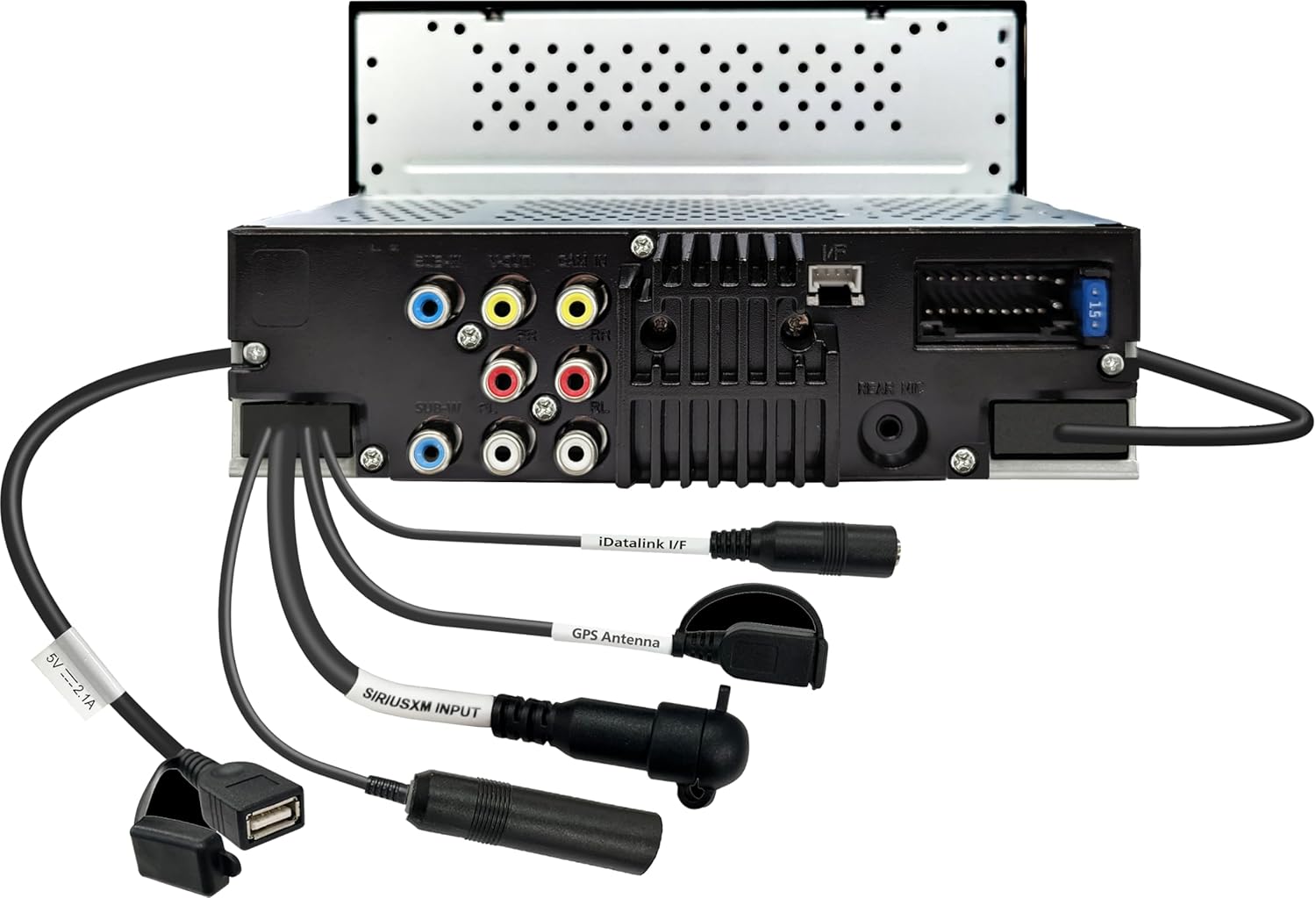
Figure 3: Rear view of the Kenwood DMX50S receiver, illustrating various input and output connections.
Short Chassis Design
The compact short chassis design of the DMX50S allows for greater flexibility during installation, making it suitable for a wider range of vehicle dashboards.

Figure 4: Side view of the Kenwood DMX50S receiver, highlighting its short chassis design.
Operating Instructions
Touchscreen Interface
The 6.8-inch capacitive touchscreen provides a clear and responsive interface for controlling all functions. Tap icons to select features, swipe to navigate menus, and use the physical buttons on the left bezel for common controls like Home, Menu, Voice, and Volume.
Wired Apple CarPlay
Connect your iPhone via a USB cable to enable Apple CarPlay. This feature allows you to access compatible iPhone apps, including navigation, music, messages, and calls, directly from the receiver's display. Use Siri voice control for hands-free operation.

Figure 5: Apple CarPlay interface displaying various app icons.

Figure 6: Apple CarPlay search function overlay on a map.
Wired Android Auto
Connect your Android smartphone via a USB cable to activate Android Auto. This provides access to Google Maps, Google Assistant, music apps, and messaging services, optimized for in-car use.

Figure 7: Android Auto interface displaying navigation and app icons.
Bluetooth Audio Streaming and Hands-Free Calling
Pair your Bluetooth-enabled device with the DMX50S to stream audio wirelessly or make and receive calls hands-free. Access your phone's contact list and call history directly from the receiver.

Figure 8: Bluetooth audio streaming from a smartphone to the receiver.
USB Mirroring
Connect your smartphone via USB to mirror its display onto the DMX50S screen. This allows you to view and control compatible apps and content from your phone directly on the receiver.
Audio Customization
Utilize the built-in 13-band graphic equalizer to fine-tune your audio output. Digital Time Alignment (DTA) allows you to adjust the sound stage for an optimized listening experience within your vehicle.

Figure 9: Representation of the 13-band graphic equalizer for audio tuning.
Parking Guidelines
When a compatible rear-view camera is connected, the DMX50S can display adjustable parking guidelines on the screen to assist with safe parking maneuvers.

Figure 10: Rear camera view with adjustable parking guidelines.
Maintenance
To ensure the longevity and optimal performance of your DMX50S receiver, follow these maintenance guidelines:
- Screen Cleaning: Use a soft, dry cloth to gently wipe the touchscreen. For stubborn smudges, lightly dampen the cloth with water or a screen-safe cleaner. Avoid abrasive materials or harsh chemicals.
- General Cleaning: Keep the unit free from dust and debris. Use a soft brush or compressed air to clean vents and button areas.
- Temperature: Avoid exposing the unit to extreme temperatures, direct sunlight for prolonged periods, or high humidity.
Troubleshooting
If you encounter issues with your DMX50S receiver, consider the following basic troubleshooting steps:
- No Power: Check all power connections and the vehicle's fuse box. Ensure the ignition is on.
- No Sound: Verify speaker connections, volume levels, and audio source selection. Check if the mute function is active.
- Touchscreen Unresponsive: Try resetting the unit (refer to your product's specific reset procedure, usually a small reset button).
- CarPlay/Android Auto Not Connecting: Ensure your smartphone is compatible and connected via a certified USB cable. Check phone settings for CarPlay/Android Auto permissions.
- Bluetooth Issues: Delete the device pairing from both the receiver and your phone, then attempt to re-pair. Ensure Bluetooth is enabled on both devices.
For persistent issues, consult the comprehensive troubleshooting section in the full product manual or contact Kenwood customer support.
Specifications
| Feature | Specification |
|---|---|
| Model Number | DMX50S |
| Display | 6.8" Capacitive Touchscreen |
| Product Dimensions | 10 x 10 x 10 inches |
| Item Weight | 5 pounds |
| Connectivity Technology | USB, HDMI, RCA, Component Video |
| Controller Type | iOS |
| Special Feature | Built-In Bluetooth |
| Compatible Devices | Smartphone, Tablet |
| Total HDMI Ports | 1 |
| Connector Type | USB, 3.5mm Jack |
| Audio Output Mode | Stereo, Surround |
| Surround Sound Channel Configuration | 5.1 |
| Video Encoding | H.264, H.265/HEVC, MPEG-4 |
| Audio Formats Supported | FLAC, AAC, WAV, MP3, WMA |
| Video Formats Supported | H.264, MKV, WMV, MPEG-4, MPEG 1/2 |

Figure 11: Supported Audio and Video Formats.
What's in the Box
The KENWOOD DMX50S package typically includes:
- KENWOOD DMX50S Digital Multimedia Receiver
- Wiring Harness
- Installation Hardware
- User Manual (this document)
Please check the packaging contents against the packing list provided with your unit to ensure all components are present.
Warranty and Support
For information regarding warranty coverage, technical support, or service, please refer to the warranty card included with your product or visit the official Kenwood website. Keep your purchase receipt as proof of purchase for warranty claims.