
INNOCN 25G2S
INNOCN 25G2S 24.5" Gaming Monitor User Manual
Model: 25G2S | Brand: INNOCN
1. Introduction
This user manual provides detailed instructions for setting up, operating, maintaining, and troubleshooting your INNOCN 25G2S 24.5" Gaming Monitor. Please read this manual thoroughly before using the product to ensure optimal performance and longevity.
2. Safety Information
Always follow these safety precautions to prevent damage to the monitor or injury to yourself:
- Do not expose the monitor to rain or moisture.
- Do not block ventilation openings.
- Use only the power adapter supplied with the monitor.
- Avoid placing the monitor on unstable surfaces.
- Disconnect power before cleaning.
- Refer all servicing to qualified service personnel.
3. Package Contents
Verify that all items are present in the package:
- INNOCN 25G2S Gaming Monitor
- Monitor Stand (Base and Neck)
- Power Adapter
- HDMI Cable
- DisplayPort Cable
- USB-C Cable
- User Manual (this document)

This image shows the INNOCN 25G2S monitor along with its stand components, power adapter, and various connection cables (HDMI, DisplayPort, USB-C) as typically found in the product packaging.
4. Setup
4.1 Assembling the Stand
- Carefully remove the monitor from its packaging, keeping it protected.
- Attach the stand neck to the monitor panel.
- Secure the stand base to the neck using the provided screws.
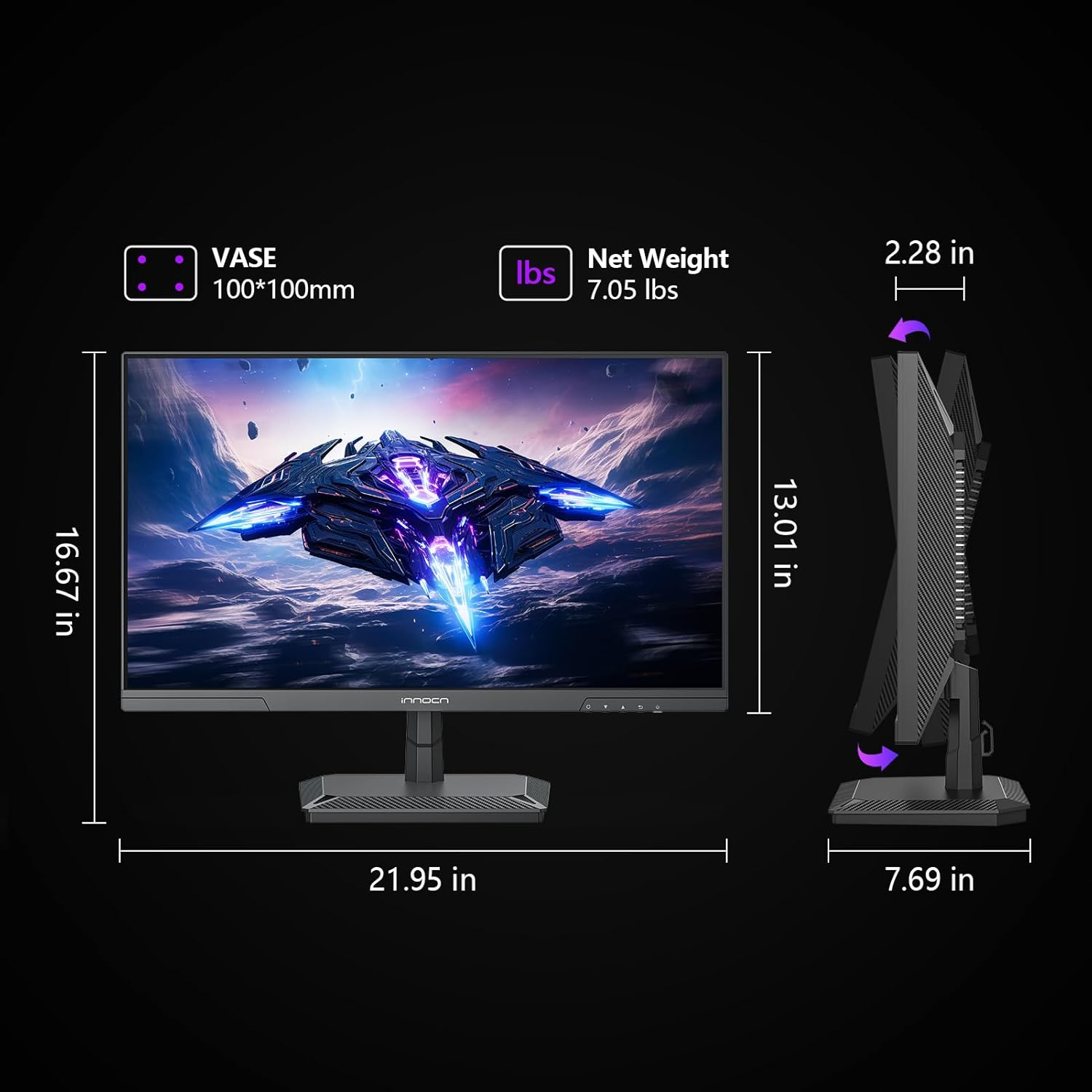
This diagram illustrates the physical dimensions of the monitor and highlights the 100x100mm VESA mounting pattern on the rear, indicating compatibility with standard VESA mounts. It also indicates the monitor's weight without the stand.
4.2 Connecting the Monitor
The INNOCN 25G2S offers multiple connectivity options:
- DisplayPort (DP 1.4): For optimal performance, including 240Hz refresh rate at 1440p resolution.
- HDMI (HDMI 2.1): Supports up to 144Hz refresh rate at 1440p resolution.
- USB-C: For video input and power delivery (if supported by your device).
- Audio Out: For connecting external headphones or speakers.

This image provides a clear view of the monitor's rear panel, detailing the location and type of each port: two HDMI 2.1 ports, two DisplayPort 1.4 ports, DC power input, and an earphone jack. It also indicates the built-in 2W+2W speakers.
Connect the appropriate cable from your computer or gaming console to the corresponding port on the monitor. Then, connect the power adapter to the monitor and a power outlet.
5. Operating the Monitor
5.1 Power On/Off
Press the power button located on the bottom right side of the monitor to turn it on or off. The power indicator light will illuminate when the monitor is active.
5.2 On-Screen Display (OSD) Menu
Use the joystick or buttons on the bottom right of the monitor to navigate the OSD menu. This menu allows you to adjust various settings such as brightness, contrast, color temperature, input source, and gaming features.
Key OSD Menu Features:
- Picture Settings: Adjust brightness, contrast, sharpness, and gamma.
- Color Settings: Select color temperature (Warm, Cool, User), adjust hue and saturation.
- Input Source: Manually select HDMI, DisplayPort, or USB-C input.
- Gaming Features: Enable Adaptive-Sync, adjust response time (OD), and activate game assist functions like crosshairs and timers.
- OSD Settings: Change OSD language, transparency, and timeout.

This image highlights the monitor's capability for excellent color performance, featuring IPS technology, 16.7M (8-bit) colors, 100% sRGB, 93% DCI-P3 color gamut, and HDR10 support, resulting in vivid and accurate visuals.
5.3 Adaptive-Sync Technology
The INNOCN 25G2S supports Adaptive-Sync (G-Sync Compatible) technology, which synchronizes the monitor's refresh rate with your graphics card's frame rate. This eliminates screen tearing and stuttering, providing a smoother gaming experience.

This image visually demonstrates the benefit of Adaptive-Sync, showing a clear difference between screen tearing when Adaptive-Sync is OFF and smooth, fluid motion when it is ON, effectively solving screen tearing and stuttering problems.
5.4 High Refresh Rate and Response Time
Experience ultra-smooth visuals with a 240Hz refresh rate (via DisplayPort 1.4) and a rapid 1ms response time. This combination is ideal for fast-paced gaming, reducing motion blur and ghosting.

This image illustrates the impact of the monitor's 1ms response time and 240Hz refresh rate, showing a clear, sharp image of a fast-moving object compared to a blurred image at 60Hz/5ms, emphasizing the smoothness and speed for gaming.
5.5 Eye-Care Features
The monitor includes Blue Light Reduction and Flicker-Free technologies to protect your eyes from fatigue, irritation, and strain during extended use. These features enhance comfort for working, watching movies, or gaming.

This image highlights the monitor's eye-care features, specifically "Blue Light Cut & Flicker Free," which are designed to reduce eye strain during long periods of gaming or watching videos, promoting user comfort.
6. Maintenance
Proper maintenance ensures the longevity of your monitor:
- Cleaning the Screen: Gently wipe the screen with a soft, lint-free cloth. For stubborn marks, use a monitor-specific cleaning solution applied to the cloth, not directly to the screen.
- Cleaning the Casing: Use a soft, dry cloth to wipe the monitor casing. Avoid abrasive cleaners or solvents.
- Ventilation: Ensure the ventilation openings are clear of dust and obstructions to prevent overheating.
- Storage: If storing the monitor for an extended period, disconnect it from power and store it in a cool, dry place, preferably in its original packaging.
7. Troubleshooting
| Problem | Possible Cause | Solution |
|---|---|---|
| No image on screen | Power cable disconnected; Input source incorrect; Graphics card issue. | Check power connections; Select correct input source via OSD; Verify graphics card is properly seated. |
| Image is blurry or distorted | Incorrect resolution; Cable not fully connected; Graphics driver outdated. | Set display resolution to 2560x1440; Reconnect video cable; Update graphics drivers. |
| Screen tearing or stuttering | Adaptive-Sync not enabled; Refresh rate mismatch. | Enable Adaptive-Sync in OSD and graphics card settings; Ensure refresh rate is set to 240Hz (DP) or 144Hz (HDMI). |
| No sound from speakers | Volume too low; Audio output not selected; External speakers connected. | Increase monitor volume; Select monitor as audio output in OS; Disconnect external speakers if using built-in. |
8. Specifications
| Feature | Detail |
|---|---|
| Screen Size | 24.5 Inches |
| Panel Type | Fast IPS |
| Resolution | 2560 x 1440 (QHD) |
| Refresh Rate | 240Hz (via DP1.4), 144Hz (via HDMI 2.1) |
| Response Time | 1ms (MPRT) |
| Color Gamut | 99% sRGB |
| HDR Support | HDR10 |
| Adaptive Sync | G-Sync Compatible |
| Connectivity | 2x HDMI 2.1, 2x DisplayPort 1.4, USB-C, Audio Out |
| Built-in Speakers | 2W + 2W |
| VESA Mount | 100 x 100 mm |
| Dimensions (with stand) | 7.6 x 21.9 x 16.67 inches |
| Weight (without stand) | 7.03 lbs |
9. Warranty and Support
INNOCN provides a 1-year product quality service for the 25G2S monitor. For any product or order-related issues, please contact INNOCN customer support, available 7 days a week, 24 hours a day.
For further assistance, visit the official INNOCN store on Amazon: INNOCN Store
10. Official Product Videos
No official product videos from the seller were found in the provided data that meet the embedding criteria.