
ZKCAMSPY F410
ZKCAMSPY F410 4-Channel WiFi Dash Cam User Manual
Model: F410
1. Introduction
Thank you for choosing the ZKCAMSPY F410 4-Channel WiFi Dash Cam. This device is designed to provide comprehensive 360-degree surveillance for your vehicle, recording simultaneously from front, rear, left, and right perspectives in 1080P HD. Equipped with features like Wi-Fi connectivity, APP control, 24/7 parking mode, super night vision, G-Sensor, and loop recording, it ensures your driving and parking safety. Please read this manual carefully before use to ensure proper installation and operation.
Package Contents
Please verify that all items are present in your package:
- Dash Cam
- Rear Camera
- Car Charger
- Car Mount
- User Manual
- 32GB SD Card (pre-installed or included separately)
2. Setup Guide
2.1 SD Card Insertion
Before first use, ensure the included 32GB SD card is properly inserted into the dash cam's SD card slot. The dash cam supports up to a 128GB SD card. For optimal performance, it is recommended to format the SD card within the dash cam settings upon initial insertion and periodically thereafter.
2.2 Mounting the Dash Cam
Choose a suitable location on your windshield, typically behind the rearview mirror, that does not obstruct your view. Clean the area thoroughly before applying the car mount. Securely attach the dash cam to the mount.

Image: Easy installation diagram for the ZKCAMSPY F410 dash cam, showing the main unit, rear camera, car charger, and wiring connections.
2.3 Connecting the Rear Camera
Connect the rear camera to the main dash cam unit using the provided cable. For the reversing system to activate parking guidelines, connect the rear camera's red wire to the positive (+) terminal of your vehicle's reversing lamp.
2.4 Power Connection
Plug the car charger into your vehicle's cigarette lighter socket and connect the other end to the dash cam's power input. The dash cam will automatically power on and begin recording when your vehicle starts.
2.5 Wi-Fi and App Setup (Viidure App)
The dash cam features built-in Wi-Fi for easy access via your smartphone. Download the "Viidure" app from the App Store (iOS) or Google Play Store (Android). Once installed, connect your smartphone to the dash cam's Wi-Fi network (SSID and password typically displayed on the dash cam screen or in the manual). Through the app, you can view live footage, playback recorded videos, download clips, and adjust camera settings.

Image: The Viidure mobile application interface showing real-time preview, sharing options, and camera settings for the dash cam.
3. Operating Instructions
3.1 4-Channel Simultaneous Recording
The F410 dash cam records simultaneously from four channels: front (170°), rear (150°), left (150°), and right (150°). This provides a comprehensive 360-degree view around your vehicle, eliminating blind spots and capturing all angles in 1080P HD.

Image: An aerial view diagram showing a car with four cameras, indicating 150-degree recording angles for front, rear, left, and right, providing 360-degree protection.
3.2 Loop Recording
The dash cam automatically overwrites the oldest unlocked video files when the SD card is full, ensuring continuous recording without manual intervention. Important footage can be protected from being overwritten by the G-Sensor or manual locking.
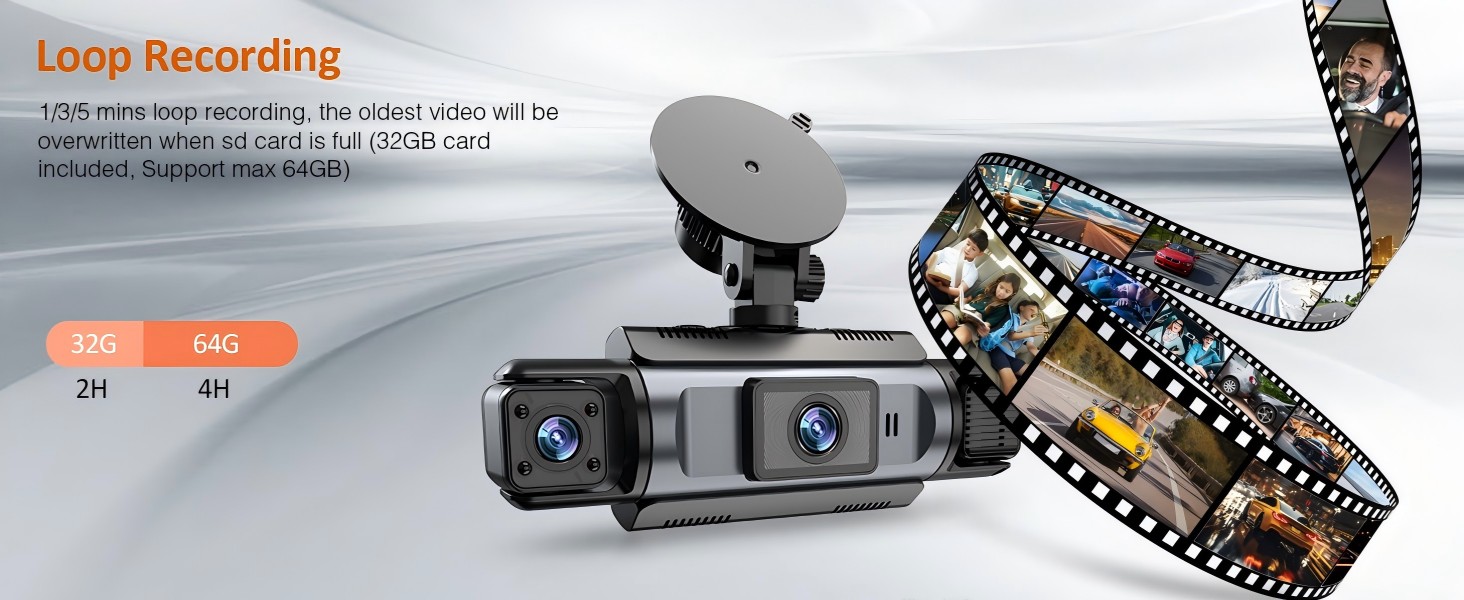
Image: A visual representation of the dash cam's loop recording feature, showing a continuous film strip of recorded video.
3.3 G-Sensor (Emergency Lock)
The built-in G-Sensor detects sudden impacts or collisions. When triggered, it automatically locks the current video segment (before, during, and after the event) to a separate folder, preventing it from being overwritten by loop recording. This ensures critical evidence is preserved.

Image: A scene depicting a car collision with a lock icon, illustrating how the G-Sensor automatically locks video footage during an impact.
3.4 24/7 Parking Surveillance
When your vehicle is parked, the dash cam can automatically switch to a low-power monitoring mode. Using advanced impact sensors, it will wake up and record full HD footage if it detects a collision or significant movement around your vehicle. Note: This feature requires a hardwire kit (purchased separately) for continuous power.
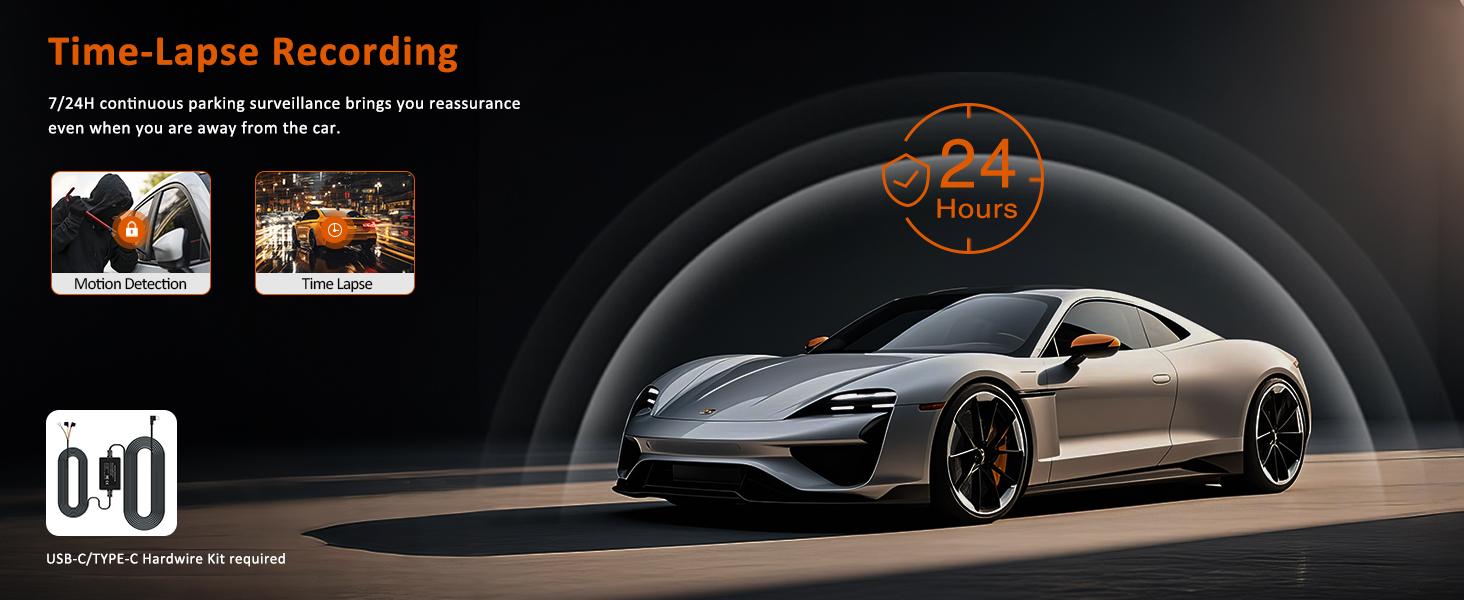
Image: A sleek car parked, with an overlay indicating 24-hour time-lapse recording for continuous parking surveillance.
3.5 Super Night Vision
Equipped with advanced super night vision technology and an f/1.6 aperture lens, the F410 dash cam provides clear and detailed video even in low-light conditions, enhancing safety during night driving.

Image: A close-up of the dash cam lens with IR lights, demonstrating improved clarity in low-light conditions with 8 IR night vision.
3.6 Display 4 Screens Simultaneously
The dash cam's IPS screen can display live feeds from all four cameras simultaneously, allowing you to monitor all angles at once. You can also switch between individual camera views (front, rear, left, right) as needed.
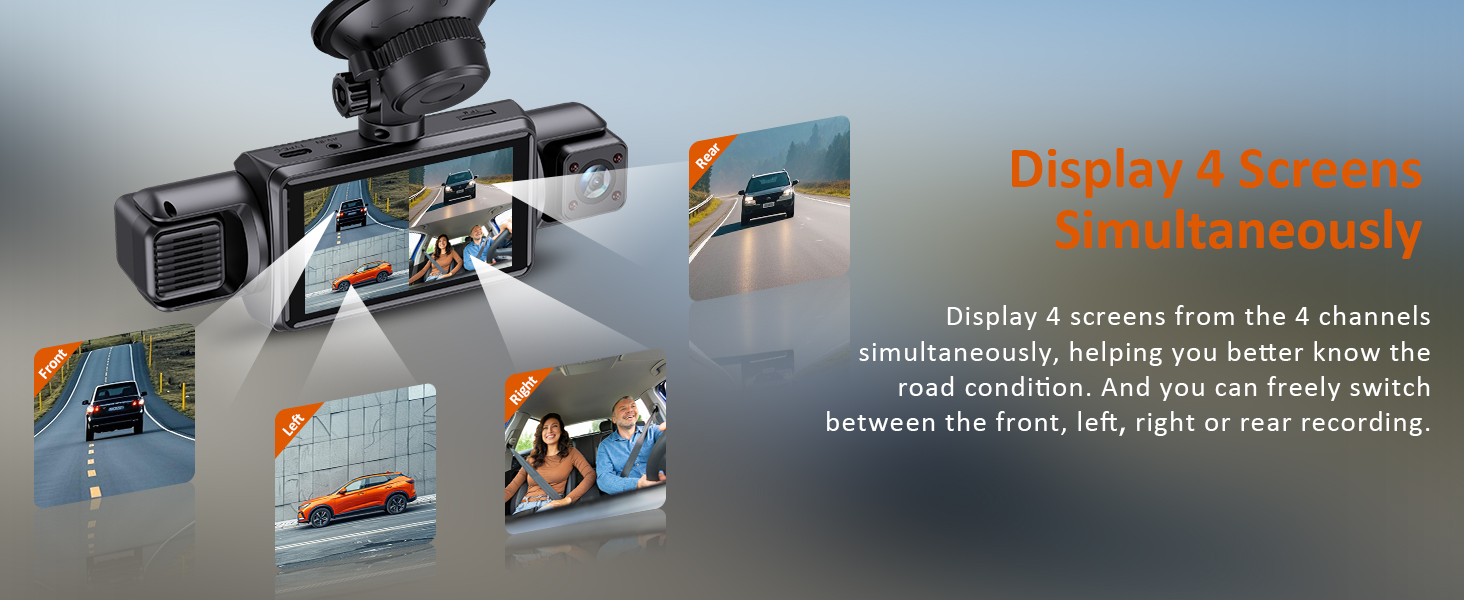
Image: The dash cam's display showing simultaneous views from the front, rear, left, and right cameras, providing a comprehensive view of the surroundings.
4. Maintenance
4.1 SD Card Management
To maintain optimal recording performance and prevent data corruption, it is recommended to format the SD card within the dash cam's settings once a month. Back up any important videos to your computer or smartphone before formatting.
4.2 Cleaning the Device
Use a soft, dry cloth to clean the dash cam's screen and lenses. Avoid using abrasive cleaners or solvents, as they may damage the device. Ensure the lenses are free of dust and smudges for clear video recording.
5. Troubleshooting
If you encounter any issues with your ZKCAMSPY F410 dash cam, please refer to the table below for common problems and solutions.
| Problem | Possible Cause | Solution |
|---|---|---|
| Dash cam does not power on. | No power supply; faulty car charger. | Check car charger connection and vehicle's cigarette lighter socket. Try another power source if available. |
| Recording stops or freezes. | SD card full or corrupted; low-quality SD card. | Format the SD card. Use a high-speed (Class 10 or U3) branded SD card. |
| Wi-Fi connection issues. | Incorrect Wi-Fi password; app not updated. | Ensure correct Wi-Fi password. Restart dash cam and phone. Update Viidure app. |
| Parking mode not working. | No hardwire kit installed; G-Sensor sensitivity too low. | Install a hardwire kit for continuous power. Adjust G-Sensor sensitivity in settings. |
| Video quality is poor. | Dirty lens; protective film on lens; low light conditions. | Clean the lenses. Remove any protective film. Ensure sufficient lighting for optimal night vision. |
6. Specifications
| Feature | Detail |
|---|---|
| Product Dimensions | 8.26 x 11 x 2.75 inches |
| Item Weight | 13 ounces |
| Batteries | 1 Lithium Polymer batteries required (included) |
| Connectivity Technology | Wi-Fi |
| Special Feature | Built-In WiFi |
| Color | Black |
| Model Name | F410 |
| Orientation | Front and Rear and Inside |
| Video Capture Resolution | 1080p |
| Mounting Type | Dashboard Mount |
| Manufacturer | ZKCAMSPY |
| Date First Available | January 10, 2025 |
7. Warranty and Support
The ZKCAMSPY F410 Dash Cam comes with a standard manufacturer's warranty. For specific warranty terms and conditions, please refer to the documentation included with your purchase or contact ZKCAMSPY customer support directly. If you require technical assistance or have questions not covered in this manual, please reach out to the manufacturer's support channels.
Note: No official product videos were found in the provided data for embedding.
Related Documents - F410
 |
ZKCAMSPY S90 User Manual: 2-in-1 Streaming Mirror with Baby Camera and Dash Cam Comprehensive user manual for the ZKCAMSPY S90, a 2-in-1 streaming mirror featuring a baby camera and dash cam. Learn about installation, features, settings, and troubleshooting. |
 |
F410 Model Dashcam: Smartphone Wireless WIFI 4-Channel Installation and User Manual Comprehensive instruction manual for the F410 Model Dashcam, covering installation, button functions, Wi-Fi connectivity, app usage, video playback, and troubleshooting for the smartphone wireless WIFI 4-channel version. |
 |
Shenzhen Zhongke Technology Co., Ltd. Dash Cam Model Differences Details on model variations for Shenzhen Zhongke Technology Co., Ltd.'s F410 series dash cams, highlighting shared circuitry and RF modules across different named models. |
 |
Confidentiality Request for ZKCAMSPY S90 Dash Cam - FCC ID 2BDML-S90 Official request for confidentiality of technical documents for the ZKCAMSPY S90 dash cam (FCC ID: 2BDML-S90), submitted by Eurofins Electrical and Electronic Testing NA, Inc. detailing requested exhibit confidentiality. |
 |
ZKCAMSPY S90 External Photos - Product Overview Detailed external views of the ZKCAMSPY S90 rearview mirror camera, including descriptions of its front, rear, and side profiles. Features testing information from Shenzhen CTB Testing Technology Co., Ltd. |
 |
ZKCAMSPY S90 Dashcam: FCC ID, Compliance, and Label Location Find essential FCC ID information (2BDML-S90) and compliance statements for the ZKCAMSPY S90 dashcam. Details on label placement are also provided. |