
1. Introduction
Thank you for choosing the AQVIN QC20-G RGB Gaming Keyboard and Mouse Combo. This manual provides detailed instructions for setting up, operating, maintaining, and troubleshooting your new gaming peripherals. This combo is designed for an enhanced gaming experience with customizable RGB lighting, anti-ghosting capabilities, and an ergonomic design.
2. Package Contents
- AQVIN RGB Gaming Keyboard
- AQVIN RGB Gaming Mouse
- User Manual (this document)
3. Setup Instructions
The AQVIN QC20-G Keyboard and Mouse Combo uses a wired USB connection for reliable performance. No additional drivers are typically required for basic functionality.
- Connect the Keyboard: Locate an available USB port on your computer. Plug the USB connector of the AQVIN RGB Gaming Keyboard into the USB port.
- Connect the Mouse: Locate another available USB port on your computer. Plug the USB connector of the AQVIN RGB Gaming Mouse into the USB port.
- System Recognition: Your operating system (Windows 2000, XP, Vista, 7, 8, 10) should automatically detect and install the necessary drivers. This process may take a few moments.
- Verify Functionality: Once installed, test the keyboard by typing and the mouse by moving the cursor and clicking.
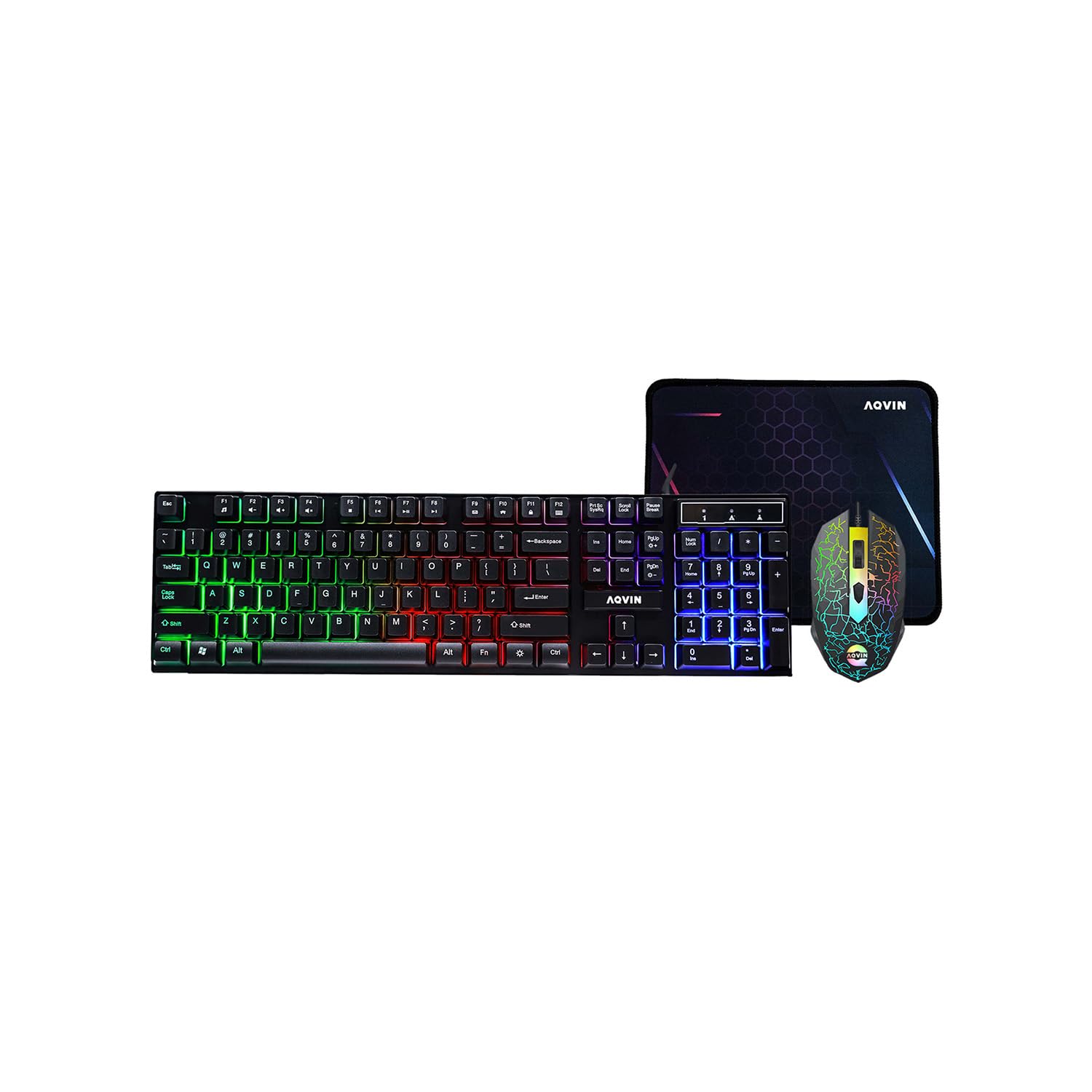
Figure 3.1: AQVIN RGB Gaming Keyboard connected via USB. This image displays the AQVIN RGB Gaming Keyboard, highlighting its ergonomic design and customizable RGB lighting effects. The keyboard features a standard QWERTY layout with a numeric keypad and multimedia function keys.
4. Operating Instructions
4.1 Keyboard Functions
- Anti-Ghosting: The keyboard supports up to 19 keys with anti-ghosting capability, ensuring that multiple simultaneous key presses are registered accurately during intense gaming sessions.
- Multimedia Keys: Utilize the function (FN) key in combination with the F-keys (F1-F12) for quick access to multimedia controls such as volume adjustment, media playback, and more. Refer to the keycap legends for specific functions.
4.2 Mouse Functions
- Left Click: Standard primary action button.
- Right Click: Standard secondary action button, often for context menus.
- Scroll Key (Scroll Wheel): Used for scrolling through documents and web pages. Can also function as a middle click button.
- DPI Adjustment: The mouse features a dedicated DPI button (often located below the scroll wheel) to cycle through different DPI (Dots Per Inch) resolution settings. Adjusting the DPI allows for fine-tuning cursor sensitivity, providing precise control for various tasks and gaming styles.

Figure 4.1: AQVIN RGB Gaming Mouse with labeled buttons. The AQVIN RGB Gaming Mouse is shown with its key features labeled: Left Click, Scroll Key, DPI button, and Right Click. The mouse features an ergonomic design and customizable RGB lighting, providing precise control for gaming.
5. RGB Lighting Control
The AQVIN QC20-G combo features vibrant Rainbow LED Light Effects for both the keyboard and mouse.
5.1 Keyboard RGB Control
- Toggle Lighting: Use the dedicated RGB light ON/OFF shortcut key (often marked with a light bulb icon or combined with FN) to turn the keyboard backlighting on or off.
- Change Modes: With the FN key and digital letters, the RGB lighting can be changed up to 9 different modes. Experiment with FN + [number keys] or other designated keys to cycle through various lighting effects and patterns.
- Adjust Brightness: The 7-zone color rainbow backlight offers adjustable brightness levels. Use the designated brightness control keys (often FN + Page Up/Page Down or arrow keys) to increase or decrease the intensity of the lighting.
5.2 Mouse RGB Control
The mouse features a dynamic RGB lighting effect that typically cycles automatically. There are no user-adjustable settings for mouse RGB lighting modes or brightness.
6. Maintenance
Proper maintenance ensures the longevity and optimal performance of your AQVIN gaming combo.
- Cleaning the Keyboard:
- Disconnect the keyboard from your computer.
- Use a soft, lint-free cloth slightly dampened with water or a mild cleaning solution to wipe the keycaps and surface.
- For dust and debris between keys, use compressed air.
- Do not immerse the keyboard in water or use harsh chemicals.
- Cleaning the Mouse:
- Disconnect the mouse from your computer.
- Wipe the surface with a soft, lint-free cloth.
- Clean the optical sensor area gently with a cotton swab if necessary.
- Storage: Store the keyboard and mouse in a dry, cool place away from direct sunlight and extreme temperatures.
7. Troubleshooting
If you encounter issues with your AQVIN gaming combo, refer to the following common solutions:
- Keyboard/Mouse Not Responding:
- Ensure both USB cables are securely plugged into your computer's USB ports.
- Try plugging the devices into different USB ports.
- Restart your computer.
- Test the devices on another computer to rule out a system-specific issue.
- RGB Lighting Not Working:
- Ensure the keyboard's RGB lighting is turned on using the dedicated shortcut key (e.g., FN + light bulb icon).
- Check if the brightness is set too low. Adjust it using the brightness control keys.
- Keys Not Registering or Ghosting Issues:
- Ensure the keyboard is clean and free of debris.
- While the keyboard has anti-ghosting for up to 19 keys, extreme combinations might still have limitations.
- Mouse Cursor Jumps or is Erratic:
- Clean the mouse's optical sensor.
- Ensure you are using the mouse on a suitable surface (e.g., a mouse pad, not a reflective or transparent surface).
- Adjust the DPI setting to see if it resolves the issue.
8. Specifications
| Feature | Detail |
|---|---|
| Brand | AQVIN |
| Model | QC20-G |
| Connectivity Technology | Wired (USB) |
| Keyboard Layout | QWERTY |
| Keyboard Backlighting | RGB (7-zone rainbow backlight, 9 modes) |
| Anti-Ghosting | Up to 19 keys |
| Mouse DPI | Adjustable resolution settings |
| Ergonomic Design | Yes (Keyboard and Mouse) |
| Compatible Operating Systems | Windows XP, Windows 2000, Windows Vista 7/8/10 |
| Country of Origin | Canada |
| UPC | 672344351096 |
9. Warranty and Support
Warranty: The AQVIN QC20-G RGB Gaming Keyboard and Mouse Combo comes with a 1-year warranty from the date of purchase, covering manufacturing defects. Please retain your proof of purchase for warranty claims.
Customer Support: For any questions, technical assistance, or warranty inquiries, please contact AQVIN customer support. Refer to your purchase documentation or the AQVIN brand store on Amazon for contact details.