
1. Introduction
This manual provides detailed instructions for the installation, operation, and maintenance of your Generic A28 Dual Lens Outdoor WiFi HD Security Camera. Please read this manual carefully before using the product to ensure proper functionality and safety. This camera is designed for outdoor security, featuring dual lenses for comprehensive coverage, high-definition video, night vision, and two-way audio communication.
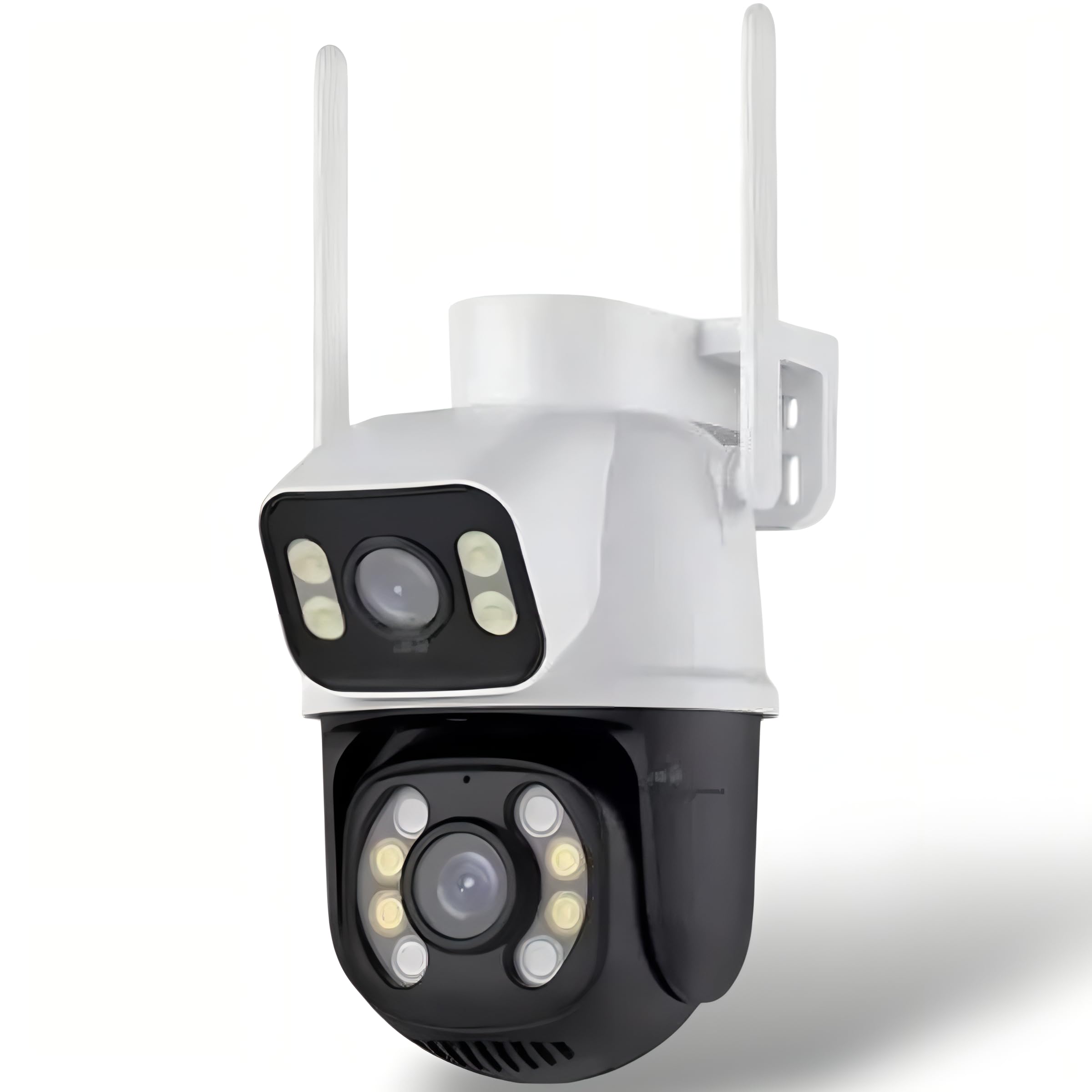
Image 1.1: Generic A28 Dual Lens Outdoor WiFi HD Security Camera.
2. Product Features
- Dual Lens System: Equipped with one fixed lens and one 360° rotatable lens for comprehensive surveillance without blind spots.
- Motion Detection & Alarm: Advanced human motion detection technology sends instant notifications to your device.
- Two-Way Audio: Built-in microphone and speaker allow for real-time communication with individuals in the camera's vicinity.
- IP66 Water Resistance: Designed for outdoor use, resistant to water, extreme heat, and cold.
- Enhanced Night Vision: Features 4 super white LEDs and 4 infrared LEDs, adaptable to various lighting conditions for clear night vision.
- Remote Access: Access live footage and recordings from anywhere in the world via the dedicated mobile application.
- Stable WiFi Connectivity: Connects to a 2.4GHz WiFi network for reliable operation.
- Full HD 1080p Resolution: Delivers crisp and clear images both day and night.
- Storage Options: Supports local storage via SD card (up to 128GB) and cloud storage services.

Image 2.1: Overview of key camera features.
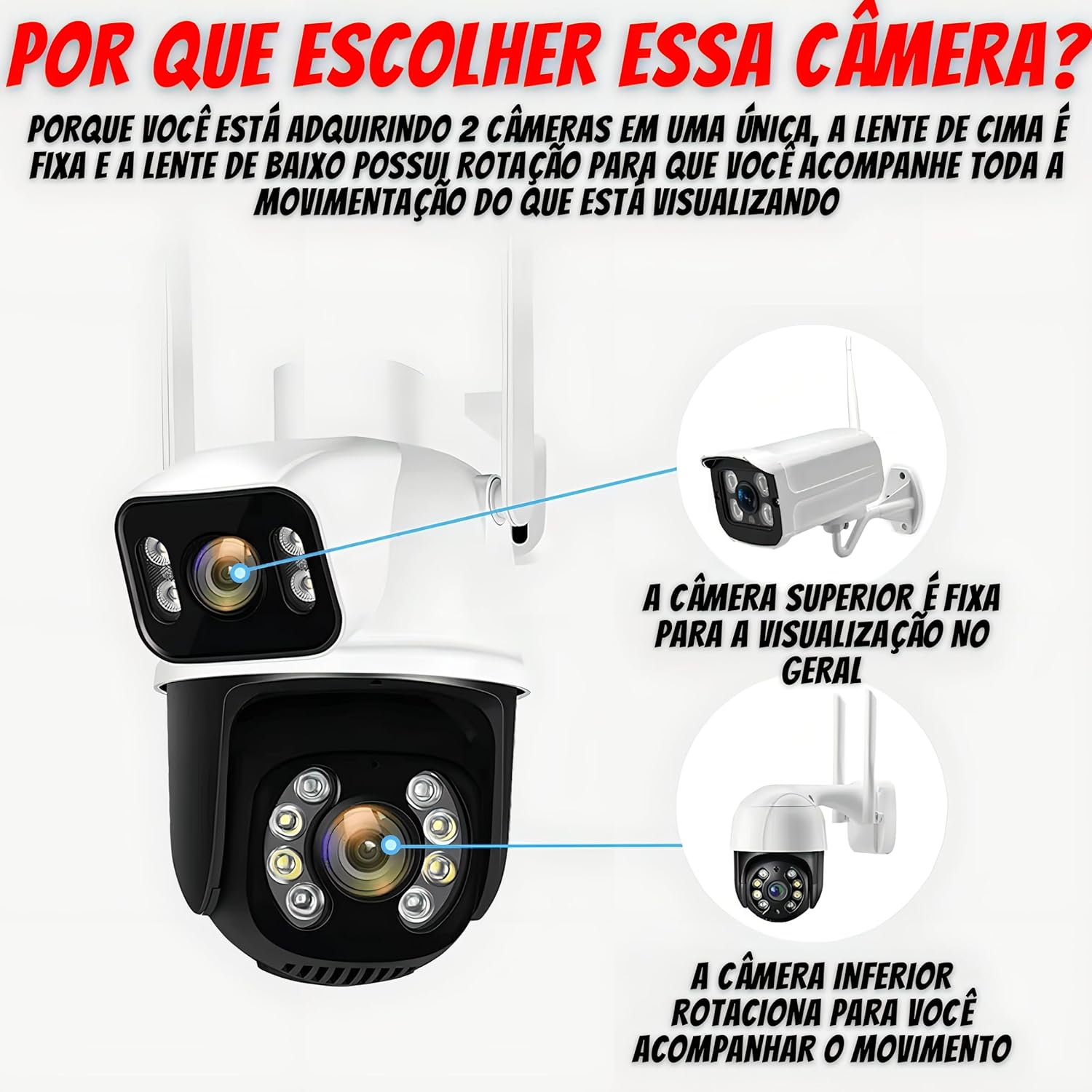
Image 2.2: Explanation of the dual lens system, with a fixed upper camera for general viewing and a rotatable lower camera for tracking movement.
3. Package Contents
Please check the package for the following items:
- 1x Generic A28 Dual Lens Outdoor WiFi HD Security Camera
- 1x Mounting Kit (screws and wall plugs)
- 1x Power Adapter (wired electric, 110/220 Volts)
- 1x User Manual (this document)

Image 3.1: Detailed view of the camera and its included accessories.
4. Setup Guide
4.1 Power Connection
- Connect the provided power adapter to the camera's power input.
- Plug the power adapter into a standard electrical outlet (110V or 220V).
- Wait for the camera to power on and initiate its self-test sequence.
4.2 Mobile Application Installation
- Download the recommended mobile application (e.g., ICSEE, as mentioned in customer reviews) from your device's app store (available for iPhone and Android).
- Register a new account or log in if you already have one.
4.3 WiFi Connection
- Follow the in-app instructions to add your new camera.
- Ensure your smartphone is connected to a 2.4GHz WiFi network. The camera only supports 2.4GHz WiFi.
- Scan the QR code on the camera or follow the voice prompts for pairing.
- Once connected, the camera will indicate successful pairing (e.g., a voice prompt or LED indicator change).
4.4 Mounting the Camera
- Choose a suitable outdoor location for installation, preferably under an overhang to protect from direct heavy rain, though the camera is IP66 rated.
- Use the provided mounting kit to securely attach the camera to a wall or ceiling. The camera supports ceiling mounting.
- Ensure the camera has a clear line of sight to the area you wish to monitor.
5. Operating Instructions
5.1 Live View and Dual Lens Control
After successful setup, open the mobile application to access the live view. The app will display feeds from both the fixed upper lens and the rotatable lower lens.
- Fixed Lens: Provides a general overview of the area.
- Rotatable Lens: Use the on-screen controls in the app to pan (355°) and tilt (90°) the lower lens to adjust its viewing angle.
Video 5.1: Demonstration of the dual lens functionality, showing both fixed and rotatable views, and motion tracking via the mobile application.
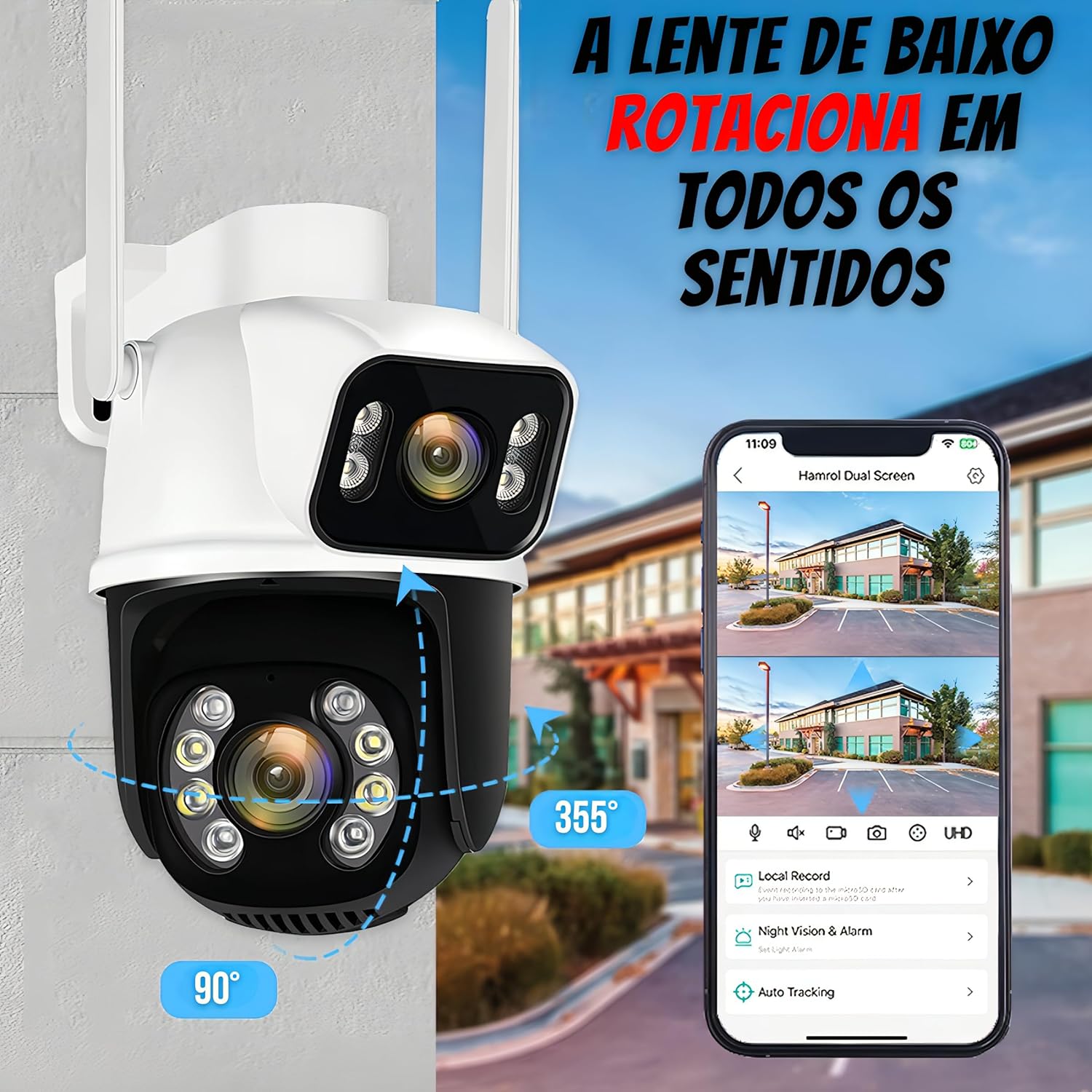
Image 5.2: Illustration of the rotatable lens's movement capabilities.
5.2 Two-Way Audio
To use the two-way audio feature:
- In the live view, tap the microphone icon in the app to speak through the camera's speaker.
- Tap the speaker icon to listen to audio from the camera's microphone.
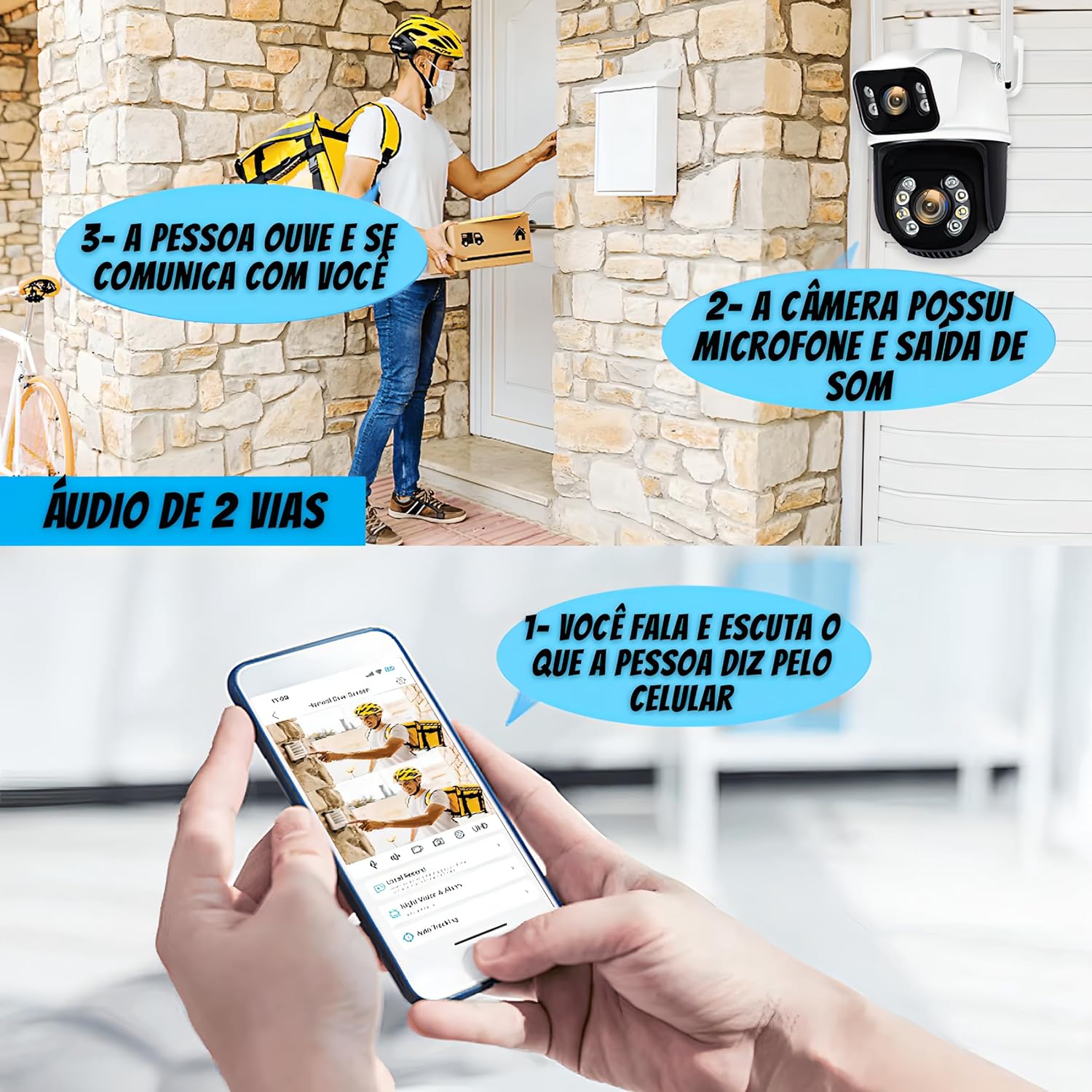
Image 5.3: Visual guide for using the two-way audio feature.
5.3 Motion Detection and Alerts
The camera automatically detects human motion. When motion is detected, the camera will:
- Send a notification to your mobile device.
- Begin recording the event (if configured).
- The rotatable lens can automatically track detected movement.
5.4 Night Vision Modes
The camera adapts to ambient light conditions. You can typically switch between different night vision modes in the app:
- Infrared Mode: Black and white vision using infrared LEDs.
- Color Night Vision: Activates white LEDs for full-color vision in low light.
- Smart Mode: Automatically switches between infrared and color night vision based on detected motion or light levels.

Image 5.4: Different vision modes: day, infrared, and full-color night vision.
5.5 Video Recording and Storage
The camera supports two main storage methods:
- SD Card Storage: Insert a microSD card (up to 128GB, not included) into the designated slot on the camera. Recordings will be saved locally.
- Cloud Storage: Subscribe to a cloud storage plan through the mobile application for remote backup of your recordings.

Image 5.5: Storage options for video footage.
6. Maintenance
- Cleaning: Regularly clean the camera lenses with a soft, dry cloth to ensure clear image quality. Do not use harsh chemicals.
- Power Supply: Ensure the power connection is secure and free from damage.
- WiFi Connection: Periodically check the WiFi signal strength in the app to ensure stable connectivity.
- Firmware Updates: Check the mobile application for available firmware updates to ensure optimal performance and security.
7. Troubleshooting
| Problem | Possible Cause | Solution |
|---|---|---|
| Camera not powering on | No power, faulty adapter, loose connection | Check power outlet, ensure adapter is securely connected, try a different outlet. |
| Unable to connect to WiFi | Incorrect WiFi password, 5GHz network, weak signal, camera too far from router | Ensure correct 2.4GHz WiFi network and password. Move camera closer to router or use a WiFi extender. Reset camera and try pairing again. |
| Poor image quality | Dirty lens, low light, network issues | Clean the lens. Ensure adequate lighting or check night vision settings. Check WiFi connection stability. |
| Motion detection not working | Settings incorrect, obstructions | Check motion detection sensitivity and alert settings in the app. Ensure no physical obstructions are blocking the camera's view. |
| Two-way audio not functioning | Microphone/speaker muted, app permissions | Check audio settings in the app. Ensure app has microphone permissions on your phone. |
8. Specifications
| Feature | Detail |
|---|---|
| Brand | Generic |
| Model Number | 001 (A28) |
| Connectivity Technology | Wireless (Wi-Fi) |
| Special Features | 2-way audio, Motion Detection, Night Vision |
| Indoor/Outdoor Use | Outdoor |
| Mounting Type | Ceiling Mount |
| Color | White |
| Water Resistance Level | Waterproof (IP66) |
| Power Source | Corded Electric |
| Voltage | 110, 220 Volts |
| Video Capture Format | AVI |
| Recommended Uses | Outdoor Security |
| Item Quantity | 1 |
| Video Capture Resolution | 1080p |
| Item Dimensions (L x W x H) | 17 x 11 x 11 cm |
9. Warranty and Support
For warranty information, please refer to the purchase documentation or contact your retailer. For technical support, please refer to the contact information provided by your seller or the mobile application's support section.
Extended protection plans may be available for purchase, offering coverage against failures and defects for 12 or 24 months. Please check with your retailer for details.