
SecureIt FBX-47-02-BML
SecureIt Fast Box Model 47 Gun Safe User Manual
Model: FBX-47-02-BML
1. Introduction
Welcome to the user manual for your SecureIt Fast Box Model 47 Gun Safe. This document provides essential instructions for the safe and effective installation, operation, and maintenance of your new firearm storage solution. Please read all instructions carefully before proceeding with setup or use.
For your safety and the security of your firearms, always adhere to local laws and regulations concerning firearm storage. Proper use of this safe is crucial for preventing unauthorized access.
2. Included Components
Verify that all the following components are present in your package:
- SecureIt Fast Box Model 47 Safe Unit
- Customizable 4-digit push-button keypad with capacitive fingerprint scanner and USB-C power port (Note: Battery and USB-C cord are not included)
- 1x Stock Base (designed to hold 2 buttstocks)
- 2x Cradles (Note: Bungees are not included)
- 2x Override Keys
The safe features SecureIt's CradleGrid Technology, allowing for flexible and reconfigurable storage of firearms and accessories.
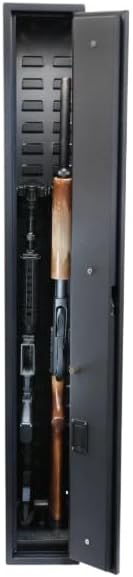
Figure 2.1: Interior of the Fast Box Model 47, illustrating the CradleGrid system for organized firearm storage.
3. Setup and Installation
3.1 Unpacking and Inspection
Carefully remove the safe from its packaging. Inspect the safe for any signs of damage that may have occurred during shipping. If damage is found, contact SecureIt customer support immediately.
3.2 Mounting the Safe
The Fast Box Model 47 is designed for versatile mounting in various locations, including vehicle trunks, floors, under beds, desks, or inside closets. The safe features pre-drilled holes for secure installation.
- Choose a secure and discreet location for your safe.
- Position the safe and mark the locations for the mounting holes.
- Drill pilot holes if necessary, ensuring they are appropriate for your mounting surface.
- Secure the safe to the surface using appropriate mounting hardware (not included). Ensure all fasteners are tightened securely.

Figure 3.1: The SecureIt Fast Box Model 47, ready for mounting in various locations.
3.3 Powering the Biometric Lock
The biometric lock requires power to operate. Batteries are not included with the safe.
- Locate the battery compartment on the lock mechanism.
- Insert the required batteries (refer to the lock mechanism for battery type, typically AA or AAA).
- Alternatively, the lock can be powered via the USB-C port (USB-C cord not included). This can be used for temporary power if batteries are depleted or as a primary power source.
3.4 Initial Code and Fingerprint Setup
It is critical to set up your personal access code and enroll fingerprints immediately after powering the lock.
- Refer to the specific instructions provided with the lock mechanism for detailed steps on setting your 4-digit keypad code.
- Follow the lock's instructions to enroll your fingerprints. Enroll multiple fingers for convenience and backup.
- Important: Record your keypad code and store the two override keys in a secure location, separate from the safe. These keys are your backup access method.
4. Operating the Safe
The Fast Box Model 47 offers multiple methods for secure access.

Figure 4.1: The biometric fingerprint scanner and 4-digit push-button keypad.
4.1 Opening with Biometric Fingerprint
- Ensure your finger is clean and dry.
- Place a previously enrolled finger flat on the capacitive fingerprint scanner.
- The lock will emit an audible signal and/or light indicator upon successful recognition, and the safe will unlock.
4.2 Opening with Keypad Code
- Enter your 4-digit personal access code using the push-buttons.
- Press the designated 'Enter' or 'Confirm' button (refer to lock mechanism for exact button).
- The lock will confirm the code and unlock the safe.
4.3 Using Override Keys
In case of battery failure or forgotten codes, the override keys provide mechanical access.
- Locate the keyhole on the lock mechanism.
- Insert one of the provided override keys into the keyhole.
- Turn the key to unlock the safe.
4.4 Changing Access Credentials
For security purposes, you may need to change your keypad code or re-enroll fingerprints.
- To change keypad code: Follow the specific programming instructions included with your lock mechanism. This typically involves entering a master code or pressing an internal reset button.
- To enroll/delete fingerprints: Consult the lock's programming guide. You can add new fingerprints or remove existing ones as needed.
5. Maintenance
5.1 Battery Replacement
The biometric lock will typically provide a low battery warning. Replace batteries promptly to ensure continuous operation.
- Open the battery compartment.
- Remove old batteries and dispose of them according to local regulations.
- Insert new batteries, ensuring correct polarity.
- Test the lock functionality after replacement.
5.2 Cleaning
To maintain the appearance and functionality of your safe:
- Wipe the exterior surfaces with a soft, dry cloth.
- Avoid using abrasive cleaners, solvents, or harsh chemicals, as these can damage the finish or electronic components.
- Keep the fingerprint scanner and keypad free from dirt and moisture.
5.3 Regular Checks
Periodically check the following:
- Ensure all mounting hardware remains secure.
- Verify that the lock mechanism functions correctly with both fingerprint and keypad access.
- Confirm that the door latches and seals properly when closed.
6. Troubleshooting
If you encounter issues with your Fast Box Model 47, refer to the following common problems and solutions:
- Safe does not open with fingerprint or code:
Solution: Check the batteries and replace if necessary. Re-enter the code carefully. Ensure your finger is clean and properly placed on the scanner. If issues persist, use the override key. - Fingerprint not recognized:
Solution: Ensure your finger is clean and dry. Try enrolling the fingerprint again. Try a different enrolled finger. - Keypad unresponsive:
Solution: This often indicates low or depleted batteries. Replace the batteries. If the issue continues, use the override key. - Door does not latch properly:
Solution: Check for any obstructions preventing the door from closing fully. Ensure the safe is mounted on a flat, even surface.
If these solutions do not resolve the problem, please contact SecureIt customer support for further assistance.
7. Specifications
| Feature | Detail |
|---|---|
| Brand | SecureIt |
| Model Number | FBX-47-02-BML |
| Product Dimensions | 13"D x 6.75"W x 47.25"H |
| Lock Type | Biometric, Electronic Combination Lock, Key |
| Capacity | 1.79 Cubic Feet (up to 2 long guns or combination of long guns, handguns, and accessories) |
| Material | Alloy Steel |
| Special Features | Biometric Fingerprint, Combination Lock, Portable |
| Mounting Type | Mount Anywhere (pre-drilled holes) |
| Item Weight | 39 Pounds |
| UPC | 850008911880 |
8. Warranty Information
SecureIt provides a limited warranty for the Fast Box Model 47 Gun Safe. For detailed warranty terms, conditions, and registration information, please visit the official SecureIt website or contact their customer support department. Keep your proof of purchase for warranty claims.
9. Customer Support
For technical assistance, replacement parts, or any further inquiries regarding your SecureIt Fast Box Model 47 Gun Safe, please contact SecureIt customer support:
- Website: Visit the official SecureIt website for FAQs and support resources.
- Contact Information: Refer to the SecureIt website for current phone numbers and email addresses.
Ask a question about this manual
Ask about setup, troubleshooting, compatibility, parts, safety, or missing instructions. Manuals+ will review the question and use this page’s manual context to help answer it.