
Introduction
The Ubiquiti Networks UA-Hub-Gate is an advanced Gate Hub designed to provide seamless gate access control. It integrates with connected UniFi Access readers or Intercom systems, offering robust security and convenient management for gate entry and exit points. This manual provides essential information for the installation, operation, and maintenance of your UA-Hub-Gate.
Product Overview
The UA-Hub-Gate features multiple terminals for gate operators, auxiliary devices, and additional inputs for sensors and emergency controls. It supports integration with UniFi Access readers and UniFi Protect cameras for enhanced functionality, including license plate recognition.
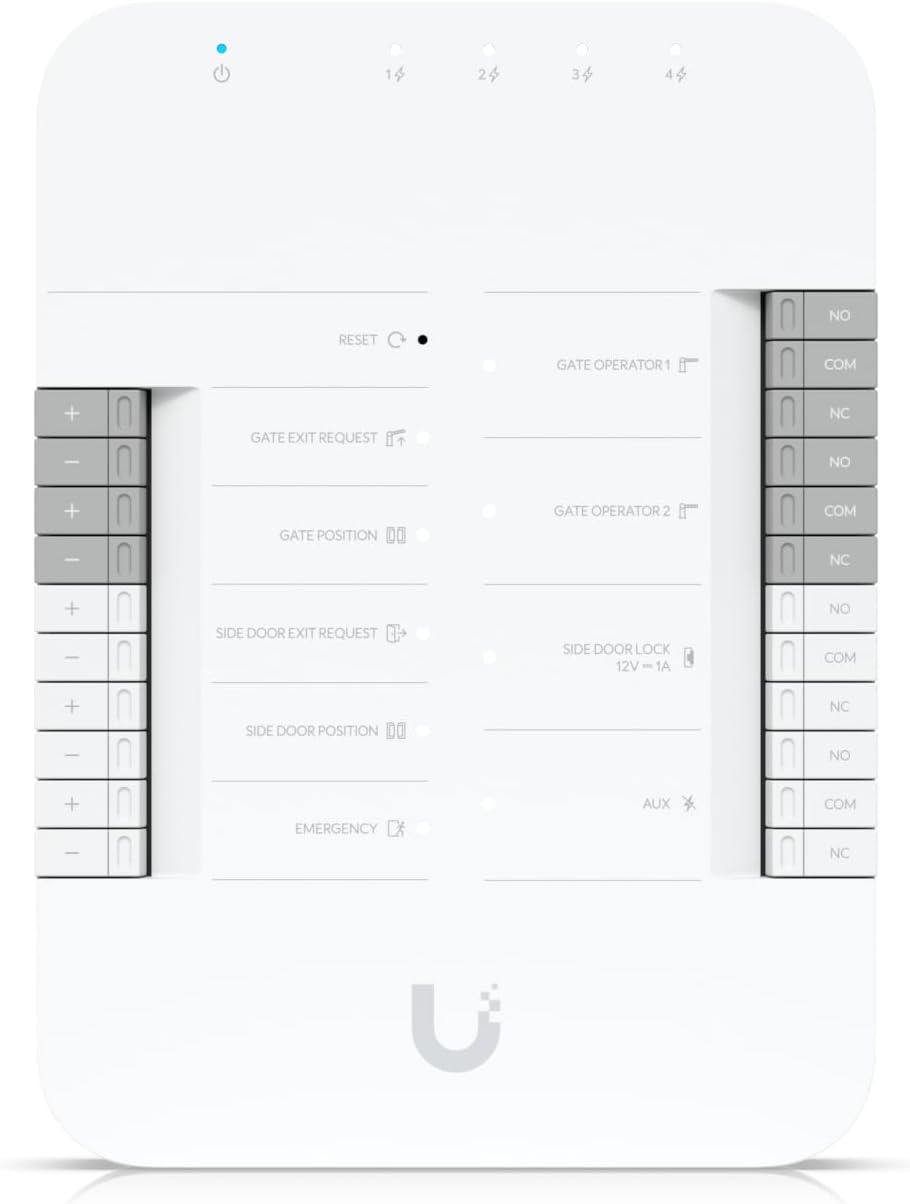
Figure 1: Front view of the UA-Hub-Gate, showing power indicator, reset button, and various terminal labels.

Figure 2: Angled view of the UA-Hub-Gate, providing a clearer look at the terminal blocks on the side.
Key Features
- (2) Gate operator terminals (dry)
- (1) AUX terminal for an external siren
- (5) Additional inputs (sensors and emergency)
- License plate unlock (when paired with AI Camera)
- Connect up to four UniFi Access readers or UniFi Protect cameras
Installation
The UA-Hub-Gate requires professional hard-wired installation. Ensure all connections are secure and comply with local electrical codes and safety regulations. Improper installation can lead to device malfunction or safety hazards.
Mounting
The device is designed for secure mounting on a suitable surface. Use appropriate mounting hardware (included in the hardware kit) to ensure the unit is firmly attached. Refer to the back of the device for mounting points.

Figure 3: Back view of the UA-Hub-Gate, illustrating the mounting bracket and regulatory labels.
Wiring Connections
The UA-Hub-Gate provides various terminals for connecting to gate operators, auxiliary devices, and sensors. Carefully identify each terminal before making connections.
- Gate Operator Terminals (dry): Connect these to the control inputs of your gate operator system.
- AUX Terminal for External Siren: Use this terminal to connect an external alarm or siren for security alerts.
- Additional Inputs: These inputs are for connecting various sensors (e.g., gate position sensors, exit request buttons) and emergency controls.
- Side Door Lock (12V=1A): This output is specifically for controlling a 12V side door lock, providing integrated access for pedestrian gates.

Figure 4: Side view of the UA-Hub-Gate, showing the detailed layout of the wiring terminals.
Power Connection
The device is designed to be powered by a wired connection. While it may contain internal batteries for specific functions, ensure a stable and continuous power supply is provided according to the product specifications for reliable operation. The included hardware kit contains necessary components for power integration.
Operation
The UA-Hub-Gate functions as a central control unit for gate access, managed primarily through the UniFi Access system. Interaction occurs via compatible UniFi Access readers and UniFi Protect cameras.
Access Control
Grant or deny access to your gate through the UniFi Access system's management interface. Users can interact with connected UniFi Access readers or intercoms to request entry, which the UA-Hub-Gate processes to control the gate operator.
License Plate Unlock
When the UA-Hub-Gate is paired with a compatible UniFi AI Camera, the system can perform license plate recognition. This feature allows for automated gate unlocking upon detection of authorized license plates, streamlining vehicle entry.
Monitoring
Monitor the status of your gate, various sensor inputs (e.g., gate open/closed, exit requests), and receive system alerts directly through the UniFi interface. This provides real-time visibility into your gate access system's operation.
Maintenance
Regular maintenance ensures the longevity and optimal performance of your UA-Hub-Gate.
- Wiring Inspection: Periodically inspect all wiring connections for any signs of wear, corrosion, or damage. Ensure all terminals are securely fastened.
- Cleaning: Keep the device's exterior clean and free from dust and debris using a soft, dry cloth. Avoid using harsh chemicals or abrasive materials.
- Firmware Updates: Regularly check for and apply the latest firmware updates through your UniFi controller. Updates often include performance enhancements, security patches, and new features.
- Battery Check: If your installation includes a battery backup, periodically check its status and ensure it is functioning correctly to provide power during outages.
Troubleshooting
If you encounter issues with your UA-Hub-Gate, refer to the following common troubleshooting steps.
No Power
- Verify that the power source is active and all power connections to the UA-Hub-Gate are secure.
- If applicable, check the status of any internal or external battery backups.
Gate Not Responding
- Ensure the gate operator terminals are correctly wired to your gate system and that the gate operator itself is functional.
- Check for any physical obstructions preventing the gate from moving.
- Verify that the UniFi Access readers or intercoms are communicating correctly with the UA-Hub-Gate.
Connectivity Issues
- Confirm that the UA-Hub-Gate has a stable network connection to your UniFi controller.
- Attempt to restart the UA-Hub-Gate and any connected UniFi Access devices.
For further assistance, consult the Ubiquiti Networks support website or contact their technical support team.
Specifications
| Feature | Detail |
|---|---|
| Brand | Ubiquiti Networks |
| Model Number | UA-Hub-Gate |
| Color | white |
| Power Source | Battery Powered (integrated into wired system) |
| Compatible Devices | UniFi Access readers, UniFi Protect cameras |
| Item Dimensions (L x W x H) | 6.9 x 5 x 1 inches |
| Item Weight | 1.56 pounds (0.71 Kilograms) |
| Connectivity Technology | Wired |
| Installation Type | Professional hard-wired |
| Control Method | Remote, Touch |
| Included Components | Hardware Kit |
| UPC | 810084699997 |
Warranty and Support
For detailed warranty information, product registration, and technical support, please visit the official Ubiquiti Networks website. Ensure you have your product model number (UA-Hub-Gate) and proof of purchase available when contacting support.