
Introduction
Thank you for choosing the Queemie Wireless TV Headphones. This manual provides detailed instructions for setting up, operating, and maintaining your headphones to ensure optimal performance and an enjoyable audio experience. These headphones are designed for wide compatibility, offering multiple connection options for various audio devices, including TVs, computers, and mobile phones.
Package Contents
Please verify that all items listed below are included in your package:
- 1 x Wireless Bluetooth TV Headset
- 1 x USB Transmitter
- 1 x Digital-to-Analog Audio Converter
- 1 x Optical Cable
- 1 x Coaxial Cable
- 1 x RCA Audio Cable
- 1 x 3.5mm Audio Cable
- 2 x USB Power Cables (for charging headphones and converter)
- 1 x English User Manual (this document)

Figure 1: Contents of the Queemie Wireless TV Headphones package, including the headphones, various cables, a USB transmitter, and a digital audio converter.
Product Overview and Controls
Familiarize yourself with the headphone components and control buttons for easy operation.

Figure 2: Headphone controls and ports. This image highlights the location of the Previous/Next Song buttons, ON/OFF switch, Volume Control, Micro USB Charge port, 3.5mm Audio-in jack, and Microphone.
- ON / OFF Switch: Powers the headphones on or off.
- Volume Control: Adjusts the listening volume.
- Previous / Next Song Buttons: Skips to the previous or next audio track.
- Micro USB Charge Port: For charging the headphone battery.
- 3.5mm Audio-in Jack: For wired audio connection.
- Microphone: For hands-free calls.
Setup and Connection
The Queemie Wireless TV Headphones offer multiple ways to connect to your audio sources. Please ensure your device has an audio output port for connection.
1. Charging the Headphones
Before first use, fully charge the headphones. Connect one of the provided USB power cables to the Micro USB Charge port on the headphones and the other end to a USB power adapter (not included) or a computer USB port. The charging indicator light will show the charging status.
2. Powering On/Off
Slide the ON/OFF switch to power the headphones on or off. A voice prompt or indicator light will confirm the status.
3. Bluetooth Connection (Direct to Bluetooth-enabled devices)
If your TV, computer, or mobile phone has Bluetooth functionality, you can connect the headphones directly.
- Ensure the headphones are powered on and in pairing mode (usually indicated by a flashing LED).
- On your device, go to Bluetooth settings and search for available devices.
- Select "Queemie Headphones" (or similar name) from the list to pair.
- Once connected, the LED indicator on the headphones will typically show a solid blue light.
4. Connecting via USB Transmitter (for non-Bluetooth devices)
For devices without built-in Bluetooth, use the included USB transmitter.
- Plug the USB transmitter into a USB audio output port on your TV or computer.
- Power on the headphones. They should automatically connect to the transmitter.
- Ensure your device's audio output is set to the USB audio device.
5. Connecting via Digital Audio Converter (Optical, Coaxial, RCA)
For TVs or audio devices with Optical, Coaxial, or RCA audio output ports but no Bluetooth, use the digital audio converter and USB transmitter.

Figure 3: Connection options for Queemie Wireless TV Headphones. This image illustrates how to connect the headphones directly via Bluetooth or indirectly using the USB transmitter and digital converter with Optical, Coaxial, RCA, or USB audio outputs from a TV.
- Connect the digital audio converter to your TV's audio output port (Optical, Coaxial, or RCA) using the appropriate cable.
- Connect the USB transmitter to the digital audio converter's USB output port.
- Power on the headphones. They should automatically connect to the transmitter.
- Ensure the TV's audio output settings are configured to the selected digital output (e.g., PCM for Optical/Coaxial).
6. Wired Connection (3.5mm Audio Cable)
For a direct wired connection, use the 3.5mm audio cable.
- Plug one end of the 3.5mm audio cable into the 3.5mm Audio-in jack on the headphones.
- Plug the other end into the 3.5mm audio output jack of your device (TV, computer, phone).
- Note: Headphone button functions (volume, track control) are not active in wired mode. Adjust volume directly on your connected device.
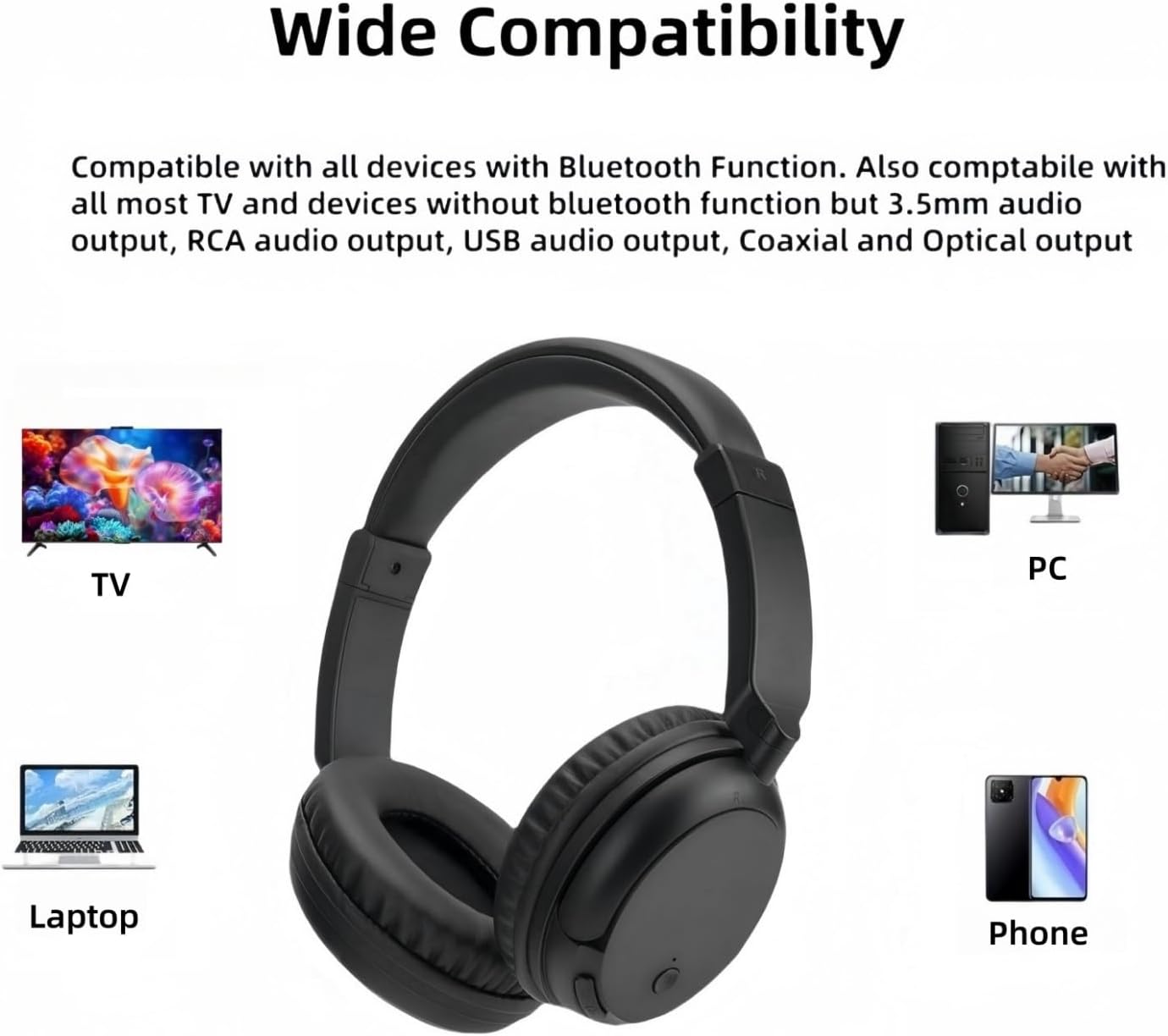
Figure 4: Wide compatibility of the headphones with different devices. This image shows the headphones can connect to a TV, PC, Laptop, and Phone, highlighting their versatility.
Operating Instructions
Audio Playback
- Volume Control: Use the volume buttons on the headphones to increase or decrease the audio level.
- Track Navigation: Use the Previous/Next Song buttons to skip between tracks when playing music.
Phone Calls (when connected to a mobile device)
- Answer/End Call: Press the ON/OFF button once to answer an incoming call or end an ongoing call.
- Reject Call: Press and hold the ON/OFF button for 2 seconds to reject an incoming call.
- Redial Last Number: Double-press the ON/OFF button to redial the last dialed number.
Maintenance
Proper care ensures the longevity of your headphones.
- Cleaning: Use a soft, dry cloth to clean the headphones. Do not use abrasive cleaners or solvents.
- Storage: Store the headphones in a cool, dry place away from direct sunlight and extreme temperatures.
- Avoid Moisture: The headphones are not water-resistant. Avoid exposure to water or high humidity.
- Cable Care: Handle cables gently to prevent damage. Do not pull on the cables to disconnect.
Troubleshooting
If you encounter issues, refer to the following common solutions:
- No Sound:
- Ensure headphones are powered on and charged.
- Verify the headphones are correctly paired/connected to the audio source.
- Check the volume levels on both the headphones and the audio source.
- If using a transmitter/converter, ensure all cables are securely connected and the audio output settings on your device are correct (e.g., PCM for optical/coaxial).
- Cannot Pair Bluetooth:
- Ensure the headphones are in pairing mode.
- Turn off and on the Bluetooth function on your device.
- Move the headphones closer to the device.
- Clear previous Bluetooth connections on your device if necessary.
- Audio Delay (Lip-Sync Issues):
- The headphones are designed for minimal delay. Ensure your audio source and video player are up-to-date.
- Try restarting both the headphones and the audio source.
- Headphones Not Charging:
- Ensure the USB charging cable is securely connected to both the headphones and a working power source.
- Try a different USB port or power adapter.
Specifications
| Brand | Queemie |
| Model Name | Wireless Bluetooth5.3 TV Headset |
| Color | Black |
| Ear Placement | Over Ear |
| Connectivity Technology | Wireless (Bluetooth), Wired (3.5mm) |
| Bluetooth Version | 5.3 |
| Bluetooth Range | 10 Meters |
| Impedance | 32 Ohms |
| Sensitivity | 100 dB |
| Frequency Range | 20Hz-20KHz |
| Battery Capacity | 500mAh Lithium Polymer |
| Battery Life (Average) | Up to 30 Hours |
| Battery Charge Time | Approximately 1.5 Hours |
| Control Type | Button Control |
| Noise Control | Sound Isolation |
| Material | ABS, Leather, Metal |
Warranty and Support
Warranty Information
The Queemie Wireless TV Headphones come with a 3-month warranty from the date of purchase. This warranty covers manufacturing defects. Please retain your proof of purchase for warranty claims.
Customer Support
If you experience any problems during the setup or operation of your device, or if you have any questions, please do not hesitate to contact our customer support team. We are committed to assisting you.
Contact Email: Please refer to the contact information provided with your product packaging or on the retailer's website for the most current support email address.