
1. Setup Guide
Follow these steps to set up your Gawfolk 38-inch Ultrawide Curved Gaming Monitor.
1.1 Unboxing and Inspection
Carefully remove all components from the packaging. Inspect the monitor and accessories for any signs of damage. If any damage is found, do not proceed with setup and contact customer support.
1.2 Stand Assembly
Attach the monitor stand to the back of the monitor. Ensure all screws are securely fastened. The stand is designed for stability and ergonomic adjustments.

This image illustrates the multi-functional stand, demonstrating its 130mm vertical lift, ability to rotate right or left, and a tilt adjustment range of -5° to 15°.
1.3 Connecting Your Monitor
Connect the monitor to your computer or other devices using the appropriate cables. The monitor supports various input options.
- DisplayPort (DP): For optimal performance, including 144Hz refresh rate.
- HDMI: Supports up to 100Hz refresh rate.
- Audio Output: For connecting external speakers or headphones.

This image displays the available interfaces on the monitor, including DC power input, two DisplayPort 1.4 ports, two HDMI 2.0 ports, and an audio output jack. It also provides the monitor's dimensions.
After connecting, plug the power adapter into the monitor and then into a power outlet.
1.4 Wall Mounting (Optional)
The monitor is compatible with 100x100mm VESA wall mounts. Ensure you use a VESA-compliant mount and follow the mount manufacturer's instructions for safe installation.
2. Operating Instructions
Learn how to operate and optimize your monitor's settings.
2.1 Power On/Off
Press the power button, usually located on the back or bottom of the monitor, to turn it on or off. The power indicator light will illuminate when the monitor is active.
2.2 On-Screen Display (OSD) Menu
Access the OSD menu using the control buttons on the monitor. This menu allows you to adjust various display settings.
2.3 Display Settings
- Resolution: The native resolution is 3840x1600 (UWQHD). Ensure your computer's display settings are configured to this resolution for the best image quality.
- Refresh Rate: The monitor supports up to 144Hz via DisplayPort and 100Hz via HDMI. The default refresh rate may be 60Hz. Adjust this in your computer's display settings to utilize the higher refresh rates.
- Color Settings: Adjust brightness (350 nits peak), contrast, color temperature, and gamma. The monitor supports 10-bit color and 120% sRGB for rich and accurate colors.
- Low Blue Light Mode: Activate this mode to reduce eye strain during prolonged use. This feature uses DC global dimming technology to achieve flicker-free operation.

This image illustrates the monitor's capability to display rich colors, emphasizing its 10-bit color depth (1.07 billion colors), 120% sRGB color gamut, and 350 cd/m² peak brightness.

This image highlights the monitor's low blue light and flicker-free technology, designed to protect eyesight during extended use.
2.4 Gaming Features
- FreeSync™ / G-Sync™ Support: Enable these technologies in your graphics card settings to synchronize the monitor's refresh rate with the GPU's frame rate, preventing screen tearing and stuttering.
- 1ms GTG Response Time: This ultra-fast response time minimizes motion blur and ghosting, providing a smooth gaming experience.
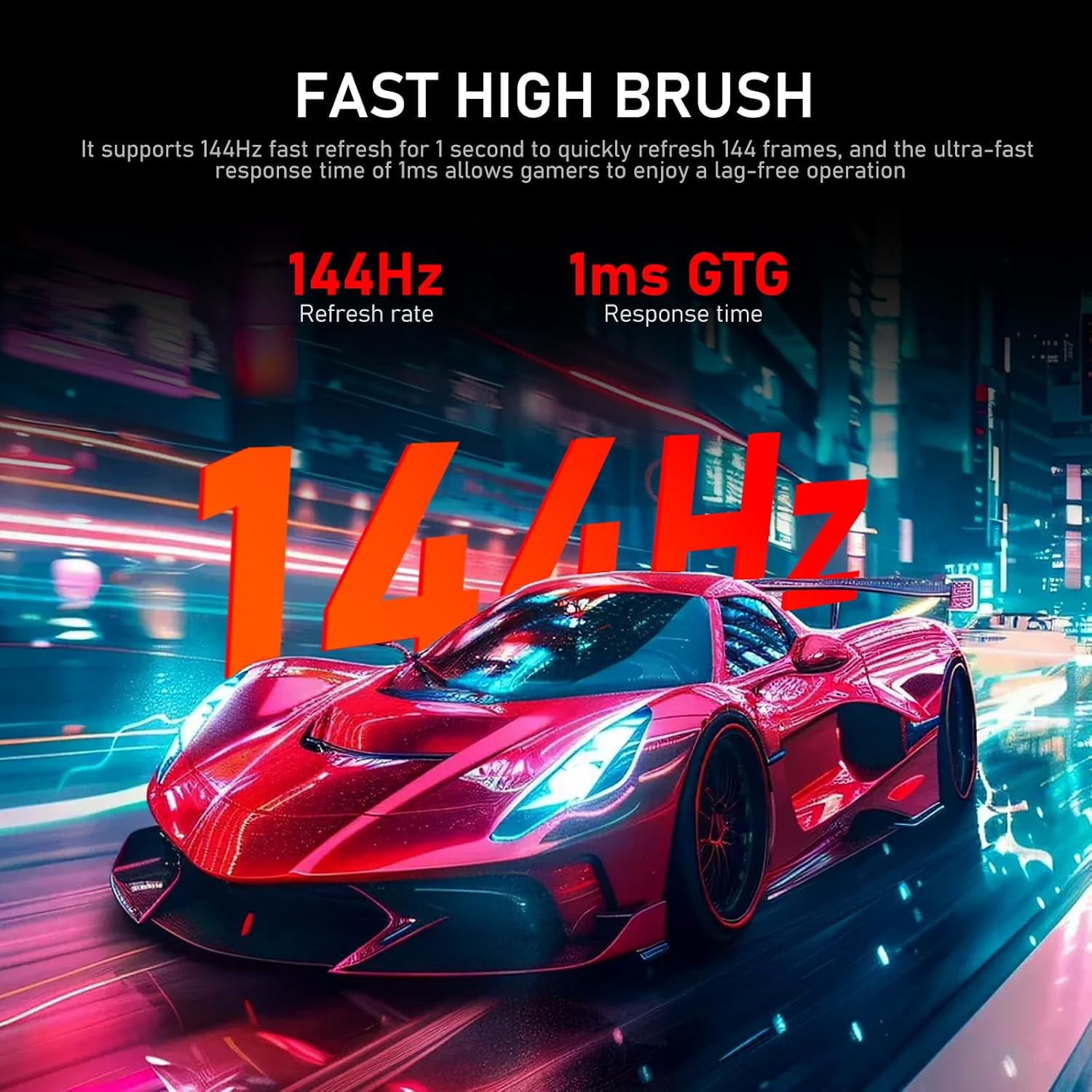
This image emphasizes the monitor's fast performance with a 144Hz refresh rate and 1ms GTG response time, crucial for smooth gaming.

This image explains the benefits of FreeSync Premium and G-Sync technology in eliminating screen tearing, flicker, and stutter for a smoother visual experience.
2.5 Ergonomic Adjustments
Utilize the multi-functional stand to adjust the monitor to your preferred viewing angle:
- Height Adjustment: Lift or lower the monitor between 2.8 to 7.4 inches.
- Tilt Adjustment: Tilt the screen from -5° to 15° to reduce glare and improve viewing comfort.
- Rotation: Rotate the monitor left or right for collaborative viewing or specific content needs.
3. Maintenance
Proper maintenance ensures the longevity and optimal performance of your monitor.
3.1 Cleaning the Screen
Gently wipe the screen with a soft, lint-free cloth. For stubborn marks, lightly dampen the cloth with water or a specialized screen cleaner. Avoid using harsh chemicals, abrasive materials, or spraying liquid directly onto the screen.
3.2 Cleaning the Monitor Body
Use a soft, dry cloth to clean the monitor's casing. Do not use solvents or abrasive cleaners.
3.3 Storage
If storing the monitor for an extended period, disconnect all cables and store it in a cool, dry place, preferably in its original packaging to protect it from dust and physical damage.
4. Troubleshooting
This section addresses common issues you might encounter with your monitor.
4.1 No Image on Screen
- Ensure the power cable is securely connected to both the monitor and the power outlet.
- Verify that the video cable (DP or HDMI) is firmly connected to both the monitor and your computer's graphics card.
- Check if the monitor is set to the correct input source via the OSD menu.
- Confirm your computer is powered on and not in sleep mode.
4.2 Image Flickering or Distorted
- Ensure the video cable is not loose or damaged. Try a different cable if available.
- Verify that your graphics card drivers are up to date.
- Check the refresh rate setting in your computer's display settings. If using HDMI, ensure it's not set above 100Hz. If using DisplayPort, ensure it's not set above 144Hz.
- Disable FreeSync/G-Sync in your graphics card settings temporarily to see if the issue persists.
4.3 No Sound from Audio Output
- Ensure external speakers or headphones are properly connected to the monitor's audio output jack.
- Check the volume settings on your computer and the monitor's OSD menu.
- Verify that the audio output device is correctly selected in your computer's sound settings.
5. Specifications
Detailed technical specifications for the Gawfolk 38-inch Ultrawide Curved Gaming Monitor.
| Feature | Specification |
|---|---|
| Model Number | GF400A |
| Screen Size | 38 Inches |
| Curvature | 2500R |
| Aspect Ratio | 21:9 |
| Resolution | 3840 x 1600 (UWQHD) |
| Refresh Rate | 144Hz (DP), 100Hz (HDMI) |
| Response Time | 1ms GTG |
| Color Depth | 10-bit (1.07 billion colors) |
| Color Gamut | 120% sRGB |
| Brightness | 350 Candela (nits) |
| Viewing Angle | 178° (Horizontal/Vertical) |
| Product Dimensions | 7.95 x 35.31 x 20.39 inches |
| Item Weight | 24.2 pounds |
| Wall Mount Compatibility | 100 x 100mm VESA |
6. Warranty and Support
Gawfolk provides after-sales service to ensure your satisfaction.
6.1 Warranty Period
Your Gawfolk monitor comes with a 12-month after-sales service warranty from the date of purchase.
6.2 Customer Support
If you encounter any problems during the use of your monitor, please do not hesitate to communicate with us. Our customer support team is available to assist you with troubleshooting, technical queries, and warranty claims.
Please refer to the contact information provided with your product packaging or visit the official Gawfolk website for support details.


