1. Introduction
This manual provides essential information for setting up, operating, maintaining, and troubleshooting your AEXPXO Gaming PC Desktop. Please read it thoroughly before using your new computer.
Product Overview
The AEXPXO Gaming PC Desktop is a high-performance computer designed for gaming, content creation, and demanding applications. It features an AMD Ryzen 7 5700X processor, an RTX 4060 8GB GDDR6 graphics card, 32GB DDR4 RAM, and a 1TB NVMe SSD for fast performance and ample storage. The system includes an efficient ARGB cooling system to maintain optimal temperatures during extended use.
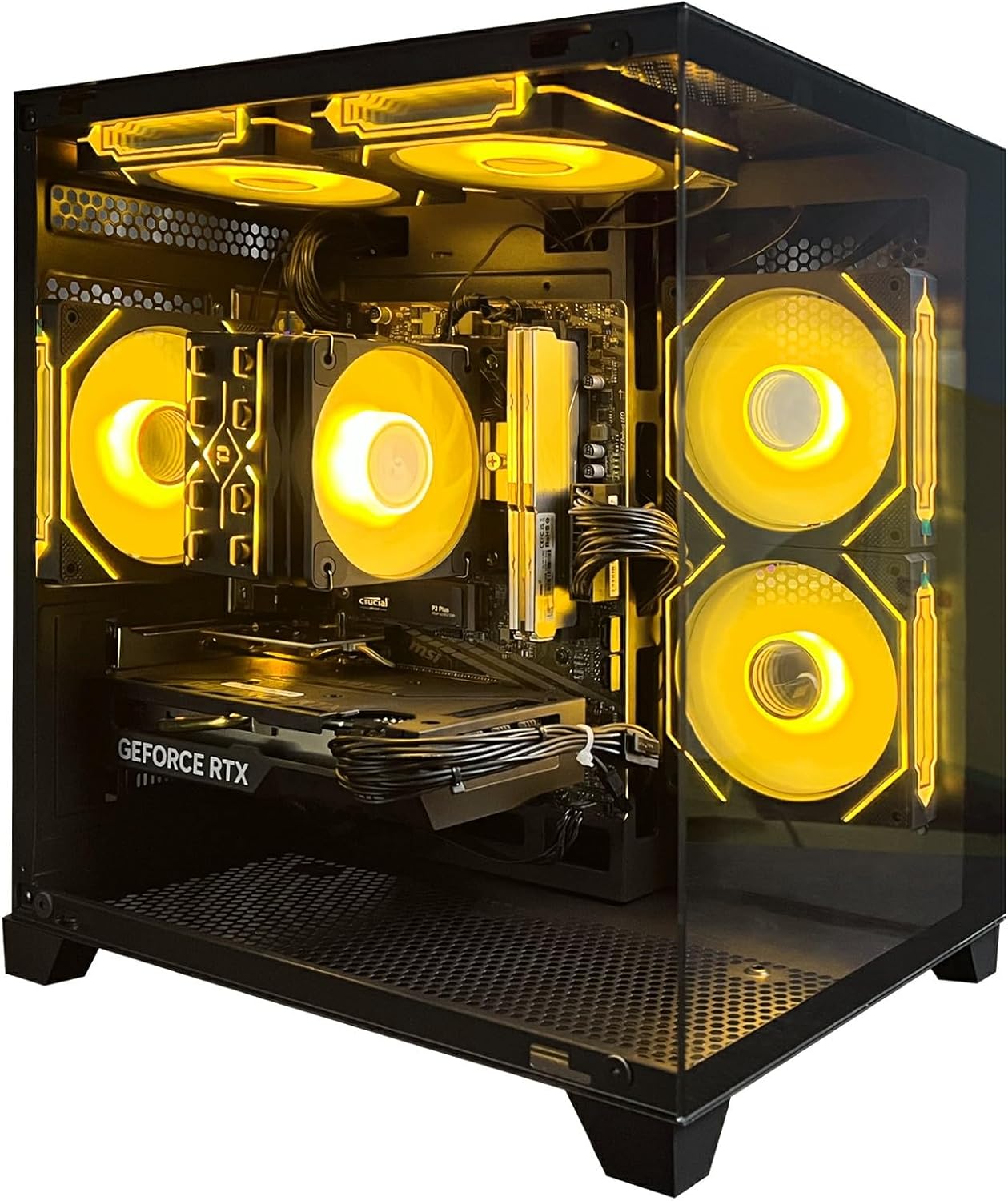
Figure 1.1: AEXPXO Gaming PC Desktop, showcasing its illuminated interior and components.
What's in the Box
- AEXPXO Gaming PC Desktop (Model UR06)
- Power Cable
- RGB Lighting Control Remote (for ARGB fans)
- Documentation (this manual)
2. Setup Guide
2.1 Unboxing and Placement
- Carefully remove the PC from its packaging. Retain all packaging materials for future transport or service.
- Place the PC on a stable, flat surface with adequate ventilation. Ensure there is clear space around the air intake and exhaust vents.
- Remove any internal packing foam or protective films from the PC components.

Figure 2.1: Approximate dimensions of the PC tower for placement planning.
2.2 Connecting Peripherals
- Connect your monitor(s) to the graphics card ports (HDMI, DisplayPort) located at the rear of the PC.
- Connect your keyboard and mouse to the available USB ports.
- Connect any other peripherals such as speakers, headphones, or external drives.
- Plug the power cable into the PC's power supply unit (PSU) and then into a grounded electrical outlet.
2.3 Initial Boot-Up and Operating System Setup
- Press the power button on the front of the PC.
- The system will boot into the pre-installed Windows operating system.
- Important Note: Some units may come with a pre-configured user account or pre-installed software. For optimal security and a clean installation, it is highly recommended to perform a full system reset or clean installation of Windows upon first boot. This can typically be done through Windows Recovery options or by booting from a Windows installation media. Refer to Microsoft's official documentation for detailed steps on performing a clean Windows installation.
- Follow the on-screen prompts to complete the Windows setup, including creating your user account and setting up network connections.
2.4 Network Connection
Your PC supports Wi-Fi connectivity. Connect to your wireless network through the Windows network settings. If you experience weak Wi-Fi signals, ensure the included Wi-Fi antennas (if applicable) are securely attached to the rear of the PC.
3. Operating Your PC
3.1 Power On/Off
- Power On: Press the 'Turn key' (power button) on the front panel.
- Power Off: Use the Windows Shut Down option. Avoid direct power off unless necessary to prevent data loss.
- Restart: Use the 'Restart button' on the front panel for a quick system reboot, or use the Windows Restart option.

Figure 3.1: Front panel showing power button, restart button, audio jack, USB 2.0, and USB 3.0 ports.
3.2 Front Panel Connectivity
The front panel provides convenient access to essential ports:
- Audio Key: Combined headphone/microphone jack.
- USB 2.0 * 1: Standard USB port for peripherals.
- USB 3.0 * 1: High-speed USB port for faster data transfer.
3.3 ARGB Lighting Control
Your PC features ARGB (Addressable RGB) cooling fans. The lighting can be customized using the included remote control. Refer to the remote's instructions for specific lighting modes and color adjustments. The RGB lighting can also be turned off if desired.

Figure 3.2: ARGB cooling fan and the remote control for lighting customization.
3.4 Gaming and Application Usage
The AEXPXO Gaming PC is optimized for a wide range of tasks, from intensive gaming to professional applications. Its powerful components ensure smooth performance across various software. For optimal gaming performance, ensure your graphics drivers are up to date.

Figure 3.3: The gaming PC integrated into a typical desktop setup.
4. Maintenance
4.1 Cleaning
- Regularly clean dust from the PC's exterior and ventilation grilles using a soft, dry cloth.
- For internal cleaning, use compressed air to clear dust from fans, heatsinks, and other components. Ensure the PC is powered off and unplugged before opening the case.
- Avoid using liquid cleaners directly on components.
4.2 Software Updates
- Keep your Windows operating system updated to ensure security and performance.
- Regularly update your graphics card drivers (NVIDIA GeForce Experience is recommended) and other hardware drivers for optimal performance and stability.
4.3 Temperature Monitoring
While the PC is equipped with an efficient cooling system, it is good practice to monitor component temperatures, especially during prolonged gaming sessions. Software tools can provide real-time temperature readings for your CPU and GPU.
5. Troubleshooting
This section addresses common issues you might encounter. If the problem persists, please contact customer support.
| Problem | Possible Cause | Solution |
|---|---|---|
| PC does not power on. | Power cable loose, PSU switch off, faulty power outlet. | Check all power connections. Ensure PSU switch is ON. Try a different power outlet. |
| No display on monitor. | Monitor cable loose, connected to motherboard instead of GPU, monitor off. | Ensure monitor cable is securely connected to the graphics card. Check monitor power. |
| High CPU/GPU temperatures. | Insufficient airflow, dust buildup, outdated drivers. | Ensure PC has adequate ventilation. Clean dust from fans and heatsinks. Update drivers. Verify all cooling fans are spinning. |
| Poor Wi-Fi signal or connectivity. | Antennas not connected, router too far, interference. | Ensure Wi-Fi antennas are securely attached. Move PC closer to router or use an Ethernet cable. |
| Pre-installed user account or unexpected software. | Factory pre-configuration. | Perform a full system reset or clean installation of Windows to ensure a fresh and secure operating environment. This will remove any pre-existing accounts or bloatware. |
| Cannot access BIOS. | Fast boot enabled, incorrect key pressed. | Repeatedly press the designated BIOS key (often Del, F2, F10, or F12) immediately after powering on. Consult motherboard manual if available. |
| Fans not spinning on initial boot. | Loose connection, faulty fan. | Check fan connections to the motherboard. If problem persists, contact support for replacement fans. |
6. Specifications
Detailed technical specifications for your AEXPXO Gaming PC Desktop:

Figure 6.1: Overview of key internal components including CPU, GPU, RAM, and SSD.
| Component | Specification |
|---|---|
| Processor | AMD Ryzen 7 5700X (3.4 GHz Base, up to 4.6 GHz Max Boost) |
| Graphics Card | NVIDIA GeForce RTX 4060 8GB GDDR6 |
| RAM | 32GB DDR4 3200MHz |
| Storage | 1TB NVMe SSD |
| Operating System | Windows |
| Power Supply | 550W Gold-certified |
| Cooling System | ARGB Four Copper Pipe Cooling System with additional ARGB fan |
| USB 2.0 Ports | 3 |
| USB 3.0 Ports | 5 |
| Item Weight | 22.6 pounds |
| Package Dimensions | 20 x 17 x 14 inches |
7. Warranty and Support
7.1 Warranty Information
Your AEXPXO Gaming PC Desktop comes with a 1-year warranty from the date of purchase. This warranty covers manufacturing defects and hardware malfunctions under normal use conditions. Please retain your proof of purchase for warranty claims.
7.2 Technical Support
AEXPXO provides free lifetime technical support for your gaming PC. If you encounter any issues not covered in the troubleshooting section or require further assistance, please contact our support team. For the most up-to-date contact information, please refer to the AEXPXO official website or your purchase documentation.