
Amazfit A2323-Grey
Amazfit T-Rex 3 Rugged Military Smart Watch User Manual
Model: A2323-Grey | Brand: Amazfit
Product Overview
The Amazfit T-Rex 3 is a robust smartwatch designed for outdoor enthusiasts and athletes. It combines durability with advanced features to support a wide range of activities and provide comprehensive health monitoring.

The Amazfit T-Rex 3 Smart Watch in Haze Gray, showcasing its rugged design and digital watch face.
Key Features:
- Large, Bright Display: Features a 1.5-inch AMOLED display with up to 2,000 nits peak brightness for clear visibility in various lighting conditions. Includes Night Mode and Glove Mode.
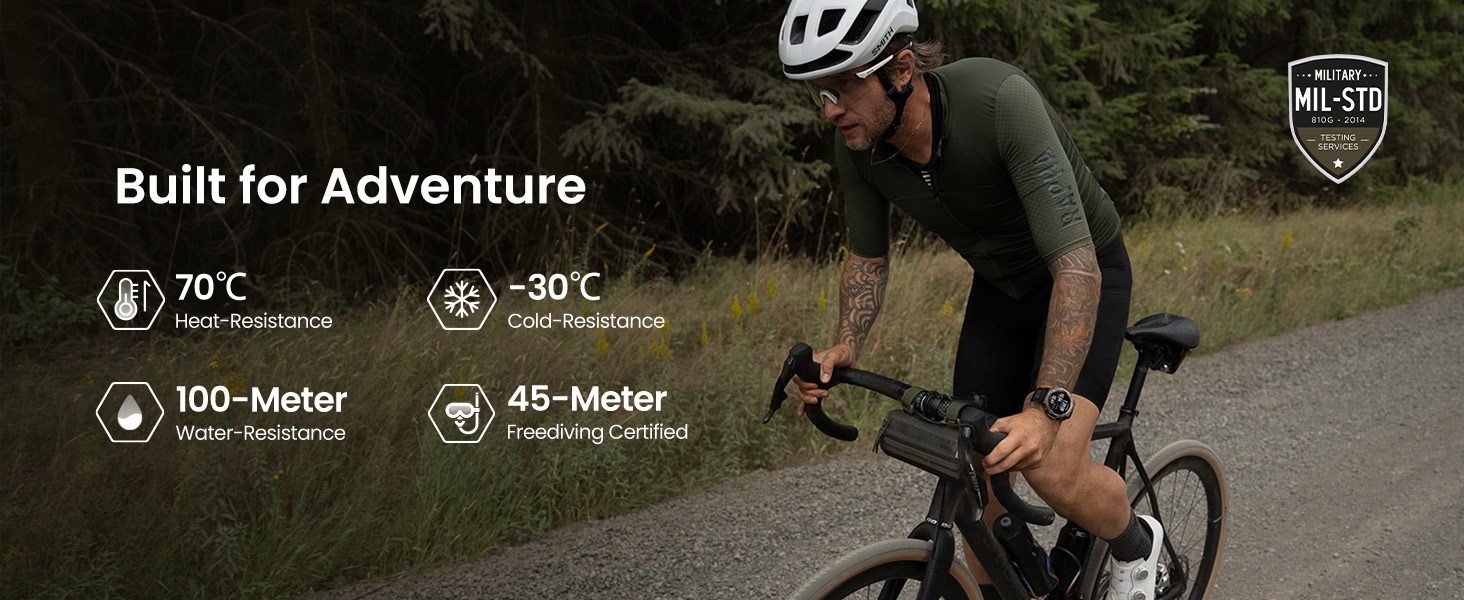
- Built for Adventure: Constructed with a 316L stainless steel bezel and buttons, military-grade resistance to extreme temperatures (-22°F to 158°F), and water resistance up to 100m (328 feet), suitable for surfing and freediving up to 45m.
- Extended Battery Life: Offers up to 27 days of battery life with typical use, 42 hours in GPS Accurate Mode, and up to 180 hours in GPS Long Battery Life Mode.
- Advanced Navigation: Supports dual-band positioning with 6 satellite systems and provides free global, contour, and snow maps with turn-by-turn directions.
- Comprehensive Workout Modes: Over 170 pre-loaded workout modes, including hiking, strength training, and ultramarathon. Provides AI-generated training plans and real-time performance updates.
- AI Voice Control: Utilizes Zepp Flow powered by OpenAI's GPT-4o for voice control of watch settings and speech-to-text message replies on Android apps.
- Enhanced Privacy: Offers top-tier data protection with AWS and allows users to enable or disable GPS data storage for privacy control.

The Amazfit T-Rex 3 is designed to withstand extreme conditions, including high heat, low cold, and significant water depth.
Setup Guide
1. Unboxing and Initial Charge
Upon unboxing your Amazfit T-Rex 3, locate the smart watch, the magnetic charging base, and the user manual. The watch comes with a magnetic charging base. Please note that a USB Type-C cable is not included and must be provided by the user.
- Connect the magnetic charging base to a compatible USB power source (e.g., a computer USB port or a USB wall adapter).
- Place the Amazfit T-Rex 3 onto the magnetic charging base, ensuring the charging pins align correctly. The watch will vibrate and display a charging indicator.
- Allow the watch to charge fully before first use. A full charge typically takes approximately 2 hours.
2. Downloading and Pairing with the Zepp App
The Amazfit T-Rex 3 requires the Zepp App for full functionality, data synchronization, and settings management. The Zepp App is available for both Android and iPhone devices.
- Download the Zepp App from the Google Play Store (for Android) or the Apple App Store (for iPhone).
- Open the Zepp App and create a new account or log in with an existing one.
- Follow the on-screen instructions within the Zepp App to add your Amazfit T-Rex 3. This typically involves scanning a QR code displayed on the watch screen or manually selecting the device from a list.
- Confirm the pairing request on both your smartphone and the watch.
- Once paired, the watch will synchronize time and other settings with your phone.
The Zepp App is essential for managing your watch settings, tracking fitness data, and accessing advanced features.
Operating Instructions
Basic Navigation
The Amazfit T-Rex 3 features a responsive touchscreen and physical buttons for navigation.
- Touchscreen: Swipe up, down, left, or right to navigate through menus and notifications. Tap to select items.
- UP/DOWN Buttons: Scroll through lists and menus.
- SEL Button: Confirm selections or enter sub-menus.
- BACK Button: Go back to the previous screen or return to the watch face.
GPS and Offline Maps
The watch supports advanced GPS positioning and offline map functionality, ideal for outdoor activities.
- GPS Activation: GPS is automatically activated during outdoor workout modes. Ensure a clear view of the sky for optimal signal acquisition.
- Offline Maps: Download global, contour, and snow maps via the Zepp App. Once downloaded, these maps can be used for navigation directly on the watch without a phone connection.
- Route Navigation: Plan routes in the Zepp App and sync them to your watch for turn-by-turn directions during your activities.

Utilize free offline maps and route navigation directly on your watch for outdoor adventures.
Fitness and Health Tracking
The T-Rex 3 offers extensive fitness and health monitoring capabilities.
- Workout Modes: Select from over 170 workout modes. The watch tracks various metrics depending on the activity.
- AI Training Plans: Generate personalized training plans through the Zepp App to optimize your fitness goals.
- Health Metrics: Monitor heart rate, blood oxygen saturation (SpO2), stress levels, and sleep patterns. Data is synced to the Zepp App for detailed analysis.
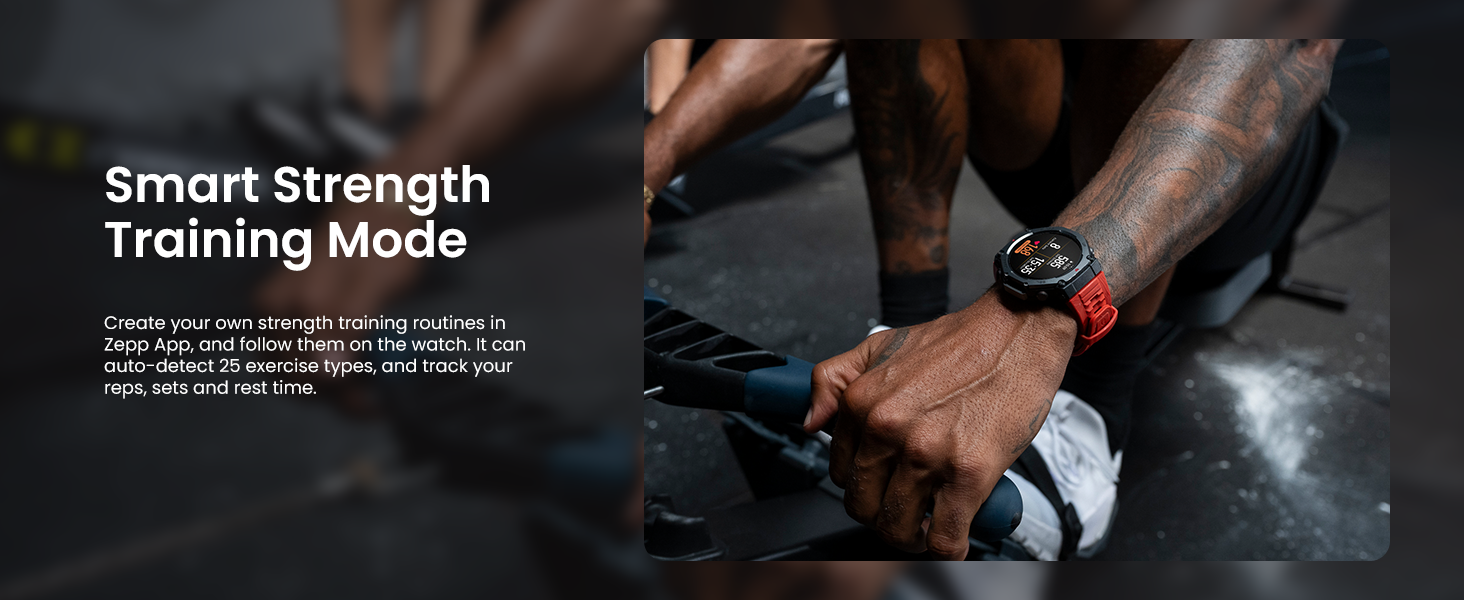
- Smart Strength Training: Create custom strength routines and track reps, sets, and rest times for 25 auto-detected exercise types.
The Smart Strength Training mode helps you track your workouts effectively.
AI Voice Control and Notifications
Interact with your watch using voice commands and manage notifications directly from your wrist.
- Voice Commands: Use Zepp Flow (powered by OpenAI's GPT-4o) to control watch settings, set alarms, reminders, check weather, and health data.
- Speech-to-Text Replies: Reply to messages from Android apps like WhatsApp using your voice.
- Notifications: Receive call, message, and app notifications directly on your watch. Manage notification settings via the Zepp App.

AI-powered voice control allows for convenient interaction and speech-to-text message replies.
Maintenance
Cleaning Your Watch
Regular cleaning helps maintain the watch's appearance and functionality.
- Watch Body: Wipe the watch body with a soft, damp, lint-free cloth. For stubborn dirt, a mild soap solution can be used, followed by rinsing with clean water and thorough drying.
- Strap: For silicone straps, wash with mild soap and water, then rinse and air dry. Avoid harsh chemicals that may damage the material.
- Charging Contacts: Periodically clean the charging contacts on the back of the watch and the charging base with a dry cotton swab to ensure good connection.
Battery Care
To maximize battery lifespan:
- Avoid fully discharging the battery frequently.
- Store the watch in a cool, dry place if not used for extended periods, with the battery charged to about 50%.
- Use only the provided magnetic charging base.
Software Updates
Keep your watch's software updated to ensure optimal performance, new features, and bug fixes. Updates are managed through the Zepp App.
- Ensure your watch is sufficiently charged (at least 30%) before starting an update.
- Keep your watch connected to your phone via Bluetooth during the update process.
Troubleshooting
Common Issues and Solutions:
| Problem | Possible Cause / Solution |
|---|---|
| Watch not turning on or charging. |
|
| Cannot pair watch with phone. |
|
| Inaccurate heart rate or GPS data. |
|
| Notifications not appearing on watch. |
|
For more detailed troubleshooting or issues not listed here, please refer to the help section within the Zepp App or visit the official Amazfit support website.
Technical Specifications
| Feature | Detail |
|---|---|
| Model Number | A2323-Grey |
| Display | 1.5 Inches AMOLED, 2,000 nits peak brightness |
| Dimensions | 4.49 x 4.49 x 2.91 inches (Package) |
| Item Weight | 2.4 ounces |
| Water Resistance | 10 ATM (100 meters), Freediving Certified to 45m |
| Operating Temperature | -22°F to 158°F (-30°C to 70°C) |
| Battery Life (Typical Use) | Up to 27 days |
| Battery Life (GPS Accurate Mode) | Up to 42 hours |
| Battery Life (GPS Long Battery Life Mode) | Up to 180 hours |
| GPS | Built-in GPS, Dual-band positioning, 6 satellite systems |
| Operating System | Zepp OS |
| Connectivity | Bluetooth, Wi-Fi (802.11bgn) |
| Memory Storage Capacity | 26 GB |
| Materials | 316L Stainless Steel Bezel |
| Included in Box | Smart Watch, Magnetic charging base, User Manual |
Warranty Information
Specific warranty terms and conditions for the Amazfit T-Rex 3 are typically provided with the product packaging or can be found on the official Amazfit website. Please retain your proof of purchase for warranty claims.
Generally, Amazfit products come with a limited manufacturer's warranty covering defects in materials and workmanship under normal use. The duration and coverage may vary by region. For detailed information, please refer to the warranty card included in your product box or visit the official Amazfit support page.
Customer Support
For further assistance, technical support, or frequently asked questions, please utilize the following resources:
- Zepp App: The Zepp App contains a comprehensive help section, FAQs, and direct support options.
- Official Amazfit Website: Visit the official Amazfit support website for product manuals, software downloads, and contact information. You can typically find this by searching "Amazfit Support" online.
- Online Community Forums: Engage with other users and find solutions in official or unofficial Amazfit community forums.
When contacting support, please have your product model number (A2323-Grey) and purchase information readily available.