
MOMILLA PlaySmart
MOMILLA Kids Smart Phone Instruction Manual
Model: PlaySmart
Introduction
Welcome to the MOMILLA Kids Smart Phone! This device is designed to provide a safe and engaging learning experience for children aged 3-12. It features a 3.97-inch touchscreen, a front-facing camera, over 200 educational games, built-in white noise and soothing music, and robust parental controls. Please read this manual carefully to ensure proper use and maintenance of the device.
Package Contents:
- Kids Smartphone
- Silicone Cover
- USB Cable
- Lanyard
Setup
1. Initial Charging
Before first use, fully charge the MOMILLA Kids Smart Phone. Use only the original USB cable provided with the device. Do not use fast-charging adapters, as this may damage the device or cause overheating.
Important: Using non-original cables or fast chargers can void your warranty and damage the device.

Image: The MOMILLA Kids Smart Phone, ready for use after charging.
2. Installing the Silicone Cover
The included silicone cover provides shockproof protection. Gently slide the phone into the cover, ensuring all ports and buttons are aligned correctly.
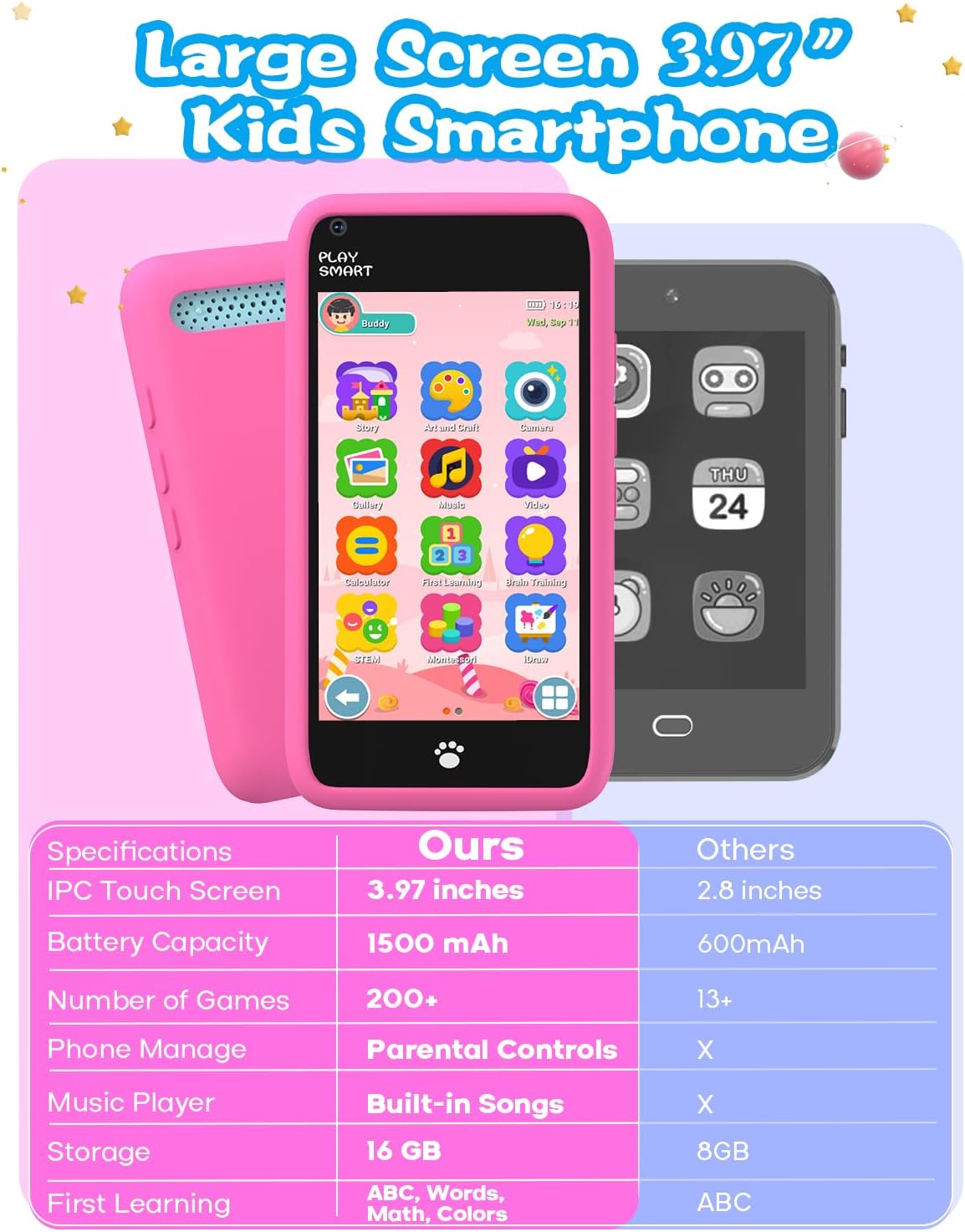
Image: The MOMILLA Kids Smart Phone with its protective silicone case.
3. Powering On/Off
- To power on: Press and hold the power button (located on the side) until the screen lights up.
- To power off: Press and hold the power button, then select "Power Off" on the screen.
Operating Instructions
1. Navigating the Interface
The device features a user-friendly touchscreen interface. Tap icons to open applications. Swipe left or right to navigate between screens.
Image: The main interface of the MOMILLA Kids Smart Phone, displaying various educational and entertainment apps.
2. Educational Games and Tools
The phone comes pre-loaded with over 200 educational games and tools designed for various age groups (3-12 years). These include puzzles, ABCs, coloring, and more. Explore the "First Learning," "Montessori," "Art and Craft," "Brain Training," and "STEM" categories for specific content.

Image: A visual representation of the diverse range of over 200 educational games available on the device.
3. Camera and Video Recording
The device features a front-facing camera for taking selfies and recording videos. Access the camera application from the main screen. Note that there is no rear camera.

Image: Demonstrating the use of the front-facing camera for capturing moments.
4. Music and Stories
The device includes 21 built-in relaxing tracks, including white noise and soft music, to aid in relaxation or sleep. Volume is adjustable. There are also preloaded stories, some with interactive elements.

Image: The MOMILLA Kids Smart Phone offering sleep-aid music and interactive stories.
5. Parental Controls
The device is equipped with password-protected parental controls. Parents can set usage time, manage content, and create child accounts. Access these settings through the "Parental Control" icon on the main screen.
- Password Protection: Set a password to prevent unauthorized access to settings.
- App Management: Control which applications are accessible to your child.
- Time Management: Set daily usage limits or specific time blocks for play.
- Create Child Accounts: Set up multiple profiles with customized settings for different children.
- Phone Settings: Adjust general device settings.

Image: The Parental Controls interface, allowing customization of device usage.
Maintenance
1. Cleaning the Device
Use a soft, dry, lint-free cloth to clean the screen and body of the phone. Do not use liquid cleaners or aerosols directly on the device.
2. Battery Care
- Always use the original USB cable for charging.
- Avoid extreme temperatures, as they can affect battery life.
- Do not leave the device charging for extended periods after it is fully charged.
3. Storage
When not in use for extended periods, store the device in a cool, dry place. Ensure the battery has some charge (around 50%) before storing to prolong its lifespan.
Troubleshooting
| Problem | Possible Cause | Solution |
|---|---|---|
| Device will not power on. | Low battery; device frozen. | Charge the device using the original USB cable. If unresponsive, press and hold the power button for 10-15 seconds to force a restart. |
| Device not charging. | Cable or adapter issue; charging port damage. | Ensure the original USB cable is securely connected. Try a different power outlet. If the issue persists, contact customer support. |
| Screen is unresponsive. | Software glitch; screen protector interference. | Restart the device. Ensure the screen protector (if any) is properly applied and not damaged. |
| Games or apps are slow/crashing. | Too many apps running; low storage. | Close background applications. Check available storage and delete unnecessary files if needed. Restart the device. |
Specifications
- Model: PlaySmart
- Product Dimensions: 2.36 x 0.31 x 4.72 inches
- Item Weight: 6.7 ounces
- Screen Size: 3.97 inches (IPC Touch Screen)
- Battery Capacity: 1500mAh
- Internal Storage: 16 GB
- Recommended Age: 36 months - 12 years
- Camera: Front Camera Only
- Games: 200+ Educational Games
- Music: Built-in Soothing Music & White Noise (21 tracks)

Image: Key specifications of the MOMILLA Kids Smart Phone.
Warranty and Support
MOMILLA products are designed for quality and durability. For warranty information or technical support, please refer to the contact details provided on the product packaging or visit the official MOMILLA website.
For common issues, please refer to the Troubleshooting section of this manual.
Contact Information:
- Brand Store: MOMILLA Amazon Store
Related Documents - PlaySmart
 |
MOMILLA SRWW Sunrise Alarm Clock with Wireless Charger User Manual Comprehensive user manual for the MOMILLA SRWW Sunrise Alarm Clock with Wireless Charger. Learn how to set up alarms, use ambient lighting, connect to the Smart Life app, and utilize the wireless charging features. |
 |
Sunrise Pro Wake Up Light ACA-002-PRO-S User Manual User manual for the MOMILLA Sunrise Pro Wake Up Light (ACA-002-PRO-S), detailing features like smart app pairing, alarm settings, ambient lighting, FM radio, and safety instructions. |
 |
Sunrise Pro Wake Up Light ACA002-M User Manual | Momilla Comprehensive user manual for the Momilla Sunrise Pro Wake Up Light (Model ACA002-M). Learn how to set up alarms, use ambient lighting, FM radio, sleep-aid features, and safety instructions. |
 |
Arches Pro Ambient Lamp User Manual - SAC003-PRO-BW Comprehensive user manual for the Momilla Arches Pro Ambient Lamp (Model SAC003-PRO-BW), detailing features like sunrise alarm, ambient lighting, wireless charging, Bluetooth speaker, and sleep-aid functions. Includes setup instructions, safety guidelines, and specifications. |
 |
Arches Pro Ambient Lamp User Manual - Momilla Comprehensive user manual for the Momilla Arches Pro Ambient Lamp, detailing its features including sunrise alarm, ambient lighting, wireless charging, Bluetooth speaker, and Smart Life app integration. Learn how to set up and use all functions. |
 |
Polaroid PlaySmart 3D Printer User Guide A comprehensive user guide for the Polaroid PlaySmart 3D Printer, covering setup, operation, software installation, troubleshooting, and maintenance. |
Ask a question about this manual
Ask about setup, troubleshooting, compatibility, parts, safety, or missing instructions. Manuals+ will review the question and use this page’s manual context to help answer it.