
Introduction
This manual provides detailed instructions for the installation, operation, and maintenance of your CAMECHO Single Din Car Stereo. Please read this manual thoroughly before using the product to ensure proper function and safety. Keep this manual for future reference.
Product Overview
The CAMECHO Single Din Car Stereo is an advanced Android 13 head unit designed for in-car entertainment and connectivity. It features a 6.9-inch touch screen and supports a wide range of functions to enhance your driving experience.
Key Features:
- Android 13 System: Equipped with 2GB RAM and 32GB ROM for smooth performance.
- Wireless Apple CarPlay & Android Auto: Seamless smartphone integration for navigation, calls, music, and apps via Siri/Google controls.
- GPS Navigation: Supports both offline and online maps (Google Maps, Sygic, Waze compatible).
- WiFi & 3G Network Support: For internet browsing and streaming media.
- Bluetooth 5.0: For hands-free calling, wireless music streaming, and phonebook access.
- FM Radio with RDS: Real-time radio, news, and weather forecasts.
- Steering Wheel Control: Allows control of playback without diverting attention from the road.
- HD Video Playback: Supports 1280*480P video resolution.
- 16-Band Equalizer: For precise audio adjustment.
- Type-C and USB Input: Multiple connectivity options.
- Adjustable Home Page APP Display: Customize your home screen.
- Phone Mirror Link Function: Wirelessly mirror your smartphone screen.
- Split Screen Functionality: Use two apps simultaneously.
- External Backup Camera Support: (Camera not included).
What's in the Box
Verify that all components are present before beginning installation.
- 1 x Single Din Android Head Unit
- 1 x GPS Antenna
- 1 x Power Cable
- 1 x RCA Cable
- 1 x 6pin USB Cable
- 1 x Rear Camera Input Cable
- 1 x Accessories (Mounting hardware)
- 1 x User Manual

Figure 1: Included components and rear view of the head unit with labeled ports (Power Cable, RCA Cable, 6pin USB Cable, Rear Camera Input Cable, GPS Antenna, Radio Antenna).
Setup and Installation
Professional installation is recommended. Ensure the vehicle's battery is disconnected before starting installation.
Dimensions:
The unit is a single DIN size. Common dimensions are approximately 177mm (L) x 50mm (H) / 7.0 inches (L) x 2.0 inches (H). The display size is approximately 187mm (L) x 70mm (H) / 7.4 inches (L) x 2.8 inches (H).

Figure 2: Product dimensions and rear port layout for wiring reference.
Wiring Connections:
- Power Cable: Connect the main power harness to the vehicle's power supply.
- RCA Cable: For audio output to external amplifiers or subwoofers.
- USB Cable (6-pin): For USB devices and data transfer.
- Rear Camera Input Cable: Connects to an optional backup camera.
- GPS Antenna: Connect for GPS navigation functionality. Position in a location with a clear view of the sky.
- Radio Antenna: Connect the vehicle's FM/AM antenna.
Reversing Camera Installation (Optional):
Even if a reversing camera is not used, the reversing input cable must be plugged into the unit.
- Connect the positive pole of the camera's power supply to the car's reversing light.
- Connect the negative pole of the camera's power supply to the car's reversing light ground.
- Connect the power cable (pink wire labeled "reverse/parking sensor control/back in") to the reversing signal wire of the vehicle.
- Connect the video signal cable from the camera to the "Rear Camera Input" on the head unit. The white plug must be connected to the main device for Bluetooth and WiFi signals.
After installation, set the camera resolution via Settings > Factory Mode (Password: 8317) > 3 Camera. Select the desired resolution and restart the car.

Figure 3: Reversing camera wiring diagram.
Operating Instructions
Wireless Apple CarPlay & Android Auto:
This unit supports wireless connectivity for both Apple CarPlay and Android Auto, allowing seamless integration of your smartphone's features.
- On the head unit, click the "ApplePlay" or "Android Auto" app icon.
- On your smartphone, turn on Bluetooth.
- Search for and select the car radio's Bluetooth name on your phone to pair.
- For Apple CarPlay, allow access to Contacts and Favorite Sync.
- Wait for a moment; the system will automatically enter CarPlay or Android Auto mode.

Figure 4: Wireless Apple CarPlay and Android Auto interfaces.
GPS Navigation & WiFi Connection:
The unit has built-in GPS and supports both offline and online navigation. It can connect to WiFi hotspots for internet access.
- GPS: Access navigation apps like Google Maps, Sygic, or Waze directly from the head unit. Download offline maps for use without an internet connection.
- WiFi: Connect to a mobile hotspot or available WiFi network to browse the internet, download apps, or stream media.

Figure 5: GPS Navigation and WiFi connectivity features.
Bluetooth & FM RDS Radio:
Enjoy hands-free communication and a wide range of radio stations.
- Bluetooth: Pair your phone for hands-free calls, access your phonebook, and stream audio wirelessly.
- FM Radio: Tune into FM stations. The RDS (Radio Data System) tuner provides real-time information such as station names, news, and weather.

Figure 6: Bluetooth and FM RDS Radio interfaces.
Equalizer (EQ):
Customize your audio experience with the built-in 16-band equalizer.
- Adjust bass, midrange, and treble frequencies to suit your preferences.
- Select from various preset sound modes or create custom profiles.
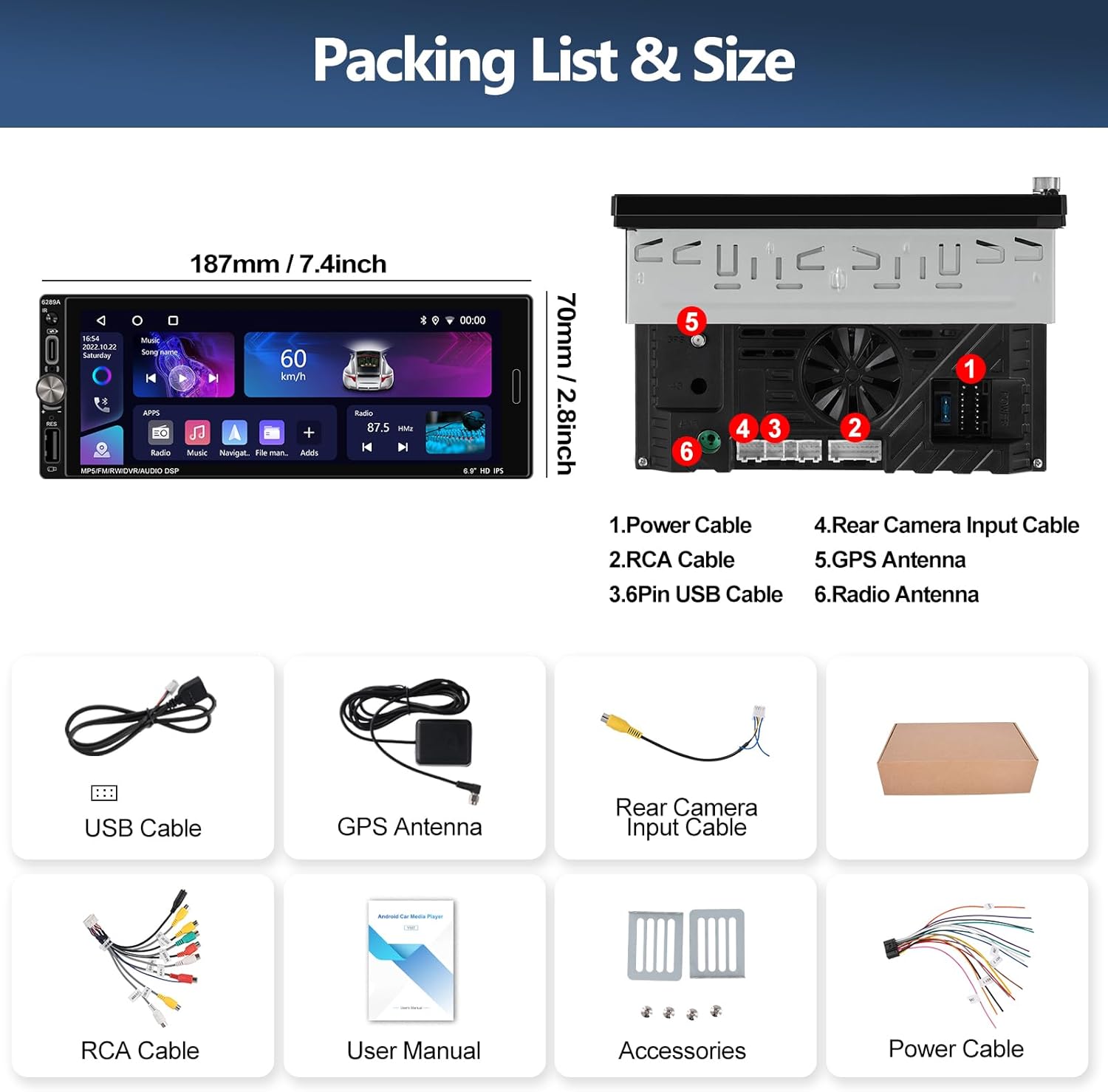
Figure 7: Equalizer settings interface.
Steering Wheel Control:
Control essential functions directly from your steering wheel for safer driving.
- After connecting the power cable, navigate to the "SWC" app on the head unit.
- Follow the on-screen instructions to complete the steering wheel button learning process. If it fails, try again.
- Functions typically include volume control, track skipping, and answering/ending calls.
Figure 8: Steering Wheel Control setup interface.
Optional Home Page App Display:
Customize your home screen by selecting and rearranging the application icons.
- Drag and drop app icons to organize your home page according to your preferences.

Figure 9: Customizable Home Page App display.
Mirror Link Function:
Wirelessly cast your cell phone's screen to the car radio touchscreen for convenient viewing of content.
- Ensure your phone and the head unit are connected via WiFi or USB.
- Open the Mirror Link application on the head unit and follow the pairing instructions for your specific smartphone.
Maintenance
Proper maintenance ensures the longevity and optimal performance of your car stereo.
- Cleaning the Screen: Use a soft, lint-free cloth to gently wipe the touchscreen. Do not use abrasive cleaners or solvents, as they may damage the screen.
- Software Updates: Periodically check for software updates from the manufacturer to ensure you have the latest features and bug fixes. Connect the unit to WiFi to check for updates.
- Avoid Extreme Temperatures: Do not expose the unit to extreme heat or cold for extended periods, as this can affect its electronic components.
- Cable Connections: Ensure all cables are securely connected. Loose connections can lead to intermittent issues.
Troubleshooting
If you encounter issues with your CAMECHO Single Din Car Stereo, refer to the following common problems and solutions:
| Problem | Possible Cause | Solution |
|---|---|---|
| Unit does not power on. | Loose power connection, blown fuse, vehicle battery issue. | Check power cable connections. Inspect vehicle fuses. Ensure vehicle battery is charged. |
| No sound. | Volume too low, incorrect audio source, speaker wiring issue. | Increase volume. Select correct audio source. Check speaker connections. |
| Touchscreen unresponsive or slow. | System overload, temporary software glitch. | Restart the unit. Perform a factory reset if the issue persists (note: this will erase data). |
| Wireless CarPlay/Android Auto not connecting. | Bluetooth not enabled, incorrect pairing, phone software issue. | Ensure Bluetooth is on for both devices. Delete previous pairings and re-pair. Update phone OS. |
| GPS signal lost or inaccurate. | GPS antenna obstructed or disconnected. | Ensure GPS antenna has a clear view of the sky and is securely connected. |
| Steering Wheel Controls not working. | Incorrect wiring, SWC learning process not completed. | Verify SWC wiring. Re-do the SWC learning process in the unit's settings. |
Specifications
| Feature | Detail |
|---|---|
| Brand | CAMECHO |
| Model Number | 9d8a871b-2a87-47b4-a6fb-5da15e3fa636 |
| Operating System | Android 13 |
| RAM | 2GB |
| ROM | 32GB |
| Screen Size | 6.9 inches |
| Display Resolution | 1280*480P (HD Video Playback) |
| Connectivity Technology | Bluetooth 5.0, Wi-Fi, 3G |
| Controller Type | Touch Screen |
| Special Features | Android Auto, Apple CarPlay, GPS Navigation, FM Radio (RDS), 16-Band EQ, Mirror Link, Split Screen, Steering Wheel Control |
| Compatible Devices | Smartphone |
| Connector Type | RCA, USB, Type-C |
| Audio Output Mode | Stereo |
| Surround Sound Channel Configuration | 5.1 |
| Output Power | 45 Watts (per channel) |
| Total Output Wattage | 180 Watts |
| Product Dimensions (D x W x H) | 4.7"D x 7.4"W x 2.8"H |
Warranty and Support
Warranty Information:
This CAMECHO product comes with a 1-year warranty from the date of purchase. This warranty covers manufacturing defects and malfunctions under normal use. It does not cover damage caused by misuse, accidents, unauthorized modifications, or improper installation.
Customer Support:
For technical assistance, troubleshooting, or warranty claims, please contact CAMECHO customer support. You can reach us via email at CAMECHOVIP@126.com.

Figure 10: CAMECHO Brand Logo.

Figure 11: Customer Support Contact Information.