Introduction
This manual provides detailed instructions for the setup, operation, maintenance, and troubleshooting of your Redragon GCP512 Laptop Cooling Pad. Designed for 15-17 inch laptops, this cooling pad features a powerful fan, adjustable height settings, RGB lighting, and an integrated phone stand to enhance your computing experience.
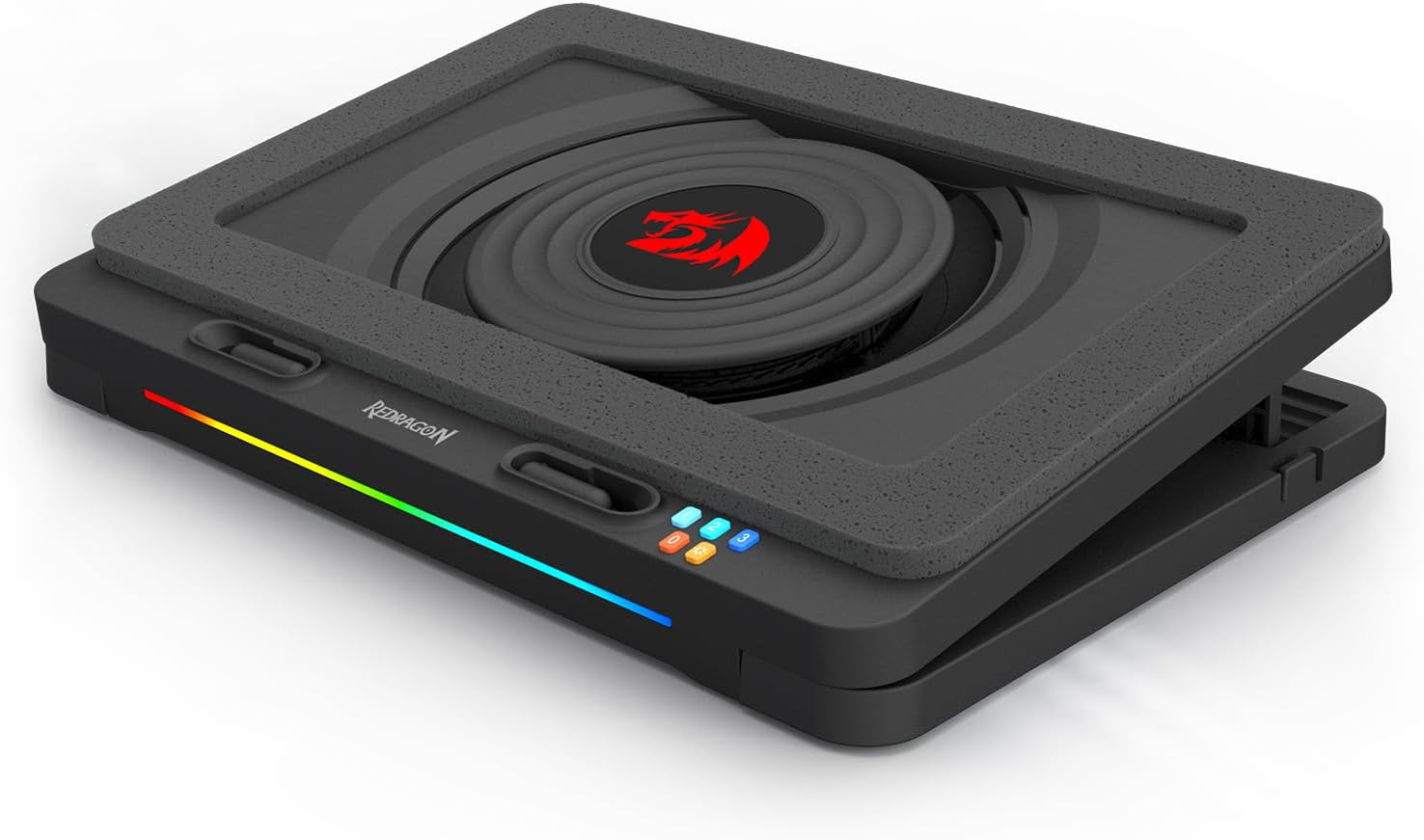
Image: The Redragon GCP512 Laptop Cooling Pad, showcasing its design with the central fan and RGB lighting.
Safety Information
- Do not expose the device to water or excessive moisture.
- Avoid placing the device near heat sources or in direct sunlight.
- Do not attempt to disassemble or repair the device yourself. Refer to qualified service personnel.
- Keep out of reach of children.
- Use only the provided USB-C cable for power.
Package Contents
Please check the package contents upon opening to ensure all items are present:
- Redragon GCP512 Laptop Cooling Pad
- USB-C Power Cable
- User Manual (this document)
Product Features
- Powerful Cooling Performance: Equipped with a 5.9-inch fan and a sealed sponge design to generate significant wind pressure for effective laptop cooling.
- Universal Compatibility: Supports laptops ranging from 15 to 17 inches.
- Customizable Height and Speed: Features four adjustable height settings and three fan speed levels (1800 to 2400 RPM) for personalized comfort and cooling.
- Quiet Operation: Operates at a low noise level of 52-58 dB, minimizing distraction.
- RGB Lighting and Multi-Device Support: Includes vibrant RGB lighting modes and an integrated phone holder for a dual workstation setup.

Image: Top view of the cooling pad, showing the fan and Redragon logo.
Setup
- Unpack the Cooling Pad: Carefully remove the Redragon GCP512 from its packaging.
- Connect Power: Plug the provided USB-C cable into the cooling pad's power port and connect the other end to a USB port on your laptop or a compatible USB power adapter.
- Place Your Laptop: Position your 15-17 inch laptop securely on the cooling pad. Ensure the laptop's vents are not obstructed.
- Adjust Height: Utilize the adjustable legs on the underside of the cooling pad to select one of the four available height settings for optimal ergonomics and airflow.

Image: Side view illustrating the adjustable height feature.
- Deploy Phone Stand: If desired, pull out the integrated phone stand located on the side of the cooling pad to hold your smartphone.

Image: The cooling pad with its phone stand extended.

Image: A laptop and phone positioned on the cooling pad.
Operating Instructions
- Power On/Off: Once connected to power, the cooling pad will automatically turn on. To turn off, disconnect the USB-C power cable.
- Adjust Fan Speed: Use the fan speed control buttons (labeled 1, 2, 3) on the front of the pad to cycle through three fan speed settings. Pressing the '0' button will turn the fan off.
- Control RGB Lighting: The RGB lighting strip on the front of the pad will illuminate when powered on. Use the dedicated RGB button to cycle through different lighting modes or turn the lighting off.

Image: Front view of the cooling pad, highlighting the RGB light strip and control panel.
Maintenance
- Cleaning: Regularly clean the fan and the surface of the cooling pad with a soft, dry cloth to prevent dust buildup. Ensure the device is unplugged before cleaning. Do not use liquid cleaners.
- Storage: When not in use, store the cooling pad in a cool, dry place away from direct sunlight and extreme temperatures.
Troubleshooting
- Problem: The fan is not spinning.
- Solution:
- Ensure the USB-C power cable is securely connected to both the cooling pad and a functioning USB port or power adapter.
- Verify that the fan speed is not set to '0' (off). Adjust using the fan speed control buttons.
- Try connecting the cooling pad to a different USB port or power source. Some laptop USB ports may not provide sufficient power.
- Problem: RGB lighting is not working.
- Solution:
- Ensure the cooling pad is receiving power.
- Press the RGB control button to cycle through lighting modes, as it might be set to 'off' or a static mode.
- Problem: Insufficient cooling performance.
- Solution:
- Increase the fan speed to the maximum setting.
- Ensure your laptop's vents are not blocked by the cooling pad or other objects.
- Adjust the cooling pad's height to improve airflow underneath your laptop.
- Clean any dust buildup from the cooling pad's fan and your laptop's vents.
- Problem: The cooling pad is making unusual noise.
- Solution:
- Check for any foreign objects obstructing the fan blades.
- Ensure the cooling pad is placed on a flat, stable surface.
- If the noise persists and is excessive, contact customer support.
Specifications
| Model Number | GCP512 (Item model number: 367478720) |
| Brand | Redragon |
| Compatibility | 15-17 inch Laptops |
| Fan Size | 5.9 inches |
| Fan Speed Levels | 3 (1800-2400 RPM) |
| Adjustable Heights | 4 positions |
| Noise Level | 52-58 dB |
| Cooling Method | Air |
| Material | Acrylonitrile Butadiene Styrene (ABS) |
| Item Weight | 3.87 pounds (1.76 Kilograms) |
| Package Dimensions | 14.17 x 12.2 x 2.76 inches |
Warranty and Support
Redragon products are designed and manufactured to high-quality standards. For information regarding warranty coverage, technical support, or service inquiries, please refer to the official Redragon website or contact their customer support directly. Please retain your proof of purchase for warranty claims.
You can visit the Redragon store on Amazon for more information: Redragon Store


