
1. Introduction
This manual provides detailed instructions for the installation, operation, and maintenance of your JAIOTlink 2K Dual Lens Video Doorbell Camera Wireless with Chime. This device is designed to enhance your home security by providing clear video monitoring of your doorstep, two-way audio communication, and package protection features. Please read this manual thoroughly before use to ensure proper functionality and safety.
2. Package Contents
Verify that all items listed below are present in your package. If any items are missing or damaged, please contact customer support.
- Doorbell
- Base station
- Doorbell board
- Fast operation guide
- Charging Cable
- Power Adapter
- Screws
- Hole needle
- Mounting guide sticker
- Prompt stickers

Image: Contents of the JAIOTlink doorbell package, including the doorbell, chime, charger, doorbell bracket, setup guide, screws, hole needle, mounting guide sticker, and prompt stickers.
3. Setup
3.1 Initial Charging
Before first use, fully charge the doorbell using the provided charging cable and power adapter. The doorbell features a built-in 9000 mAh battery. A slowly blinking white light indicates charging. A bright blue light after startup indicates a full charge.

Image: Visual representation of the doorbell's battery life and charging indicator lights.
3.2 App Installation and Connection
- Download the App: Search for the "EseeCloud" app in your device's App Store (iOS) or Google Play Store (Android) and download it.
- Account Setup: Sign up for a new account or log in if you already have one.
- Add Device: Follow the in-app instructions to add your new doorbell camera. Ensure your phone's Bluetooth is enabled. The app will guide you through connecting the camera to your home Wi-Fi network. The doorbell supports both 2.4GHz and 5GHz Wi-Fi for stable connections. For outdoor installations, 2.4GHz Wi-Fi is recommended for better stability and wider coverage.
- Connection Confirmation: Once the connection progress reaches 100%, the doorbell is ready for use.

Image: Step-by-step guide for downloading the EseeCloud app and connecting the doorbell to Wi-Fi.
3.3 Mounting the Doorbell
The doorbell can be mounted using either adhesive tape or screws.
Option 1: Mount by Adhesive Tape
Clean the desired mounting surface thoroughly. Apply the adhesive tape to the back of the doorbell board, then firmly press the doorbell board onto the wall. Attach the doorbell to the mounted board.
Option 2: Mount by Screws
Use the mounting guide sticker to mark the drill holes on the wall. Drill pilot holes and insert wall anchors if necessary. Secure the doorbell board to the wall using the provided screws. Attach the doorbell to the mounted board.

Image: Visual instructions for mounting the doorbell using either adhesive tape or screws.
4. Operating Instructions
4.1 Dual-Lens Functionality
The doorbell features two cameras for comprehensive coverage:
- Primary Lens: Provides a 2K Ultra HD view, focusing on visitors for clear facial details.
- Auxiliary Lens: Monitors your doorstep for package protection, offering a full view without blind spots.

Image: The dual camera system provides distinct views for visitors and packages.
4.2 2-Way Audio and Voice Changer
Communicate with visitors in real-time using the built-in microphone and speaker. The voice changer feature allows you to modify your voice for added privacy and security.

Image: Real-time communication with visitors, including the option to change your voice.
4.3 2K IR Night Vision
The doorbell provides clear 2K Full HD video even in low-light conditions, utilizing infrared night vision up to 19 feet (10 meters) to secure your front door 24/7.
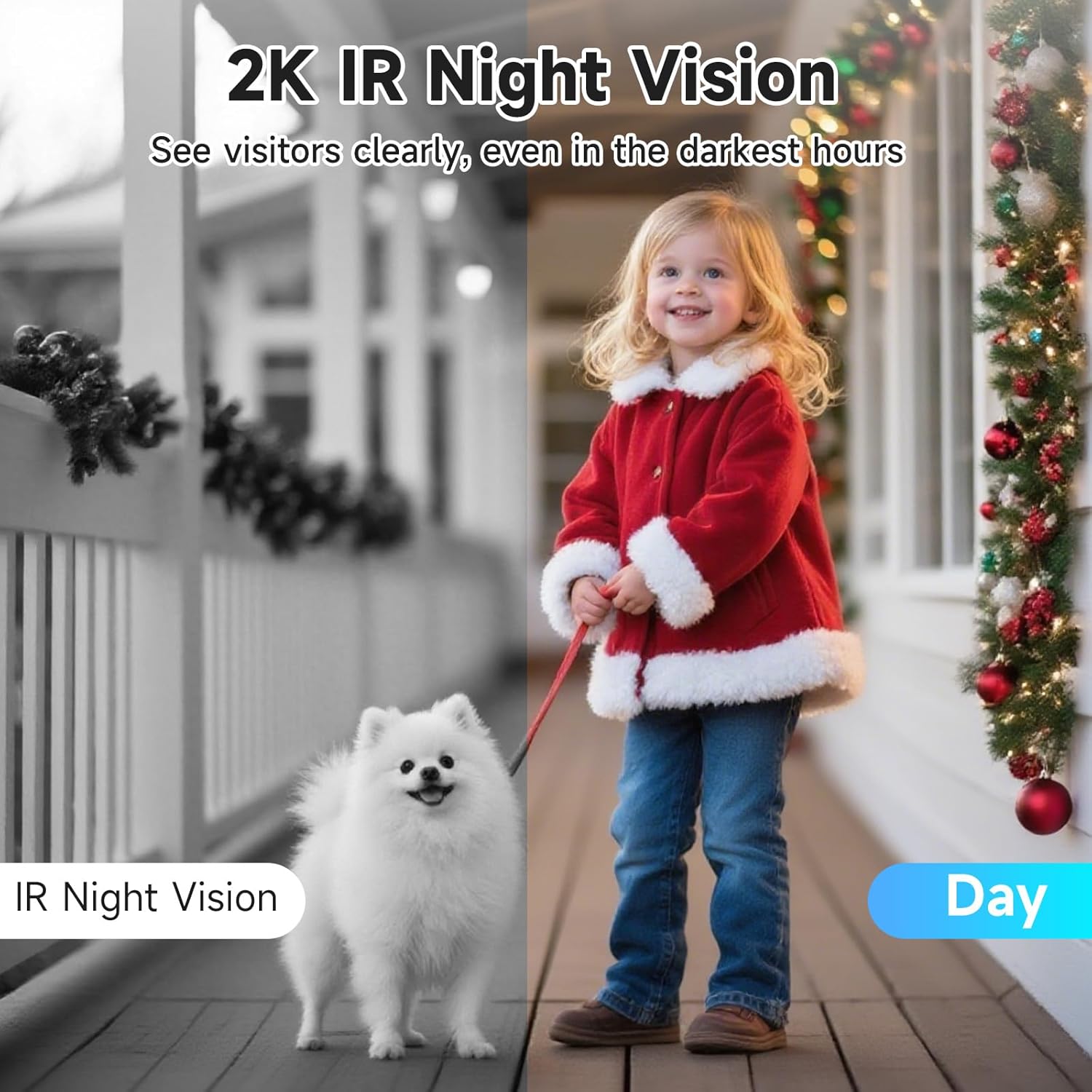
Image: Day and night vision capabilities of the doorbell camera.
4.4 Dual-Band Wi-Fi Connectivity
The doorbell supports both 2.4GHz and 5GHz Wi-Fi networks, offering stable connections and smooth live streaming. Dual antennas enhance signal strength and reduce interference.

Image: The doorbell's compatibility with both 2.4GHz and 5GHz Wi-Fi networks.
4.5 Alexa Integration
The doorbell is compatible with Amazon Alexa. You can use voice commands to view your front door feed on compatible Alexa devices.

Image: The doorbell camera integrates with Amazon Alexa for hands-free control and viewing.
4.6 Tamper Alarm
An anti-theft tamper alarm is integrated into the doorbell. If an attempt is made to remove or damage the doorbell, an alarm will trigger, and you will receive an alert notification on your smartphone.
4.7 Storage Options
The doorbell supports local storage via a 64GB Micro SD card (included). Basic cloud storage offering 7-day recording loops is also available, which may require a subscription.

Image: Storage options for the doorbell, including local SD card and cloud storage.
4.8 Device Sharing
You can easily share access to your doorbell camera with family members through the EseeCloud app, allowing multiple users to receive alerts and view visitor calls.

Image: The device sharing feature allows multiple users to access the doorbell feed and alerts.
5. Maintenance
- Cleaning: Regularly wipe the camera lens and the doorbell's exterior with a soft, damp cloth to remove dust and smudges. Avoid using harsh chemicals or abrasive cleaners.
- Battery Care: Ensure the doorbell is fully charged before initial use. Recharge the battery when the low battery indicator appears in the app.
- Firmware Updates: Check the EseeCloud app periodically for firmware updates. Keeping your device's firmware updated ensures optimal performance and security.
- Wi-Fi Connection: Monitor the Wi-Fi signal strength in the app to ensure a stable connection. If the signal is weak, consider repositioning your Wi-Fi router or using a Wi-Fi extender.
- Data Security: The doorbell uses encrypted data transmission. Ensure your app account uses a strong, unique password to protect your privacy.

Image: The doorbell ensures privacy through encrypted data transmission.
6. Troubleshooting
| Problem | Possible Cause | Solution |
|---|---|---|
| Doorbell frequently disconnects from Wi-Fi. | Weak Wi-Fi signal; interference; incorrect Wi-Fi band. | Ensure the doorbell is within range of your router. For outdoor use, 2.4GHz Wi-Fi is recommended for better penetration. Reduce interference from other devices. Restart your router and the doorbell. |
| Motion detection is not working or is inconsistent. | Incorrect sensitivity settings; obstruction in view; battery low. | Adjust motion detection sensitivity in the EseeCloud app. Ensure the camera's view is clear. Check battery level and recharge if necessary. |
| No alerts received on smartphone. | App notifications disabled; doorbell offline; phone settings. | Check notification settings within the EseeCloud app. Verify your phone's notification settings for the app. Ensure the doorbell is connected to Wi-Fi. |
| Two-way audio is unclear or not working. | Microphone/speaker obstruction; poor network connection. | Ensure nothing is blocking the microphone or speaker on the doorbell. Check your Wi-Fi connection strength. |
| Tamper alarm does not stop. | System error; physical damage. | Try restarting the doorbell by pressing the reset button with the hole needle. If the issue persists, contact customer support. |
7. Specifications
- Model Number: M013A-W6M2
- Indoor/Outdoor Usage: Outdoor
- Video Capture Resolution: 2K (3MP Effective Still Resolution)
- Viewing Angle: 190 Degrees
- Night Vision Range: 10 Meters (19 feet)
- Connectivity: Wireless (Wi-Fi 2.4GHz/5GHz)
- Power Source: Battery Powered (9000 mAh, up to 90 days per charge)
- Storage: 64GB Micro SD Card (included), Cloud Storage (subscription may be required)
- Compatible Devices: Smartphone, Amazon Alexa
- Special Features: Dual-Lens, 2-Way Audio, Voice Changer, Local Recording, Tamper Detection, Night Vision
- Material: Acrylonitrile Butadiene Styrene (ABS)
- Dimensions (L x W x H): 2.1 x 1.5 x 6 inches
- Item Weight: 1.15 pounds (0.52 Kilograms)
- Water Resistance Level: Moisture Resistant
- Frame Rate: 15 frames per second
- Batteries: 2 AAA batteries required (included for chime)
8. Warranty & Support
8.1 Warranty Information
This JAIOTlink product comes with a 1-year reliable warranty from the date of purchase. Please retain your proof of purchase for warranty claims.
8.2 Return Policy
A free 30-day refund/replacement policy is available for this product. Please refer to your retailer's specific return guidelines.
8.3 Customer Support
For technical assistance, warranty claims, or any other inquiries, please contact JAIOTlink customer service:
- Email: E-Mingxun@outlook.com
- In-App Support: Access "APP-Me-Help" and "Live Chat" within the EseeCloud application for direct assistance.
Support is available 24 hours a day.
