
1. Introduction
Thank you for choosing the ELYSOO DL201 Solar Security Camera. This wireless outdoor camera provides 2K resolution, color night vision, and a 360-degree panoramic view for comprehensive home surveillance. Powered by solar energy and equipped with advanced features like PIR motion detection and two-way audio, it offers reliable and convenient security. This manual will guide you through the setup, operation, and maintenance of your camera system.
2. Package Contents
Please check the package for the following items:
- ELYSOO DL201 Solar Security Camera (4 units for 4-pack)
- Solar Panel (integrated or separate, depending on model)
- Mounting Bracket and Screws
- USB Charging Cable
- Instruction Manual
Note: A Micro SD card (up to 128GB) is not included and is required for local storage.
3. Product Overview
Familiarize yourself with the main components of your ELYSOO DL201 camera.

Image: The ELYSOO DL201 camera with its solar panel, illustrating its 2K HD resolution, 4X digital zoom, and 360-degree coverage capabilities. A smartphone displays a live feed with zoom functionality.
- Camera Lens: Captures 2K video footage.
- Infrared LEDs/Spotlights: For night vision and color night vision.
- PIR Motion Sensor: Detects human and animal movement.
- Microphone: For audio input during two-way talk.
- Speaker: For audio output during two-way talk and alarms.
- Solar Panel: Charges the internal battery using sunlight.
- Antennas: For 2.4GHz Wi-Fi connectivity.
- Micro SD Card Slot: For local video storage (up to 128GB).
- USB Charging Port: For initial charging or supplementary power.
- Reset Button: To reset the camera to factory settings.
4. Setup Instructions
Follow these steps to set up your ELYSOO DL201 camera:
4.1 Initial Charging
Before installation, fully charge the camera using the provided USB cable for at least 2-3 hours. This ensures the battery has sufficient power for initial setup and operation, especially if sunlight is limited.
4.2 App Installation and Account Registration
- Download the Ubox App from the App Store (iOS) or Google Play Store (Android).
- Open the Ubox App and follow the on-screen instructions to register a new account.

Image: Visual guide for the three-step installation process: downloading the Ubox app, connecting to 2.4GHz WiFi, and mounting the camera.
4.3 Camera Pairing and Wi-Fi Connection
- Ensure your smartphone is connected to a 2.4GHz Wi-Fi network. The camera is not compatible with 5GHz Wi-Fi.
- In the Ubox App, tap the '+' icon to add a new device.
- Follow the app's instructions to scan the QR code on the camera or manually enter its ID to pair.
- Select your 2.4GHz Wi-Fi network and enter the password when prompted.
- Wait for the camera to connect to your Wi-Fi network. A voice prompt or indicator light will confirm successful connection.
4.4 Mounting the Camera
Choose a location with optimal sunlight exposure for the solar panel and a clear view of the area you wish to monitor.
- Mark the drilling points for the mounting bracket on the wall or desired surface.
- Drill holes and insert wall anchors if necessary.
- Secure the mounting bracket using the provided screws.
- Attach the camera to the mounting bracket. The wall-mounted sliding installation allows for easy disassembly and cleaning.
- Adjust the camera angle to achieve the desired viewing area.
- Connect the solar panel cable to the camera's charging port. Ensure the solar panel is positioned to receive maximum direct sunlight throughout the day.
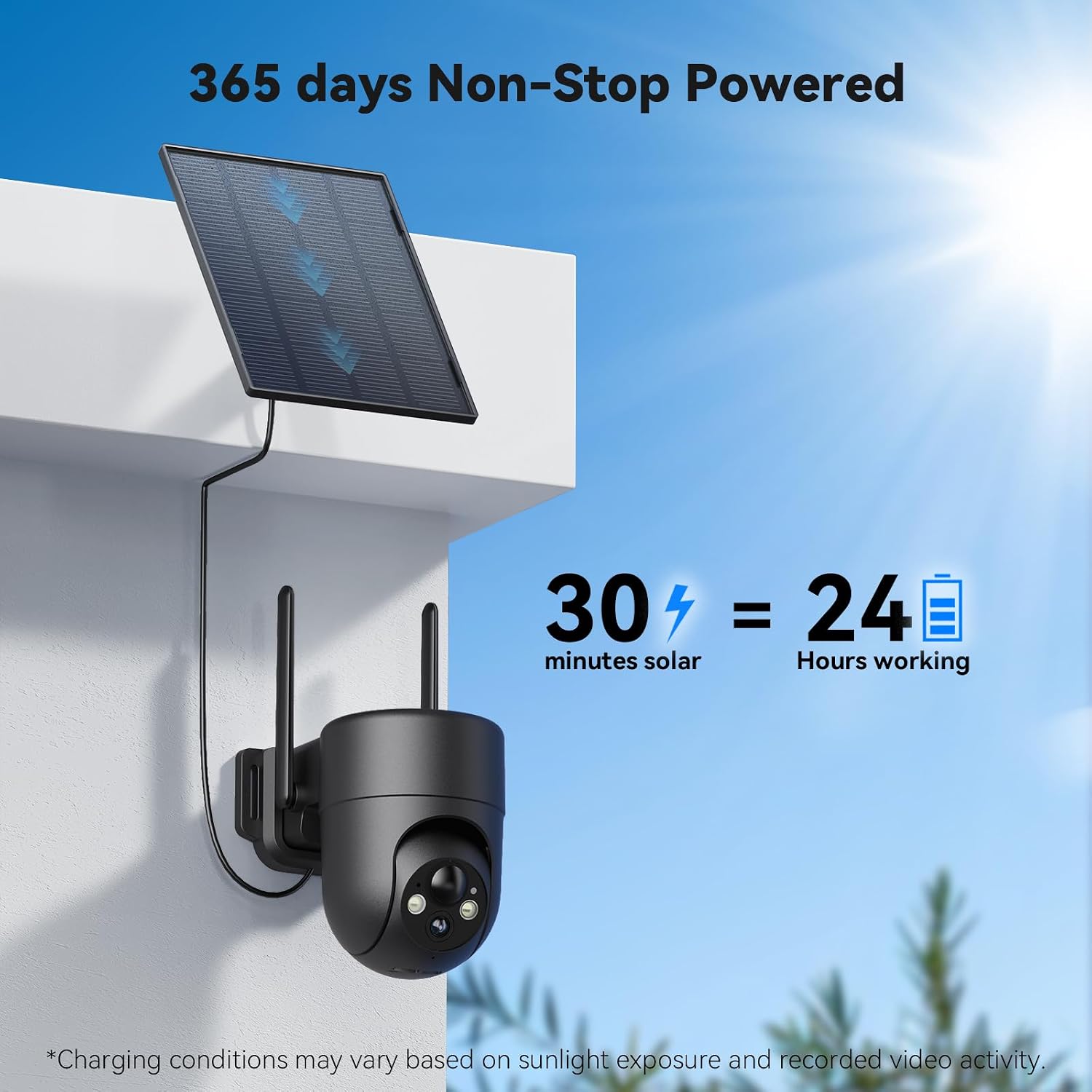
Image: The ELYSOO solar security camera and its solar panel mounted on an outdoor wall, emphasizing its 365-day non-stop powered capability.
5. Operating Instructions
Learn how to use the various features of your ELYSOO DL201 camera through the Ubox App.
5.1 Live View and Panoramic Control
- Open the Ubox App and select your camera from the device list.
- You will see the live video feed. Use the on-screen controls to pan (355° horizontal) and tilt (100° vertical) the camera for a full panoramic view.
- Pinch to zoom in or out for 4X digital zoom to see more details.
5.2 Motion Detection and Alerts
The camera features a PIR motion sensor for accurate detection.
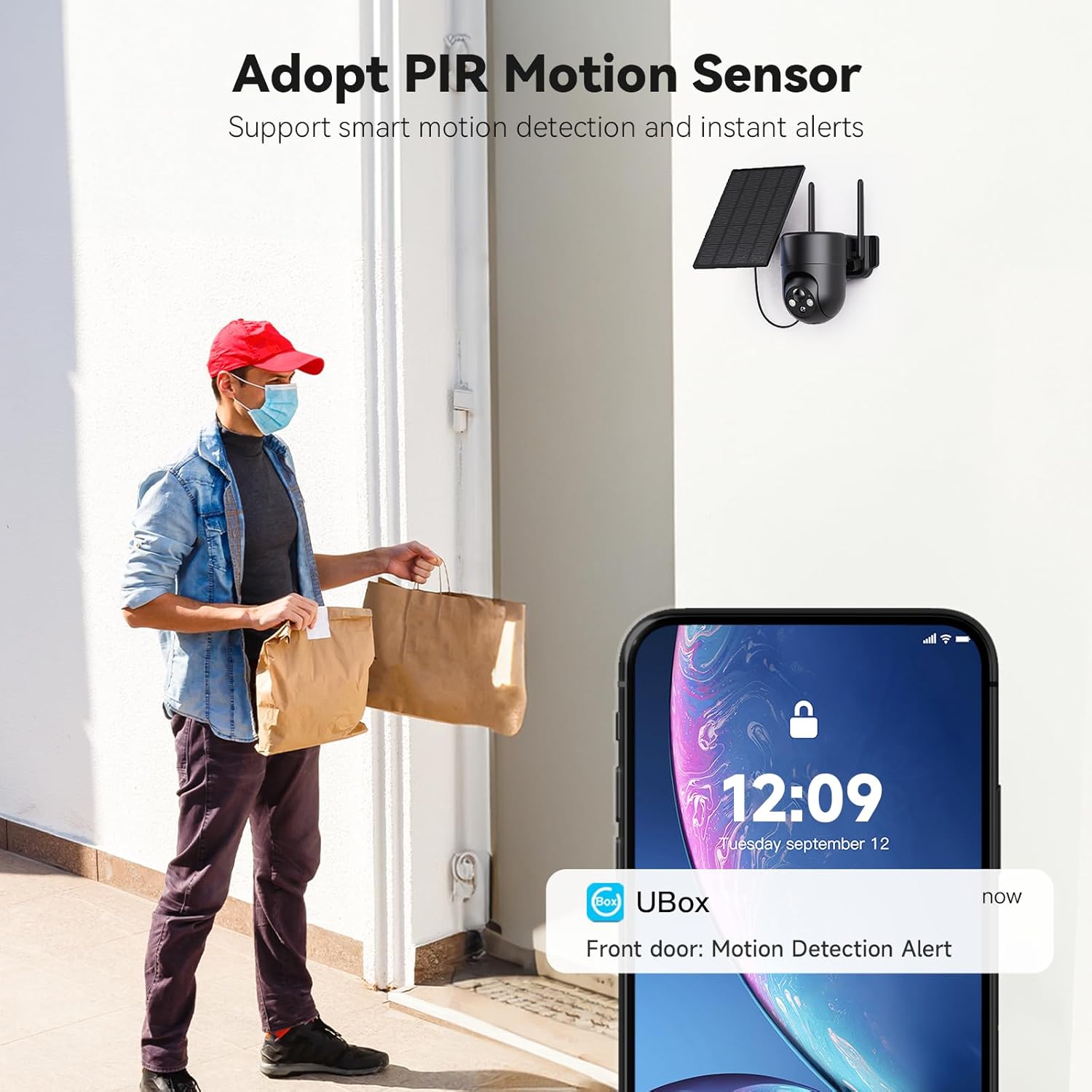
Image: The camera's PIR motion sensor feature, showing an instant alert notification on a smartphone when motion is detected at the front door.
- When motion is detected, the camera will send instant alerts to your phone via the Ubox App.
- You can customize motion detection sensitivity and set specific alarm areas within the app settings.
- The camera can also trigger a spotlight and siren warning upon detection, which can be configured in the app.
5.3 Two-Way Audio
Communicate with visitors or deter intruders using the built-in microphone and speaker.

Image: Illustration of the 2-Way Talk feature, allowing real-time communication with individuals in front of the camera via the smartphone app.
- While viewing the live feed, tap the microphone icon in the app to speak. Your voice will be transmitted through the camera's speaker.
- Tap the speaker icon to hear audio from the camera's surroundings.
5.4 Night Vision
The camera provides clear surveillance even in low-light conditions.

Image: Demonstrates 2K Day & Night Full-color Vision, showing the difference between night vision with the spotlight on (full color) and off (monochrome).
- The camera automatically switches to infrared night vision in dark environments.
- With its built-in spotlights, it can also provide 2K color night vision when activated, capturing more detail.
5.5 Recording and Storage
Your camera offers flexible storage options.

Image: Illustrates local (Micro SD card up to 128GB) and cloud storage options for recorded video footage.
- Local Storage: Insert a Micro SD card (up to 128GB, not included) into the camera's SD card slot to store recordings locally.
- Cloud Storage: New users can enjoy a 30-day free trial of cloud storage. Subscription plans are available after the trial period.
- Access and review recorded footage directly through the Ubox App.
5.6 Sharing Access
Share camera access with family and friends.

Image: Depicts the feature to share camera access with family and friends, allowing multiple users to view the live feed.
- In the Ubox App, navigate to the camera settings and find the 'Share Device' or 'Add Friend' option.
- Follow the instructions to invite others to view your camera feed.
6. Maintenance
Proper maintenance ensures the longevity and optimal performance of your camera.
- Solar Panel Cleaning: Regularly wipe the solar panel with a soft, damp cloth to remove dust, dirt, or debris. A clean panel ensures efficient charging.
- Lens Cleaning: Gently clean the camera lens with a microfiber cloth to maintain clear image quality.
- Battery Health: The camera is designed for continuous operation with solar power. If the camera is installed in an area with limited sunlight, occasional manual charging via the USB port may be necessary.
- Firmware Updates: Check the Ubox App periodically for firmware updates. Keeping the firmware updated ensures you have the latest features and security enhancements.
- Environmental Protection: The camera is IP65 weatherproof, designed to withstand temperatures from -4°F to 122°F (-20°C to 50°C). While robust, avoid direct high-pressure water jets.
7. Troubleshooting
If you encounter issues with your ELYSOO DL201 camera, refer to the following common solutions:
- Camera not connecting to Wi-Fi:
- Ensure your Wi-Fi network is 2.4GHz. The camera does not support 5GHz Wi-Fi.
- Check Wi-Fi signal strength at the camera's location. Move the camera closer to the router if needed.
- Verify the Wi-Fi password entered in the Ubox App is correct.
- Reset the camera using the reset button and try pairing again.
- Battery not charging or low battery:
- Ensure the solar panel is clean and receives at least 6-8 hours of direct sunlight daily.
- Check the connection between the solar panel and the camera.
- If sunlight is consistently insufficient, manually charge the camera via the USB port.
- Motion detection alerts are too frequent or not working:
- Adjust the PIR motion detection sensitivity in the Ubox App settings.
- Define specific activity zones to reduce false alerts from irrelevant areas.
- Ensure the camera lens is clean and unobstructed.
- Poor video quality or night vision:
- Check your Wi-Fi connection speed. A stable connection is crucial for 2K streaming.
- Clean the camera lens.
- For night vision, ensure no obstructions are blocking the infrared LEDs or spotlights.
- Two-way audio issues:
- Ensure the microphone and speaker permissions are enabled for the Ubox App on your smartphone.
- Check the volume settings on your phone and within the app.
8. Specifications
| Feature | Specification |
|---|---|
| Model Number | DL201 |
| Brand | ELYSOO |
| Resolution | 2K HD |
| Field of View | 355° Horizontal, 100° Vertical |
| Zoom Type | Digital Zoom |
| Night Vision Range | Up to 49 Feet (15 meters) |
| Power Source | Solar Powered, Rechargeable Lithium Ion Battery (included) |
| Connectivity Technology | Wireless (2.4GHz Wi-Fi only) |
| Compatible Devices | iOS, Android |
| Controller Type | APP Control (Ubox App) |
| Storage Options | Micro SD Card (up to 128GB, not included), Cloud Storage |
| Weather Resistance | IP65 |
| Operating Temperature | -4°F to 122°F (-20°C to 50°C) |
| Dimensions (L x W x H) | 4.9 x 3.5 x 4.7 inches |
| Item Weight | 7.31 pounds (for 4-pack) |
9. Warranty and Support
9.1 Warranty Information
ELYSOO products typically come with a limited warranty covering manufacturing defects. Please refer to the product packaging or the official ELYSOO website for specific warranty terms and duration. Keep your purchase receipt as proof of purchase for warranty claims.
9.2 Customer Support
If you have any questions, require technical assistance, or encounter issues not covered in this manual, please contact ELYSOO customer support. Contact information can usually be found on the official ELYSOO website or within the Ubox App's 'Help' or 'About Us' section.