
XMicro parisjewelry4940
XMicro® Drone 2.4G Dual Servo Optical Flow Brushless Drone User Manual
Model: parisjewelry4940
Introduction
The XMicro® Drone 2.4G Dual Servo Optical Flow Brushless Drone is an advanced aerial photography drone designed for both amateur and professional users. It features dual lenses, a powerful brushless motor, and intelligent flight modes to provide stable flight and high-quality imaging. This manual provides essential information for safe operation, setup, maintenance, and troubleshooting.
What's in the Box

Image showing the XMicro Drone, remote control, battery, fan blades, USB charging cable, screwdriver, and storage bag.

Image displaying a table of accessories and their quantities, including the aircraft, remote control, spare propellers, USB charging cable, screwdriver, storage bag, and operation manual.
- 1 x XMicro Drone
- 1 x Remote Control
- 1 x 3.7V 1200mAh Lithium Battery
- 4 x Fan Blades (Spare Propellers)
- 1 x USB Charging Cable (Type-C interface)
- 1 x Screwdriver
- 1 x Manual
- 1 x Storage Bag
Product Overview
Drone Components

The XMicro Drone in both its unfolded flight configuration and folded for storage, alongside its remote control.
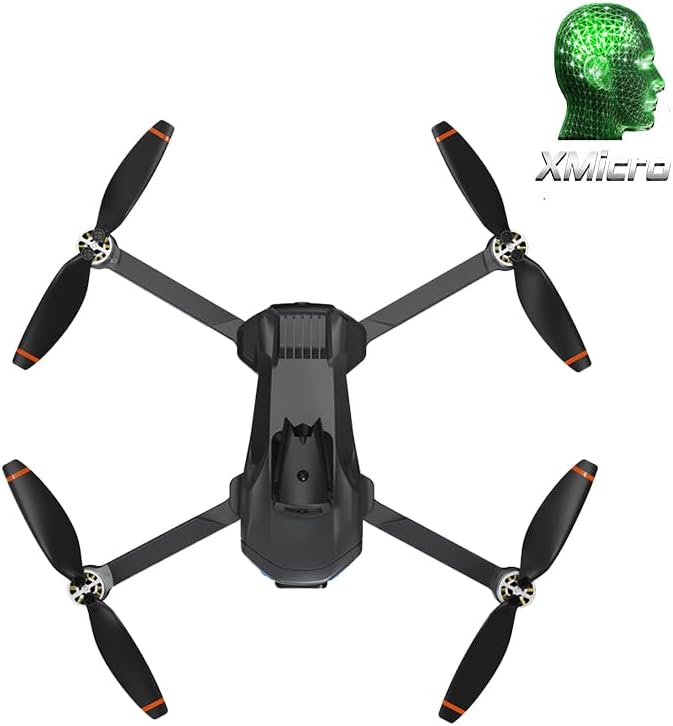
Top-down view of the XMicro Drone, highlighting its four propellers and central body.

The XMicro Drone in its compact, folded state, ideal for portability.
The XMicro Drone features a foldable design for easy transport. It is equipped with a dual-lens camera system, including a front 6K HD WIFI camera and a bottom HD optical flow lens. The drone also has a powerful brushless motor for stable flight and dazzling LED lights for visibility.
Remote Control Overview

Detailed diagram of the remote control, labeling its various buttons and joysticks for functions like power, lens control, throttle, directional control, one-click takeoff/landing, speed switching, stunt rolling, headless mode, obstacle avoidance, and photography/video recording.
The remote control features a foldable design and operates on a 2.4G signal for strong anti-interference ability. It includes dedicated controls for flight, camera adjustments, and special functions. A mobile phone can be mounted on the remote for real-time video transmission and app control.
Setup
1. Charging the Battery

Close-up of the 3.7V 1200mAh lithium battery for the XMicro Drone, showing its specifications and charging port.
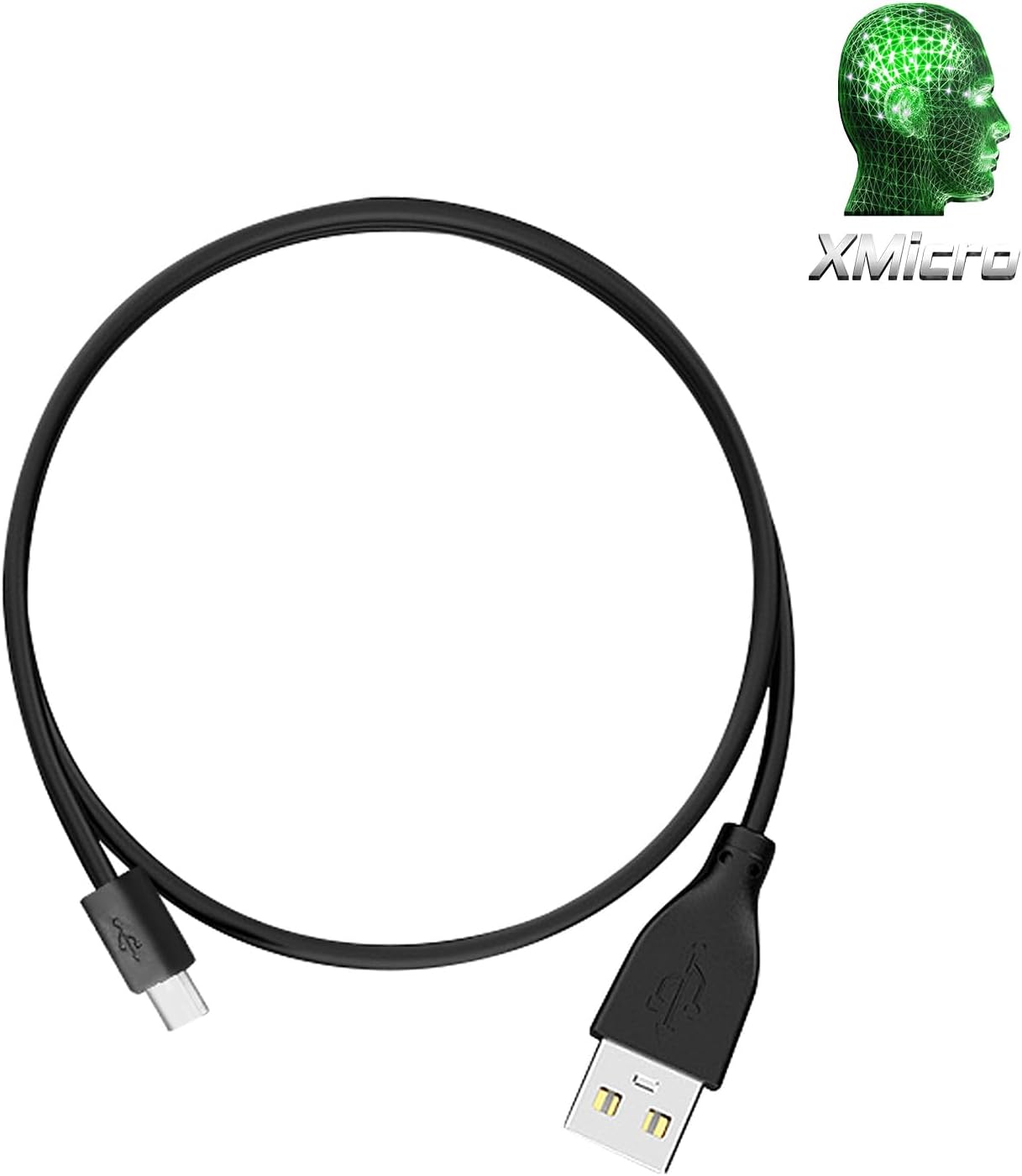
The USB Type-C charging cable included with the drone for battery charging.
- Connect the provided USB charging cable to the drone battery's Type-C interface.
- Plug the other end of the USB cable into a 5V/2A USB power adapter (not included).
- The charging time is approximately 90 minutes for a full charge.
- Do not charge the battery unattended.
2. Installing the Drone Battery
Carefully insert the charged battery into the designated battery compartment on the drone until it clicks securely into place. Ensure the battery is fully seated to prevent dislodgement during flight.
3. Installing Propellers
The drone comes with pre-installed propellers. If replacement is needed, ensure correct orientation of the new fan blades according to the markings on the drone arms (usually A and B). Use the provided screwdriver for installation/removal.
4. Preparing the Remote Control
Insert 3 x 1.5V AA batteries (sold separately) into the remote control. Extend the phone holder and securely place your smartphone. Power on the remote control.
5. Connecting to the App
Download the official XMicro drone app from your mobile device's app store. Power on the drone and the remote control. Connect your phone to the drone's Wi-Fi network (usually named XMicro_XXXX). Open the app to establish connection and view the live feed.
Operating Instructions
Pre-Flight Checks
- Ensure drone and remote control batteries are fully charged.
- Check that propellers are securely attached and undamaged.
- Perform a compass calibration if required by the app or initial setup.
- Choose an open, clear area free from obstacles, people, and animals.
- Verify stable Wi-Fi connection between the drone and your mobile device.
Takeoff and Landing
The drone supports one-click takeoff and landing for ease of use.
Video demonstrating the one-click takeoff and landing feature of the XMicro Drone, showing it ascending and descending smoothly.
- One-Click Takeoff: Place the drone on a flat, level surface. Press the one-click takeoff button on the remote control or within the app. The drone will automatically ascend to a stable hovering altitude.
- One-Click Landing: During flight, press the one-click landing button. The drone will slowly descend and land automatically.
- Emergency Stop: In case of emergency, press and hold the one-click landing button to immediately stop the motors.
Flight Controls
- Throttle Lever (Left Stick):
- Push up: Increase altitude.
- Pull down: Decrease altitude.
- Left/Right: Rotate drone left/right (yaw).
- Directional Lever (Right Stick):
- Push up: Fly forward.
- Pull down: Fly backward.
- Left: Fly left (strafe).
- Right: Fly right (strafe).
- Speed Modes: Use the speed switching button on the remote to cycle through low (8m/s), medium (10m/s), and high (12m/s) speed ranges.
Special Features
Dual-Lens Camera Operation
The drone is equipped with a front 6K HD WIFI camera and a bottom HD optical flow lens, allowing for versatile shooting angles.
Video showcasing the dual-lens capability, demonstrating the ability to switch between the main camera lens and the vertical shot lens, and showing the resulting dual-angle free shooting.
- Lens Up/Down: Use the dedicated buttons on the remote control to adjust the angle of the main camera lens (ESC 0°-90°).
- Vertical Shooting Switch: Within the app, you can switch to the bottom optical flow lens for vertical shooting, providing a different perspective.
Optical Flow Localization & Stable Hovering
The optical flow positioning system ensures stable flight and precise hovering, even indoors or in areas with limited GPS signal.
Video illustrating the optical flow localization feature, showing the drone maintaining a stable hover over a surface.
Omnidirectional Obstacle Avoidance
The drone is equipped with sensors that detect obstacles in multiple directions, helping to prevent collisions during flight.
Video demonstrating the omnidirectional obstacle avoidance mode, showing the drone automatically adjusting its flight path to avoid nearby objects.
360° One-Click Rolling
Perform impressive aerial stunts with a single button press.
Video showing the drone performing a 360-degree roll with a single command from the remote control.
- Press the "Stunt Rolling" button on the remote control to execute a 360-degree flip. Ensure sufficient altitude before performing this maneuver.
APP Intelligent Shooting
Utilize the mobile app for advanced photography and flight features.
Video demonstrating APP intelligent shooting features, including gesture photography, gesture recording, and trajectory flight where the drone follows a drawn path on the screen.
- Gesture Photography/Recording: Perform specific hand gestures in front of the camera to trigger photo capture or video recording. Refer to the app's instructions for specific gestures.
- Trajectory Flight: Draw a desired flight path on your mobile screen within the app. The drone will automatically follow this path, allowing for pre-planned aerial routes.
- Headless Mode: When activated, the drone will orient itself relative to the pilot, regardless of its actual front direction, simplifying control.
Maintenance
- Cleaning: Use a soft, dry cloth to clean the drone and remote control. Avoid using liquids or solvents.
- Propellers: Regularly inspect propellers for cracks, bends, or damage. Replace any damaged propellers immediately using the provided screwdriver.
- Battery Care: Store batteries in a cool, dry place. Do not overcharge or over-discharge. If storing for extended periods, charge to approximately 50% capacity.
- Storage: When not in use, fold the drone and store it in the provided storage bag to protect it from dust and damage.
Troubleshooting
| Problem | Possible Cause | Solution |
|---|---|---|
| Drone does not power on. | Battery not charged or not installed correctly. | Ensure battery is fully charged and securely inserted. |
| Remote control not responding. | Remote control batteries low or not installed. Not paired with drone. | Replace AA batteries. Follow pairing instructions in the manual. |
| No live video feed in app. | Wi-Fi not connected or unstable. App not open. | Verify phone is connected to drone's Wi-Fi. Restart app and drone. |
| Drone drifts during flight. | Calibration needed. Uneven surface for takeoff. | Perform gyroscope calibration. Take off from a flat surface. |
| Short flight time. | Battery not fully charged. Old battery. | Ensure full charge. Consider replacing battery if performance degrades. |
Specifications
| Feature | Detail |
|---|---|
| Product Description | Aerial photography brushless folding drone |
| Product Size (Open) | 30 x 27 x 9 cm |
| Product Size (Folded) | 14.2 x 7 x 9 cm |
| Take-off Weight | 190g |
| Reception Frequency | 2.4G |
| Product Color | Black |
| Product Material | Plastic, Metal, Electronic Components |
| Camera Resolution | 4K (actual 480P) |
| Lens Angle | ESC 0°-90° |
| Image Transmission Signal | WiFi transmission |
| Number of Channels | 6 channels |
| Recommended Age | 14+ years |
| Body Battery | 3.7V 1200mAh 4.44Wh Lithium |
| Charging Time | 90 minutes |
| Flight Time per Battery | 13 minutes (actual) |
| Remote Control Battery | 1.5V AA*3 (sold separately) |
| Motor Model | 1503 brushless motor |
| ESC Model | 6A 4000KV |
| Remote Control Mode | Left hand throttle and right-hand direction |
| Fast and Slow Modes | Fast/Slow |
| Remote Control Distance | 100 meters |
Warranty and Support
For warranty information, technical support, or service inquiries, please refer to the contact details provided on the product packaging or visit the official XMicro website. Keep your purchase receipt as proof of purchase for warranty claims.
You can also visit the XMicro Store on Amazon for additional product information and support resources.
Ask a question about this manual
Ask about setup, troubleshooting, compatibility, parts, safety, or missing instructions. Manuals+ will review the question and use this page’s manual context to help answer it.