
FreedConn FX PLUS-Single
FreedConn FX Plus Motorcycle Helmet Bluetooth Headset User Manual
Brand: FreedConn | Model: FX PLUS-Single
Introduction

The FreedConn FX Plus is a state-of-the-art motorcycle helmet Bluetooth headset designed for seamless communication and enhanced audio experience during group rides. Featuring advanced mesh networking, adaptive noise cancellation, and Hi-Res audio, it ensures clear and reliable communication in various riding conditions. This manual provides detailed instructions for setup, operation, and maintenance of your FX Plus headset.
What's in the Box
Verify that all the following components are included in your package:
- FreedConn FX PLUS Motorcycle Helmet Bluetooth Headset (Bluetooth host) x 1
- Headphones x 1
- Microphones x 2
- Headset Velcro x 4
- Data cable x 1
- 3M adhesive clip x 1
- Clip Clip x 1
- Instruction manual x 1

Image: All components included with the FreedConn FX Plus headset.
Installation Instructions
Follow these steps to properly install your FX Plus headset onto your helmet:
- Stick the Velcro on the earphone unit into the grooves on the left and right sides of the helmet.
- Attach the Velcro tape to the earphone body and arrange the earphone wiring and lining.
- The microphone should be attached to the chin guard of your helmet, making sure your the left side of the helmet.
- Choose a location to attach the host and clip the buckle to insert the headset.
- Press down on the unit to insert the headset.
- After installation, adjust the microphone to a suitable position.

Image: Visual guide for headset installation.
Initial Setup and Pairing
Bluetooth Pairing
To pair your FX Plus headset with your mobile phone or other Bluetooth-enabled devices:
- Ensure the FX Plus headset is powered off.
- Press and hold the Multi-function button (usually the main power button) for approximately 5-7 seconds until the indicator light flashes red and blue alternately, indicating pairing mode.
- On your mobile phone or Bluetooth device, enable Bluetooth and search for available devices.
- Select "FreedConn FX Plus" from the list of found devices.
- Once connected, the indicator light on the headset will turn solid blue or flash blue slowly.
Mesh Network Setup (Dynamic Networking)
The FX Plus features a built-in mesh gateway for instant group connectivity, supporting up to 16 riders within a 1000-meter range. No manual pairing is needed for mesh groups.
To initiate or join a Mesh Dynamic Network:
- Ensure all FX Plus devices are turned on.
- On each device, press and hold the Mesh button for 2 seconds.
- The devices will announce "Create the network, Channel 1" or "Join the network, Channel 1" as they connect.
- Once all devices have joined, the Mesh interconnection is complete, and intercom communication can begin.
Video: Demonstrates how to set up Mesh Dynamic Networking for multiple FreedConn FX Plus devices. It shows the process of initiating and joining a mesh network, allowing up to 16 users to communicate seamlessly.
Cross-Brand Intercom Function Operation
The FX Plus supports interconnection with other brands' Bluetooth headsets.
- With your FX Plus powered on, double-click the power button to enter pairing mode (indicator flashes red and blue).
- For the other brand's Bluetooth headset, put it into its universal pairing mode (refer to its specific manual).
- The devices will connect, and the FX Plus will announce "Intercom connected."
- Once connected, intercom communication can begin between the FX Plus and the other brand's headset.
Video: Illustrates the process of interconnecting the FreedConn FX Plus with other brands of Bluetooth headsets. It shows how to put the FX Plus into pairing mode and connect it to a third-party device for intercom functionality.
Operating Modes and Functions
Mic Grab Mode
In Mic Grab Mode, with multiple users online (up to 4 people can speak simultaneously), the leader's microphone (Channel 1) remains active. Microphones for Channels 2, 3, and 4 can be used interchangeably. Users gain access to the microphone based on their speaking speed; the fastest speaker gains control. Those who do not grab the chance will be muted. Another user can speak only when someone on microphones 2, 3, or 4 finishes speaking.
Channel Switching
After enabling Mesh intercom, you can freely switch between 5 channels by double-clicking the volume-up or volume-down button.
Microphone On/Off
After enabling Mesh intercom, you can turn the microphone on or off by simultaneously pressing the Mesh button and the volume down button.
Channel Number and Battery Level Query
After enabling Mesh intercom, you can query the current channel number and remaining battery level by double-clicking the Mesh button.
Voice Assistant
Press and hold the multi-function button for two seconds to activate your phone's voice assistant. You can then speak voice commands to play music, make calls, navigate maps, and more without needing to interact with your phone directly.
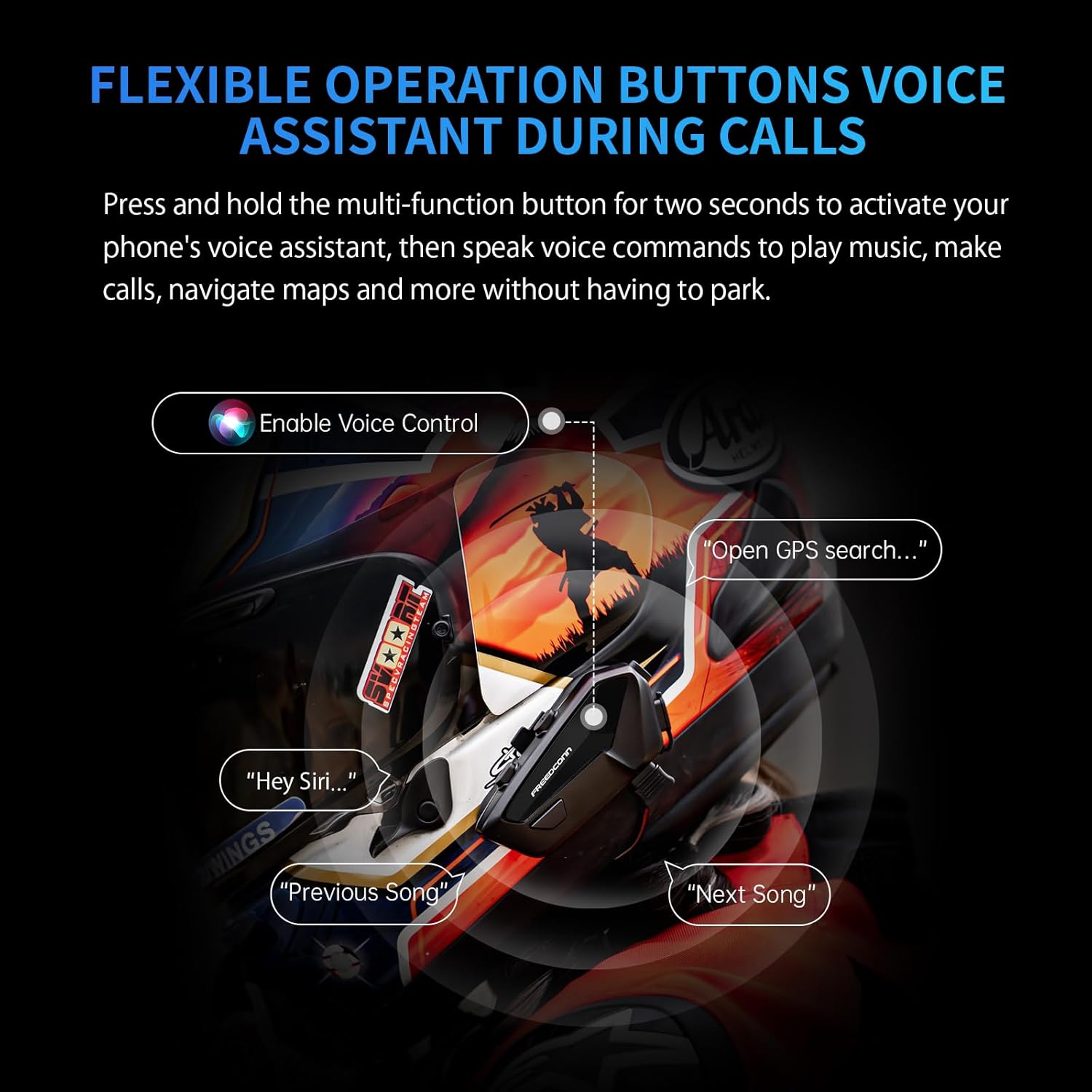
Image: Voice assistant activation and commands.
Music Sharing
The FX Plus supports music sharing capabilities up to 50 meters, allowing two riders to enjoy the same audio simultaneously.

Image: Music sharing between two users.
Key Features
- Mesh Connectivity: Integrates a built-in mesh gateway for instant group connectivity, eliminating the need for manual pairing. Advanced mesh network technology ensures seamless communication with high accuracy, making group rides smoother and more connected than ever.
- Adaptive Noise Control: Combines CVC technology with adaptive noise control to dynamically filter wind and road noise at high speeds. It intelligently balances multiple audio inputs to deliver crisp and clear communication, even in challenging riding conditions.
- Extended-Range Group Intercom: Designed for collaborative rides, the FX Plus supports 16-way intercom, allowing up to 16 riders to communicate simultaneously within an impressive range of 1000 meters via a robust mesh network. It also ensures stable connectivity with nearly all Bluetooth-compatible motorcycle accessories through seamless Bluetooth pairing, offering up to 10 hours of intercom time.
- Premium Sound Architecture: Features certified Hi-Res audio reproduction and 50-meter music sharing capabilities. Enhanced with vibrant colorful lighting, it allows riders to customize their aesthetic preferences while enjoying high-quality sound.
- Built for Endurance: Engineered for durability, the FX Plus boasts an IP67-rated waterproof chassis and a quick-charging battery system. It supports up to 40 hours of music playback and ensures uninterrupted communication, making it the perfect companion for full-day adventures, rain or shine.

Image: Noise reduction technology in action.
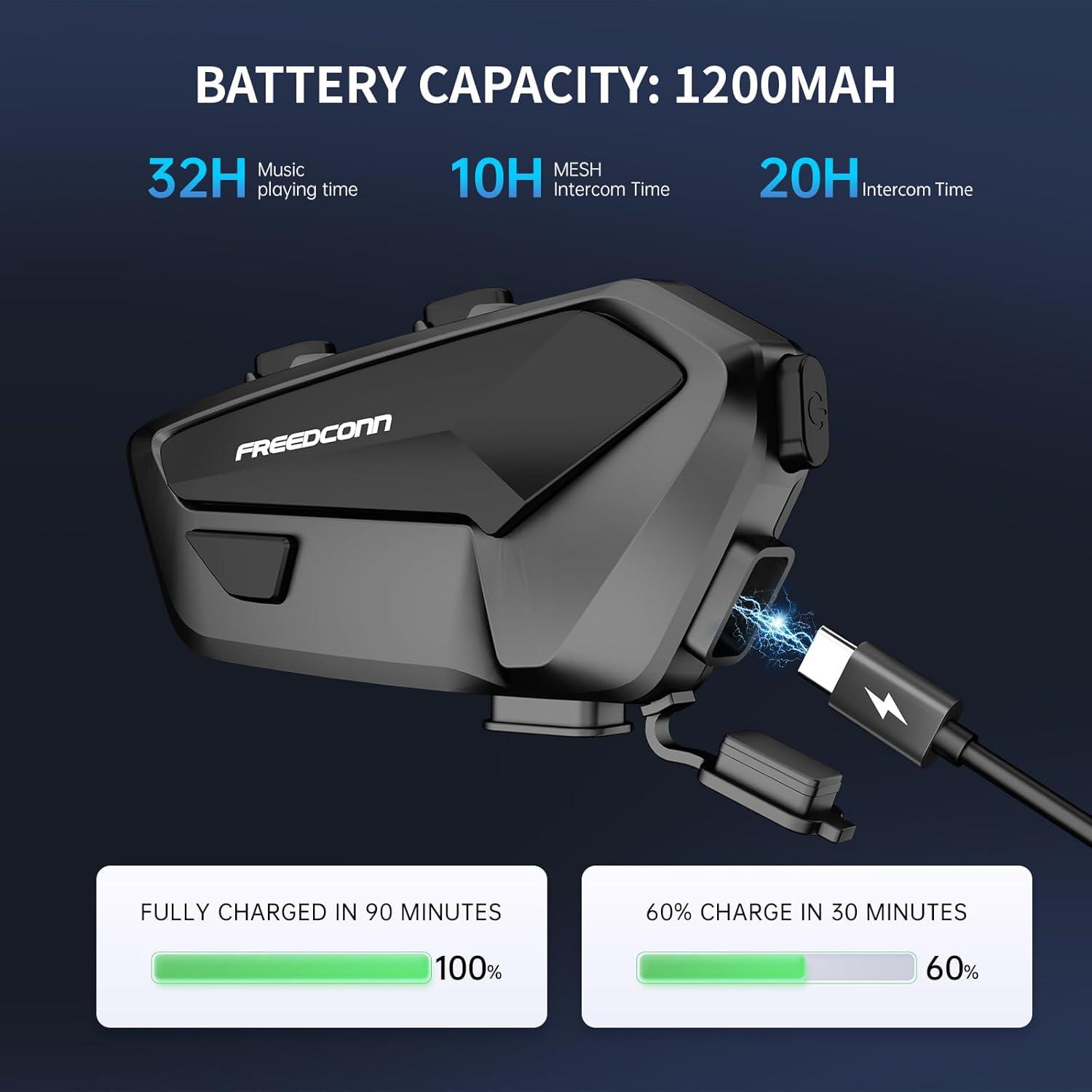
Image: Battery performance details.

Image: IP67 waterproof rating.
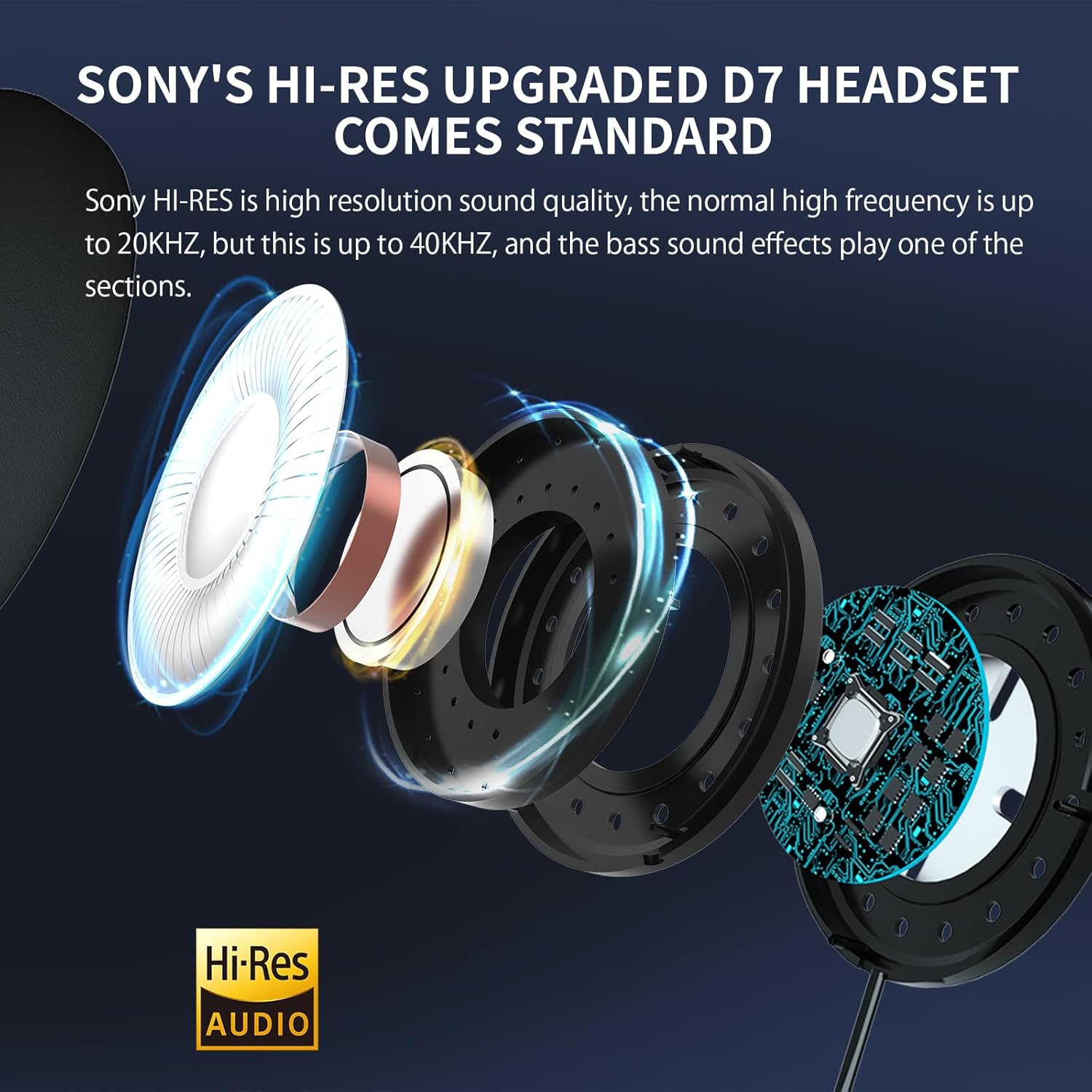
Image: Hi-Res audio components.
Technical Specifications
| Feature | Detail |
|---|---|
| Model Name | FX PLUS-Single |
| Noise Control | Adaptive Noise Cancellation |
| Connectivity Technology | Wireless |
| Wireless Communication Technology | Bluetooth |
| Bluetooth Version | 5.1 |
| Water Resistance Level | Waterproof (IP67-rated) |
| Battery Life (Music Playback) | Up to 40 Hours |
| Battery Life (Mesh Intercom) | Up to 10 Hours |
| Frequency Range | 20 Hz - 40 kHz |
| Impedance | 32 Ohm |
| Control Method | Touch |
| Material | PVC, Thermoplastic Elastomer (TPE) |
| Product Dimensions | 5.91 x 4.53 x 2.6 inches |
| Item Weight | 12 ounces |
Troubleshooting
If you encounter any issues with your FreedConn FX Plus headset, please refer to the following common solutions:
- No Power: Ensure the battery is fully charged. Connect the headset to a power source using the provided USB cable.
- Cannot Pair Bluetooth: Make sure the headset is in pairing mode (flashing red and blue). Clear previous Bluetooth connections on your phone and try pairing again. Ensure no other Bluetooth devices are interfering.
- Intercom Disconnects: Check the distance between devices; ensure it's within the specified range (1000 meters for Mesh). Obstacles like buildings or dense terrain can affect signal strength. Try re-establishing the Mesh connection.
- Poor Audio Quality/Noise: Verify that the microphone is positioned correctly and not obstructed. Ensure the speakers are properly placed inside the helmet. The adaptive noise cancellation should handle most environmental noise, but extreme conditions might still affect clarity.
- Buttons Unresponsive: Try resetting the device (refer to the manual for specific reset procedures, if available, or power cycle the device). Ensure no debris is obstructing the buttons.
Warranty and Support
FreedConn products are designed for reliability and performance. For warranty information, product registration, or technical support, please visit the official FreedConn website or contact their customer service. Keep your purchase receipt as proof of purchase for warranty claims.
Online Support: Visit the FreedConn Store on Amazon
For further assistance, please refer to the contact information provided in your product packaging or on the official FreedConn website.
Ask a question about this manual
Ask about setup, troubleshooting, compatibility, parts, safety, or missing instructions. Manuals+ will review the question and use this page’s manual context to help answer it.