
GreBear BM27QB
GreBear 27 Inch Curved Gaming Monitor User Manual
Model: BM27QB
Introduction
Thank you for choosing the GreBear 27 Inch Curved Gaming Monitor. This manual provides essential information for setting up, operating, maintaining, and troubleshooting your new monitor. Please read this manual thoroughly before use to ensure proper operation and to maximize your viewing experience.

Safety Information
- Do not expose the monitor to rain or moisture to prevent fire or shock hazards.
- Do not open the monitor casing. There are no user-serviceable parts inside. Refer all servicing to qualified personnel.
- Place the monitor on a stable, flat surface to prevent it from falling.
- Ensure proper ventilation around the monitor. Do not block ventilation openings.
- Use only the power adapter supplied with the monitor.
- Unplug the monitor from the power outlet during lightning storms or when unused for long periods.
What's in the Box
Verify that all components are present in the packaging:
- 27 inch Monitor Display x 1
- User Manual x 1 (This document)
- 1.5M DP(1.4) Cable x 1
- 1.5M Power Cord x 1
- Base x 1
Setup
1. Assembling the Stand
- Carefully remove the monitor and stand components from the packaging.
- Attach the stand base to the stand neck using the provided screws.
- Align the assembled stand with the mounting slot on the back of the monitor and secure it firmly.
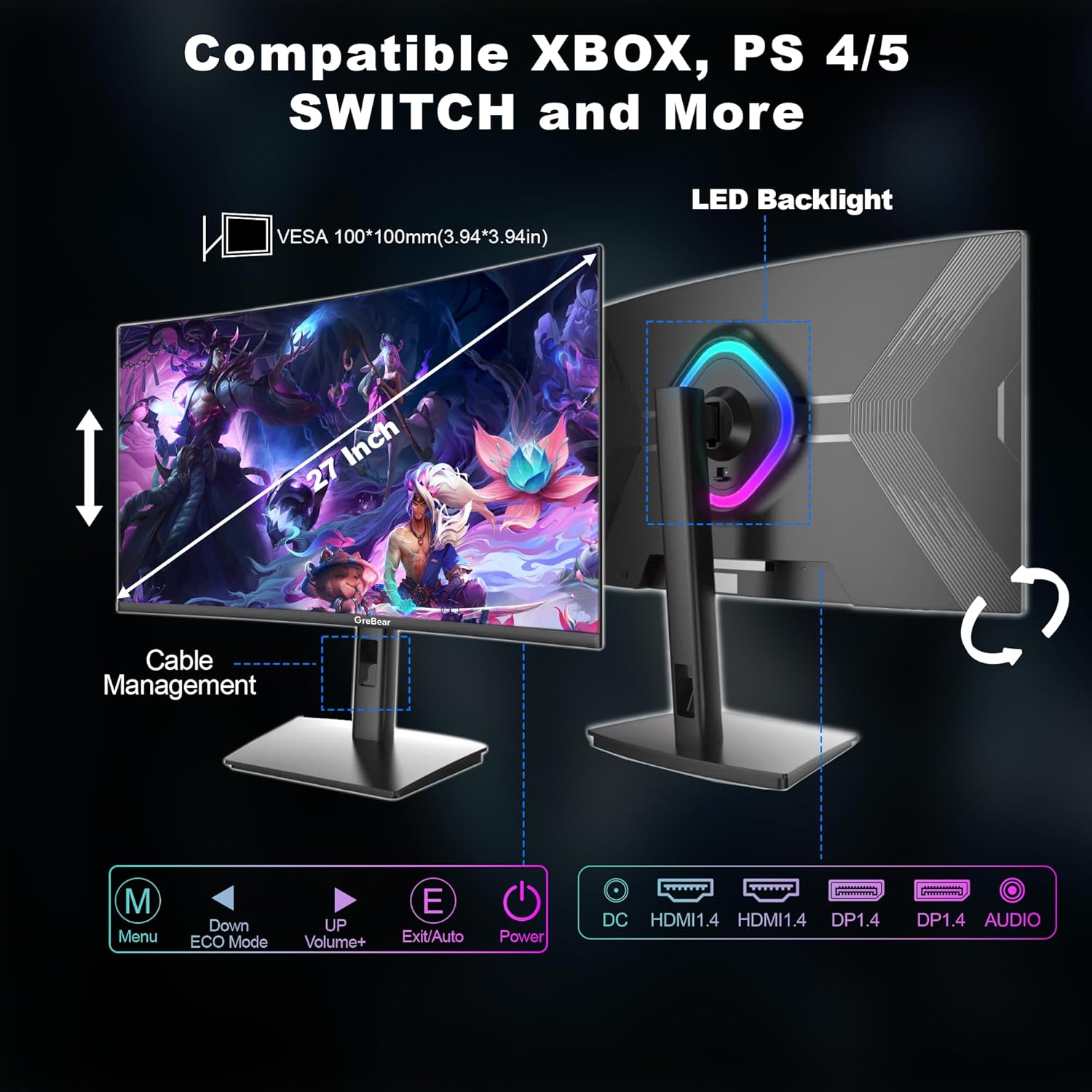
The monitor also supports VESA 100x100mm mounting for alternative mounting solutions.
2. Connecting Cables
Connect the necessary cables to the corresponding ports on the monitor and your computer/device:
- Power: Connect the 1.5M Power Cord to the DC input port on the monitor and then to a power outlet.
- Video Input:
- For optimal performance (up to 180Hz), use the provided 1.5M DP(1.4) Cable to connect to one of the two DP 1.4 ports.
- Alternatively, use an HDMI cable (not included) to connect to one of the two HDMI 1.4 ports (up to 120Hz).
- Audio Output: Connect headphones or external speakers to the AUDIO port for sound output.
3. Initial Power-On
After connecting all cables, press the Power button located on the back of the monitor to turn it on. The monitor will automatically detect the active input source.
Operating the Monitor
On-Screen Display (OSD) Controls
The monitor features intuitive buttons on the back for navigating the On-Screen Display (OSD) menu. These buttons allow you to adjust various settings.
- Menu (M): Press to open the OSD menu. Use to confirm selections within the menu.
- Down / ECO Mode: Navigate down in the OSD menu or activate ECO mode.
- Up / Volume+: Navigate up in the OSD menu or increase volume.
- Exit / Auto (E): Exit the OSD menu or perform auto-adjustment.
- Power: Turn the monitor on or off.
Display Features and Settings
Resolution and Refresh Rate
The GreBear monitor offers a QHD (2560 x 1440p) resolution, providing sharp and detailed visuals. With a high 180Hz refresh rate and 1ms response time, it delivers smooth and fluid motion, crucial for fast-paced gaming.


Adaptive Sync (FreeSync)
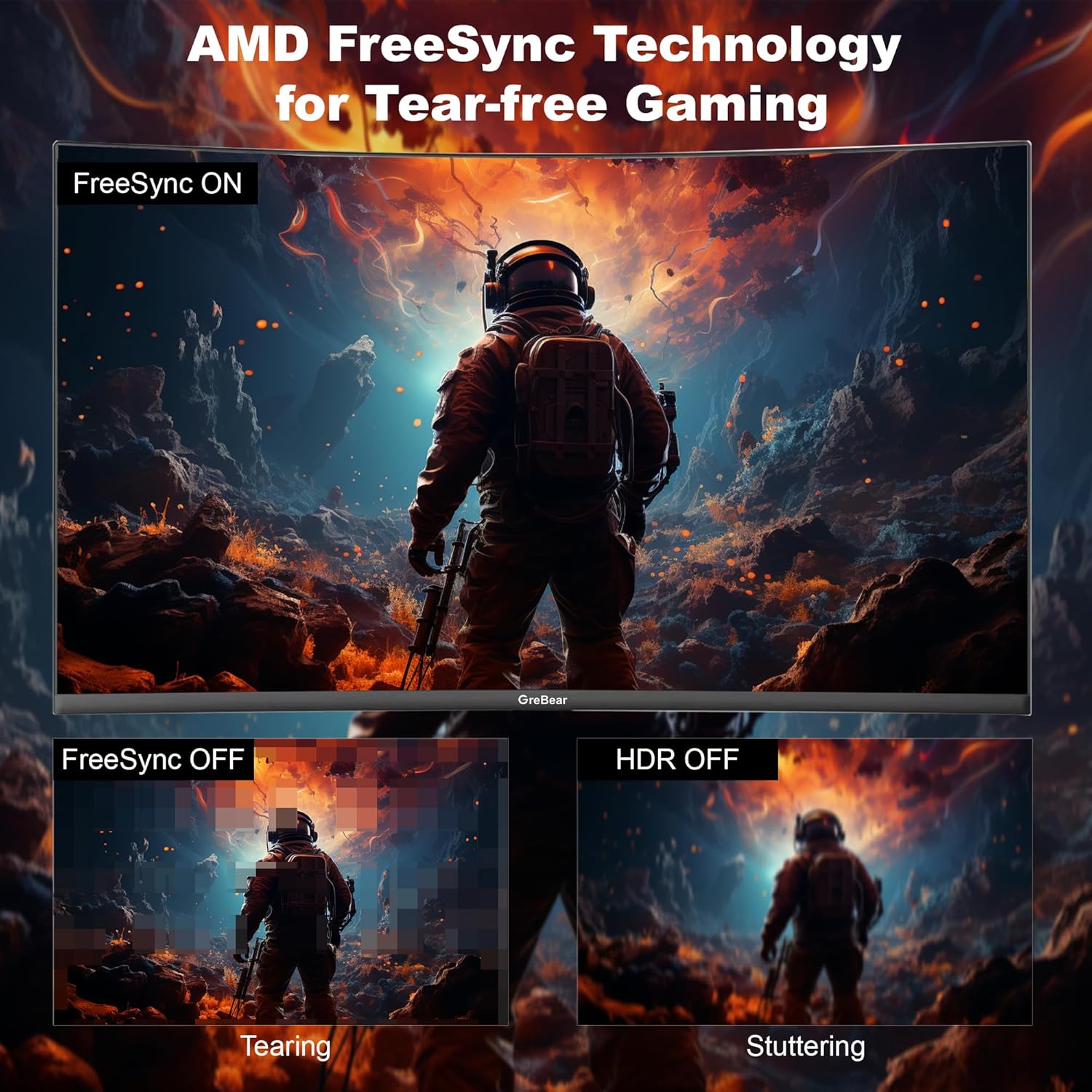
Equipped with Adaptive Sync technology, this monitor synchronizes the display's refresh rate with your graphics card's frame rate, eliminating screen tearing and stuttering for a smoother gaming experience.
Color and Contrast
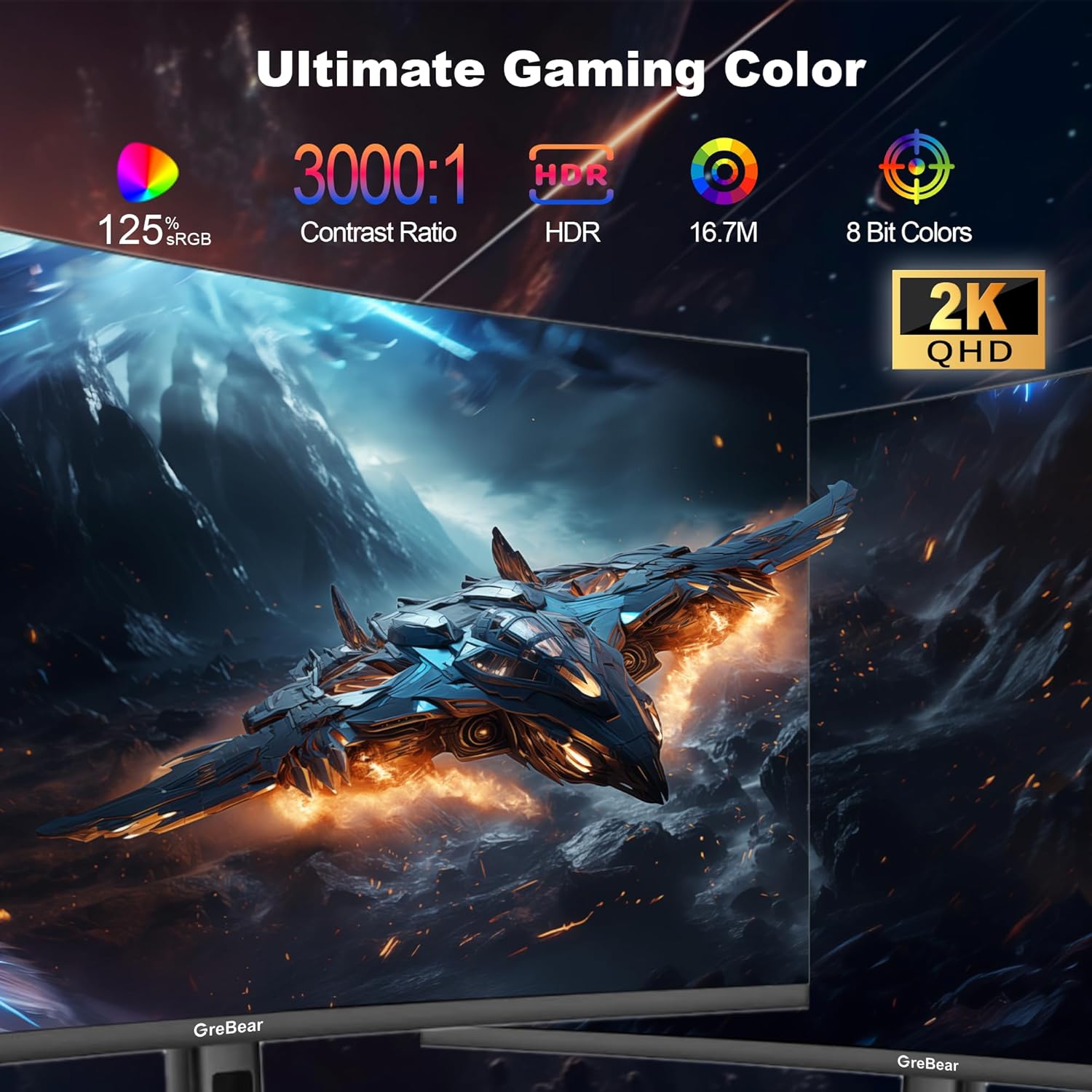
Experience vibrant and accurate colors with 125% sRGB coverage and 16.7 million display colors. The 3000:1 contrast ratio and 300 cd/m² brightness ensure deep blacks and bright whites, enhancing visual impact.
Curvature and Viewing Angle
The 1500R curvature provides an immersive viewing experience, wrapping the image around your field of vision. A wide 178° viewing angle ensures consistent image quality from various positions.

Ergonomic Adjustments
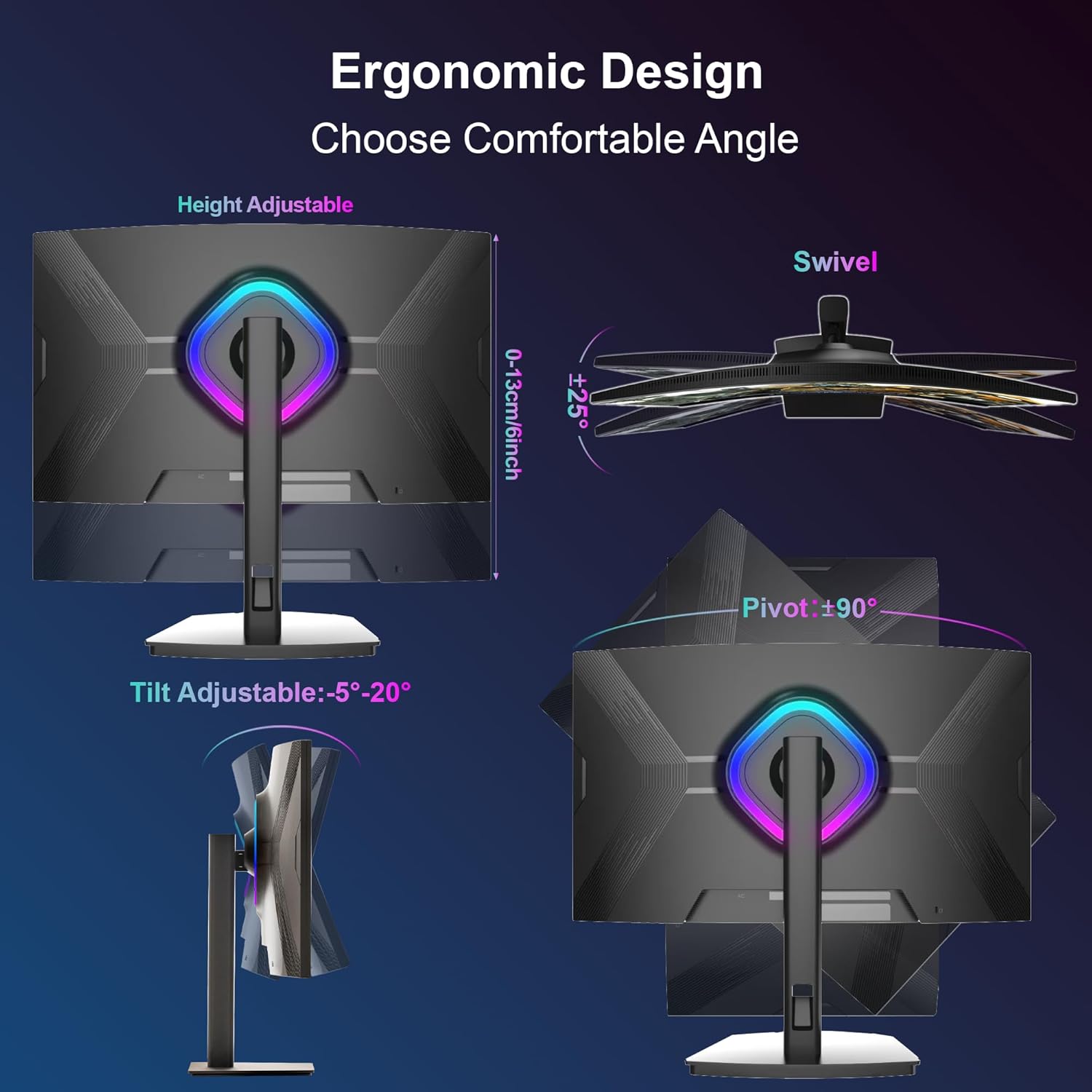
The monitor stand allows for various ergonomic adjustments to find your optimal viewing position:
- Height Adjustment: 0 to 130mm (5 inches)
- Tilt: -5° to 20°
- Swivel: ±25°
- Pivot: ±90° (for portrait mode)
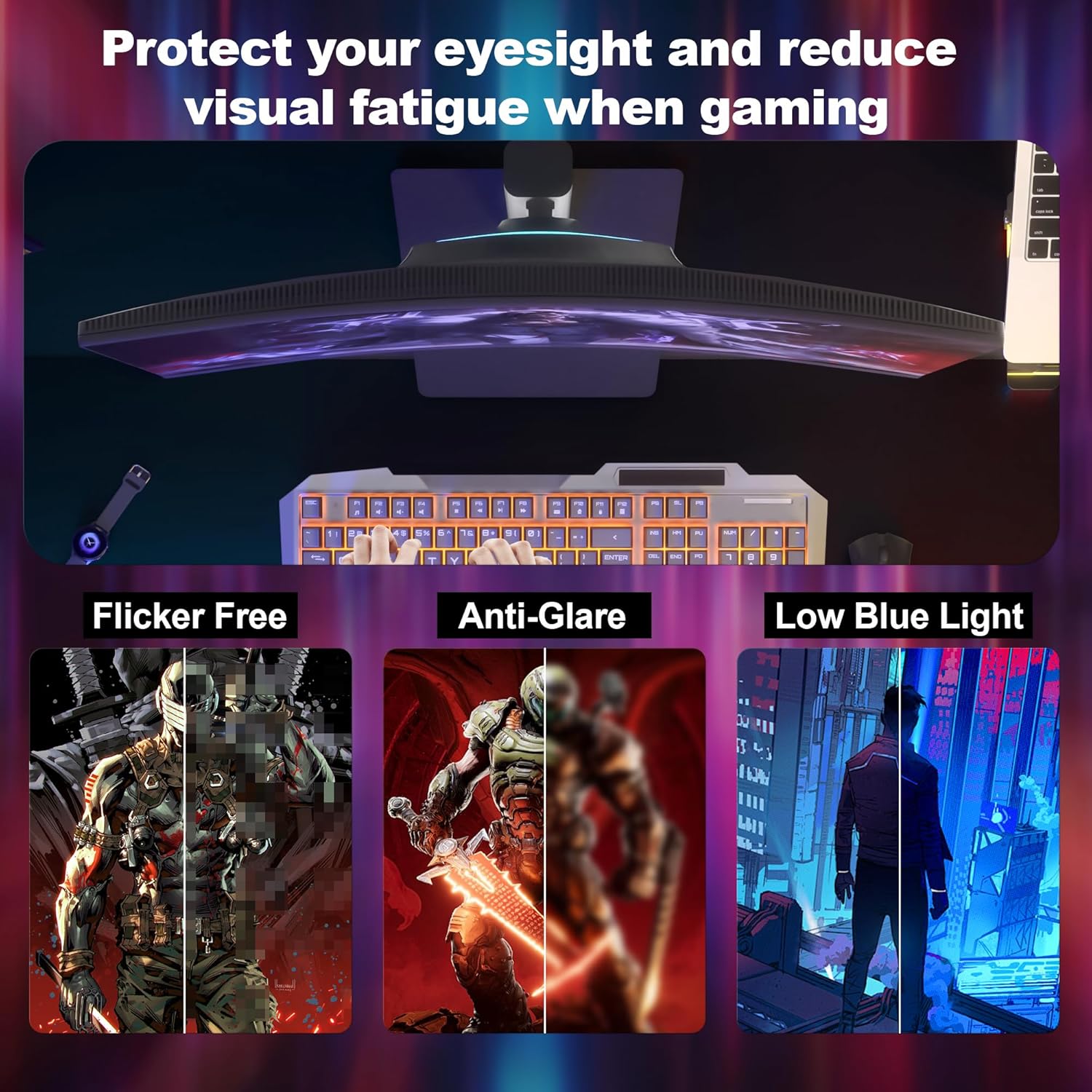
Eye Care Features
Designed for extended use, the monitor incorporates features to reduce eye strain:
- Flicker-Free: Minimizes screen flickering for comfortable viewing.
- Anti-Glare: Reduces reflections from ambient light.
- Low Blue Light Mode: Decreases harmful blue light emissions.
Built-in Speakers and RGB Backlight
The monitor includes built-in dual speakers for audio output. It also features a preset LED backlight on the rear, adding to the aesthetic of your setup.
Product Overview Video
This video provides a comprehensive overview of the GreBear 27 Inch Curved Gaming Monitor, showcasing its key features such as the 180Hz refresh rate, QHD resolution, adjustable stand, RGB lighting, and various input ports. It demonstrates the monitor's capabilities for an enhanced gaming and computing experience.
Maintenance
- Cleaning the Screen: Gently wipe the screen with a soft, lint-free cloth. For stubborn marks, dampen the cloth slightly with water or a non-ammonia, non-alcohol based screen cleaner. Do not spray cleaner directly onto the screen.
- Cleaning the Casing: Use a soft, dry cloth to wipe the monitor casing. Avoid abrasive cleaners.
- Ventilation: Ensure the ventilation openings on the monitor are clear of dust and debris to prevent overheating.
Troubleshooting
No Power
- Check if the power cord is securely connected to the monitor and the power outlet.
- Verify that the power outlet is functioning by plugging in another device.
- Ensure the monitor's power button is pressed.
No Signal
- Confirm that the video cable (DP or HDMI) is securely connected to both the monitor and your computer/device.
- Ensure the correct input source is selected on the monitor via the OSD menu.
- Check if your computer/device is powered on and outputting a signal.
- Try a different video cable or port if available.
Image Issues (Blurry, Flickering, Distorted)
- Adjust the resolution and refresh rate settings on your computer to match the monitor's native resolution (2560x1440p) and desired refresh rate (up to 180Hz).
- Enable Adaptive Sync (FreeSync) in your graphics card settings and on the monitor's OSD menu if experiencing tearing or stuttering.
- Check for loose cable connections.
- If flickering persists, ensure the Flicker-Free setting is enabled in the OSD.
No Sound from Speakers
- Increase the volume using the monitor's OSD controls or your computer's volume settings.
- Ensure the audio output from your computer is set to the monitor.
- If using HDMI/DP, ensure your graphics card is sending audio over the cable.
- If using the audio jack, ensure headphones/speakers are properly connected.
Specifications
| Feature | Specification |
|---|---|
| Screen Size | 27 Inches |
| Resolution | 2560 x 1440p (QHD) |
| Refresh Rate | 180Hz |
| Response Time | 1ms |
| Curvature | 1500R |
| Aspect Ratio | 16:9 |
| Brightness | 300 Candela (cd/m²) |
| Contrast Ratio | 3000:1 |
| Color Gamut | 125% sRGB |
| Viewing Angle | 178° (Horizontal/Vertical) |
| Connectivity | 2x HDMI 1.4, 2x DP 1.4, 1x Audio Out |
| VESA Compatibility | 100 x 100 mm |
| Built-in Speakers | Yes |
| Ergonomics | Height, Tilt, Swivel, Pivot Adjustable |
| Product Dimensions | 1.7 x 27.51 x 18.12 inches |
| Item Weight | 13.37 pounds |
Warranty and Support
GreBear products are designed for reliability and performance. For warranty information, technical support, or service inquiries, please refer to the warranty card included with your product or visit the official GreBear website. Please retain your proof of purchase for warranty claims.
Ask a question about this manual
Ask about setup, troubleshooting, compatibility, parts, safety, or missing instructions. Manuals+ will review the question and use this page’s manual context to help answer it.