
Introduction
This manual provides detailed instructions for the ACASIS USB C Docking Station, Model B0DSBLFVH6. This device expands your laptop's connectivity, offering multiple display outputs, high-speed data transfer, power delivery, and network access through a single USB-C connection. Please read this manual thoroughly before use to ensure proper setup and operation.

Image: The ACASIS USB C Docking Station shown with its various connection cables and peripherals, highlighting its comprehensive connectivity options.
Package Contents
- ACASIS USB C Docking Station
- USB-C to USB-C Cable (for host connection)
- User Manual
Product Overview
The ACASIS USB C Docking Station features 14 ports designed to enhance your workstation's capabilities.

Image: A detailed diagram illustrating all 14 ports of the ACASIS USB C Docking Station, including their types and specifications.
Port Descriptions:
- 2 x HDMI 2.0 Ports: Supports up to 4K@60Hz resolution on a single display.
- 1 x VGA Port: Supports up to 1080P@60Hz resolution.
- 3 x USB-C 3.1 Ports: 10Gbps data transfer speed.
- 1 x USB-A 3.1 Port: 10Gbps data transfer speed.
- 2 x USB 2.0 Ports: 480Mbps data transfer speed, suitable for peripherals like keyboards and mice.
- 1 x RJ45 Ethernet Port: 1000Mbps (1 Gigabit) network connectivity.
- 1 x SD Card Reader: Supports SD 3.0, up to 104MB/s.
- 1 x TF Card Reader: Supports TF 3.0, up to 104MB/s.
- 1 x 3.5mm Audio Out/Mic In Port: For wired headsets or speakers.
- 1 x USB-C PD 100W Port: For power delivery to the host laptop.

Image: Close-up view of the docking station highlighting the 10Gbps USB-C and USB-A ports for ultra-fast data transfer.

Image: The docking station connected to a laptop, illustrating its 100W Power Delivery capability for fast charging.

Image: The docking station displaying its integrated SD and TF card readers, capable of 104MB/s data transfer.
Setup Guide
Connecting the Docking Station:
- Connect your external monitors to the docking station's HDMI and/or VGA ports using appropriate cables.
- Connect any USB peripherals (keyboard, mouse, external drives) to the available USB-A or USB-C data ports on the docking station.
- For network access, connect an Ethernet cable from your router/modem to the RJ45 port on the docking station.
- If you wish to charge your laptop via the docking station, connect your laptop's power adapter to the PD 100W USB-C port on the docking station.
- Connect the provided USB-C to USB-C cable from the docking station's host port to your laptop's USB-C/Thunderbolt 3/4 port.
Driver Installation:
The ACASIS USB C Docking Station is generally plug-and-play. No specific drivers are typically required for basic functionality on most operating systems. If you encounter issues, ensure your laptop's USB-C/Thunderbolt drivers are up to date.
Operating Instructions
Display Configuration (Windows):
The docking station supports MST (Multi-Stream Transport) on Windows systems, allowing for extended and mirrored display modes across multiple monitors.
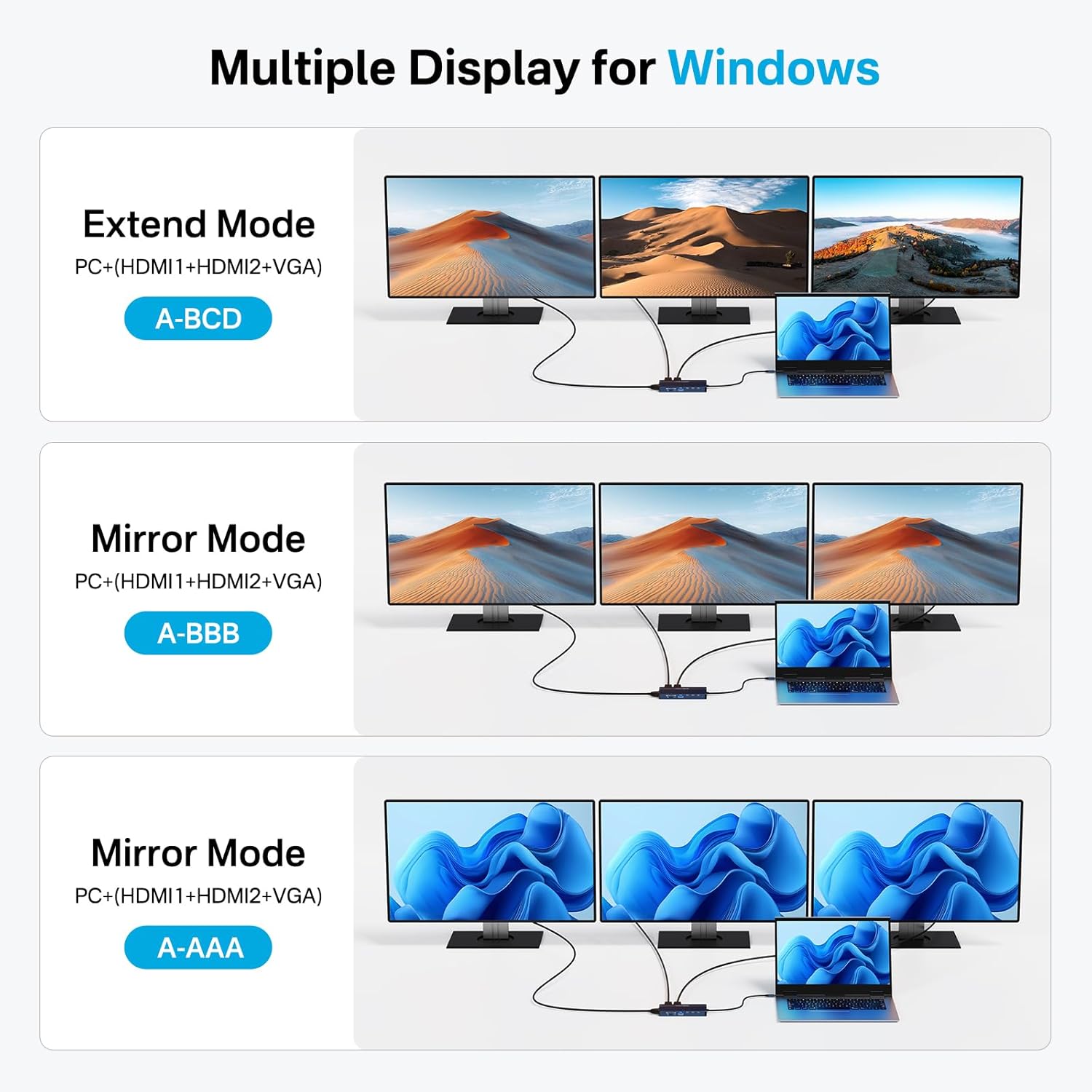
Image: Visual examples of Extend Mode (A-BCD) and Mirror Mode (A-BBB, A-AAA) display configurations for Windows operating systems.
- Right-click on your desktop and select 'Display settings'.
- Under 'Multiple displays', you can detect and arrange your monitors.
- Choose your preferred display mode:
- Extend these displays: Each monitor shows a different desktop area.
- Duplicate these displays: All monitors show the same content.
- Show only on 1/2/3: Only one selected monitor is active.
- Adjust resolution and orientation for each monitor as needed.
Display Configuration (macOS):
macOS systems support SST (Single-Stream Transport) for external displays. This means that while you can connect multiple monitors, they will typically mirror each other or extend from the primary display, but true MST (independent extended displays) is not supported.
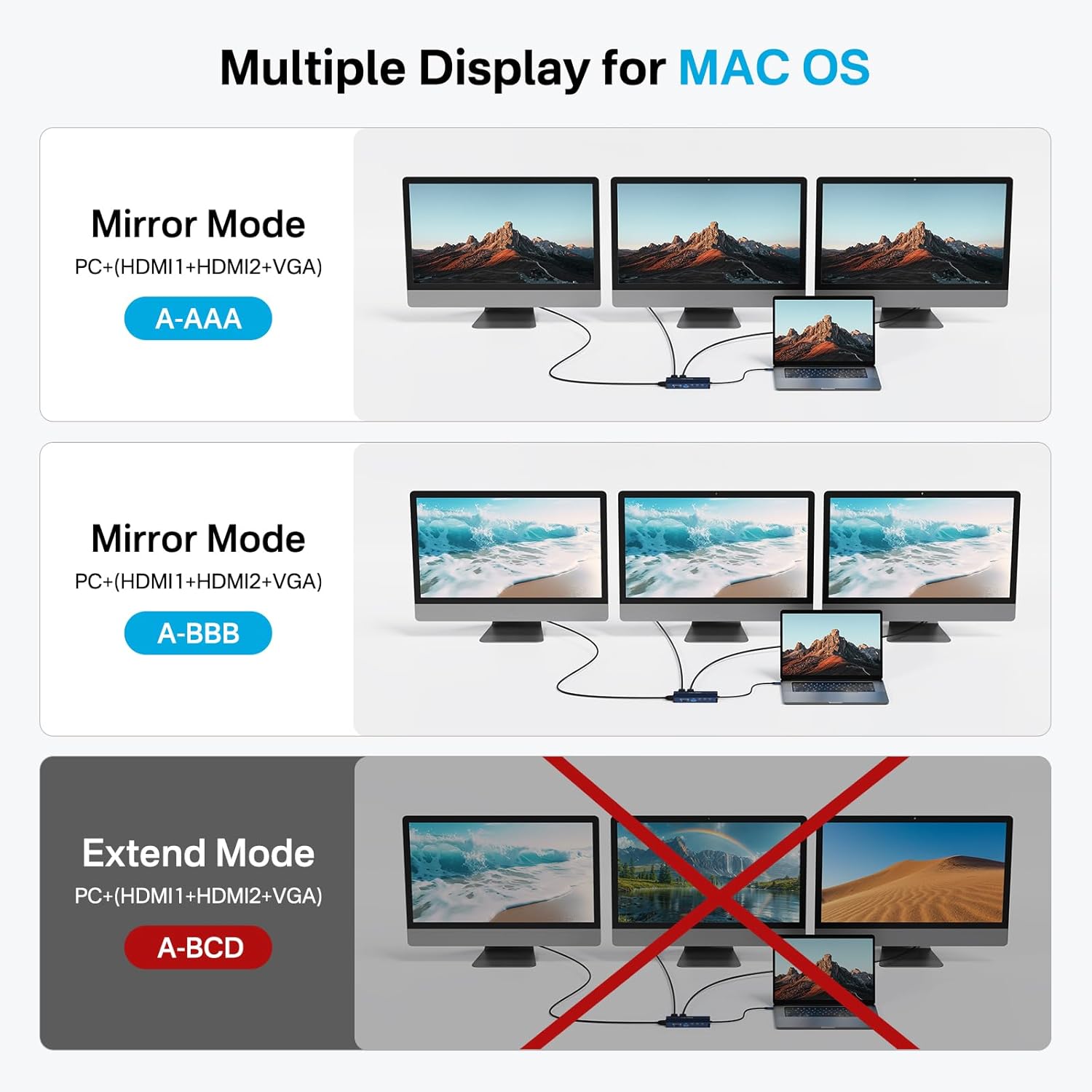
Image: Visual examples of Mirror Mode (A-AAA, A-BBB) for macOS, with a crossed-out Extend Mode (A-BCD) indicating it is not supported.
- Go to 'System Settings' (or 'System Preferences' on older macOS versions).
- Select 'Displays'.
- You can arrange your displays and choose between 'Mirror Displays' or 'Use as separate display' (which extends the desktop). Note that extending to multiple external monitors will result in mirrored content across those external monitors.

Image: A laptop connected to three external monitors (VGA, HDMI 2, HDMI 1) through the docking station, demonstrating a triple display setup.
Specifications
| Feature | Specification |
|---|---|
| Model | B0DSBLFVH6 |
| Product Dimensions | 1 x 1 x 1 inches |
| Item Weight | 1 ounces |
| Manufacturer | ACASIS |
| Color | Silver |
| Hardware Interface | USB Type C |
| Compatible Devices | Laptop |
| Total USB Ports | 6 (3x USB-C 3.1, 1x USB-A 3.1, 2x USB 2.0) |
| Number of Ports | 14 |
| Total HDMI Ports | 2 |
| VGA Port | 1 |
| Wattage (PD) | 100W |
| Ethernet | 1 Gigabit |
| Card Readers | SD/TF (104MB/s) |
| Audio Port | 3.5mm Mic/Audio |
Troubleshooting
No Display Output:
- Ensure all display cables (HDMI, VGA) are securely connected to both the docking station and the monitors.
- Verify that the docking station is properly connected to your laptop's USB-C port.
- Check your laptop's display settings to ensure the external monitors are detected and configured correctly (Extend/Duplicate).
- Try restarting your laptop.
- Ensure your laptop's USB-C port supports video output (DisplayPort Alternate Mode).
Charging Not Working:
- Confirm your laptop's power adapter is connected to the PD 100W port on the docking station.
- Ensure your laptop's USB-C port supports Power Delivery.
- Check if the power adapter itself is functioning correctly.
USB Devices Not Recognized:
- Reconnect the USB device to a different port on the docking station.
- Ensure the docking station is firmly connected to your laptop.
- Test the USB device by connecting it directly to your laptop.
Ethernet Connection Issues:
- Verify the Ethernet cable is securely connected to both the docking station and your router/modem.
- Check your network settings on your laptop.
- Try a different Ethernet cable.
Maintenance
- Keep the docking station in a dry environment, away from extreme temperatures.
- Clean the device with a soft, dry cloth. Avoid using liquid cleaners or solvents.
- Do not attempt to disassemble the docking station.
Warranty and Support
ACASIS products typically come with a standard manufacturer's warranty. For specific warranty details, technical support, or service inquiries, please refer to the warranty card included with your product or visit the official ACASIS website.
You can also visit the ACASIS Store on Amazon for additional product information and support resources.


