1. Introduction
Thank you for choosing the Generic A30C Mini Portable LED Projector. This manual provides essential information for the safe and efficient operation of your device. Please read it thoroughly before use and retain it for future reference.
The A30C projector is designed to deliver a high-definition viewing experience in a compact and portable form factor, suitable for various entertainment and presentation needs.
2. Safety Information
- Do not look directly into the projector lens when the lamp is on, as the bright light can cause eye damage.
- Ensure proper ventilation around the projector to prevent overheating. Do not block ventilation openings.
- Keep the projector away from water, moisture, and flammable materials.
- Use only the power adapter supplied with the projector.
- Do not attempt to disassemble or repair the projector yourself. Contact qualified service personnel for assistance.
- Place the projector on a stable, level surface to prevent it from falling.
3. Package Contents
Please check that all items are present:
- Generic A30C Mini Portable LED Projector
- Power Adapter
- Remote Control (batteries not included)
- HDMI Cable
- User Manual (this document)
4. Product Overview
Familiarize yourself with the projector's components and ports.

Image 4.1: Front view of the Generic A30C Mini Portable LED Projector. This image displays the compact black projector with its lens emitting a blue light, indicating operation. Control buttons are visible on the top surface.
4.1 Top Panel Controls
- Power Button: Turns the projector on/off.
- Navigation Buttons: Up, Down, Left, Right for menu navigation.
- OK/Enter Button: Confirms selections.
- Back Button: Returns to the previous menu.
4.2 Rear/Side Panel Ports
- HDMI Port: Connects to devices like laptops, gaming consoles, or Blu-ray players.
- USB Port: Connects to USB flash drives for media playback.
- SD Card Slot: Inserts SD cards for media playback.
- Audio Jack (3.5mm): Connects to external speakers or headphones.
- DC Power Input: Connects the power adapter.
5. Setup
5.1 Power Connection
- Connect the power adapter to the DC Power Input port on the projector.
- Plug the power adapter into a wall outlet. The power indicator light on the projector will illuminate.
5.2 Initial Placement and Focus
- Place the projector on a stable surface, facing the projection screen or a plain wall.
- Turn on the projector by pressing the Power button.
- Adjust the focus ring (usually located near the lens) until the projected image is clear and sharp.

Image 5.1: Guide for optimal projection distance and screen size. This diagram illustrates various projection distances (e.g., 1m, 2m, 3m) and their corresponding screen sizes (e.g., 33", 66", 100", 150", 200", 300"). A recommended distance of 1.5m to 3m is highlighted for best viewing.
Refer to Image 5.1 for guidance on projection distance and screen size. For optimal viewing, a projection distance between 1.5 meters and 3 meters is recommended.
6. Operating the Projector
6.1 Connecting Input Devices
The projector supports multiple input sources:
- HDMI: Connect an HDMI cable from your device (laptop, game console, etc.) to the projector's HDMI port.
- USB: Insert a USB flash drive into the USB port. The projector will typically detect it automatically or allow selection from the input menu.
- SD Card: Insert an SD card into the SD card slot. Similar to USB, it should be detectable via the input menu.

Image 6.1: Illustration of the projector's connectivity options. This image shows the projector connected to mobile devices via both WiFi Wireless Connection (for Android and iOS) and USB Cable Wired Connection, demonstrating its versatility in source input.
6.2 Screen Mirroring (Wireless/Wired)
The A30C projector supports screen mirroring from Android and iOS devices.
- Wireless Connection (WiFi):
- Ensure your mobile device and the projector are connected to the same Wi-Fi network.
- Select the "Screen Mirroring" or "Wireless Display" option on the projector's main menu.
- On your mobile device, activate screen mirroring (e.g., "Smart View" on Android, "Screen Mirroring" on iOS) and select the projector from the list of available devices.
- USB Cable Wired Connection:
- Connect your mobile device to the projector's USB port using a compatible USB cable.
- Follow any on-screen prompts on your mobile device or the projector to establish the connection.
6.3 Menu Navigation
Use the navigation buttons on the projector's top panel or the remote control to navigate the on-screen menu. The OK/Enter button confirms selections, and the Back button returns to the previous screen.
6.4 Audio Output
The projector has a built-in speaker. For enhanced audio, connect external speakers or headphones to the 3.5mm audio jack.
7. Maintenance
7.1 Cleaning the Lens
Gently wipe the projector lens with a soft, lint-free cloth specifically designed for optical surfaces. Do not use abrasive cleaners or excessive force.
7.2 Cleaning the Projector Body
Use a soft, dry cloth to clean the exterior of the projector. For stubborn marks, a slightly damp cloth can be used, followed by a dry cloth. Avoid using harsh chemicals.
7.3 Storage
When not in use, store the projector in a cool, dry place, away from direct sunlight and extreme temperatures. It is advisable to use the original packaging or a protective case to prevent dust accumulation and damage.
8. Troubleshooting
| Problem | Possible Cause | Solution |
|---|---|---|
| No power | Power cable not connected; power outlet faulty. | Check power cable connection; try a different outlet. |
| No image | Input source not selected; cable loose; device not outputting signal. | Select correct input source; check cable connections; ensure source device is on and outputting. |
| Image blurry | Focus not adjusted; projector too far/close. | Adjust the focus ring; reposition the projector. |
| No sound | Volume too low; external speakers not connected; source device volume low. | Increase projector volume; connect external speakers; check source device volume. |
| Overheating warning | Ventilation blocked; prolonged use. | Ensure clear ventilation; turn off and let cool down. |
9. Specifications
The following are the technical specifications for the Generic A30C Mini Portable LED Projector:
- Brand: Generic
- Model: A30C
- Imaging System: LCD
- Light Source: LED
- Display Resolution: 1280 x 720 pixels (Supports up to 1920 x 1080 pixels)
- Connectivity Technology: Bluetooth, HDMI, USB, SD Card
- Special Feature: Compact, Portable
- Recommended Uses: Indoor
- Color: Black
- Item Weight: 14.1 ounces (approx. 400 grams)
- Product Dimensions: 6.3 x 4.72 x 2.16 inches (approx. 16 x 12 x 5.5 cm)

Image 9.1: The projector being held in a hand, illustrating its small and portable design. This image emphasizes the compact nature of the device, making it easy to carry.
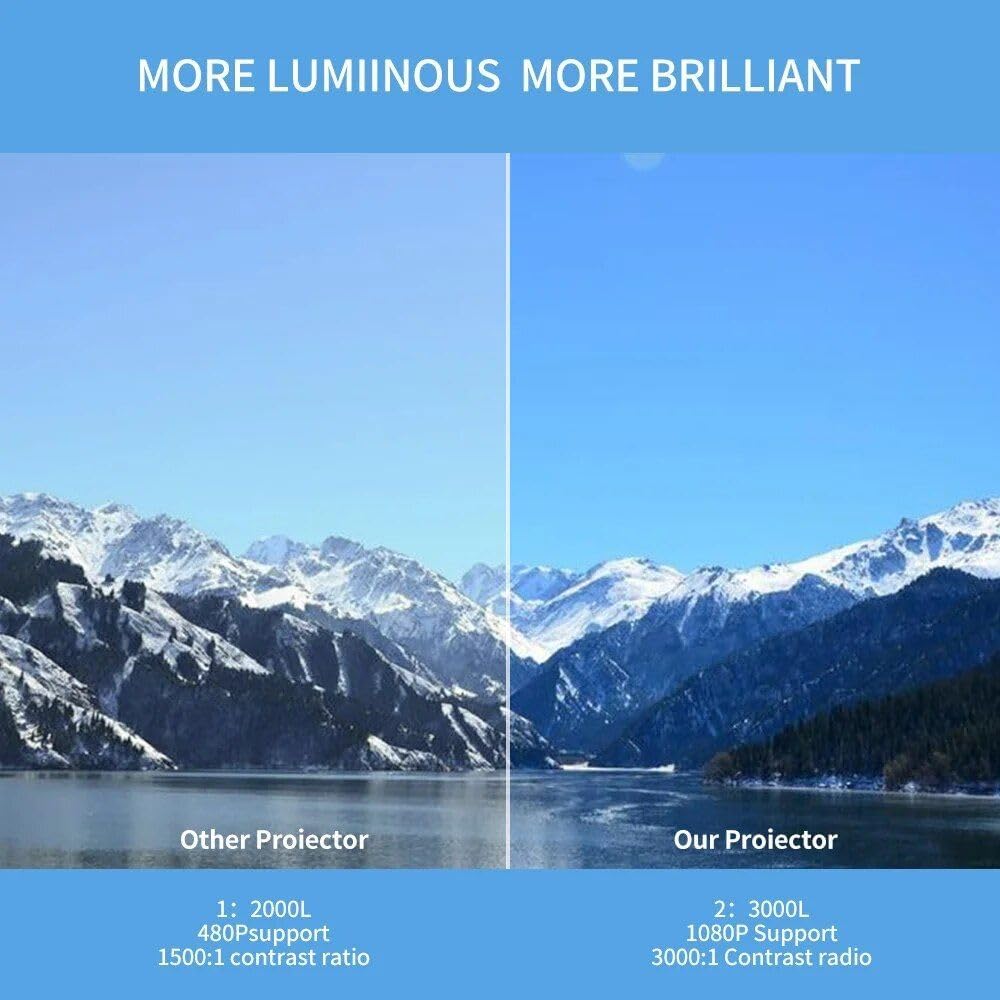
Image 9.2: A side-by-side comparison demonstrating the superior brightness and clarity of "Our Projector" (the A30C) versus an "Other Projector." The A30C is shown with a brighter, more vibrant image of a mountain landscape.
10. Warranty and Support
For warranty information and technical support, please refer to the documentation provided at the time of purchase or contact your retailer. Keep your proof of purchase for warranty claims.
For further assistance, you may also visit the manufacturer's website or contact their customer service department.


