
1. Introduction
Welcome to the user manual for your CREECHWA AG622 AI Language Translator Device. This device is designed to facilitate seamless communication across various languages, offering both online and offline translation capabilities, along with advanced features like photo translation and AI integration. Please read this manual thoroughly to understand the device's functions and ensure optimal performance.
2. What's in the Box
- CREECHWA AG622 AI Language Translator Device
- User Manual (this document)
- Charging Cable (USB-C)
3. Device Overview
The CREECHWA AG622 features a compact design with a responsive touchscreen interface. It includes dedicated buttons for easy translation and a rear-facing camera for photo translation.

Figure 3.1: CREECHWA AG622 AI Language Translator Device and its packaging.
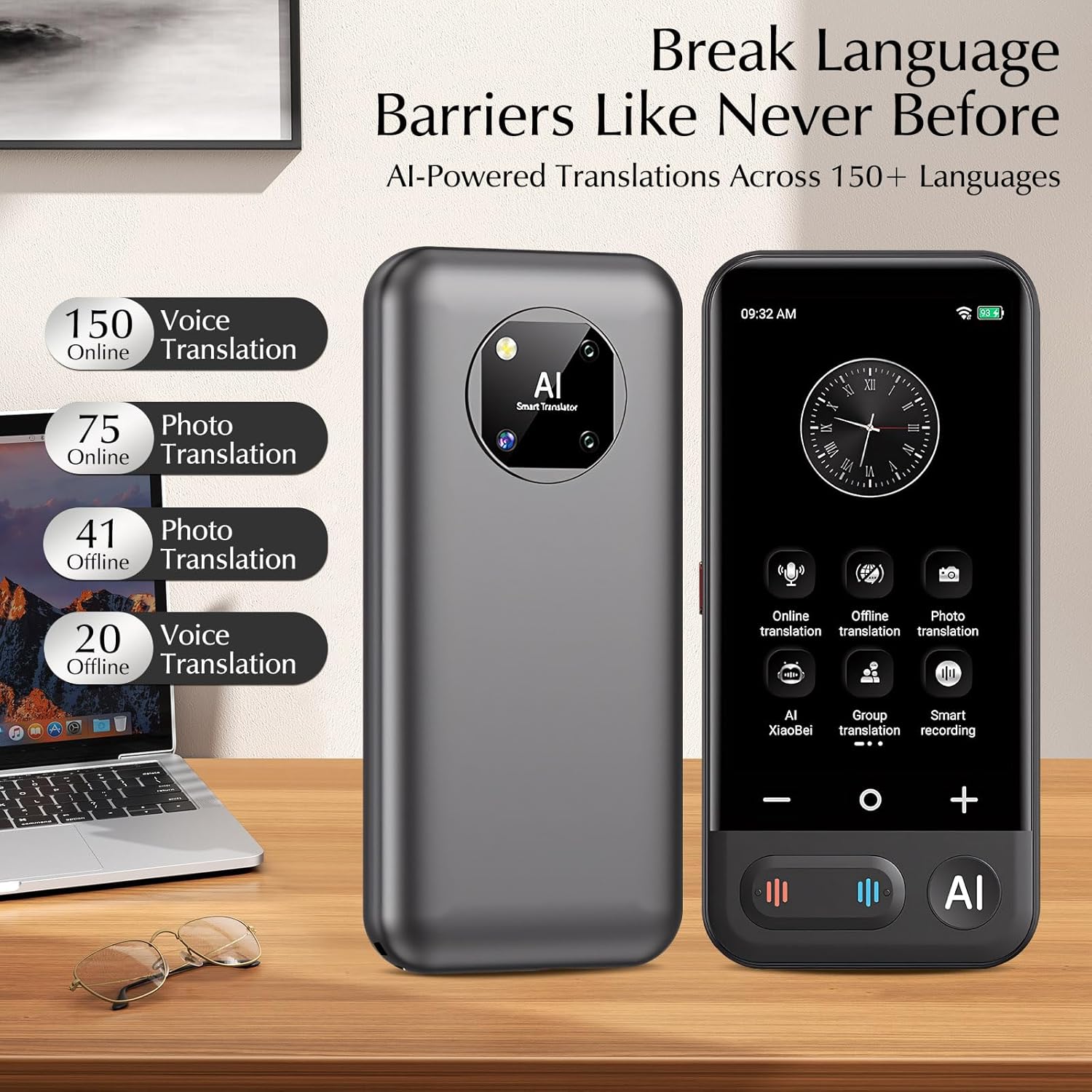
Figure 3.2: Front and back view of the CREECHWA AG622 AI Language Translator Device, highlighting the touchscreen and rear camera.
3.1 Physical Features
- Touchscreen Display: For navigation and displaying translations.
- Translation Buttons: Dedicated buttons (e.g., red and blue) for initiating two-way voice translation.
- Power Button: Located on the side for turning the device on/off and screen lock.
- Volume Buttons: For adjusting audio output.
- Rear Camera: For photo translation.
- USB-C Port: For charging the device.
- MicroSD Card Slot: For expandable storage (card not included).
4. Setup
4.1 Initial Charging
Before first use, fully charge your device using the provided USB-C cable and a compatible power adapter (not included). The device features a 1500mAh battery, offering 5-7 hours of continuous use and up to 10 days of standby time.
4.2 Power On/Off
- To Power On: Press and hold the Power button until the screen lights up.
- To Power Off: Press and hold the Power button, then select 'Power Off' on the screen.
- To Lock/Unlock Screen: Briefly press the Power button.
4.3 Language Selection
Upon first startup or in the settings menu, select your preferred interface language for the device.
4.4 Wi-Fi Connection
- From the main screen, navigate to 'Settings'.
- Select 'WLAN' or 'Wi-Fi'.
- Toggle Wi-Fi ON.
- Select your desired network and enter the password if prompted.
4.5 Offline Language Package Download
For offline translation, you must download language packages while connected to Wi-Fi.
- From the main screen, select 'Offline Translation' or 'Offline Package Management'.
- Browse the available languages and select the ones you wish to download.
- Confirm the download. Ensure you have sufficient storage space (consider using a microSD card for more languages).
5. Operating Modes
5.1 Voice Translation (Online & Offline)
The device supports 150 online languages and 20 offline languages for voice translation with 98% accuracy and 0.3-second response time.
- Select 'Online Translation' or 'Offline Translation' from the main menu.
- Choose the source language (what you will speak) and the target language (what you want to translate to).
- Press and hold the corresponding translation button (e.g., red for your language, blue for the other person's language) and speak clearly into the microphone.
- Release the button when you finish speaking. The device will display and speak the translation.

Figure 5.1: The device facilitates accurate and contextual translations in real-time.
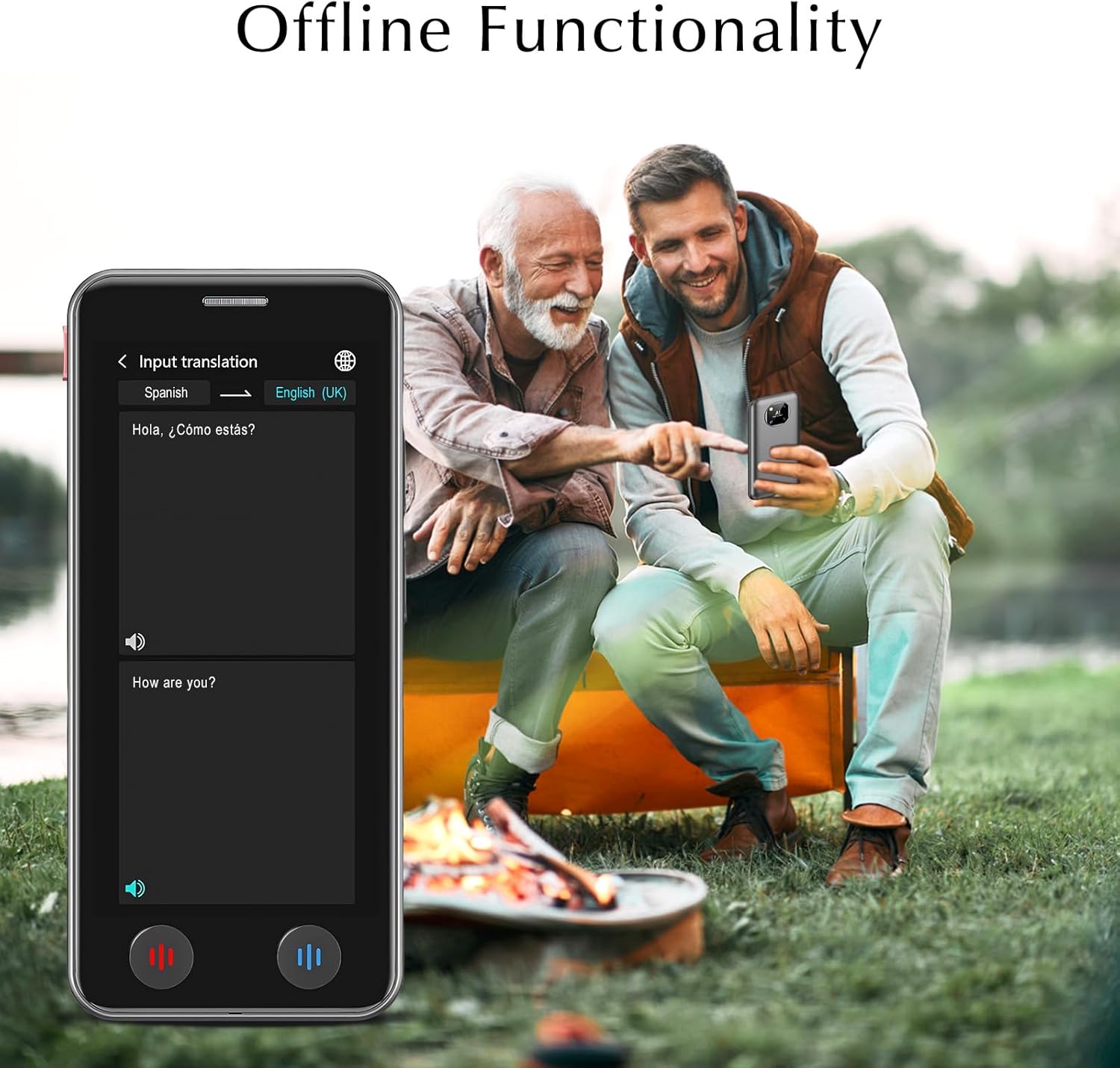
Figure 5.2: Offline translation functionality allows communication without internet access.

Figure 5.3: A selection of 20 languages supported for offline voice translation.
5.2 Photo Translation
Translate text from images using the device's camera. Supports 75 languages.
- Select 'Photo Translation' from the main menu.
- Point the camera at the text you wish to translate (e.g., a menu, sign, or document).
- Tap the screen to capture the image.
- The device will process the text (4000 characters/minute with 93% recognition accuracy) and display the translation.

Figure 5.4: Instant visual translation of text using the photo translation feature.
5.3 Realtime Translation
Engage in fluid conversations with minimal delay. This mode is optimized for two-way communication.
- Select 'Realtime Translation'.
- Assign a language to each of the two main translation buttons.
- Press your assigned button to speak, and the device will translate for the other party.
- The other party then presses their assigned button to speak, and the device translates back to you.
5.4 Group Translation
This feature allows multiple users with compatible devices to participate in a translated group conversation. Follow on-screen instructions to create or join a group.
5.5 ChatGPT Integration (AI Xiaobei)
The device integrates Smart Xiaobei AI (ChatGPT API) for context-aware translation and information retrieval. Access this feature from the main menu to ask questions or get assistance in various languages.
5.6 Smart Recording
Record audio and have it transcribed and translated. Useful for lectures, meetings, or capturing conversations for later review.
6. Additional Features
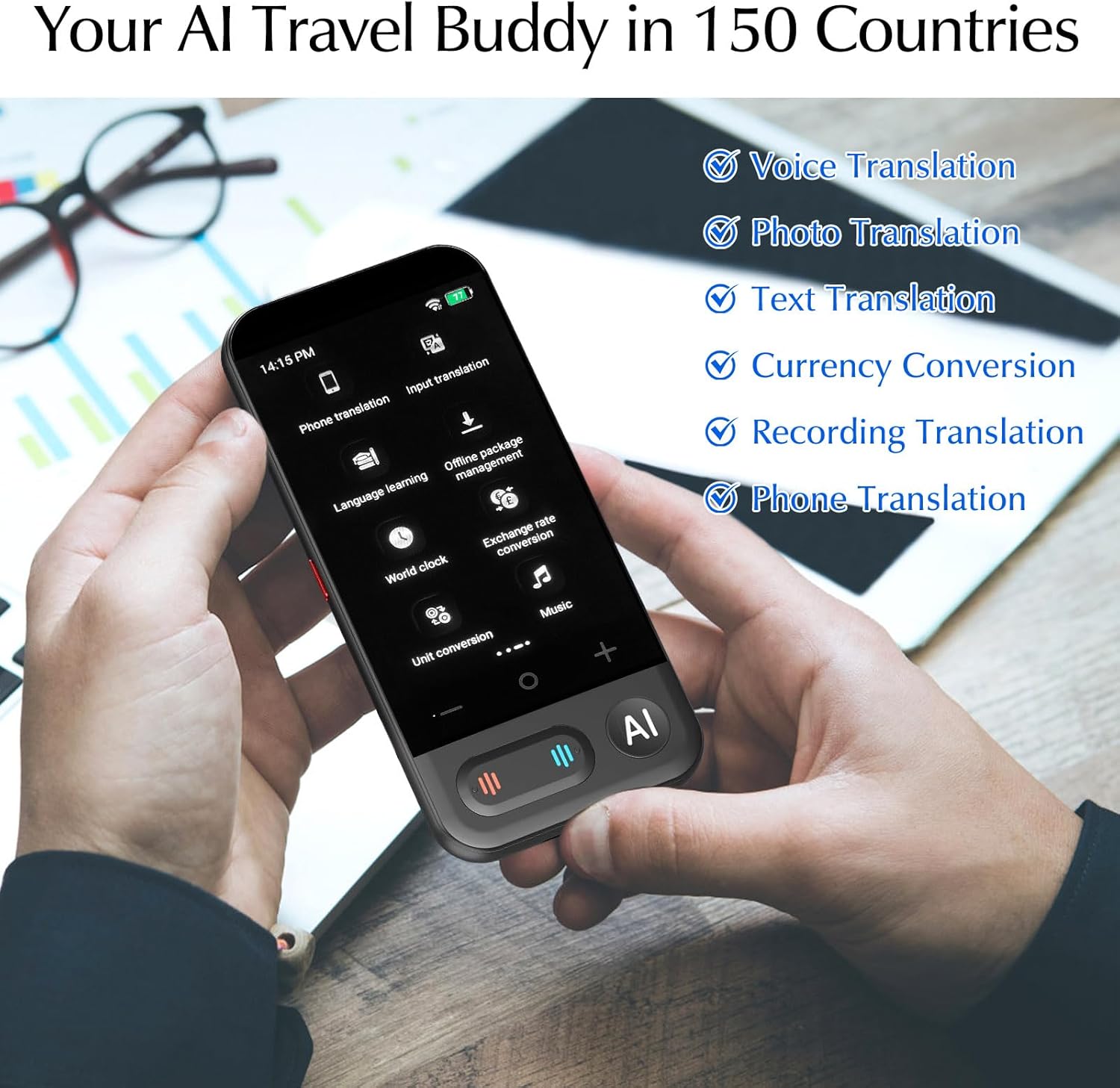
Figure 6.1: The device offers a suite of utilities for travelers and language learners.
- World Clock: View times in different global cities.
- Exchange Rate Conversion: Convert currencies quickly.
- Unit Conversion: Convert various units of measurement.
- Language Learning: Access tools to help improve language skills.
- Multimedia: The device may support basic music playback.
7. Maintenance
7.1 Cleaning
Wipe the device with a soft, dry cloth. Avoid using harsh chemicals or abrasive materials that could damage the screen or casing.
7.2 Battery Care
To prolong battery life, avoid exposing the device to extreme temperatures. Charge the device regularly, even if not in frequent use, to prevent deep discharge.

Figure 7.1: The device boasts extended battery performance with up to 7 days of standby.
8. Troubleshooting
8.1 Device Not Turning On
- Ensure the device is fully charged. Connect it to a power source for at least 30 minutes.
- Try pressing and holding the Power button for 10-15 seconds to force a restart.
8.2 Translation Inaccuracy
- Ensure a stable Wi-Fi connection for online translation.
- Speak clearly and at a moderate pace directly into the microphone.
- Verify that the correct source and target languages are selected.
8.3 Offline Translation Not Working
- Confirm that the necessary offline language packages have been downloaded and installed.
- Check the device's storage to ensure the packages are present.
8.4 Screen Unresponsive
- Restart the device by holding the Power button.
- If the issue persists, perform a factory reset (refer to settings menu, note this will erase user data).
9. Specifications
| Feature | Detail |
|---|---|
| Model Number | AG622 |
| Product Dimensions | 5.37 x 1.33 x 3.39 inches |
| Item Weight | 7.7 ounces |
| Batteries | 1 Lithium Polymer battery (included) |
| Battery Performance | 1500mAh, 5-7 hours continuous use, 10 days standby |
| Online Translation Languages | 150+ |
| Offline Translation Languages | 20 |
| Photo Translation Languages | 75 |
| Translation Accuracy | 98% |
| Response Time | 0.3 seconds |
| AI Integration | Smart Xiaobei AI (ChatGPT API) |
10. Warranty and Support
The CREECHWA AG622 AI Language Translator Device comes with a manufacturer's warranty. For detailed warranty information, product support, or service inquiries, please refer to the warranty card included with your purchase or visit the official CREECHWA website. You may also contact customer service through the retailer where the device was purchased.