
LifflyLadys XL-Z04
LifflyLadys WiFi Extender Signal Booster User Manual
Model: XL-Z04
Brand: LifflyLadys
1. Introduction
The LifflyLadys WiFi Extender Signal Booster is designed to enhance your wireless network coverage, eliminating dead zones and providing a stable internet connection throughout your home or office. Featuring four high-gain antennas and dual-band support (2.4GHz and 5GHz), this device offers versatile connectivity options including Repeater, AP, and Router modes. Its user-friendly design ensures quick setup and reliable performance.

Figure 1: Front view of the LifflyLadys WiFi Extender Signal Booster, showing its four antennas and LED indicators for Reset/WPS, LAN, WAN, 5G, 2.4G, and Power.
2. Setup Guide
2.1 Unboxing and Initial Placement
- Unpack the WiFi Extender and ensure all components are present (extender unit, quick start guide).
- Choose a central location between your router and the area with weak WiFi signal. Avoid placing it near large metal objects, microwaves, or other signal-interfering devices.
- Plug the extender into a standard electrical outlet. The Power LED should illuminate.
2.2 WPS (Wi-Fi Protected Setup) Method
The WPS method offers a quick and easy way to connect your extender to your existing router without manual configuration.
- Plug the extender into a power outlet near your main router.
- Wait for the Power LED on the extender to become stable.
- Press the WPS button on your main router.
- Within 2 minutes, press the WPS button on the LifflyLadys WiFi Extender. The WPS LED on the extender will blink during the connection process.
- Once connected, the signal strength LEDs (2.4G/5G) on the extender will light up, indicating a successful connection. You can now unplug the extender and move it to your desired location.

Figure 2: Illustration of the WPS setup process, demonstrating how to press the WPS button on both the router and the extender to establish a connection.
2.3 Manual Setup (Web Browser)
If your router does not support WPS or you prefer manual configuration, follow these steps:
- Plug the extender into a power outlet.
- On your computer or mobile device, connect to the extender's default WiFi network (e.g., "LifflyLadys_Ext"). No password is required initially.
- Open a web browser and enter the default IP address or domain name (refer to the quick start guide for specific details, typically 192.168.1.1 or a specific URL).
- Follow the on-screen instructions to select your desired operating mode (Repeater, AP, or Router) and configure network settings, including selecting your existing WiFi network and entering its password.
- Save the settings. The extender will restart, and the signal LEDs will indicate a successful connection.
3. Operating Modes
The LifflyLadys WiFi Extender supports three primary operating modes to suit various networking needs:
3.1 Repeater Mode
In Repeater Mode, the device extends the range of your existing wireless network. It receives the WiFi signal from your main router and re-broadcasts it, effectively expanding coverage to dead zones.
3.2 AP (Access Point) Mode
In AP Mode, the device transforms a wired internet connection into a wireless network. Connect an Ethernet cable from your router or modem to the extender's LAN/WAN port, and it will create a new WiFi hotspot.
3.3 Router Mode
In Router Mode, the device functions as a primary router, creating a new private network. This mode is suitable if you have a modem but no router, or if you wish to create a separate network.

Figure 3: Visual representation of the three operating modes: Repeater mode extending an existing WiFi, AP mode converting wired internet to WiFi, and Router mode creating a new network from an internet source.
4. Signal and Coverage
4.1 Dual-Band Operation
The extender supports both 2.4GHz and 5GHz frequency bands. The 2.4GHz band offers wider coverage and better penetration through obstacles, while the 5GHz band provides faster speeds for activities like streaming and gaming, ideal for closer range connections.
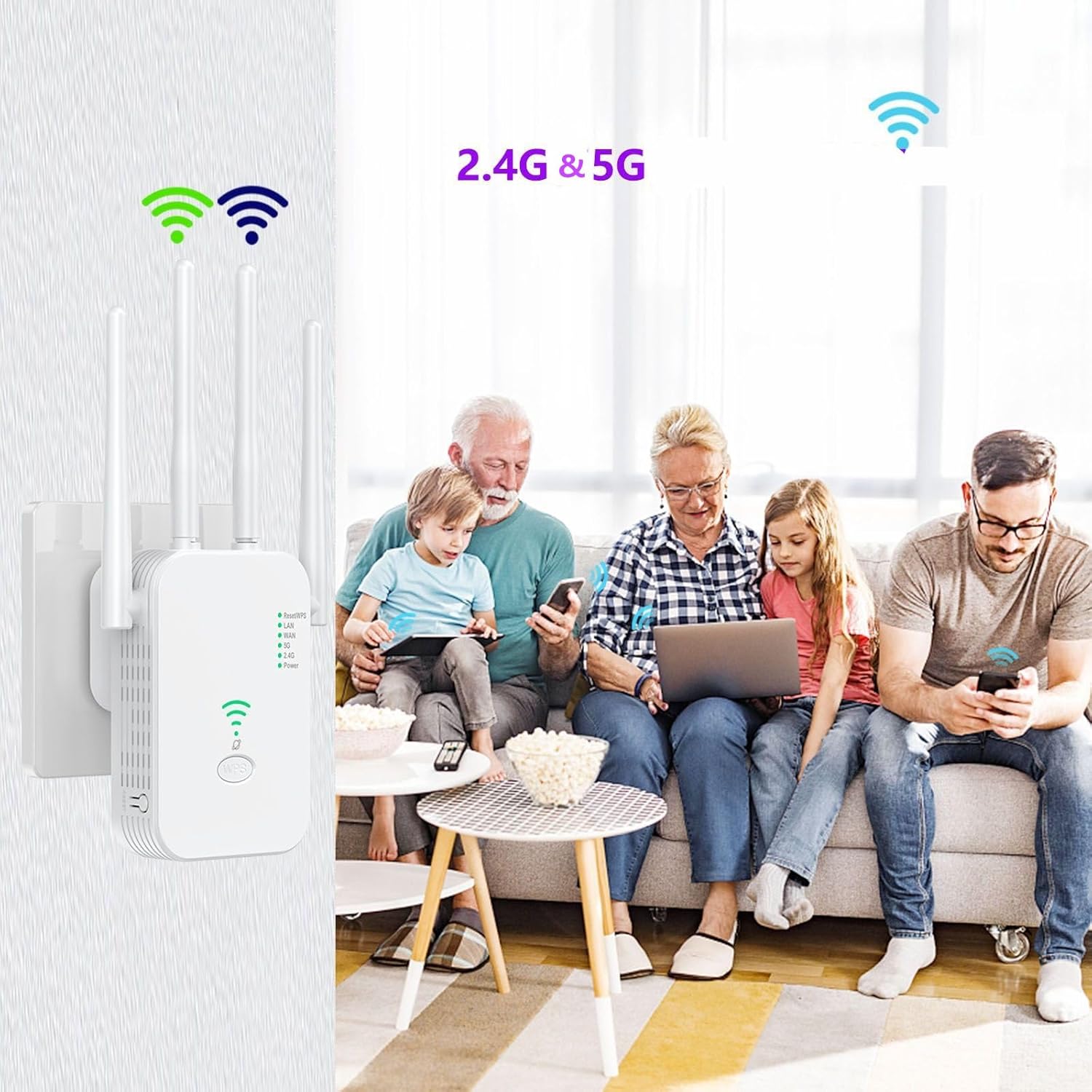
Figure 4: Depiction of a family enjoying seamless internet connectivity with both 2.4G and 5G WiFi signals provided by the extender, highlighting its ability to support multiple users and devices.
4.2 Signal Penetration
Equipped with four high-gain antennas, this extender is designed to provide strong signal penetration, capable of extending WiFi coverage through multiple walls and floors, effectively eliminating dead zones up to 2500 square feet.

Figure 5: Image emphasizing the strong signal penetration capability of the extender, indicating its effectiveness in providing WiFi coverage even through multiple structural barriers.
5. Maintenance
To ensure optimal performance and longevity of your LifflyLadys WiFi Extender, consider the following maintenance tips:
- Keep it Clean: Regularly wipe the device with a soft, dry cloth to prevent dust accumulation, which can hinder ventilation.
- Optimal Placement: Ensure the extender is placed in a well-ventilated area, away from direct sunlight or heat sources.
- Firmware Updates: Periodically check the manufacturer's website for firmware updates. Updating firmware can improve performance, add new features, and enhance security.
- Restart Periodically: Like most electronic devices, a periodic restart (unplugging and re-plugging after 10 seconds) can help clear temporary glitches and maintain stable operation.
6. Troubleshooting
If you encounter issues with your WiFi Extender, refer to the following common problems and solutions:
| Problem | Possible Cause | Solution |
|---|---|---|
| No Power LED | Not plugged in, power outlet issue. | Ensure the extender is securely plugged into a working power outlet. Try a different outlet. |
| Cannot connect to extender's WiFi | Extender not broadcasting, incorrect network name. | Ensure the extender is powered on. Check if the extender's default SSID is visible. Restart the extender. |
| No internet access after connecting to extender | Extender not connected to main router, incorrect configuration. | Verify the extender is successfully connected to your main router (check signal LEDs). Re-run the setup process. Ensure the main router has internet access. |
| Slow speeds or frequent disconnections | Poor placement, interference, overloaded network. | Relocate the extender closer to your main router but still within the weak signal area. Minimize interference from other electronics. Reduce the number of connected devices if possible. |
| WPS setup fails | Router WPS not enabled, timing issue. | Ensure WPS is enabled on your router. Press the WPS buttons within the specified time frame (usually 2 minutes). Try manual setup via web browser. |
7. Specifications
Key technical specifications for the LifflyLadys WiFi Extender Signal Booster (Model XL-Z04):
| Feature | Detail |
|---|---|
| Product Dimensions | 3.5 x 3.9 x 4.7 inches |
| Item Weight | 7 ounces |
| Model Number | XL-Z04 |
| Wireless Communication Standard | 5 GHz Radio Frequency, 802.11ac, 2.4 GHz Radio Frequency |
| Data Transfer Rate | 300 Megabits Per Second |
| Frequency Band Class | Dual-Band |
| Special Feature | Wall-through signal penetration |
| Antennas | Four high-gain antennas |
| Security Protocols | WEP/WPA/WPA2 |
| Max Connected Devices | Up to 40 devices |
8. Warranty and Support
Specific warranty details and direct support contact information are not provided in the available product data. Please refer to the product packaging or the retailer's website for warranty terms and customer support options.
No official product videos were available in the provided data for embedding.