
Playtastic K8
K8 Game Stick Retro Game Console User Manual
Model: K8 | Brand: Playtastic
1. Introduction
Welcome to the world of retro gaming with your new Playtastic K8 Game Stick. This compact and powerful console allows you to relive classic gaming moments in stunning 4K HD. With a vast library of 40,000 pre-loaded games and wireless controllers, endless entertainment is at your fingertips. This manual provides essential information for setting up, operating, and maintaining your K8 Game Stick.
2. Safety Information
WARNING:
- Not For Children Under 3 Years Of Age. Small parts may pose a choking hazard.
- Always ensure proper ventilation around the Game Stick during operation.
- Do not expose the device to water, moisture, or extreme temperatures.
- Use only the provided power cable and accessories.
- Do not attempt to disassemble or repair the device yourself. Contact customer support if issues arise.
3. What's in the Box
Please check the contents of your package to ensure all items are present:
- 1 x K8 Gamestick
- 2 x Wireless Controllers
- 1 x USB Power Cable
- 1 x USB Receiver (for controllers)
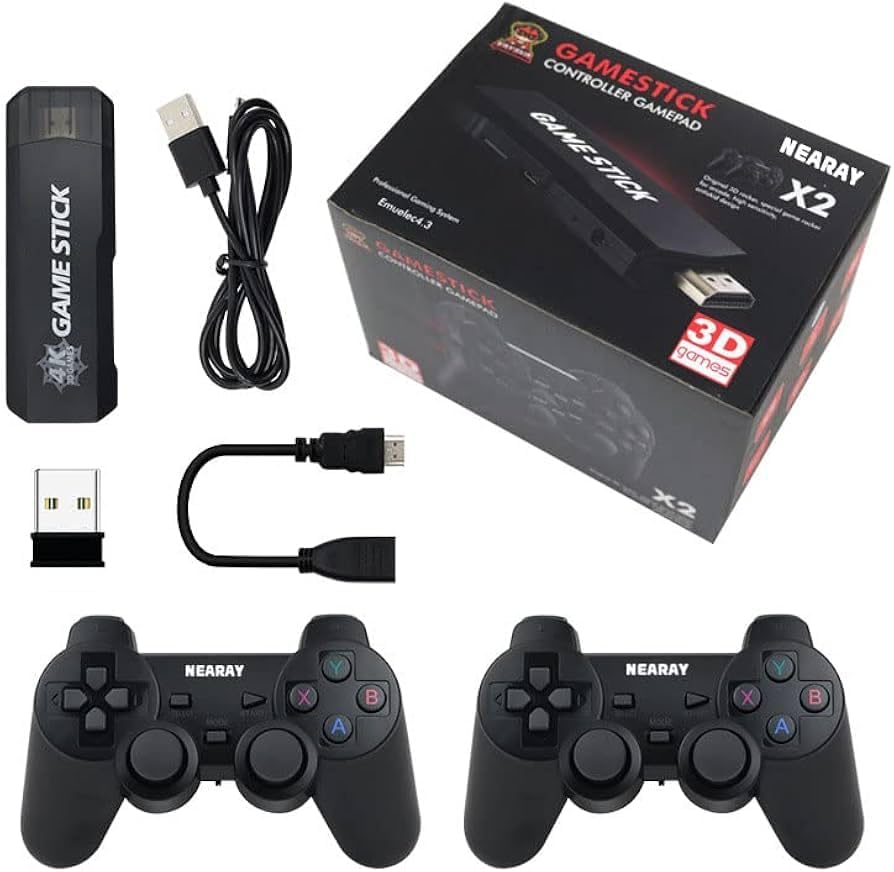
Image: All components included in the K8 Game Stick package.
4. Setup Guide
Follow these steps to set up your K8 Game Stick:
- Connect the Game Stick: Plug the K8 Gamestick directly into an available HDMI port on your television or monitor.
- Connect Power: Connect the provided USB power cable to the Game Stick's DC port and the other end to a USB power source (e.g., TV USB port, USB wall adapter). The Game Stick will power on automatically.
- Insert USB Receiver: Insert the small USB receiver into the USB port on the K8 Gamestick. This receiver enables wireless communication with the controllers.
- Prepare Controllers: Each wireless controller requires 2 AA batteries (total 4 AA batteries, not included). Open the battery compartment on the back of each controller and insert the batteries, ensuring correct polarity (+/-).
- Select HDMI Input: On your TV or monitor, switch the input source to the HDMI port where the K8 Game Stick is connected. You should see the Game Stick's main menu appear.
- Pair Controllers: The controllers should automatically pair with the Game Stick once powered on and the USB receiver is connected. If they do not, press the 'MODE' or 'HOME' button on the controller to initiate pairing.
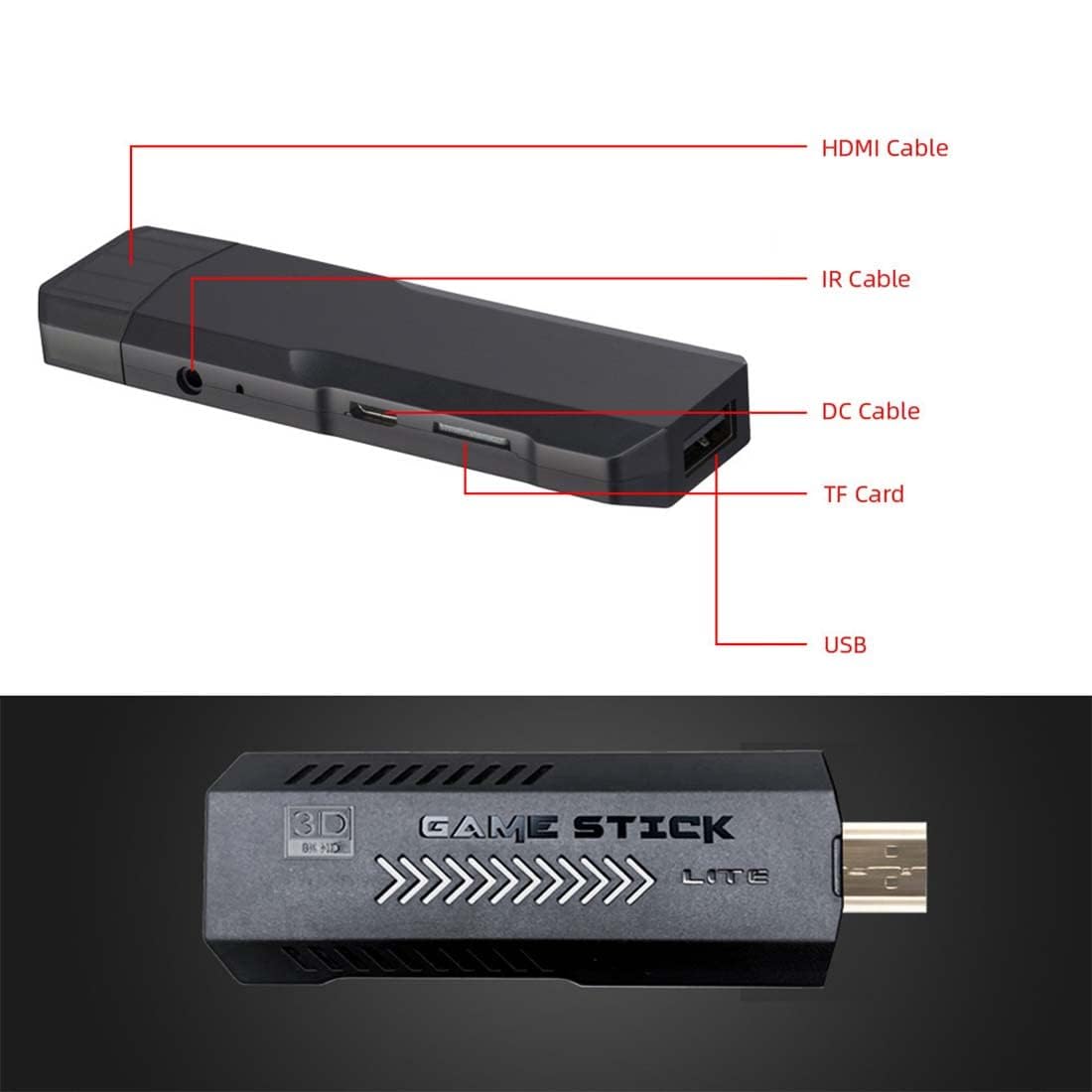
Image: K8 Game Stick with labeled ports for easy connection.
5. Operating Instructions
5.1 Navigating the Menu
- Use the directional pad (D-pad) or left analog stick on the controller to move through menu options.
- Press the 'A' or 'X' button (depending on controller layout) to select an option or enter a game.
- Press the 'B' or 'O' button to go back to the previous menu.
- The 'START' and 'SELECT' buttons often have in-game functions or can be used for system shortcuts.
5.2 Playing Games
- From the main menu, select the desired game category or search for a specific game.
- Highlight the game you wish to play and press the 'A' or 'X' button to launch it.
- Follow on-screen prompts or in-game instructions to play.

Image: The K8 Game Stick supports HDMI HD output for an enhanced gaming experience.
5.3 Exiting Games and Saving Progress
- To exit a game, typically press 'START' and 'SELECT' simultaneously for a few seconds. This will bring up an in-game menu or return you to the main system menu.
- Many retro games do not have in-game save features. The K8 Game Stick may offer system-level save states. Consult the on-screen menu (accessed via 'START' + 'SELECT' shortcut) for options to save or load game states.

Image: Enjoy classic games in stunning 4K Ultra HD resolution.
6. Maintenance
- Cleaning: Use a soft, dry cloth to clean the Game Stick and controllers. For stubborn dirt, slightly dampen the cloth with water. Do not use harsh chemicals or abrasive cleaners.
- Storage: Store the Game Stick and accessories in a cool, dry place away from direct sunlight and extreme temperatures when not in use.
- Battery Care: Remove batteries from the controllers if they will not be used for an extended period to prevent leakage.
7. Troubleshooting
7.1 No Display on TV
- Ensure the Game Stick is securely plugged into the HDMI port.
- Verify that the USB power cable is connected and the Game Stick is receiving power.
- Check that your TV's input source is set to the correct HDMI port.
- Try connecting the Game Stick to a different HDMI port or TV.
7.2 Controllers Not Responding
- Ensure fresh AA batteries are correctly inserted into both controllers.
- Verify that the USB receiver is firmly plugged into the Game Stick's USB port.
- Try re-pairing the controllers by pressing the 'MODE' or 'HOME' button.
- Ensure there are no obstructions between the controllers and the USB receiver.
7.3 Game Lag or Freezing
- Ensure the Game Stick has adequate ventilation and is not overheating.
- Restart the Game Stick by unplugging and re-plugging the power cable.
- Some games may be more demanding; ensure your TV/monitor settings are optimized.
8. Specifications
| Feature | Description |
|---|---|
| Model Number | K8 |
| Memory Storage Capacity | 64 GB (pre-loaded with 40,000 games) |
| Output Resolution | 4K HD (HDMI output) |
| Controller Type | 2.4G Wireless Joystick with Action Buttons |
| Power Source | Battery Powered (for controllers), USB Powered (for Game Stick) |
| Controller Batteries | 4 AA batteries required (2 per controller, not included) |
| Material | Plastic |
| Item Weight | 200 Grams |
| Product Dimensions | 15 x 12 x 2.5 cm |
| Included Components | Gamestick, 2 Controllers, USB Cable, USB Connector |
9. Warranty and Support
The Playtastic K8 Game Stick is manufactured by Playtastic and imported/packed by Balaji Trading Company (Playtastic) New Delhi. For any product-related inquiries, technical support, or warranty claims, please contact the seller or manufacturer directly through your purchase platform or their official contact channels.
Please retain your proof of purchase for warranty purposes.
Ask a question about this manual
Ask about setup, troubleshooting, compatibility, parts, safety, or missing instructions. Manuals+ will review the question and use this page’s manual context to help answer it.