1. Introduction
Thank you for choosing the Generic ZF16 Traffic Recorder Dashcam. This device is designed to provide comprehensive road coverage with its 1080P Full HD dual camera system, ensuring clear and detailed footage. This manual provides essential information for the proper installation, operation, and maintenance of your dashcam. Please read it thoroughly before use to ensure optimal performance and safety.
2. Safety Information
- Installation: Ensure the dashcam is installed in a location that does not obstruct the driver's view or interfere with vehicle controls. Securely mount the device to prevent it from falling during driving.
- Power Supply: Use only the provided power cable and adapter. Improper power sources may damage the device or cause fire.
- Operating Temperature: Avoid exposing the dashcam to extreme temperatures (below -10°C or above 60°C) to prevent damage to internal components.
- Cleaning: Do not use chemical cleaners or solvents on the dashcam. Use a soft, dry cloth for cleaning.
- Disassembly: Do not attempt to disassemble or repair the dashcam yourself. This will void the warranty and may cause damage.
- Memory Card: Always use a high-speed (Class 10 or higher) microSD card for reliable recording. Format the memory card regularly to maintain performance.
3. Package Contents
Please check the package for the following items:
- ZF16 Dashcam Unit (Front Camera)
- Rear Camera
- Car Charger Power Cable
- Mounting Bracket
- User Manual
- 32GB Memory Card (may be pre-installed or included separately)
4. Product Overview
The ZF16 Dashcam features a compact design with a 3-inch display, dual cameras for front and rear recording, and various advanced functions to enhance your driving safety.
4.1. Device Layout
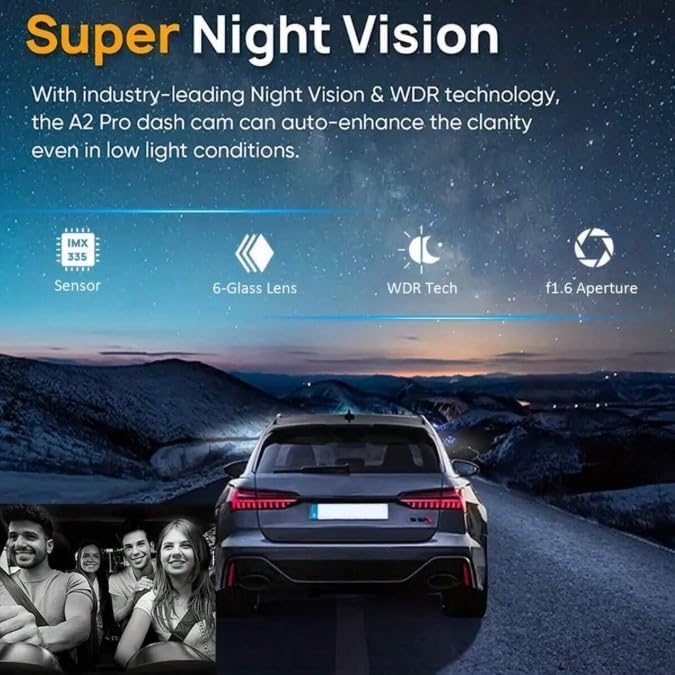
Image: The ZF16 Dashcam showing its main unit with front and cabin-facing lenses, a 3-inch display, and indicating 1080P dual lens capability.
4.2. Key Features
- High-Quality Video Recording: Captures 1080P Full HD video with a 200-megapixel camera for clear and detailed footage.
- Dual Camera System: Records simultaneously from front and rear cameras for comprehensive coverage.
- Wide Viewing Angle: Offers a 120°-150° view angle to minimize blind spots.
- 3-Inch Display: Provides convenient playback and easy menu navigation.
- Advanced Chipset: Powered by the General Plus chipset for smooth and reliable operation.
- Parking Mode: 24-hour surveillance, automatically recording motion when parked.
- G-Sensor: Locks video files upon impact to prevent overwriting.
- Loop Recording: Automatically overwrites oldest unlocked files to ensure continuous recording.
- Night Vision: Enhanced clarity in low light conditions.

Image: Visual representation of the dashcam's core features including motion detection, wide view angle, dual cameras, G-sensor, loop recording, and night vision.
5. Setup
5.1. Inserting the Memory Card
- Ensure the dashcam is powered off.
- Locate the microSD card slot on the side of the dashcam.
- Insert a Class 10 or higher microSD card (up to 32GB recommended) into the slot until it clicks into place.
- To remove, gently push the card in until it clicks, then release, and it will eject.
5.2. Mounting the Dashcam
- Clean the windshield area where you intend to mount the dashcam.
- Attach the mounting bracket to the dashcam.
- Peel off the protective film from the adhesive pad or suction cup of the mount.
- Firmly press the mount onto the windshield, ensuring it does not obstruct your view. Adjust the dashcam angle for optimal front road coverage.
5.3. Connecting Power
- Connect the small end of the car charger power cable to the dashcam's power input port.
- Plug the larger end of the car charger into your vehicle's 12V power outlet (cigarette lighter socket).
- Route the cable neatly along the windshield and dashboard to avoid interference with driving.
5.4. Installing the Rear Camera
- Connect the rear camera cable to the designated port on the main dashcam unit.
- Route the rear camera cable to the back of your vehicle.
- Mount the rear camera on the rear windshield or license plate area, ensuring a clear view.
- Adjust the angle of the rear camera for optimal coverage.
6. Operating Instructions
6.1. Power On/Off
- Automatic: The dashcam will automatically power on and begin recording when your vehicle's ignition is turned on (if connected to a switched power outlet).
- Manual: Press and hold the Power button for a few seconds to manually turn the device on or off.
6.2. Basic Recording
Once powered on, the dashcam will typically start recording automatically. A flashing indicator (e.g., red dot) on the screen usually indicates active recording.
6.3. Menu Navigation
Use the physical buttons on the dashcam to navigate through the menu options. Typically, there are buttons for Menu, Up, Down, and OK/Confirm. Refer to the on-screen prompts for specific functions.
6.4. Loop Recording
This feature ensures continuous recording by overwriting the oldest unlocked video files when the memory card is full. You can usually set the loop recording duration (e.g., 1, 3, or 5 minutes) in the settings menu.

Image: A visual explanation of loop recording, showing how the dashcam continuously records and overwrites older, unlocked video segments to manage memory space.
6.5. G-Sensor (Gravity Sensor)
The G-Sensor detects sudden impacts or collisions. When an event is detected, the current video file is automatically locked and saved to a protected folder, preventing it from being overwritten by loop recording.

Image: An illustration depicting two cars, with a lock icon indicating that the G-sensor function will lock the current video file if a shock or collision is detected, preventing it from being overwritten.
6.6. Parking Mode
When enabled, Parking Mode provides 24-hour surveillance. If motion or impact is detected while the vehicle is parked and the dashcam is powered (e.g., via a hardwire kit), it will automatically start recording for a short period to capture the event.
6.7. Night Vision
The dashcam is equipped with technology to enhance video clarity in low-light conditions, providing improved visibility during nighttime recording.

Image: A split image demonstrating the dashcam's night vision capabilities, showing clear views from both the front and cabin cameras in a low-light street environment.
6.8. Display Modes
The 3-inch screen allows you to switch between various display modes, such as front camera view only, rear camera view only, or picture-in-picture (front and rear simultaneously).

Image: A graphic illustrating five different screen display modes available on the dashcam, including front view, various front and rear split views, and rear view only.
6.9. Wide Viewing Angle
The dashcam features a wide-angle lens for the front camera (170°) and cabin camera (140°), designed to capture a broad field of view and reduce blind spots.

Image: A top-down diagram of a car illustrating the wide viewing angles of the dashcam, showing a 170-degree field of view for the front camera and a 140-degree field of view for the cabin camera.
6.10. Playback
To view recorded videos, stop recording (if active) and enter playback mode via the menu. You can then browse and play back files directly on the dashcam's screen.
7. Maintenance
- Cleaning the Lens and Screen: Use a soft, lint-free cloth to gently wipe the camera lenses and the display screen. Avoid abrasive materials or chemical cleaners.
- Memory Card Formatting: It is recommended to format the microSD card every 2-4 weeks to prevent data corruption and ensure optimal recording performance. This can usually be done through the dashcam's settings menu. Formatting will erase all data on the card, so back up important files first.
- Firmware Updates: Check the manufacturer's website periodically for any available firmware updates. Follow the instructions carefully if performing an update.
8. Troubleshooting
- Dashcam not powering on:
- Ensure the power cable is securely connected to both the dashcam and the car's power outlet.
- Check if the car's power outlet is functioning (e.g., by plugging in another device).
- Try a different power cable if available.
- Recording stops or freezes:
- Ensure you are using a high-speed (Class 10 or higher) microSD card.
- Format the microSD card through the dashcam's settings.
- The memory card may be full; enable loop recording or replace the card.
- Video quality is poor:
- Clean the camera lenses.
- Ensure the protective film has been removed from the lenses.
- Check video resolution settings in the menu.
- Rear camera not working:
- Ensure the rear camera cable is securely connected to both the main unit and the rear camera.
- Check for any damage to the cable.
- Dashcam gets hot during operation:
- It is normal for the dashcam to become warm during operation, especially in direct sunlight. If it becomes excessively hot or shuts down, ensure it has adequate ventilation.
9. Specifications
| Model Name | ZF16 |
| Brand | Generic |
| Video Capture Format | AVI |
| Photo Sensor Technology | CCD |
| Maximum Focal Length | 15 Millimeters |
| Minimum Focal Length | 15 Millimeters |
| Special Feature | 360 Degree Capture |
| Color | Black |
| Included Components | User Manual |
10. Warranty and Support
The Generic ZF16 Traffic Recorder Dashcam comes with a 6-month warranty from the date of purchase. This warranty covers manufacturing defects under normal use. It does not cover damage caused by misuse, accidents, unauthorized repairs, or improper installation.
For technical support, warranty claims, or further assistance, please contact your retailer or the point of purchase. Please have your purchase receipt and product model number (ZF16) ready when contacting support.

