
MOSSTALK XY-T02
MOSSTALK AI-Powered Portable Translator User Manual
Model: XY-T02
1. Introduction
The MOSSTALK AI-Powered Portable Translator is a compact and versatile device designed to facilitate seamless communication across language barriers. Utilizing advanced AI technology, it provides real-time, accurate translations for various scenarios, including face-to-face conversations, photo text, and even video/voice calls. Its portable design and multi-functional capabilities make it an ideal companion for travel, business, and everyday multilingual interactions.

Image: The MOSSTALK Portable Translator, a compact device, shown alongside a smartphone screen displaying its intuitive application interface, ready for translation tasks.
2. What's in the Box
Upon unboxing your MOSSTALK Portable Translator, please ensure all the following items are present:
- 1 x MOSSTALK Translator
- 1 x USB Charging Cable
- 1 x User Manual
3. Key Features
The MOSSTALK Translator offers a comprehensive suite of features designed for efficient and accurate translation:
Compact & Portable Design
The device is small, lightweight, and designed for easy portability. Its sleek, multi-functional design also allows it to serve as a convenient phone stand, enhancing its utility for travel or business.

Image: Demonstrates the MOSSTALK Translator's strong magnetic attachment to a phone and its compact size, easily fitting into a pocket for portability.
Instant 2-Way Translation (140+ Languages)
Powered by cutting-edge GPT AI technology, this translator provides fast and accurate voice translations in over 140 languages. Enjoy seamless communication with a simple touch, without manual setting changes.

Image: The MOSSTALK Translator is depicted centrally, encircled by flags representing numerous countries, illustrating its extensive language support for over 140 languages.
Instant Photo Translation with OCR
Effortlessly translate text from photos using advanced Optical Character Recognition (OCR) technology. Simply snap a picture of street signs, menus, or documents, and the translator provides instant translations.
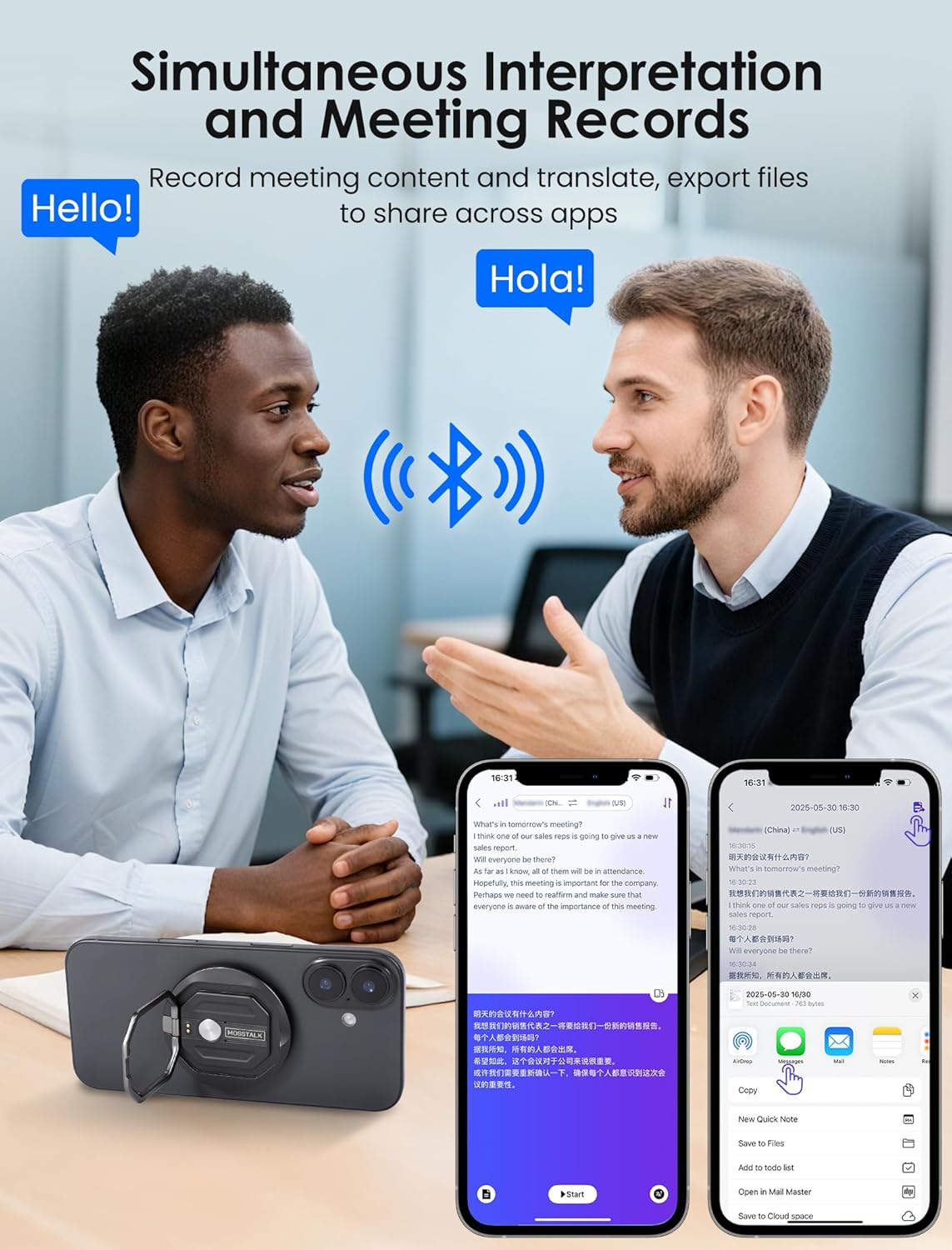
Image: A user demonstrates the photo translation feature by capturing images of a street sign, a restaurant menu, and a subway station sign, highlighting the device's ability to translate text from various real-world sources.
Offline Translation Support
Maintain connectivity even without internet access. The MOSSTALK Translator supports offline translations for 11 key languages (English, Spanish, French, German, Russian, Arabic, Japanese, Korean, Thai, Vietnamese, and Hindi). Pre-download of language packs is required.

Image: Illustrates the offline translation capability, showing individuals using the MOSSTALK translator on an airplane. Below the image, flags of the 11 supported offline languages are displayed.
Video & Voice Call Translation
Connect via Bluetooth to enable real-time translation during video or voice calls. This feature ensures smooth, bilingual communication for meetings, interviews, or personal conversations.

Image: Depicts a user engaged in a video call, with the MOSSTALK translator facilitating real-time translation, displaying translated subtitles directly on the smartphone screen.
Cross-App Translation
Easily translate conversations across popular messaging apps. MOSSTALK simplifies multilingual communication whether you're chatting with friends, family, or colleagues.
Image: The MOSSTALK translator is shown held in a hand, with numerous icons of popular messaging and social media applications floating around it, symbolizing its ability to translate conversations across different apps.
Simultaneous Interpretation and Meeting Records
Record meeting content and translate it in real-time. Files can be exported and shared across various applications, ensuring comprehensive documentation of multilingual discussions.

Image: Two individuals are shown in conversation, with the MOSSTALK translator actively providing simultaneous interpretation, displaying the translated dialogue on a connected smartphone screen.
4. Setup Guide
Follow these steps to connect your MOSSTALK AI Translation Device to your phone:
- Download the "MOSSTALK Pro" App: Search for "MOSSTALK Pro" in your phone's app store (e.g., Apple App Store or Google Play Store) and download the application.
- Enable Bluetooth: On your smartphone, navigate to your Bluetooth settings and ensure Bluetooth is turned on.
- Pair the Device: Press the main button on your MOSSTALK translator. Your phone should detect the device. Select it from the list of available Bluetooth devices to pair.
- Open the App and Start: Once paired, open the "MOSSTALK Pro" app and tap on the "Start Now" or "Connect" button within the application to begin using your translator.

Image: A visual guide illustrating the four key steps to connect the MOSSTALK AI Translation Device to a smartphone: downloading the app, enabling Bluetooth, pressing the device button for pairing, and initiating translation within the app.
5. Operating Instructions
The MOSSTALK Translator supports various translation modes. Ensure your device is connected via Bluetooth to the "MOSSTALK Pro" app before proceeding.
5.1. 2-Way Conversation Translation
For real-time, face-to-face communication:
- Open the "MOSSTALK Pro" app and select the "Conversation" mode.
- Choose the source and target languages for translation.
- Press and hold the button on the MOSSTALK translator when you speak. Release the button when you finish speaking. The app will instantly translate and broadcast the speech in the target language.
- The other person can then speak, and their words will be translated back to your language.

Image: Illustrates two individuals engaging in a conversation, with speech bubbles indicating different languages. A smartphone screen displays the real-time translated dialogue, demonstrating the 2-way conversation translation feature.
5.2. Photo Translation (OCR)
To translate text from images:
- In the "MOSSTALK Pro" app, select the "Camera" or "Photo Translation" option.
- Point your phone's camera at the text you wish to translate (e.g., a sign, menu, or document).
- Tap the capture button. The app will use OCR to recognize the text and provide an instant translation.
Image: A user demonstrates the photo translation feature by capturing images of a street sign, a restaurant menu, and a subway station sign, highlighting the device's ability to translate text from various real-world sources.
5.3. Offline Translation
For translation without an internet connection:
- Before going offline, ensure you have downloaded the necessary language packs within the "MOSSTALK Pro" app. Navigate to "Settings" or "Offline Mode" to manage downloads.
- Once downloaded, the app will automatically switch to offline mode when no internet connection is available for the supported languages.
- Proceed with 2-way conversation translation as usual.
Image: Illustrates the offline translation capability, showing individuals using the MOSSTALK translator on an airplane. Below the image, flags of the 11 supported offline languages are displayed.
5.4. Video & Voice Call Translation
To translate during calls:
- Ensure your MOSSTALK translator is connected to your phone via Bluetooth.
- Initiate a video or voice call through your preferred communication app.
- Within the "MOSSTALK Pro" app, activate the "Video/Voice Call Translation" feature. The app will then provide real-time translated subtitles or audio during the call.
Image: Depicts a user engaged in a video call, with the MOSSTALK translator facilitating real-time translation, displaying translated subtitles directly on the smartphone screen.
5.5. Cross-App Translation
To translate text within other messaging applications:
- Open the "MOSSTALK Pro" app and select the languages for translation.
- Enable the "Cross-App Translation" option within the app's settings.
- A floating window or overlay will appear. When you receive or type messages in other apps (e.g., WhatsApp, WeChat, Skype), the MOSSTALK app will provide bilingual subtitles or translated text.
- You may need to grant necessary permissions for overlay or accessibility services to the "MOSSTALK Pro" app in your phone's settings.

Image: A step-by-step visual guide demonstrating how to use the cross-app translation feature, from selecting languages and enabling the option to allowing text pasting and viewing translated conversations in messaging applications.
5.6. Simultaneous Interpretation and Recording
For meetings or lectures requiring real-time interpretation and record-keeping:
- In the "MOSSTALK Pro" app, select the "Simultaneous Interpretation" or "Meeting Record" mode.
- Start the recording. The device will capture audio and provide real-time translation.
- After the session, you can stop the recording and export the translated text or audio files for review or sharing across other applications.
Image: Two individuals are shown in conversation, with the MOSSTALK translator actively providing simultaneous interpretation, displaying the translated dialogue on a connected smartphone screen.
6. Maintenance
To ensure the longevity and optimal performance of your MOSSTALK Portable Translator, please follow these maintenance guidelines:
- Cleaning: Use a soft, dry, lint-free cloth to clean the device. Do not use abrasive cleaners, solvents, or strong chemicals, as these can damage the surface.
- Storage: Store the translator in a cool, dry place away from direct sunlight and extreme temperatures.
- Battery Care: To preserve battery life, avoid fully discharging the device frequently. Charge it regularly, even if not in use for extended periods. Use only the provided USB charging cable.
- Avoid Water: The device is not waterproof. Keep it away from water, moisture, and high humidity.
- Handle with Care: Avoid dropping the device or subjecting it to strong impacts, which can damage internal components.
7. Troubleshooting
If you encounter issues with your MOSSTALK Portable Translator, refer to the following common problems and solutions:
| Problem | Possible Solution |
|---|---|
| Device not turning on. | Ensure the device is fully charged. Connect it to a power source using the provided USB cable. |
| Cannot connect to phone via Bluetooth. |
|
| Translation is inaccurate or slow. |
|
| Offline translation not working. | Verify that the required language packs have been successfully downloaded within the app. Ensure you are using one of the 11 supported offline languages. |
| Cross-App translation not appearing. |
|
If the problem persists, please contact customer support for further assistance.
8. Specifications
| Attribute | Detail |
|---|---|
| Model Number | XY-T02 |
| Brand | MOSSTALK |
| Package Dimensions | 4.5 x 4.5 x 1.8 inches |
| Item Weight | 5.1 ounces |
| Supported Online Languages | Over 140 languages |
| Supported Offline Languages | 11 (English, Spanish, French, German, Russian, Arabic, Japanese, Korean, Thai, Vietnamese, Hindi) |
| Connectivity | Bluetooth |
| Manufacturer | MOSSTALK |
| Country of Origin | China |
9. Warranty and Support
MOSSTALK products are designed for reliability and performance. For information regarding your product's warranty, please refer to the warranty card included in your product packaging or visit the official MOSSTALK website.
For technical support, troubleshooting assistance, or any inquiries not covered in this manual, please contact MOSSTALK customer service through the contact information provided on our official website or within the "MOSSTALK Pro" application.
Official Website: www.mosstalk.com (Example link, please refer to actual product documentation for correct URL)
Ask a question about this manual
Ask about setup, troubleshooting, compatibility, parts, safety, or missing instructions. Manuals+ will review the question and use this page’s manual context to help answer it.