
1. Introduction
This manual provides detailed instructions for the installation, operation, and maintenance of your CAMECHO 7-Inch Double DIN Car Stereo. Please read this manual thoroughly before using the product to ensure proper function and safety. Keep this manual for future reference.

Image 1.1: CAMECHO 7-Inch Double DIN Car Stereo with included microphone, reversing camera, and connectivity modules.
2. Setup and Installation
2.1 Package Contents
Verify that all items are present in the package:
- CAMECHO 7-Inch Double DIN Car Stereo Unit
- Power Cable
- Horn Cable
- User Manual (this document)
- External Microphone
- Rear View Camera

Image 2.1: Visual representation of the items included in the product package.
2.2 Wiring Diagram
Refer to the following diagram for correct wiring connections. Incorrect wiring can damage the unit or your vehicle's electrical system. If you are unsure, consult a professional installer.

Image 2.2: Comprehensive wiring diagram illustrating connections for power, audio outputs, camera input, and other peripheral connections.
2.3 Physical Dimensions
Ensure your vehicle's dashboard opening is compatible with the stereo's dimensions before installation.

Image 2.3: Dimensions of the car stereo unit, including screen size and chassis measurements.
3. Operating Instructions
3.1 Touchscreen Interface
The unit features a 7-inch IPS touchscreen for intuitive control. Navigate through menus and select functions by touching the corresponding icons.

Image 3.1: The 7-inch IPS touchscreen display, highlighting its clarity and touch responsiveness.
3.2 Wireless CarPlay and Android Auto
Connect your smartphone wirelessly to access CarPlay or Android Auto features. This allows for navigation, music playback, calls, and messaging directly from the stereo display.
- Ensure Bluetooth and Wi-Fi are enabled on your smartphone.
- On the car stereo, select the 'CarPlay' or 'Android Auto' icon.
- Follow the on-screen prompts to pair your device.
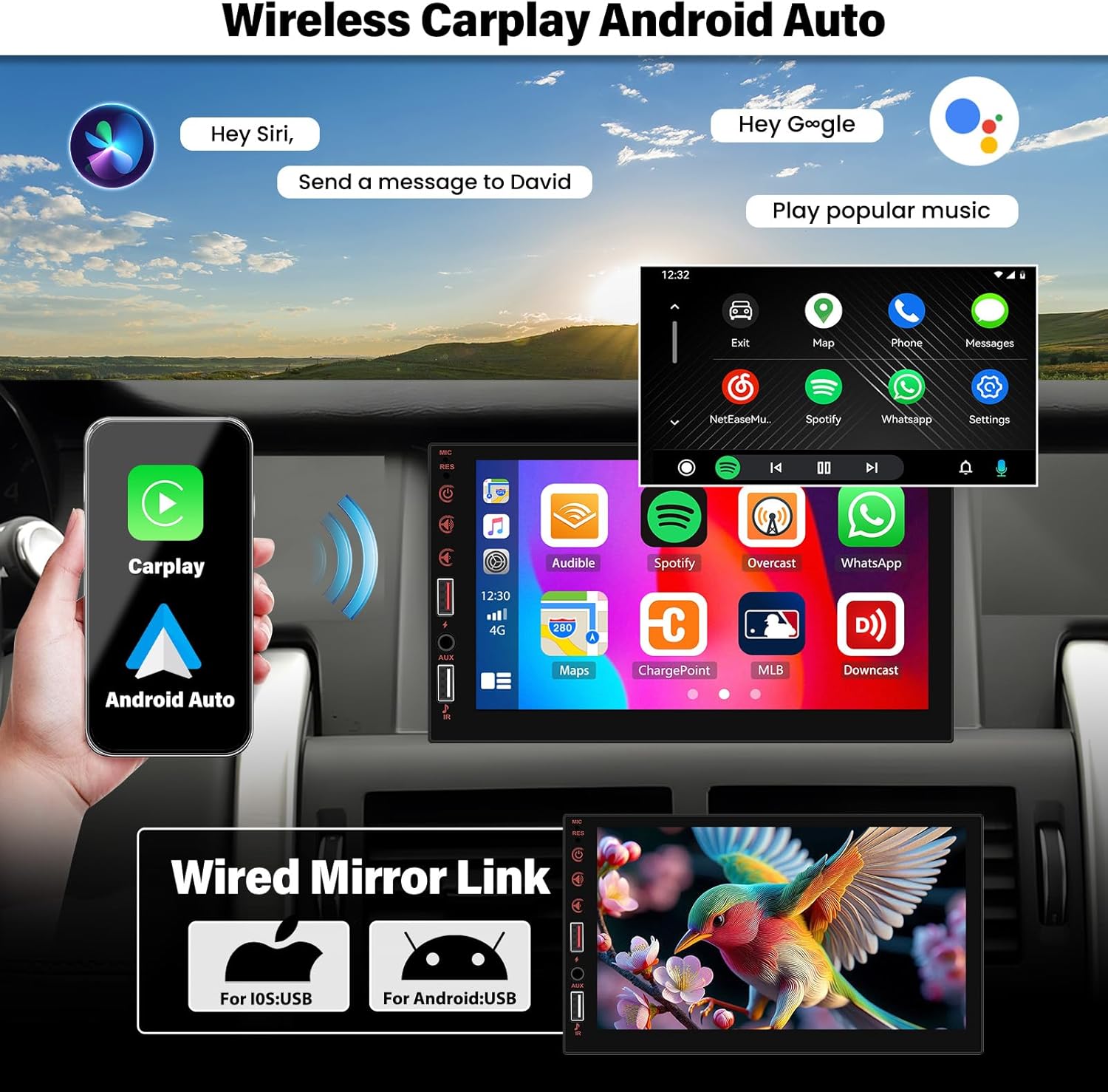
Image 3.2: Display showing the integration of Wireless CarPlay and Android Auto, enabling access to phone applications.
3.3 MirrorLink Function
MirrorLink allows you to display your smartphone's screen directly onto the car stereo. Connect your phone via a USB cable.
- Connect your smartphone to the stereo's USB port.
- Select the 'MirrorLink' option on the stereo.
- Follow any prompts on your phone to allow screen mirroring.
3.4 Bluetooth Connectivity
Pair your phone via Bluetooth for hands-free calling and audio streaming.
- On the stereo, go to the Bluetooth menu.
- Enable Bluetooth on your smartphone and search for available devices.
- Select the stereo's Bluetooth name (e.g., 'CAMECHO CAR') from your phone's list and confirm pairing.

Image 3.3: Bluetooth interface demonstrating hands-free call functionality.
3.5 FM Radio Operation
Access FM radio stations with digital stereo quality.
- Select the 'FM Radio' icon.
- Use the scan function to automatically search and save stations.
- Manually tune or select from preset stations.

Image 3.4: FM Radio interface displaying frequency selection and preset options.
3.6 Audio Equalizer (EQ) Settings
Customize your audio experience using the built-in multi-band EQ.
- Access the 'EQ' settings from the main menu or audio playback screen.
- Adjust frequency bands or select from preset sound modes (e.g., Pop, Rock, Jazz).

Image 3.5: Equalizer settings screen, allowing for fine-tuning of audio output.
3.7 USB and AUX Playback
Connect USB devices for media playback or use the AUX input for external audio sources.
- Insert a USB drive into the designated USB port for music or video files.
- Connect an external audio device to the AUX input using a 3.5mm audio cable.

Image 3.6: Display illustrating various playback sources such as USB, AUX, and phone charging capabilities.
3.8 Rear View Camera
The stereo automatically displays the rear view when the vehicle is in reverse gear, enhancing parking safety.
- Ensure the rear view camera is correctly installed and wired.
- The display will automatically switch to the camera feed when reverse gear is engaged.

Image 3.7: Rear view camera display with parking assistance lines.
3.9 Steering Wheel Control (SWC)
If your vehicle supports it, connect the SWC wires to integrate your steering wheel buttons with the stereo for convenient control.
- Access the SWC settings in the stereo's menu.
- Follow the on-screen instructions to map your steering wheel buttons to specific stereo functions.

Image 3.8: Steering Wheel Control (SWC) setup screen, allowing users to program steering wheel buttons.
4. Maintenance
To ensure the longevity and optimal performance of your car stereo, follow these maintenance guidelines:
- Cleaning the Screen: Use a soft, lint-free cloth to gently wipe the touchscreen. For stubborn smudges, slightly dampen the cloth with water or a screen-safe cleaner. Avoid abrasive materials or harsh chemicals.
- General Cleaning: Keep the unit free from dust and debris. Use a soft brush or compressed air to clean vents and button areas.
- Temperature: Avoid exposing the unit to extreme temperatures, both hot and cold, for extended periods.
- Firmware Updates: Periodically check the manufacturer's website for any available firmware updates to improve performance and add new features.
5. Troubleshooting
If you encounter issues with your car stereo, refer to the following common problems and solutions:
| Problem | Possible Cause | Solution |
|---|---|---|
| No power | Incorrect wiring; Blown fuse; Vehicle battery issue | Check power and ground connections; Inspect vehicle fuses; Verify car battery health |
| No sound | Speaker wires disconnected; Volume too low; Mute function active | Check speaker wiring; Increase volume; Disable mute |
| Bluetooth not connecting | Bluetooth not enabled on phone/stereo; Incorrect pairing process | Ensure Bluetooth is on for both devices; Re-attempt pairing process; Forget device and re-pair |
| CarPlay/Android Auto not working | Incorrect connection (wired/wireless); Phone software issue; App not installed | Verify correct USB cable for wired connection; Ensure Wi-Fi/Bluetooth for wireless; Restart phone and stereo; Install necessary apps on phone |
| Rear camera not displaying | Camera wiring issue; Reverse trigger wire not connected | Check camera power and video signal cables; Ensure reverse trigger wire is connected to vehicle's reverse light circuit |
If the problem persists after attempting these solutions, please contact customer support.
6. Specifications
Key technical specifications for the CAMECHO 7-Inch Double DIN Car Stereo:
- Brand: CAMECHO
- Connectivity Technology: Bluetooth
- Controller Type: Hand Control (via touchscreen and physical buttons)
- Special Features: Apple CarPlay, Android Auto, MirrorLink, FM Radio, EQ, USB, AUX, SWC, Reversing Camera Support
- Compatible Devices: Smartphone
- Item Weight: 0.79 Kilograms
- Number of Channels: 7 (referring to audio processing capabilities)
- Manufacturer: CAMECHO
- Display: 7-inch IPS Touchscreen (1024 x 600 resolution)
7. Support and Warranty
For technical assistance or warranty inquiries, please contact CAMECHO customer support.
- Technical Support Email: CAMECHOVIP@126.com
- After-sales Email: CAMECHOVIP@126.com
Please retain your proof of purchase for warranty claims. Warranty terms and conditions may vary by region and retailer.