
1. Introduction
This manual provides detailed instructions for setting up, operating, and maintaining your Canupdog 15.6 Inch Digital Calendar Wall Planner. This innovative smart family calendar combines the functionalities of a digital calendar and planner with the added benefit of a digital picture frame. It features a monthly, daily, and weekly view and includes chores and to-do lists. The intuitive touchscreen interface simplifies scheduling and viewing of each family member’s tasks and plans, facilitating easy organization and management of daily activities.
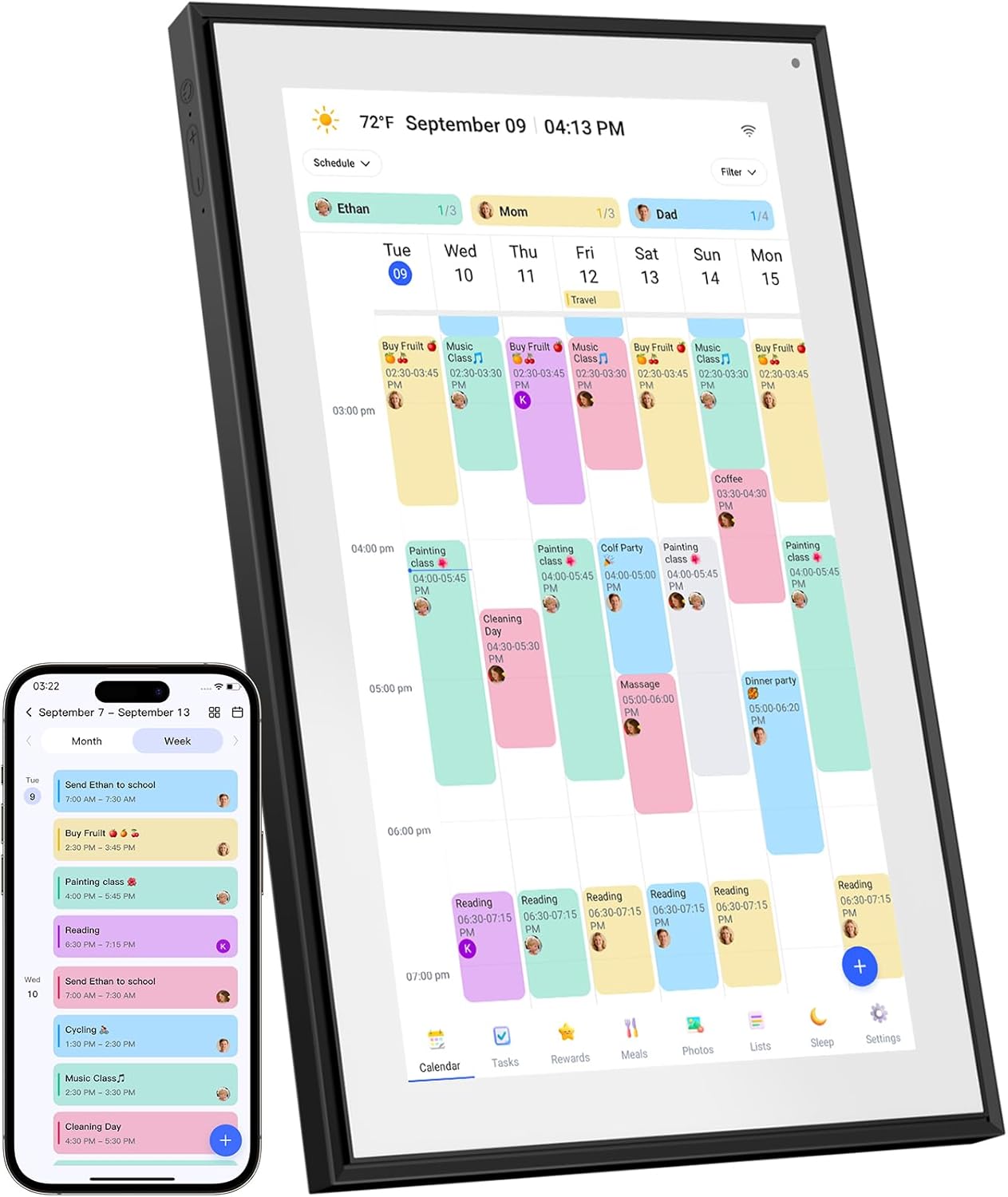
Figure 1: Canupdog 15.6 Inch Digital Calendar Wall Planner and companion mobile application.
Video 1: Overview of the Canupdog 15.6 Inch Digital Calendar Wall Planner, demonstrating its features and benefits for family organization.
2. Package Contents
Ensure all items are present in the package:
- Canupdog 15.6 Inch Digital Calendar Unit
- Power Adapter
- Desk Stand
- Wall Mount Hardware
- User Manual
- Warranty Card
3. Setup
3.1 Initial Power-On
- Plug the power adapter into the device and a power outlet.
- The device will power on automatically.
- Follow the on-screen prompts to select your preferred language.
- Connect the device to your Wi-Fi network.
3.2 Account Registration & Calendar Synchronization
- Download the companion mobile application to your smartphone.
- Register for an account within the app.
- On the digital calendar, choose your time zone and city.
- Enter the 6-digit activation code displayed on the calendar screen into the mobile app to link your device.
- Sync your existing calendars (iCloud Calendar, Google Calendar, Outlook Calendar, Cozi, Yahoo) through the mobile app. Events will automatically populate and sync across all platforms.

Figure 2: The digital calendar supports both tabletop and wall-mounted installations for flexible placement.
3.3 Mounting Options
The Canupdog Digital Calendar offers versatile placement options:
- Desk Stand: Use the included stand to place the calendar on any flat surface, such as a kitchen counter or desk.
- Wall Mount: Utilize the provided wall mount hardware to securely attach the calendar to a wall. The power cord is designed to exit from the side, allowing for a flush wall mount.
4. Operating Instructions
4.1 Interface Navigation
The device features a responsive HD touchscreen for easy interaction.
- Touch & Swipe: Navigate through menus and calendar views by touching and swiping on the screen.
- Orientation: The display automatically adjusts between vertical and horizontal orientations based on how the device is positioned.
4.2 Calendar Views
Access different views of your schedule:
- Day View: Displays events and tasks for the current day.
- Week View: Shows a comprehensive overview of the current week's schedule.
- Month View: Provides a traditional monthly calendar layout.

Figure 3: The digital calendar combines multiple features into one shared page for the whole family.
4.3 Event Management
Add and manage events directly on the device or via the mobile app:
- Tap the '+' button on the calendar screen or in the mobile app.
- Enter event details such as title, date, time, and participants.
- Save the event. It will automatically sync across linked calendars.
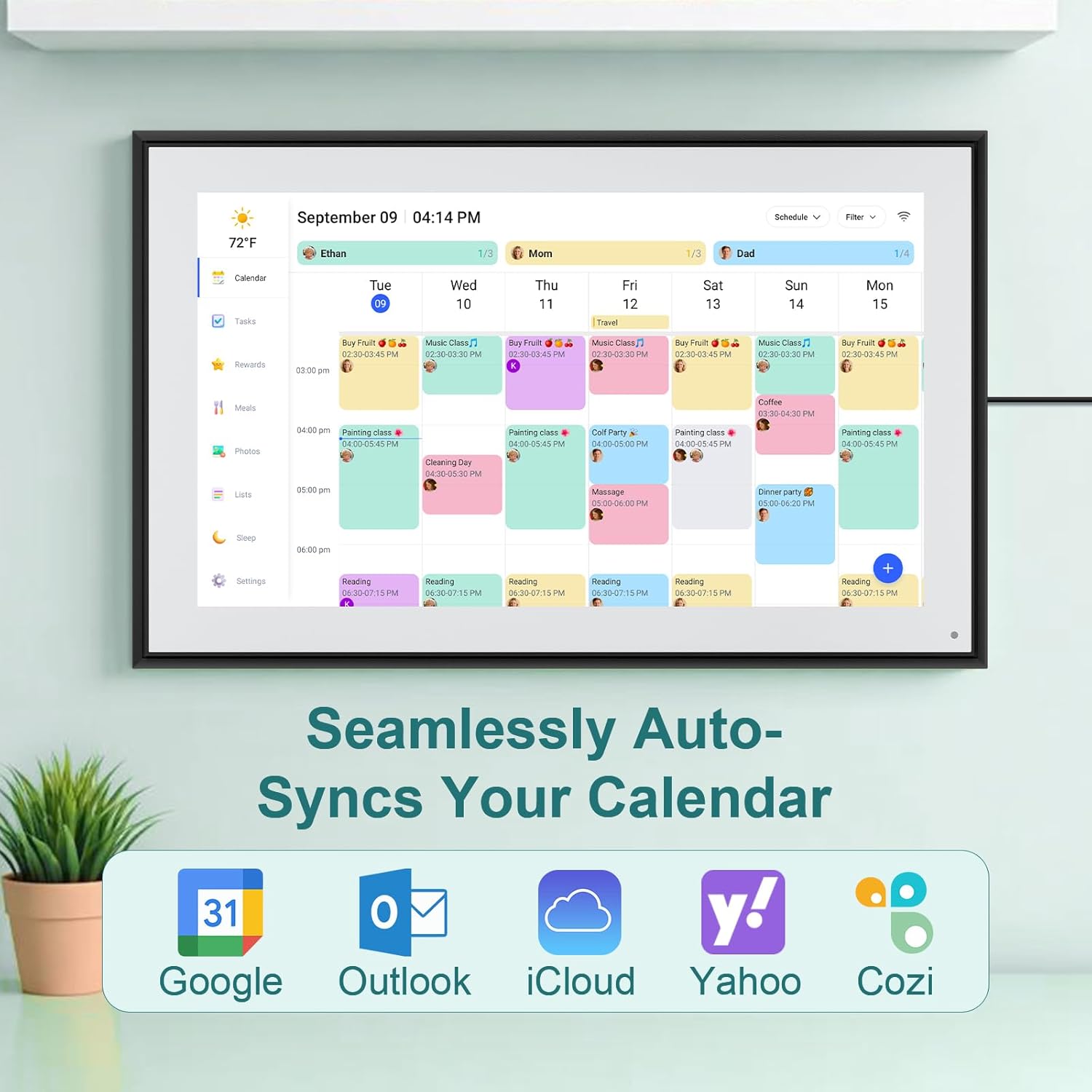
Figure 4: The calendar seamlessly auto-syncs with popular services like Google, Outlook, iCloud, Yahoo, and Cozi.
4.4 Task & Chore Chart
Organize daily tasks and chores for family members:
- Navigate to the 'Chores' section.
- Tap the '+' button to add a new chore.
- Name the chore and assign it to specific family members.
- Set up rewards for completed tasks to motivate participation.

Figure 5: The chore chart feature helps turn daily tasks into interactive moments for the family.
4.5 Meal Planning
Plan your family's meals for the week:
- Go to the 'Meals' section.
- Add breakfast, lunch, dinner, and snack plans for each day.
- Utilize existing recipes or add new ones to your recipe box.
4.6 Photo & Video Display
Use the device as a digital picture frame to share memories:
- Navigate to the 'Photos' section.
- Upload photos and videos from your phone via the mobile app.
- The device can display a slideshow of your media.

Figure 6: The digital calendar doubles as a digital picture frame with 32GB storage for photos and videos.
4.7 Lists
Create and manage various lists:
- Access the 'Lists' feature.
- Create new lists, such as grocery lists or to-do lists.
- Add and check off items as needed.
4.8 Weather Display
View current weather conditions and forecasts:
- The calendar displays the current temperature and weather icon.
- You can configure the location for weather updates in the settings.
4.9 Sleep Mode & Brightness
Customize display settings for comfort and energy saving:
- Sleep Mode: Schedule specific hours for the device to automatically turn off or dim.
- Brightness: Adjust screen brightness manually or set it to auto-brightness for optimal viewing.
4.10 Notifications
Receive timely alerts for events and tasks:
- The device provides visual and audible notifications for upcoming events and due tasks.
- Notification settings can be customized via the mobile app.
Video 2: A full demonstration of the digital calendar's features, including app integration and various functionalities.
5. Maintenance
To ensure the longevity and optimal performance of your Canupdog Digital Calendar, follow these maintenance guidelines:
- Cleaning: Gently wipe the screen and frame with a soft, dry, lint-free cloth. Avoid using abrasive cleaners or solvents.
- Placement: Place the device in a location away from direct sunlight, excessive heat, or moisture to prevent damage.
- Software Updates: Ensure the device's software is kept up-to-date for new features and performance improvements. Updates are typically managed through the mobile app.
6. Troubleshooting
Refer to the following common issues and solutions:
- How to synchronize the calendar?
1. Open 'Sync' in the home screen.
2. Select 'Sync a New Calendar'. - How to edit Chores?
1. Press the '+' button in the bottom right of the 'Chores' screen to add a chore.
2. Name the chore and assign it to as many members of the family as you would like. This will create a separate chore for each member.
3. Press 'Save' and your chores will be created. - How to register an account and log in?
1. Turn on your eCalendar, select language, connect to Wi-Fi.
2. Choose the time zone and city, then enter your 6-digit activation code to get started.
7. Specifications
| Feature | Detail |
|---|---|
| Brand | Canupdog |
| Model Number | Black-15.6 |
| Screen Size | 15.6 Inches |
| Display Type | IPS HD Touch Screen (1980*1080 Resolution) |
| Storage | 32GB |
| Connectivity | Wi-Fi |
| Mounting Type | Wall Mount, Desk Mount |
| Product Dimensions | 9 x 9 x 8 inches |
| Item Weight | 6.73 pounds |
| UPC | 739719506809 |
8. Warranty and Support
Canupdog stands behind the quality of its products. Each WiFi digital picture frame undergoes a 200-hour machine aging test before delivery.
- Warranty: The product comes with a 1-year warranty.
- Customer Support: Lifetime support and 24-hour online service are available to assist with any needs.