
1. Introduction
This manual provides essential instructions for the safe and efficient operation of your LUCKDANO Thermal Receipt Printer, model LUCKDANO2n3dfxktv8-11. This high-speed 80mm POS printer is designed for various commercial environments, including restaurants, retail stores, supermarkets, and more. It features direct line thermal printing, an auto-cutter, and supports both Ethernet and USB connectivity.
2. Product Overview
The LUCKDANO Thermal Receipt Printer is a compact and efficient solution for your point-of-sale needs. Its design emphasizes ease of use and reliability.
2.1 Key Features
- Direct Line Thermal Printing: Eliminates the need for ink cartridges or ribbons, reducing operational costs.
- High Speed Printing: Achieves speeds up to 160mm/s for efficient transaction processing.
- Automatic Cutter: Ensures clean and precise receipt cuts.
- Versatile Connectivity: Equipped with Ethernet and USB ports for flexible integration.
- Cash Drawer Support: Includes a port for connecting a cash drawer.
- Compact Design: Space-saving form factor with wall-mounting options.
- Easy Paper Loading: Features a one-button lid opening and a large paper compartment.
2.2 Printer Components
Familiarize yourself with the main parts of your printer:

Figure 2.1: Front view of the LUCKDANO Thermal Receipt Printer. This image shows the compact, black printer unit with the receipt output slot visible at the top.

Figure 2.2: Side view of the printer, highlighting the power switch and the "Online" and "Error" indicator lights on the front panel.

Figure 2.3: A close-up view of the "Online" and "Error" indicator lights, along with the feed button.

Figure 2.4: A detailed view of the printer's power switch, located on the side of the unit.
3. Setup
Follow these steps to set up your thermal receipt printer for first-time use.
3.1 Unpacking and Initial Inspection
- Carefully remove the printer and all accessories from the packaging.
- Verify that all components listed in the package contents are present:
- 1 x Thermal Printer
- 1 x Supply Cord (US Plug)
- 1 x Adapter
- 1 x Ethernet Cable
- 1 Roll Printing Paper
- 1 x User Manual (this document)
- 1 x Printer Bearing
- Inspect the printer for any visible damage. If damage is found, do not proceed with setup and contact customer support.

Figure 3.1: The thermal printer shown alongside its included accessories, such as power adapter, cables, and a paper roll.
3.2 Connecting Power
- Ensure the printer's power switch is in the OFF (O) position.
- Connect the power adapter to the printer's power input port.
- Plug the supply cord into the power adapter.
- Insert the supply cord's plug into a standard electrical outlet.
3.3 Loading Thermal Paper
- Press the lid opening button (often located on the side or front) to open the printer's top cover.
- Insert the thermal paper roll into the paper compartment, ensuring the paper feeds from the bottom of the roll and the thermal side (usually smoother) faces the print head.
- Pull a small amount of paper out past the cutter.
- Close the top cover firmly until it clicks into place. The printer will automatically align the paper.

Figure 3.2: The printer with its top cover open, revealing the paper roll compartment and the print head mechanism, ready for paper loading.
3.4 Connecting to a Host Device
The printer supports both USB and Ethernet connections.
USB Connection:
- Connect one end of a USB cable (not explicitly listed but standard for USB printers) to the printer's USB port.
- Connect the other end to an available USB port on your computer or POS system.
Ethernet Connection:
- Connect one end of the provided Ethernet cable to the printer's Ethernet port.
- Connect the other end to your network router or switch.
Cash Drawer Connection:
- Connect the cash drawer cable (RJ11/RJ12, not included) to the dedicated cash drawer port on the printer. The printer will trigger the cash drawer upon receipt printing.
3.5 Driver Installation
For the printer to communicate with your computer or POS system, you will need to install the appropriate drivers. Drivers are typically provided on a CD or available for download from the manufacturer's website. The printer is compatible with Windows XP, 7, 8, and 10 operating systems.
- Insert the driver CD into your computer's optical drive, or download the latest drivers from the LUCKDANO support website.
- Follow the on-screen instructions to complete the driver installation.
- After installation, configure the printer settings in your operating system or POS software.
4. Operating Instructions
This section details the basic operation of your LUCKDANO Thermal Receipt Printer.
4.1 Powering On/Off
- To Power On: Flip the power switch (refer to Figure 2.2 and 2.4) to the ON (I) position. The "Online" indicator light should illuminate.
- To Power Off: Flip the power switch to the OFF (O) position.
4.2 Indicator Lights
The printer features two indicator lights:
- Online Indicator: Lit when the printer is powered on and ready to receive data.
- Error Indicator: Lit or flashing to indicate a printer error (e.g., out of paper, cover open). Refer to the Troubleshooting section for details.
4.3 Printing a Receipt
- Ensure the printer is powered on and the "Online" indicator is lit.
- Send a print command from your POS software or application.
- The printer will automatically print the receipt and use its auto-cutter to separate it.

Figure 4.1: The thermal printer in operation, with a receipt emerging from the output slot after a print job.
4.4 Manual Paper Feed
Press the FEED button (often labeled with a paper icon, see Figure 2.3) to manually advance the paper. This can be useful for testing or adjusting paper alignment.
5. Maintenance
Proper maintenance ensures the longevity and optimal performance of your printer.
5.1 Replacing Thermal Paper
When the paper roll is nearing its end, or the "Error" indicator signals an "Out of Paper" condition, replace the paper as described in Section 3.3.
5.2 Cleaning the Printer
Regular cleaning helps maintain print quality and prevents malfunctions.
- Power Off: Ensure the printer is powered off and unplugged before cleaning.
- Exterior Cleaning: Wipe the exterior of the printer with a soft, damp cloth. Do not use abrasive cleaners or solvents.
- Print Head Cleaning:
- Open the printer cover.
- Gently wipe the thermal print head (the dark strip inside the cover) with an alcohol swab or a soft cloth lightly dampened with isopropyl alcohol. Allow it to dry completely before closing the cover and powering on.
- Platen Roller Cleaning: Clean the rubber platen roller (the roller that feeds the paper) with an alcohol swab to remove paper dust or residue.
Caution: Avoid touching the print head directly with bare hands as oils can affect print quality. Do not use sharp objects to clean any part of the printer.
6. Troubleshooting
This section provides solutions to common issues you might encounter with your printer.
| Problem | Possible Cause | Solution |
|---|---|---|
| Printer does not power on. | No power, loose connection. | Check power cord and adapter connections. Ensure the power outlet is functional. |
| "Error" indicator is lit/flashing. | Out of paper, cover open, print head overheat. |
|
| No printing or faint printing. | Incorrect paper loading, dirty print head, driver issue. |
|
| Paper jam. | Improper paper loading, foreign object. |
|
| Printer not recognized by computer. | Loose cable, incorrect driver, wrong port. |
|
7. Specifications
Detailed technical specifications for the LUCKDANO Thermal Receipt Printer.
| Feature | Detail |
|---|---|
| Print Method | Direct Line Thermal Printing |
| Printing Speed | Up to 160mm/s |
| Dots per Line | 576 Dots per Line |
| Paper Width | Approx. 80mm / 3.1in |
| Printing Width | Approx. 72mm / 2.8in |
| Maximum Paper Roll Diameter | Approx. 80mm / 3.1in |
| Paper Cutting | Auto Cut, Semi Auto Cut |
| Interface | Ethernet Port, USB |
| Compatible System | For Windows XP, 7, 8, 10 |
| Size (L x W x H) | Approx. 167 x 129 x 120mm / 6.6 x 5.1 x 4.7in |
| Item Weight | Approx. 2.95 pounds |
| Model Number | LUCKDANO2n3dfxktv8-11 |
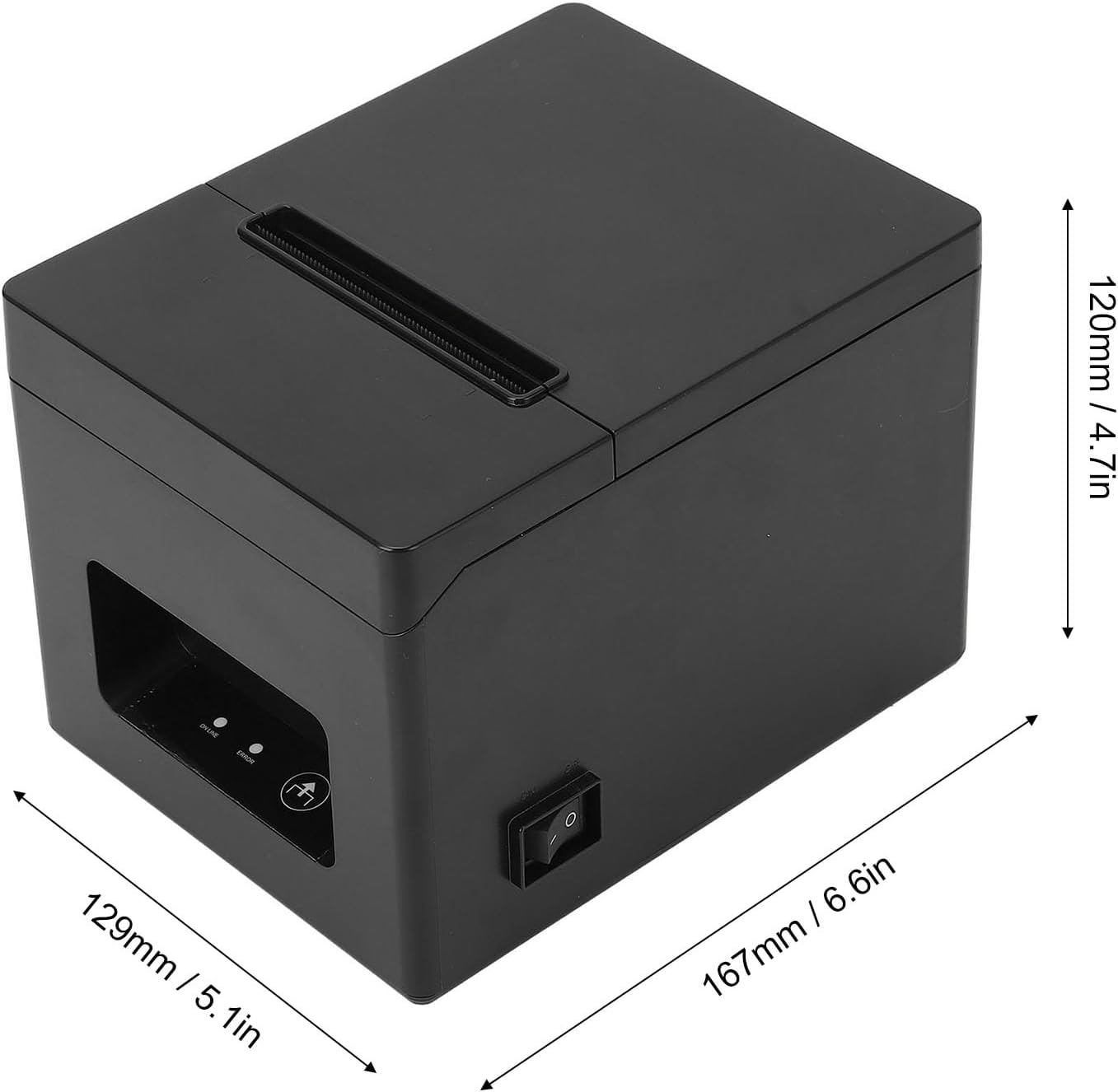
Figure 7.1: Diagram illustrating the dimensions of the thermal printer: 167mm (6.6in) length, 129mm (5.1in) width, and 120mm (4.7in) height.
8. Warranty and Support
For warranty information, technical support, or service inquiries, please contact LUCKDANO customer service through their official website or the retailer from whom you purchased the product. Please have your model number (LUCKDANO2n3dfxktv8-11) and purchase date available when contacting support.