
Introduction
This manual provides detailed instructions for the installation, operation, maintenance, and troubleshooting of your VIVOHOME 84-inch 16:9 Motorized Projector Screen. Please read this manual thoroughly before use to ensure proper function and longevity of the product.

Image: The VIVOHOME 84-inch motorized projector screen, showcasing its main components including the screen, wireless remote, and wired control panel.
Product Features
- Optimal Dimensions: Total screen measures approximately 81.9 x 51.2 inches (W x H). The white display area is approximately 73.2 x 41.1 inches (W x H) with a 16:9 aspect ratio.
- Effortless Control: Features a wireless remote control with an operating range of up to 82 ft (25 m) and a wall-mounted panel for fixed control. The integrated motor ensures smooth operation with noise levels below 40 dB.
- Premium Visuals: Constructed with matte-coated tri-layer composite fabric to minimize ambient light interference. The precision-embossed surface enhances color uniformity and sharpness, supporting true-to-life 4K, 1080P, and 3D visuals.
- Wrinkle-Resistant: A specialized treatment ensures the screen remains flawlessly smooth even after repeated rolling and retraction.
- Light Bleed Elimination: Reinforced black PVC backing effectively prevents light from bleeding through the screen.
- Enhanced Durability: Built with a thickened all-steel casing for strength and stability. Upgraded wing screws secure end caps, and reinforced motor brackets provide additional support.
- Easy Maintenance: Features scratch-resistant materials and a wipe-clean surface for long-lasting performance.

Image: Visual quality features of the screen, highlighting sharp detail, rich color, a 160-degree wide viewing angle, and anti-glare properties for an immersive viewing experience.

Image: A close-up view of the screen material, emphasizing its wrinkle-free and wipe-clean surface, designed for smooth projection and easy maintenance.
Package Contents
Verify that all components are present before beginning installation:
- VIVOHOME 84-Inch Motorized Projector Screen
- Wireless Remote Control
- Wired Wall-Mounted Control Panel
- Plastic/Metal Expansion Screws for mounting
- Power Cable
Setup
1. Unpacking and Inspection
- Carefully remove the projector screen from its dual-box packaging. The packaging includes shock-absorbent foam for protection during shipping.
- Inspect the screen and all accessories for any signs of damage. If any damage is found, contact customer support immediately.
- Allow the screen to air out in a well-ventilated area for a few days if a slight odor is noticeable upon opening. This is normal and will dissipate.
2. Mounting Options
The screen can be mounted horizontally or vertically on walls or ceilings. Ensure the mounting surface is sturdy enough to support the screen's weight (approximately 15.4 pounds).
- Wall Mount: Use the included plastic/metal expansion screws to securely attach the screen housing to a wall.
- Ceiling Mount: Use the included plastic/metal expansion screws to securely attach the screen housing to the ceiling. Optional ceiling chains (not included) can be used for suspended setups.
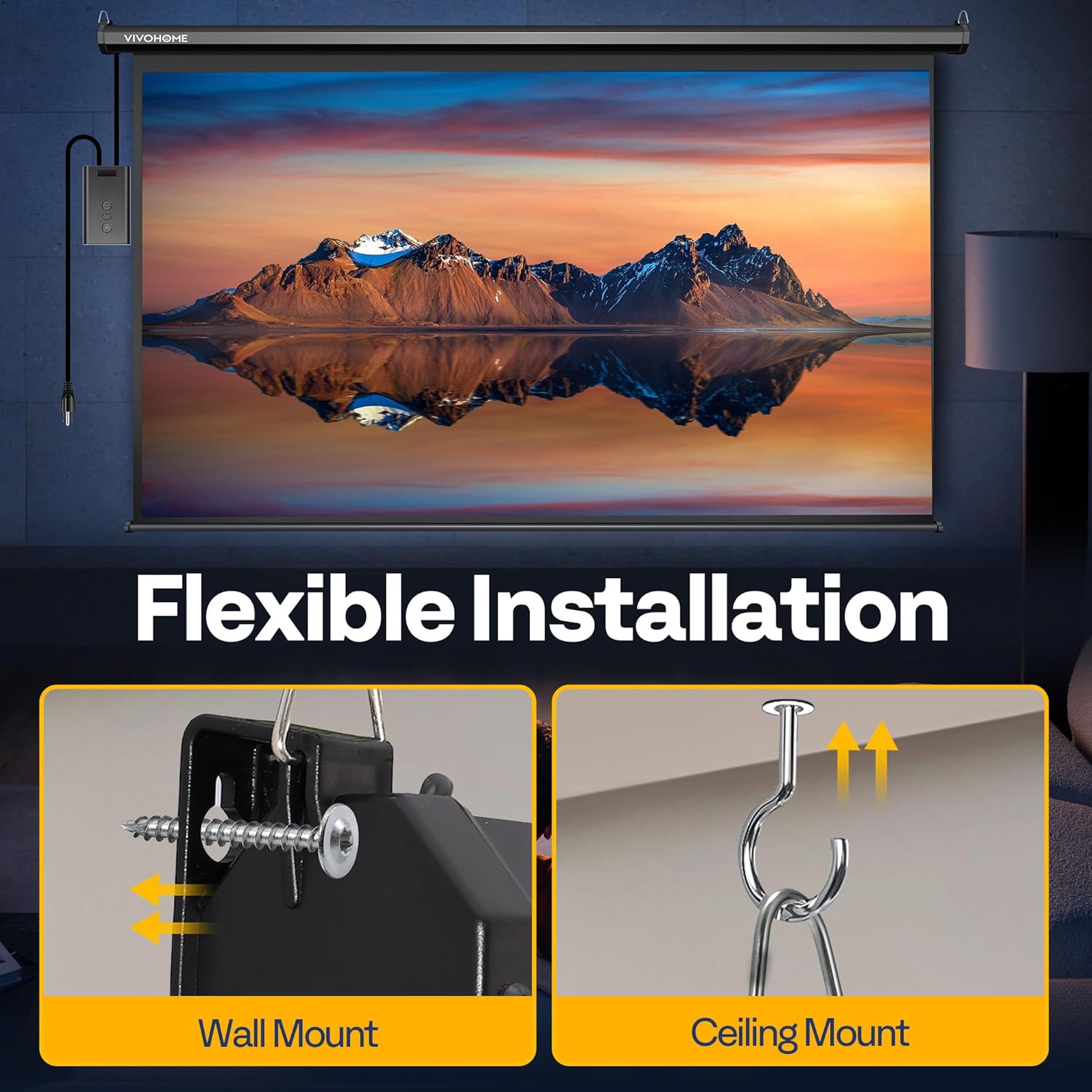
Image: Illustration of flexible installation options, demonstrating both wall mounting with screws and ceiling mounting with hooks, suitable for various room configurations.
3. Connecting Power
- Connect the power cable to the screen's power input.
- Plug the power cable into a standard electrical outlet.
4. Recommended Viewing Distance
For the best viewing experience with the 84-inch screen, position the seating area approximately 6-8 feet away from the screen. This distance may vary based on your specific setup and personal preferences.

Image: A guide illustrating recommended viewing distances for different screen sizes, indicating 6-8 feet for the 84-inch screen to optimize the viewing experience.
Operating Instructions
1. Using the Wireless Remote Control
The wireless remote allows for convenient long-distance operation of the screen.
- Press the Up Arrow button to retract the screen.
- Press the Down Arrow button to extend the screen.
- Press the Square button to stop the screen at any desired position.
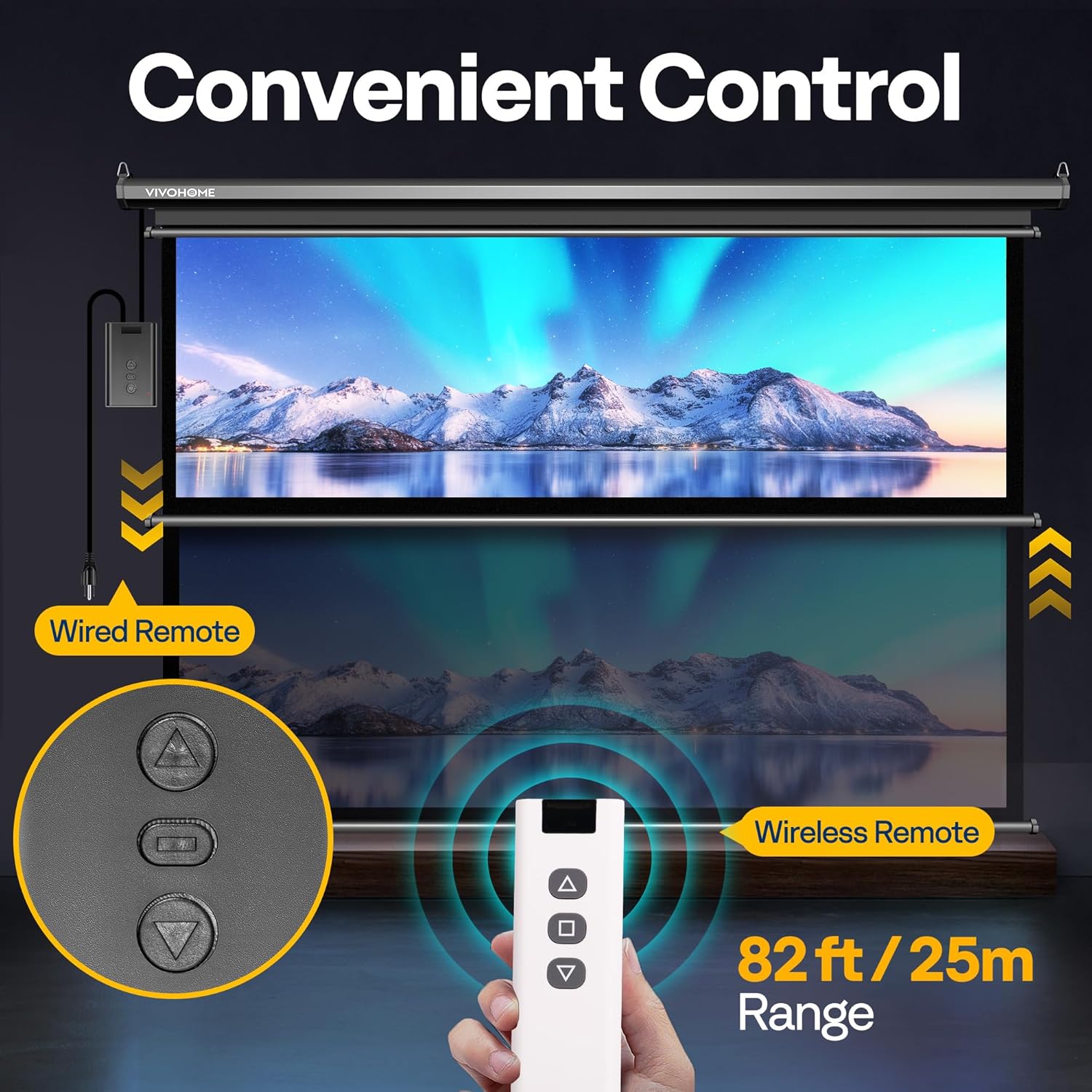
Image: The wireless remote control and wired control panel, demonstrating the convenient control options for extending, retracting, and stopping the screen.
2. Using the Wall-Mounted Control Panel
The wall-mounted panel offers a fixed control option.
- The buttons on the wall panel function identically to the wireless remote for screen movement.
- Ensure the panel is securely attached to the wall in an easily accessible location.
Maintenance
1. Cleaning the Screen
The screen features a wipe-clean surface for easy maintenance.
- Use a soft, damp cloth with mild soap and water to gently wipe the screen surface.
- Avoid abrasive cleaners or harsh chemicals, as these can damage the screen material.
- Ensure the screen is completely dry before retracting it.
2. Addressing Initial Odor
A slight odor may be noticeable when you first open the package. This is normal and attributed to the manufacturing process.
- Hang the screen and allow it to air out in a well-ventilated room for several days. The odor will gradually fade.
- The ink used on this projection screen has been tested and certified by SGS, meeting IEC safety standards and the ROHS 2.0 Directive, ensuring it is safe for use.
Troubleshooting
1. Screen Does Not Extend/Retract
- Check if the power cable is securely plugged into an active electrical outlet.
- Ensure the remote control has working batteries and is within the operating range (up to 82 ft/25 m).
- Verify that no obstructions are blocking the screen's path.
2. Screen Appears Wrinkled
- The screen is designed to be wrinkle-resistant. If minor wrinkles are present upon initial setup, they should naturally smooth out with use.
- Ensure the screen is fully extended and allowed to hang for a period to help gravity smooth out any creases.
3. Motor Noise is Excessive
- The integrated motor operates below 40 dB, which is generally quiet. If the noise level seems unusually high, ensure the screen is securely mounted and not vibrating against the mounting surface.
- Check for any loose components or obstructions within the motor housing.
Specifications

Image: A detailed diagram outlining the specifications of the 84-inch screen, including overall product dimensions, display area, and package weight for reference.
| Feature | Detail |
|---|---|
| Brand | VIVOHOME |
| Model Number | 84 Inch Black |
| Item Weight | 15.4 pounds |
| Product Dimensions (W x H) | 81.9" x 51.2" |
| Display Dimensions (W x H) | 73.2'' x 41.1'' |
| Aspect Ratio | 16:9 |
| Mounting Type | Ceiling/Wall Mount |
| Material | Alloy Steel, Fabric, Polyvinyl Chloride (PVC) |
| Motor Noise Level | Below 40 dB |
| Remote Control Range | Up to 82 ft (25 m) |
Warranty and Support
For warranty information, technical support, or any inquiries regarding your VIVOHOME Motorized Projector Screen, please refer to the contact information provided with your purchase or visit the official VIVOHOME website. Keep your purchase receipt for warranty claims.